
PDFs have become the universal format for sharing documents across platforms. From contracts and reports to e-books and forms, their reliability, security, and consistency make them indispensable in both personal and professional settings. Yet, many users still treat PDFs as static files—something you can only view or print. The truth is, modern tools allow anyone to create, modify, annotate, and optimize PDFs with ease. Whether you're a student, freelancer, or office professional, mastering PDF creation and editing can save time, improve communication, and streamline your workflow.
Why PDF Mastery Matters in 2024
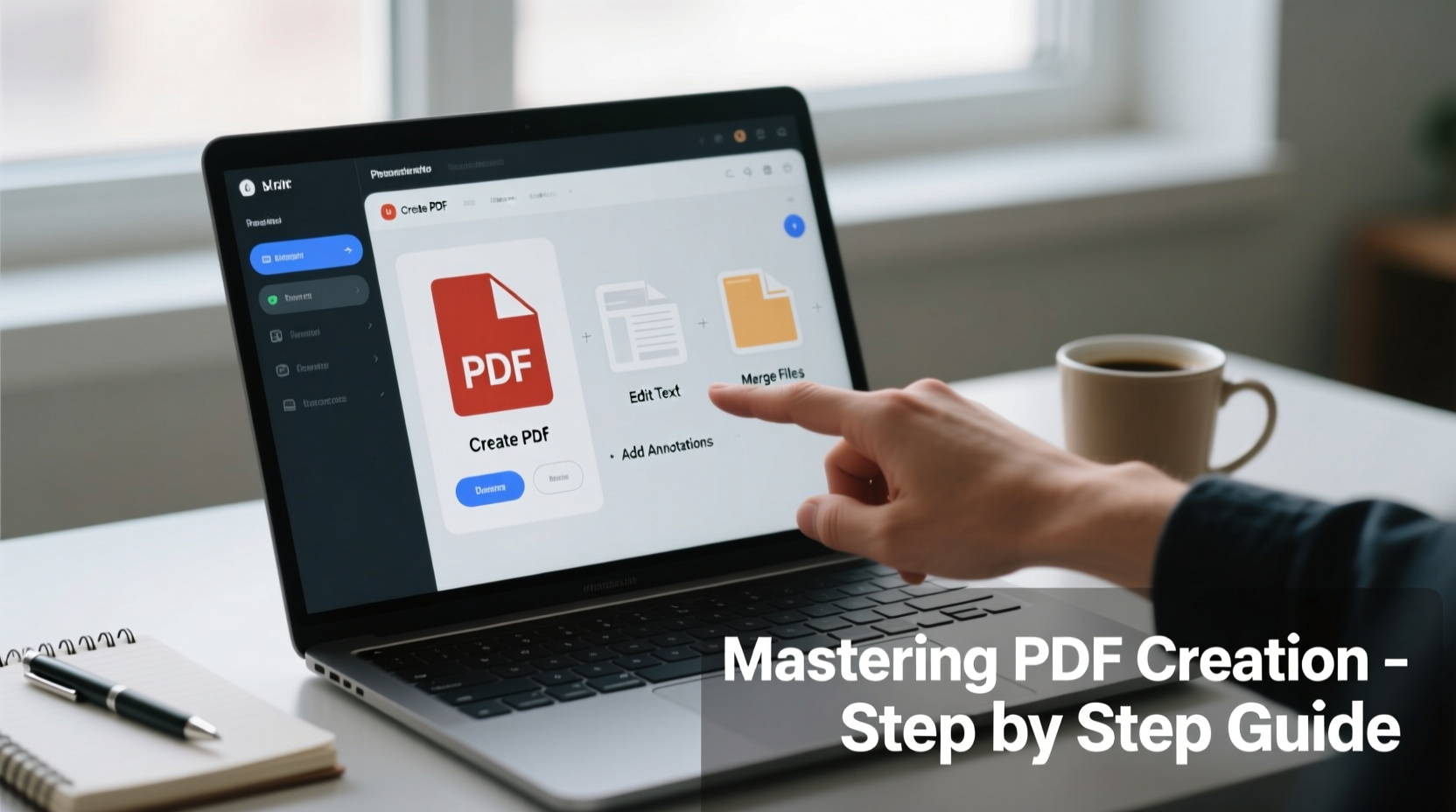
The Portable Document Format (PDF) was designed to preserve formatting regardless of device or operating system. That’s why it remains the gold standard for document exchange. However, simply knowing how to open a PDF isn’t enough. Being able to generate polished PDFs from scratch, edit existing ones without losing quality, and customize layouts gives you control over how your information is presented.
Consider this: a well-formatted proposal increases credibility. A clean, editable contract speeds up negotiations. An optimized PDF loads faster and takes up less space. These small advantages compound into real-world efficiency gains.
“PDF fluency is no longer optional—it's part of digital literacy.” — Dr. Alan Torres, Digital Workflow Consultant
Step-by-Step Guide to Creating a Professional PDF
Creating a high-quality PDF doesn't require expensive software. You can generate one from almost any file type—Word documents, spreadsheets, images, web pages, and even handwritten notes. Here’s how to do it correctly:
- Prepare Your Source Document: Before conversion, ensure your original file (e.g., .docx, .xlsx, or image) is properly formatted. Use consistent fonts, correct margins, and clear headings.
- Use Built-In Export Features: In Microsoft Word, Google Docs, or Apple Pages, go to File > Save As > PDF or Download as PDF. This preserves layout and embeds fonts automatically.
- Adjust Settings for Quality vs. Size: When saving, click “Options” or “Advanced” to choose between high-quality printing or smaller file size for email sharing.
- Name and Organize Files Clearly: Use descriptive names like “Q3_Report_Final.pdf” instead of “Document1.pdf” to avoid confusion later.
- Verify Output: Open the saved PDF to confirm all text, images, and links appear correctly across devices.
Essential Tools for Editing PDFs Effectively
Editing a PDF used to be a complex task requiring specialized software. Today, user-friendly tools make it simple to update text, insert images, rearrange pages, and add signatures—all without breaking the layout.
| Tool | Best For | Platform | Cost |
|---|---|---|---|
| Adobe Acrobat Pro DC | Full editing, OCR, forms, security | Windows, macOS, Web | Paid (subscription) |
| PDFelement (Wondershare) | Balanced features & affordability | Windows, macOS, iOS, Android | Free + Paid versions |
| Smallpdf / ILovePDF | Online compression, merging, splitting | Web-based | Freemium |
| LibreOffice Draw | Free open-source editing | Windows, Linux, macOS | Free |
| Apple Preview (macOS) | Basic edits, annotations, signing | macOS only | Free |
For most users, starting with a freemium tool like Smallpdf or PDFelement offers enough functionality to handle day-to-day tasks. Professionals who frequently work with legal documents, scanned contracts, or multi-page reports may benefit from Adobe Acrobat’s advanced OCR (Optical Character Recognition) and form automation features.
How to Edit Text and Images in a PDF
Many assume PDFs are uneditable once created. That’s outdated. With the right tool, you can change text, replace images, and reformat entire sections.
Editing Text
- Open the PDF in an editor like Adobe Acrobat or PDFelement.
- Select the “Edit Text” tool (usually a paragraph icon).
- Click on any text block. The font, size, and color will adjust automatically to match surrounding content.
- Make changes directly, then save.
Replacing or Adding Images
- Use the “Edit Object” or “Insert Image” function.
- Drag and drop new images into place or resize existing ones.
- Ensure resolution is at least 150 DPI for clarity, especially in printed materials.
Real-World Example: Streamlining Client Onboarding
Sarah runs a small consulting firm and used to send client agreements as Word documents. Clients often edited terms accidentally or returned files in inconsistent formats. After switching to PDFs, she created a standardized template using Google Docs, exported it as a fillable PDF form, and added digital signature fields.
Now, clients receive a branded, secure PDF they can complete online. Sarah uses PDFelement to batch-process submissions, merge signed copies, and archive them with naming rules. Her turnaround time dropped by 40%, and version errors disappeared.
This isn’t just about convenience—it’s about professionalism and precision.
Common Mistakes to Avoid When Working with PDFs
Even experienced users fall into traps that compromise quality or usability. Here’s what to watch out for:
- Ignoring File Size: Large PDFs clog inboxes and fail to upload. Compress before sending unless print quality is critical.
- Using Scanned PDFs Without OCR: A scanned document is just an image—you can’t search or copy text. Run OCR to make it interactive.
- Overlooking Security: Sensitive documents should be password-protected or restricted from copying.
- Skipping Accessibility Checks: Add alt text to images and use tagged PDFs so screen readers can interpret content.
Checklist: Best Practices for PDF Creation & Editing
Follow this checklist every time you create or modify a PDF to ensure consistency and quality:
- ✅ Confirm document layout is final before converting to PDF
- ✅ Use “Export as PDF” instead of “Print to PDF” when available
- ✅ Optimize file size for sharing (aim under 10 MB for email)
- ✅ Enable OCR if working with scanned documents
- ✅ Test hyperlinks and form fields before distribution
- ✅ Apply password protection for confidential data
- ✅ Verify accessibility: readable fonts, logical reading order, alt text
- ✅ Name files clearly and version-control when needed (e.g., v1, v2)
Frequently Asked Questions
Can I edit a PDF for free?
Yes. Tools like LibreOffice Draw, Apple Preview, and web apps such as ILovePDF or Smallpdf offer free editing for basic tasks like text changes, merging, and compressing. For heavy-duty work, consider affordable desktop options like PDFelement.
Why does my PDF look blurry?
Blurry text or images usually result from low-resolution source files or excessive compression. Always start with high-quality originals and avoid over-compressing unless necessary for email delivery.
How do I make a fillable PDF form?
You can create fillable fields using Adobe Acrobat Pro, PDFelement, or online tools like JotForm. Insert text boxes, checkboxes, and dropdown menus, then save as an interactive PDF. Test thoroughly before sending.
Final Thoughts: Take Control of Your Documents
Mastering PDF creation and editing is not about learning complex software—it’s about gaining confidence in managing your digital documents efficiently. From crafting a flawless resume to streamlining business workflows, the ability to produce clean, functional PDFs enhances both productivity and professionalism.
The tools are accessible, the techniques are straightforward, and the benefits are immediate. Start small: convert your next report to PDF with proper formatting. Then try editing a scanned invoice or building a reusable template. Each step builds competence.




 浙公网安备
33010002000092号
浙公网安备
33010002000092号 浙B2-20120091-4
Comments
No comments yet. Why don't you start the discussion?