
In today’s digital workspace, the ability to edit PDFs is no longer a luxury—it’s a necessity. Whether you're filling out forms, revising contracts, or customizing reports, knowing how to efficiently type into and modify PDF files saves time and streamlines communication. Yet many users still treat PDFs as static documents, unaware that modern tools allow full customization. This guide breaks down practical, accessible methods to edit text in PDFs, helping you transform rigid documents into dynamic, editable resources.
Understanding PDF Editing: Why It Matters
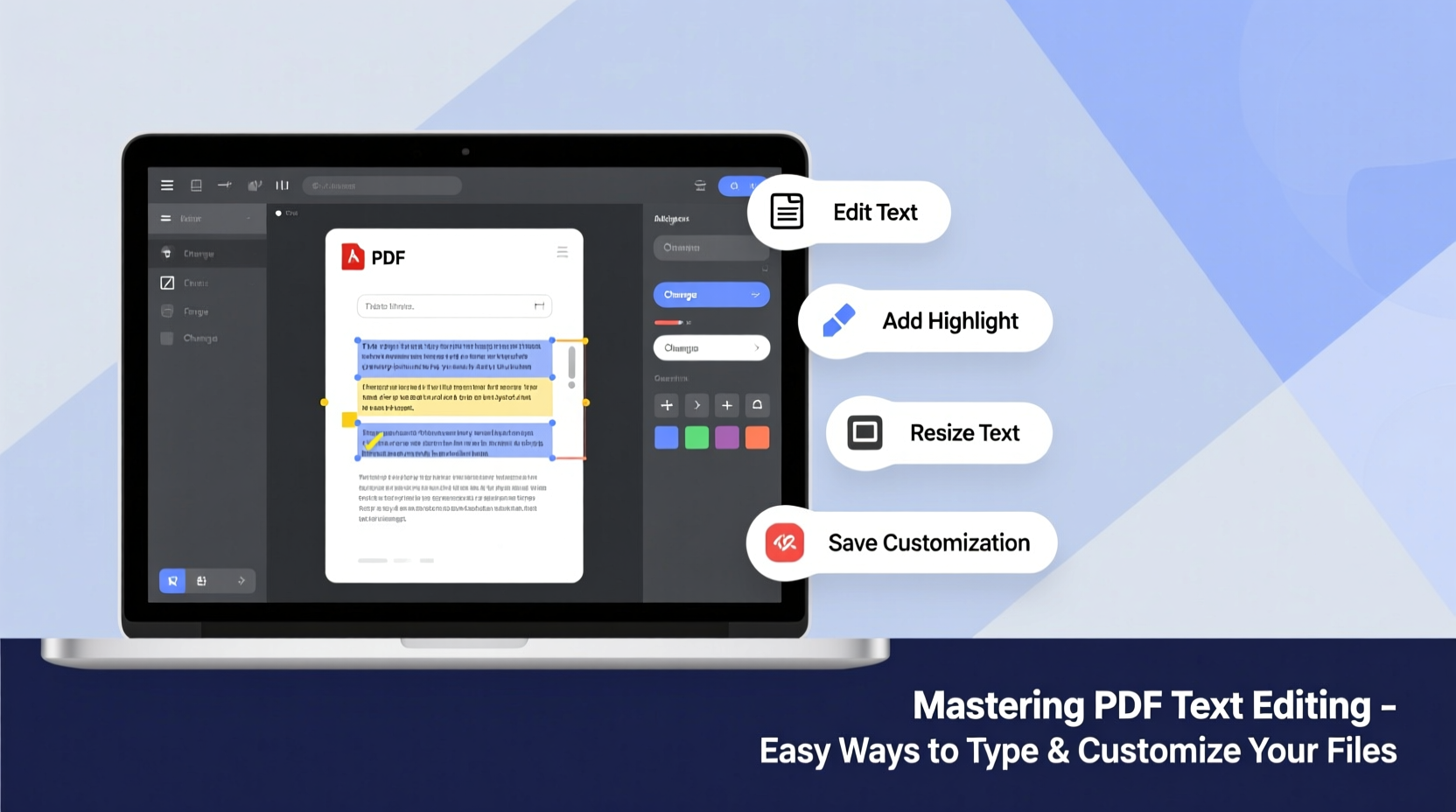
Originally designed for consistent cross-platform viewing, PDFs preserve formatting across devices. However, this strength has often been seen as a limitation when editing is required. The good news? Today’s software solutions make it possible to insert, delete, and reformat text within PDFs without compromising layout integrity.
The key lies in selecting the right tool for the job. Some situations call for quick annotations; others require full document restructuring. Recognizing the difference ensures efficiency and prevents frustration. For example, adding comments to a draft proposal requires different capabilities than rewriting paragraphs in a research paper.
Top Tools for Typing Into PDF Files
Not all PDF editors are created equal. While some offer basic annotation features, others provide advanced word-processing functionality. Below is a comparison of widely used tools based on ease of use, cost, and feature depth.
| Tool | Best For | Platform | Cost |
|---|---|---|---|
| Adobe Acrobat Pro DC | Professional editing, OCR, form creation | Windows, macOS, iOS, Android | Paid (Subscription) |
| PDFelement by Wondershare | Balanced features with intuitive interface | Windows, macOS, iOS, Android | Free & Paid versions |
| Microsoft Word (via Open in Word) | Simple text edits using familiar interface | Windows, macOS | Requires Microsoft 365 |
| Google Docs (Upload & Convert) | Collaborative editing, cloud-based access | Web, Chrome OS | Free |
| Sejda PDF Editor | Lightweight online editor with solid core tools | Web, Windows, macOS | Free tier + Premium |
Each option has its niche. Adobe remains the industry standard, especially for legal and business environments requiring compliance and security. Meanwhile, Google Docs offers seamless collaboration at zero cost, ideal for students or remote teams.
Step-by-Step: How to Edit Text in a PDF
Follow this structured workflow to confidently edit any PDF, regardless of complexity:
- Choose Your Tool: Select an editor based on your needs. For minor changes, free tools like Sejda or Google Docs suffice. For professional work, consider Adobe Acrobat Pro DC.
- Open the PDF: Launch your chosen software and upload the file. If using Google Docs, go to Google Drive, right-click the PDF, and select “Open with > Google Docs.”
- Enable Editing Mode: In Acrobat, click “Edit PDF” under the Tools panel. In Word, the conversion process automatically enables editing once the PDF is imported.
- Select and Modify Text: Click directly on existing text to edit. You can change font, size, color, and alignment. Be cautious—overwriting large blocks may shift layout elements.
- Add New Text Boxes: Use the “Add Text” tool to insert new paragraphs where needed. Position carefully to avoid overlapping graphics or margins.
- Proof and Preview: Review the entire document for formatting consistency. Check line breaks, spacing, and readability.
- Save or Export: Save as a new PDF to preserve quality. If using Word or Google Docs, export back to PDF format for universal compatibility.
“Modern PDF editors have closed the gap between static documents and dynamic content. With the right approach, anyone can edit a PDF as easily as a Word file.” — Daniel Kim, Digital Workflow Consultant
Customization Techniques Beyond Basic Text
True mastery involves more than just typing. Customizing fonts, colors, and structure enhances professionalism and clarity. Consider these advanced tips:
- Match Existing Fonts: Most editors auto-detect nearby fonts. When inserting new text, ensure it aligns visually with surrounding content to maintain design cohesion.
- Use Layers Wisely: In complex documents, overlay text on separate layers so edits don’t interfere with background images or scanned content.
- Leverage OCR for Scanned PDFs: Optical Character Recognition converts image-based text into editable content. Acrobat and PDFelement include robust OCR engines that support multiple languages.
- Insert Interactive Elements: Add fillable fields, checkboxes, or dropdown menus to turn static forms into functional tools.
Mini Case Study: Streamlining Client Contracts
Sarah, a freelance graphic designer, used to manually print client contracts, sign them, scan them back, and email copies. After learning about PDF editing, she began using PDFelement to create reusable templates with editable fields for names, dates, and project scope. Now, she completes contract workflows in under five minutes—no printing required. Her clients appreciate the speed, and Sarah has reduced administrative time by over 70%.
This real-world example shows how mastering simple PDF editing skills can lead to significant productivity gains—even outside corporate environments.
Common Pitfalls and How to Avoid Them
Even experienced users encounter issues when editing PDFs. Here are frequent problems and their solutions:
- Text Shifts Unexpectedly: This occurs when editing PDFs converted from images or poorly structured sources. Solution: Use OCR first, or re-create sections in a word processor before converting back to PDF.
- Fonts Don’t Match: If the original font isn’t embedded, the editor substitutes it. Workaround: Manually choose a similar font or embed missing ones during export.
- File Size Increases Drastically: Adding layers or high-resolution edits can bloat file size. Fix: Compress the final PDF using built-in optimization tools.
- Formatting Breaks on Other Devices: Not all PDF viewers render edits identically. Best practice: Test the final version on multiple platforms before distribution.
Checklist: Before Sharing Your Edited PDF
- ✅ Double-check spelling and grammar
- ✅ Confirm all links and form fields function correctly
- ✅ Verify font consistency throughout the document
- ✅ Ensure margins and alignment look clean
- ✅ Compress file if larger than 5MB for email sharing
- ✅ Save both edited and original versions
Frequently Asked Questions
Can I edit a password-protected PDF?
Only if you have the password. Without authorization, editing is blocked to protect sensitive information. If you own the document but forgot the password, some tools offer recovery options—though success varies.
Is it safe to use online PDF editors?
For non-sensitive documents, yes. Reputable services like Sejda or Smallpdf delete files from servers within hours. However, avoid uploading confidential data (e.g., tax returns, legal agreements) to third-party websites unless they explicitly guarantee end-to-end encryption.
Why does my edited text look blurry?
Blurriness usually results from scaling issues or low-resolution rendering. To fix this, ensure you’re working at 100% zoom and exporting in high-quality PDF mode. Also, avoid copying text from rendered images unless OCR has been applied.
Conclusion: Take Control of Your Documents
Mastering PDF text editing empowers you to work faster, communicate clearer, and manage documents more effectively. From adjusting a single sentence to redesigning entire forms, the tools exist to make PDFs flexible rather than fixed. By understanding which software fits your needs, applying best practices, and avoiding common errors, you unlock a new level of control over your digital paperwork.




 浙公网安备
33010002000092号
浙公网安备
33010002000092号 浙B2-20120091-4
Comments
No comments yet. Why don't you start the discussion?