
Wireless audio freedom begins with a reliable Bluetooth connection. For professionals, remote workers, and frequent callers, Plantronics headsets are trusted tools for clear communication. Yet even the best devices can falter if pairing isn’t done correctly. A failed or unstable Bluetooth sync leads to dropped calls, poor audio quality, and frustration. This guide walks you through the complete process of syncing your Plantronics Bluetooth headset—covering preparation, troubleshooting, and optimization—so you achieve a stable, seamless connection every time.
Understanding Your Plantronics Device and Bluetooth Compatibility
Before initiating a sync, it's essential to know your device model and its Bluetooth capabilities. Plantronics (now part of Poly) offers a wide range of headsets—from the Voyager series for mobile use to the Blackwire and Savi lines for desk-based setups. Each has unique features, but most support Bluetooth 4.0 or higher, ensuring compatibility with modern smartphones, laptops, and tablets.
Check your headset’s user manual or the manufacturer’s website to confirm:
- Bluetooth version supported
- Maximum pairing distance (typically up to 33 feet / 10 meters)
- Number of simultaneous device pairings (some allow dual pairing)
- Battery requirements for pairing mode
“Successful Bluetooth pairing starts before you press any buttons. Knowing your device’s specs prevents mismatched expectations and failed connections.” — David Lin, Senior Audio Engineer at Poly
Step-by-Step Guide to Syncing Your Plantronics Headset
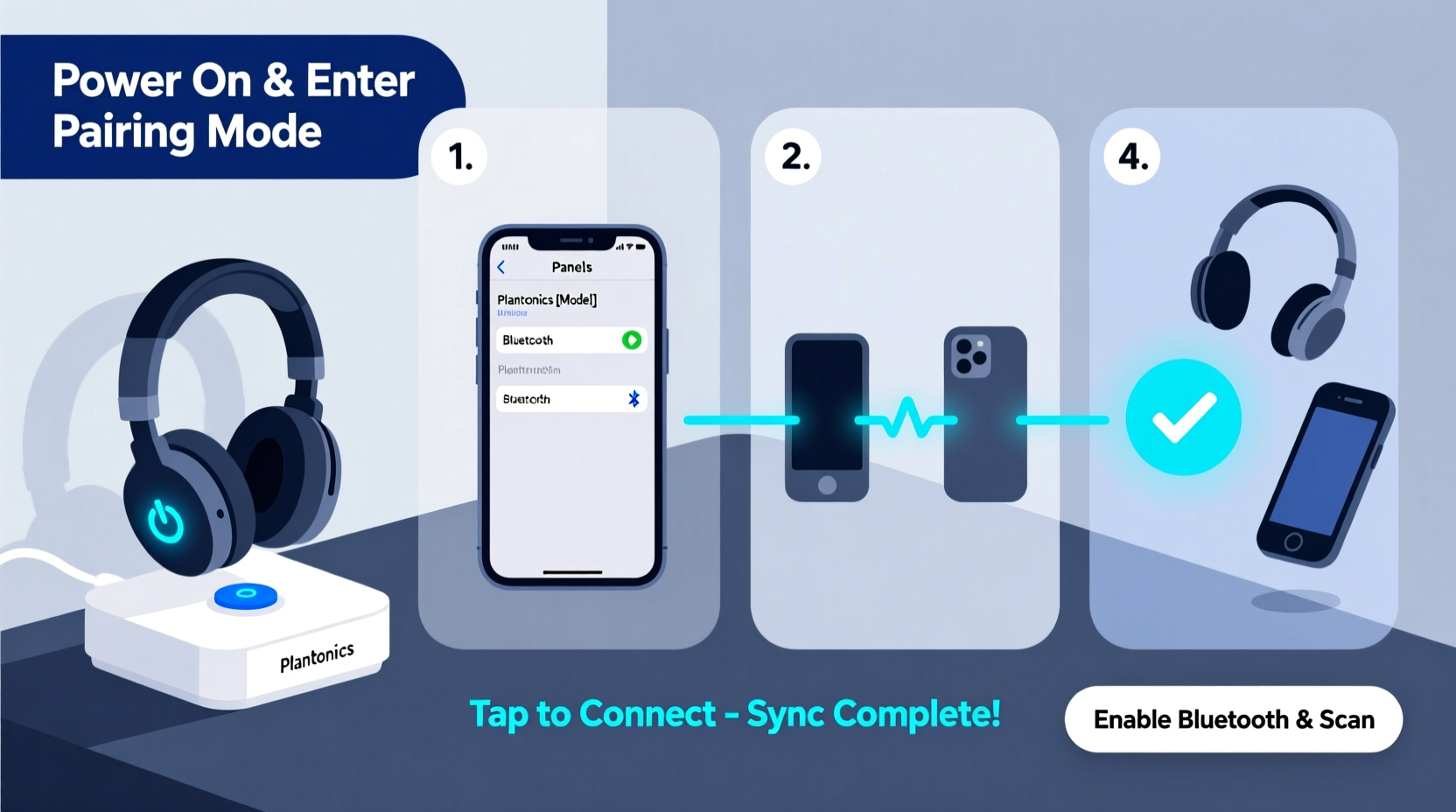
Follow this universal sequence to establish a clean, reliable Bluetooth connection between your Plantronics headset and your device.
- Power on your headset: Press and hold the power button for 2–3 seconds until an LED indicator lights up (color varies by model).
- Enter pairing mode: Continue holding the power button (usually 5–7 seconds) until the LED flashes blue and red alternately. This signals discoverable mode.
- Enable Bluetooth on your device: On your phone, tablet, or computer, go to Settings > Bluetooth and ensure it’s turned on.
- Search for devices: Tap “Scan” or “Add Device.” Wait 10–15 seconds for available devices to appear.
- Select your Plantronics model: Look for a name like “Plantronics Voyager 5200” or “Poly Savi 700.” Tap to connect.
- Confirm pairing: Some devices prompt you to confirm a passcode (commonly 0000 or 1234). Enter if required.
- Wait for confirmation: A steady blue light or voice prompt (“Connected”) indicates success.
If the connection fails, repeat the process—but first, delete any previous pairing records from both the headset and host device.
Troubleshooting Common Sync Issues
Even with careful steps, issues may arise. Below is a breakdown of frequent problems and their solutions.
| Issue | Possible Cause | Solution |
|---|---|---|
| Device not showing in Bluetooth list | Headset not in pairing mode or out of range | Restart headset; hold power button longer to enter pairing mode |
| Pairing fails repeatedly | Existing connection conflicts | Delete old pairing from device settings and reset headset |
| Audio cuts out during use | Interference or low battery | Move away from Wi-Fi routers/microwaves; recharge headset |
| No sound after connection | Incorrect audio output selection | Go to device sound settings and select Plantronics as output |
Optimizing Connection Stability and Performance
A successful initial sync doesn’t guarantee long-term reliability. Environmental factors, software updates, and usage habits affect performance. To maintain optimal connectivity:
- Limit interference: Keep your headset away from microwaves, cordless phones, and dense metal objects that disrupt 2.4 GHz signals.
- Maintain firmware: Use the Poly Lens app (formerly Plantronics Hub) to check for firmware updates that improve stability and add features.
- Use dual-pairing wisely: If your model supports connecting to two devices (e.g., phone and laptop), disable one when not in active use to reduce signal switching delays.
- Re-pair periodically: Every few months, remove and re-pair your device to refresh the connection profile.
Mini Case Study: Remote Worker Resolves Daily Call Drops
Sarah, a customer support lead working remotely, experienced frequent call drops on her Plantronics Voyager 4200. Despite being within range, her headset would disconnect mid-call. After checking her environment, she realized her router was placed directly beside her desk, causing Bluetooth interference. She moved her laptop 5 feet away and updated her headset’s firmware via the Poly Lens app. The disconnections stopped entirely, and her audio clarity improved significantly. The fix took less than 20 minutes but transformed her daily workflow.
Essential Checklist for Flawless Bluetooth Sync
Use this checklist each time you set up or re-pair your Plantronics headset:
- ✅ Charge the headset fully
- ✅ Power on and enter pairing mode (flashing blue/red LED)
- ✅ Enable Bluetooth on the host device
- ✅ Remove any prior Plantronics pairing
- ✅ Select the correct device from the list
- ✅ Confirm passcode if prompted (default: 0000)
- ✅ Test audio with a short call or media playback
- ✅ Install latest firmware using Poly Lens app
Frequently Asked Questions
How do I reset my Plantronics Bluetooth headset?
To reset, turn the headset off. Press and hold the power button for 10–15 seconds until the LED flashes rapidly, then release. This clears all paired devices and restores factory settings.
Can I connect my Plantronics headset to multiple devices at once?
Some models like the Voyager 5200 and Savi 700 support multi-point pairing, allowing simultaneous connections to a phone and computer. Check your model’s specifications to confirm this feature.
Why does my headset say “Paired but not connected”?
This message means the device is recognized but not actively transmitting audio. Go to your device’s Bluetooth settings, find the headset, and tap “Connect.” Also ensure no other app or device is using the audio output.
Conclusion: Take Control of Your Wireless Experience
Mastering Plantronics Bluetooth sync isn’t about technical wizardry—it’s about following a precise, repeatable process. From proper initialization to environmental awareness and ongoing maintenance, each step contributes to a seamless experience. Whether you're in back-to-back meetings or managing personal calls, a stable connection ensures you stay heard without interruption. Now that you have the full roadmap, apply these steps confidently across all your devices.




 浙公网安备
33010002000092号
浙公网安备
33010002000092号 浙B2-20120091-4
Comments
No comments yet. Why don't you start the discussion?