
In today’s fast-paced digital environment, presentations often need to run without human intervention—whether at a trade show booth, in a retail space, or during an automated briefing. A looping PowerPoint presentation ensures your message plays continuously, maintaining professionalism and consistency. Yet, many users struggle with setting up smooth, uninterrupted loops. This guide walks you through the exact steps to configure your slideshow for flawless repetition, avoid common pitfalls, and optimize performance for extended playback.
Why Looping Matters in Professional Presentations
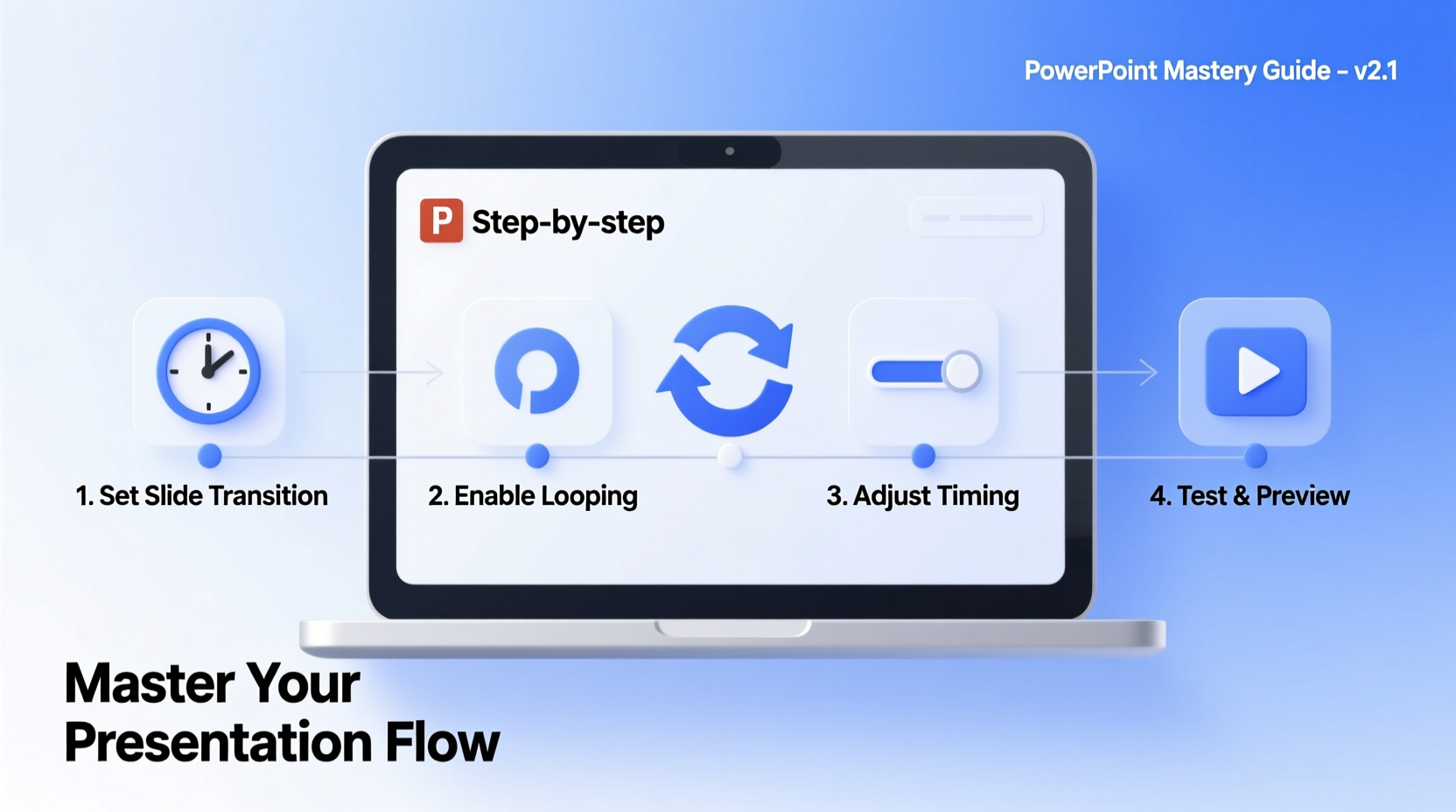
A non-looping presentation ends abruptly, leaving screens dark or requiring manual restarts. In public-facing environments like exhibitions or reception areas, this disrupts engagement and appears unprofessional. A properly configured loop keeps your content active, reinforcing branding, messaging, and visual impact without supervision.
Industries such as hospitality, education, healthcare, and marketing rely on automated slideshows to deliver consistent information. For example, hotel lobbies use looping presentations to display amenities, while classrooms use them for self-guided learning stations. The ability to set up a reliable loop is not just convenient—it's a functional necessity.
“Automated presentation loops reduce operational overhead and ensure brand continuity in customer-facing spaces.” — David Lin, AV Systems Consultant at NexaMedia Solutions
Step-by-Step: Configuring Your PowerPoint for Seamless Looping
To create a truly seamless loop, every element must be precisely controlled—from timing to transitions and playback settings. Follow these steps carefully:
- Open your presentation in Microsoft PowerPoint (desktop version recommended).
- Navigate to the Slide Show tab in the ribbon menu.
- Click on Set Up Slide Show in the Set Up group.
- In the dialog box, select Browsed at a kiosk (full screen). This mode prevents user interaction and auto-resumes after inactivity.
- Check the box labeled Loop continuously until 'Esc'.
- Ensure that Show without animation is unchecked if you want effects included.
- Click OK to save settings.
Now, when you start the slideshow (F5 or Shift+F5), it will play from beginning to end and restart automatically. Press Esc at any time to exit.
Optimizing Slides for Uninterrupted Playback
Even with correct settings, poor slide design can break the illusion of seamlessness. Transitions that stutter, videos that fail to replay, or inconsistent timing can interrupt the viewer’s experience.
Transition Consistency
Apply uniform transition effects across all slides. Go to the Transitions tab, choose one effect (e.g., Fade), then click Apply to All. Avoid random effects that cause visual distraction.
Timing and Rehearsal
Use the Rehearse Timings feature under the Slide Show tab to record how long each slide should display. As you advance slides manually, PowerPoint logs durations and applies them automatically during playback. After rehearsal, the presentation runs autonomously.
If using timed animations or embedded media:
- Set audio/video to Play Across Slides or Loop Until Stopped.
- Ensure all multimedia files are embedded or stored in the same folder as the .pptx file to prevent broken links.
- Compress media via File > Compress Media to improve load times and stability.
Final Output Format
For maximum reliability, especially on older systems, consider exporting your presentation as a video:
- Go to File > Export > Create a Video.
- Select desired resolution and quality.
- Choose Use Recorded Timings and Narrations.
- Save as MP4 or WMV.
The resulting video file can be played in any media player with native loop support—ideal for digital signage software.
Common Pitfalls and How to Avoid Them
Despite proper setup, issues still arise. Below is a comparison of typical problems and their solutions:
| Issue | Root Cause | Solution |
|---|---|---|
| Presentation stops after one cycle | Loop option not enabled | Verify \"Loop continuously until 'Esc'\" is checked in Slide Show settings |
| Blank screen between last and first slide | Slow transition or delayed media loading | Add a quick fade transition (0.5 sec) and pre-load assets |
| Video/audio doesn’t restart | Playback settings incorrect | Set media to “Loop until stopped” and embed files |
| Crash or freeze after hours of looping | Large file size or unsupported fonts | Compress media, use standard fonts, and test over 8+ hours |
Real-World Application: Trade Show Booth Automation
Consider Sarah, a marketing manager preparing for a major industry expo. Her company’s booth features a large monitor displaying product highlights, testimonials, and contact info. She needs the presentation to run 10 hours daily for three days straight—without glitches.
Sarah follows the steps outlined above: she enables kiosk mode, sets consistent transitions, rehearses timings, and exports a backup MP4 version. On-site, she runs the .ppsx file from a dedicated laptop connected to the display. Throughout the event, the presentation loops flawlessly, drawing attendees in with polished visuals. When a system reboot was required mid-day due to a power flicker, the slideshow resumed automatically—thanks to saved settings and local file storage.
This real-world scenario underscores the importance of preparation and redundancy in mission-critical environments.
Essential Checklist for Flawless Looping
Before deploying your presentation, verify the following:
- ✅ Loop continuously option is enabled
- ✅ Presentation set to \"Browsed at a kiosk\" mode
- ✅ All transitions and animations are consistent
- ✅ Media files are embedded or co-located with the .pptx
- ✅ Multimedia playback is set to loop or auto-play
- ✅ Timings have been rehearsed and applied
- ✅ File saved as .ppsx for direct playback
- ✅ Tested in full-screen mode for at least two full cycles
- ✅ Backup video version exported and available
- ✅ Font compatibility ensured (avoid web-only fonts)
Frequently Asked Questions
Can I make a presentation loop on Mac?
Yes. The process is nearly identical: go to Slide Show > Set Up Slide Show, check \"Loop continuously,\" and select \"Presented at a kiosk.\" Ensure all media is compatible with macOS and test thoroughly.
Will my presentation loop if I close the lid of my laptop?
No—unless power settings are adjusted. Prevent sleep mode by going to System Settings > Power and setting \"When power is connected\" to \"Never turn off display\" and \"Prevent automatic sleeping.\"
How do I stop a looping presentation?
Press the Esc key at any time during full-screen playback. If the mouse is active, moving it may reveal a control bar with an exit option—but in kiosk mode, Esc is the primary method.
Conclusion: Elevate Your Presentation Game
Creating a seamless PowerPoint loop isn't just about checking a box—it's about delivering a polished, autonomous experience that reflects professionalism and attention to detail. By mastering the settings, optimizing content, and testing rigorously, you ensure your message plays perfectly, every time.
Whether you're showcasing products, educating audiences, or enhancing ambiance, a well-configured loop removes friction and amplifies impact. Take control of your next presentation: apply these techniques, build confidence in your setup, and let your content shine—on repeat.




 浙公网安备
33010002000092号
浙公网安备
33010002000092号 浙B2-20120091-4
Comments
No comments yet. Why don't you start the discussion?