
Delivering a compelling presentation requires more than just polished slides. Behind every confident speaker is a structured plan—often hidden from the audience but critical to success. That’s where PowerPoint presenter notes come in. These unobtrusive tools allow you to maintain flow, remember key points, and stay on message without relying on memorization or reading directly from slides. When used effectively, presenter notes elevate your delivery from good to exceptional.
Yet many professionals underutilize or misuse this feature, either overloading their notes with text or ignoring them entirely. This guide walks through how to harness presenter notes strategically, turning them into a dynamic support system for any speaking engagement—whether it’s a boardroom pitch, classroom lecture, or virtual conference.
Understanding Presenter Notes: Function and Benefits
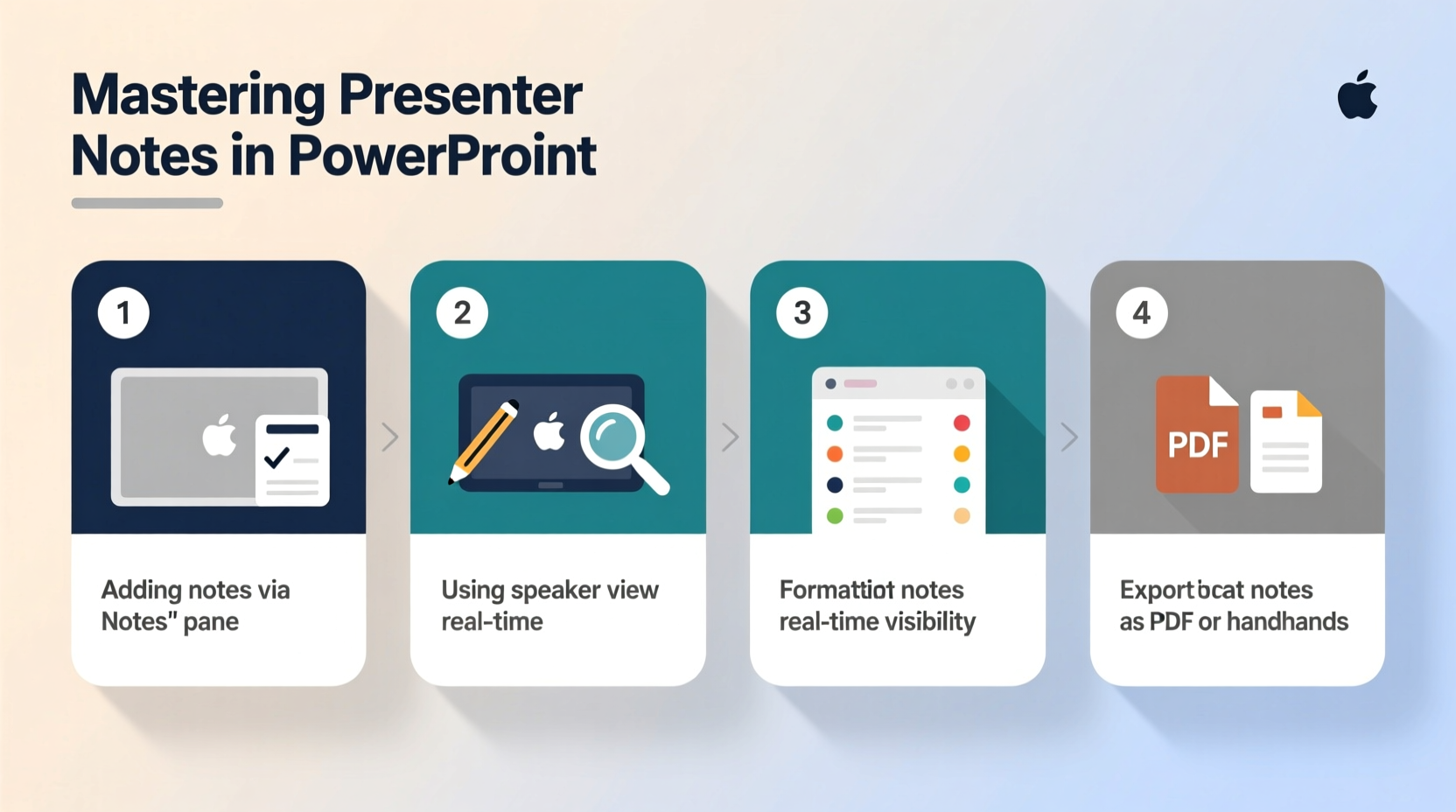
Presenter notes in PowerPoint appear below each slide in Normal view and are visible only to you during Slide Show mode when using dual monitors. They don’t display on the audience’s screen, making them ideal for cues, reminders, data references, and transitions.
The real power of presenter notes lies in their ability to:
- Reduce reliance on memory during high-pressure moments
- Ensure consistency across multiple deliveries of the same presentation
- Provide context for complex data or technical terms
- Guide timing and pacing between sections
- Support accessibility when presenting to diverse audiences
“Great presenters don’t wing it—they prepare thoroughly and use tools like speaker notes to stay focused and natural.” — Dr. Laura Bennett, Communication Specialist at Stanford Graduate School of Business
Step-by-Step Guide to Creating Effective Presenter Notes
Creating useful notes isn't about copying slide content—it's about crafting an internal roadmap. Follow these steps to build notes that enhance clarity and confidence.
- Open the Notes Pane: In PowerPoint, switch to Normal view and click below the slide thumbnail to access the notes section.
- Start with Key Messages: For each slide, identify one or two core takeaways you want the audience to remember.
- Add Delivery Cues: Include reminders like “pause here,” “ask the audience,” or “share personal example” to improve engagement.
- Insert Data References: Note exact statistics, quotes, or sources that support your point but aren’t on the slide.
- Time Transitions: Mark estimated durations (e.g., “Spend ~2 min here”) to help manage overall pacing.
- Review and Edit: Remove redundant phrases and convert paragraphs into bullet points for quick scanning.
Example Structure for a Single Slide Note
| Element | Example |
|---|---|
| Key Message | Remote work improves retention by 25% |
| Cue | Pause after revealing stat; invite reactions |
| Data Source | Gallup, 2023 Workplace Report |
| Transition | “Now let’s look at why employees value flexibility” |
Best Practices for Using Presenter Notes Professionally
Even excellent notes can backfire if misused. Avoid common pitfalls by following these best practices:
- Keep It Scannable: Use bold keywords, short lines, and consistent formatting so you can glance and grasp instantly.
- Avoid Scripting Entire Speeches: Full scripts encourage monotone delivery and make recovery harder if interrupted.
- Sync with Rehearsal: Practice with your notes visible to refine wording and timing.
- Use Keyboard Shortcuts: Press Alt + N, M to quickly jump to the notes pane while editing.
- Leverage Presenter View: During live shows, use dual-monitor setup so notes appear only on your screen alongside timer and upcoming slides.
Do’s and Don’ts of Presenter Notes
| Do | Don’t |
|---|---|
| Use abbreviations and symbols for speed (e.g., → for “leads to”) | Write full paragraphs that require deep reading |
| Highlight key terms in bold or uppercase | Copy slide text verbatim |
| Include cues for gestures, pauses, or questions | Rely solely on memory because “I know this topic well” |
| Update notes after rehearsal based on timing issues | Ignore font size—use at least 28pt for readability |
Real-World Example: Turning Nervous Delivery into Confident Presentation
Sarah Kim, a project manager at a mid-sized tech firm, was scheduled to present quarterly results to executives. Despite knowing her material, she struggled with anxiety and often lost her place under pressure. Her previous approach? Memorizing slides the night before—a strategy that failed when last-minute changes disrupted her flow.
This time, she decided to try structured presenter notes. She outlined each slide’s purpose, added brief talking points, included cues like “emphasize Q3 growth” and “reference client feedback,” and rehearsed three times using Presenter View. On presentation day, she connected her laptop to the conference room display and relied on her notes discreetly.
The result? She delivered the presentation smoothly, answered follow-up questions confidently using embedded data reminders, and received positive feedback for her clarity. “The notes didn’t make me robotic,” she said later. “They gave me freedom to focus on delivery instead of scrambling to remember what came next.”
Maximizing Presenter Notes Across Different Presentation Types
One size doesn’t fit all. Tailor your note strategy depending on context:
- Internal Meetings: Focus on decision points and action items. Use shorthand since the audience knows the background.
- Client Pitches: Emphasize benefits, objections handling, and transition phrases. Include reminders like “restate ROI here.”
- Educational Talks: Add definitions, examples, and discussion prompts to maintain interactivity.
- Virtual Webinars: Note when to check chat, unmute participants, or advance slides manually.
“Your notes should reflect the rhythm of conversation, not recitation. Think of them as backstage directions for a performance.” — Marcus Tran, TEDx Coach and Public Speaking Trainer
Frequently Asked Questions
Can my audience see my presenter notes?
No, as long as you're using proper presentation settings. When delivering via dual monitors or sharing only the slideshow window (not your full screen), notes remain private. Always test your setup beforehand to ensure privacy.
How detailed should my notes be?
Detailed enough to jog your memory, but concise enough to scan in under two seconds. Aim for 3–5 bullet points per slide, focusing on triggers rather than full sentences.
What if I don’t have a second monitor?
You can still use notes effectively. Print them out in outline or notes page format (via File > Print > Notes Pages) or use a tablet alongside your laptop. Some speakers also use teleprompter apps synced with their slide deck.
Final Checklist Before Presenting
📋 Presenter Notes Readiness Checklist- ✅ All slides have relevant, concise notes
- ✅ Notes include delivery cues (pause, emphasize, ask)
- ✅ Key data and sources are referenced off-slide
- ✅ Font size is large enough to read comfortably
- ✅ Practiced at least twice using actual notes
- ✅ Confirmed technical setup (dual monitor or secure sharing)
- ✅ Saved backup copy to cloud and USB drive
Conclusion: Elevate Your Presence with Purposeful Preparation
Mastering presenter notes isn’t about covering up lack of knowledge—it’s about honoring your audience with a clear, composed, and impactful delivery. The most memorable presentations aren’t those with the flashiest animations, but the ones where the speaker appears both prepared and present. By treating your notes as a strategic asset rather than a crutch, you free yourself to engage, adapt, and inspire.




 浙公网安备
33010002000092号
浙公网安备
33010002000092号 浙B2-20120091-4
Comments
No comments yet. Why don't you start the discussion?