
Making a phone call used to be straightforward—dial a number and connect. But in an age where privacy is increasingly valuable, knowing how to control what others see about your identity during a call is essential. On the iPhone, the ability to hide your caller ID and make private calls gives you greater control over your digital presence. Whether you're reaching out for sensitive conversations, avoiding unwanted callbacks, or simply protecting your information, mastering private calling is a practical skill every iPhone user should have.
iOS offers built-in tools to manage caller ID, but the process isn’t always intuitive. Unlike third-party apps that promise anonymity, Apple’s native solution works directly through the Phone app and carrier settings. This guide walks you through everything you need to know—from enabling private calling to understanding its limitations and best practices.
How Private Calling Works on iPhone
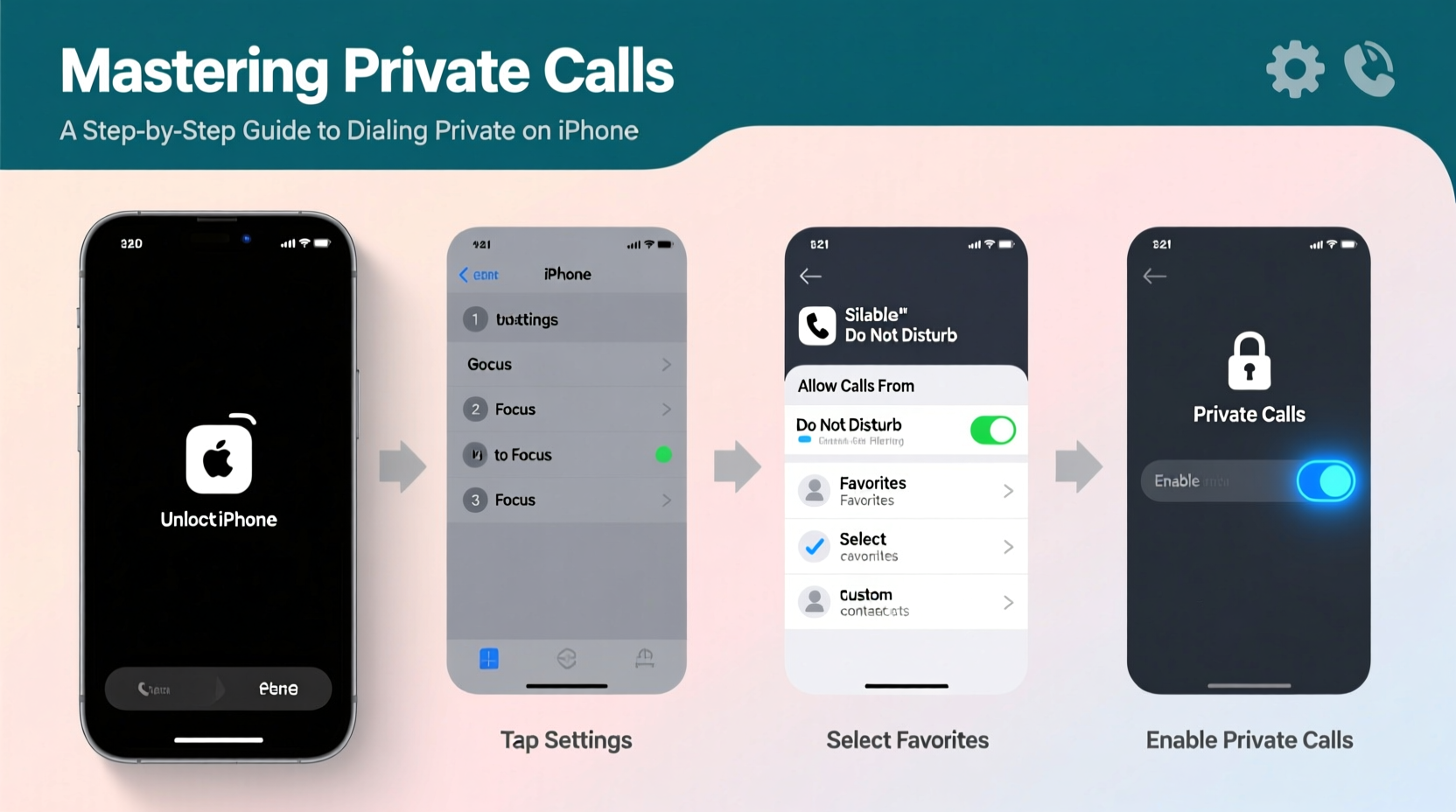
When you make a call from your iPhone, your phone number is typically transmitted to the recipient’s device as part of the caller ID system. This allows them to see who is calling before answering. However, iOS includes a feature called “Hide My Number” or “Caller ID & Spam,” which lets you block your number on a per-call basis or globally across all outgoing calls.
The technical mechanism behind this is known as CLIR (Calling Line Identification Restriction). When activated, your carrier suppresses your number from being sent with the call signal. The recipient will see “Private Number,” “Unknown Caller,” or “No Caller ID” instead of your actual phone number.
It’s important to note that while this hides your identity from most users, emergency services and certain carriers may still be able to trace the origin of the call for legal or security reasons. Additionally, some recipients use call-blocking apps or services that flag private calls as spam, so there’s no guarantee your call will be answered.
Step-by-Step: How to Make a Private Call on iPhone
You can make a private call on your iPhone in two ways: temporarily for a single call, or permanently by disabling caller ID for all future calls. Below are both methods explained in detail.
Option 1: Hide Your Number for a Single Call
- Open the Phone app on your iPhone.
- Tap the Dialpad tab at the bottom.
- Type
*67before entering the full phone number (including area code). - For example:
*67 555 123 4567 - Press the call button.
This method blocks your number for that specific call only. Once the call ends, your caller ID reverts to normal for subsequent calls.
Option 2: Turn Off Caller ID for All Calls
- Go to Settings on your iPhone.
- Scroll down and tap Phone.
- Select Show My Caller ID.
- Toggle the switch to OFF.
With this setting disabled, all outgoing calls will appear as “Private” or “Unknown” to recipients. To restore your caller ID later, return to the same menu and toggle it back on.
“Disabling caller ID can protect your privacy, but it may also reduce answer rates—many people avoid picking up unknown numbers.” — David Lin, Telecommunications Analyst
Do’s and Don’ts of Using Private Calls
While the ability to make private calls is useful, misuse can lead to misunderstandings or even damage relationships. The following table outlines key behaviors to follow—and avoid—when using this feature.
| Do’s | Don’ts |
|---|---|
| Use private calling when contacting unfamiliar businesses or services. | Don’t use it to harass or intimidate others. |
| Enable it temporarily when job hunting or negotiating. | Don’t assume it makes you completely untraceable. |
| Turn it off after sensitive tasks are complete. | Don’t rely on it for illegal or unethical purposes. |
| Inform trusted contacts if you’re calling privately. | Don’t expect private calls to bypass spam filters. |
Real-World Example: A Job Seeker’s Strategy
Sophie, a marketing professional transitioning careers, needed to contact several companies without revealing her current work number. She was concerned that recruiters might reach out during office hours and compromise her position.
To maintain discretion, Sophie used the *67 prefix when calling potential employers from her personal iPhone. This allowed her to conduct initial inquiries without exposing her identity. For follow-up communications, she switched to email or scheduled callback times. After securing interviews, she turned caller ID back on to appear more professional and trustworthy.
By using private calling strategically, Sophie protected her privacy while maintaining professionalism throughout her job search.
Limitations and Carrier Considerations
Not all carriers support universal caller ID blocking. While major U.S. providers like Verizon, AT&T, and T-Mobile honor the *67 code and Settings toggle, some regional or international carriers may ignore these requests. In rare cases, the recipient may still see your number despite using privacy features.
Additionally, private calls cannot be made to emergency services such as 911. Even if caller ID is blocked, emergency operators receive identifying information automatically for safety and response coordination.
Another limitation: if someone has saved your number in their contacts, they may still recognize your call—even if it appears as “Private.” Their phone might display your name based on matching data, depending on how their device handles unknown caller lookups.
Frequently Asked Questions
Can I make FaceTime calls privately?
No. FaceTime uses your Apple ID (usually tied to your phone number or email), and there is no option to hide your identity during a FaceTime audio or video call. If privacy is critical, consider using alternative encrypted calling apps with anonymous login options.
Will the person know I’m calling privately?
Yes. Most phones display “Private Number,” “Unknown Caller,” or a similar label when receiving a hidden-number call. Some users associate this with spam or scams, so your call may go unanswered unless the recipient recognizes your voice quickly.
Does turning off caller ID affect text messages?
No. SMS and iMessage operate separately from voice caller ID settings. Your number will still appear when sending texts, regardless of whether caller ID is enabled for calls.
Final Checklist: Mastering Private Calls
- ✅ Understand the difference between temporary (*67) and permanent (Settings) caller ID blocking.
- ✅ Use *67 before dialing for one-time private calls.
- ✅ Disable “Show My Caller ID” in Settings > Phone for ongoing privacy.
- ✅ Be aware that emergency services and some apps may still detect your number.
- ✅ Avoid using private calling for deceptive or harmful purposes.
- ✅ Re-enable caller ID after completing sensitive tasks for better communication trust.
Take Control of Your Calling Identity
Your phone number is more than just a way to be reached—it's part of your digital footprint. Knowing how to manage when and how it’s shared empowers you to communicate safely and confidently. By mastering private calls on your iPhone, you gain a simple yet effective tool for protecting your privacy in everyday situations.
Whether you're making delicate personal calls, conducting business research, or simply prefer to keep your number under wraps, the steps outlined here give you full control. Apply them wisely, respect others’ boundaries, and remember that true privacy goes beyond hiding a number—it starts with thoughtful communication.




 浙公网安备
33010002000092号
浙公网安备
33010002000092号 浙B2-20120091-4
Comments
No comments yet. Why don't you start the discussion?