
Turning on your PlayStation 4 should be a seamless experience—a quick press of a button and you're diving into your favorite game. But for many users, the process can become frustrating when the console doesn’t respond as expected. Whether it’s a delayed startup, no power at all, or confusion over the different control options, mastering the PS4 power-on process is essential for uninterrupted gaming. This guide breaks down every method available, troubleshoots common issues, and equips you with the knowledge to start your console confidently every single time.
Understanding the PS4 Power System
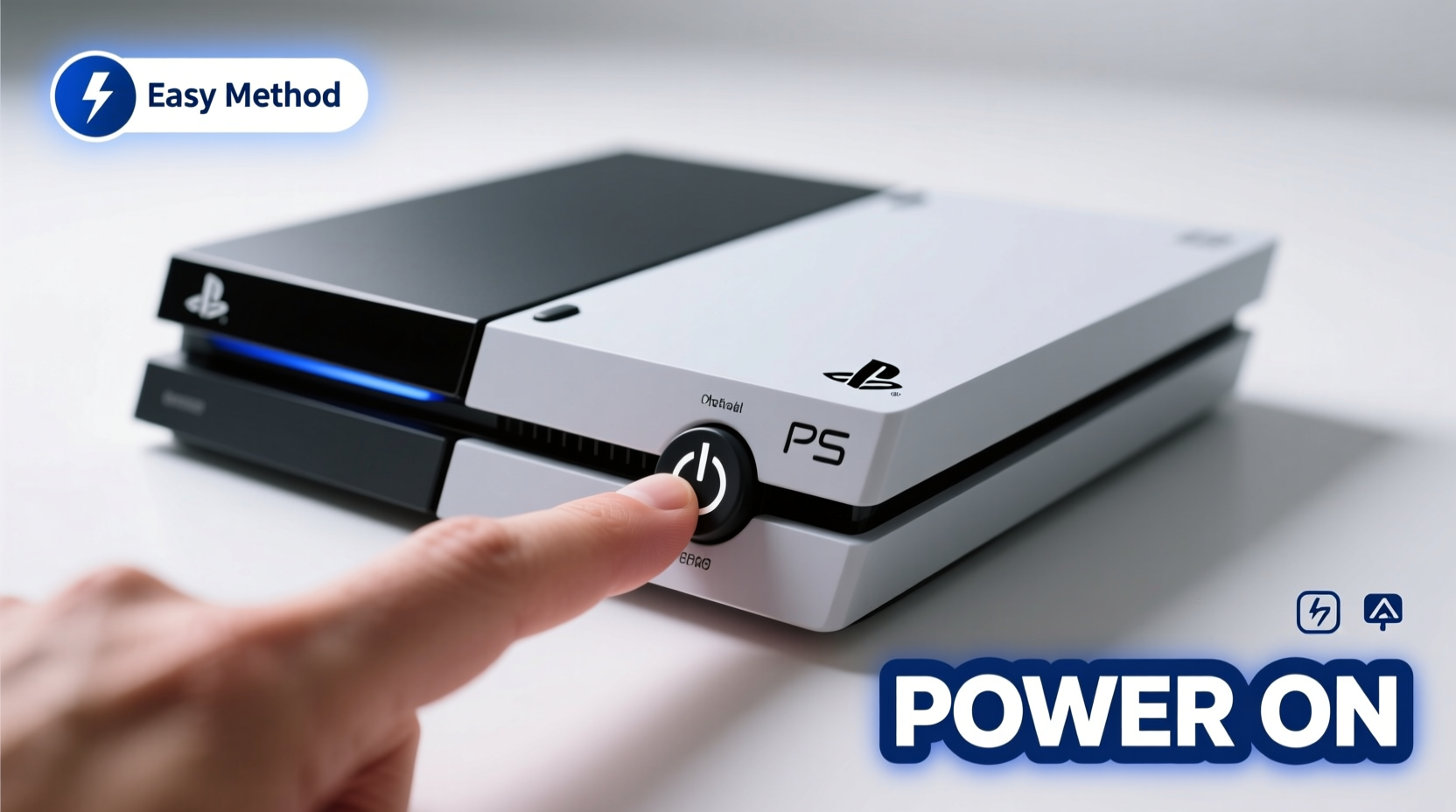
The PlayStation 4 uses a multi-layered power system that includes physical buttons, wireless controllers, voice commands (on select models), and even remote access via mobile apps. Unlike older consoles, the PS4 doesn’t have a simple “on/off” toggle switch. Instead, it relies on electronic signals sent through various input sources. Knowing how each method works—and when to use it—is key to consistent performance.
The primary power indicator is the light bar on the front of the console. A white glow means the system is on and operational. An orange or yellow hue indicates rest mode or charging status. If the light is completely off and the console isn't responding, there may be an issue with power delivery or internal hardware.
5 Reliable Ways to Power On Your PS4
Depending on your setup and situation, you can use one of several methods to start your PS4. Each has its own advantages and limitations.
- Using the DualShock 4 Controller: Press the PS button on your controller. If the console is connected and charged, this is usually the fastest method.
- Front Power Button: Located on the right side of the disc drive (on most models), pressing this button initiates startup directly from the console.
- Remote Play via Mobile App: With the PlayStation App installed on iOS or Android, you can remotely wake your PS4 if it's in rest mode.
- Voice Command (PS4 Pro + Camera): Limited support exists for voice activation using the PlayStation Camera, though this requires specific settings enabled.
- Automatic Boot from Rest Mode: Inserting a game disc or receiving a network notification (like a friend request) can automatically wake the system if rest mode features are enabled.
| Method | Works When Off? | Requires Accessories? | Speed |
|---|---|---|---|
| DualShock 4 PS Button | No – only from rest mode | Yes – charged controller | Fast |
| Front Console Button | Yes | No | Moderate |
| PlayStation App Remote Start | Only from rest mode | Yes – phone & Wi-Fi | Variable |
| Voice Command | Limited (rest mode only) | Camera & mic required | Slow |
| Disc Insertion Wake-Up | Only from rest mode | Game disc needed | Moderate |
Step-by-Step: How to Power On Using Each Method
Follow these clear steps to ensure success regardless of which method you choose.
1. Using the DualShock 4 Controller
- Ensure the controller has battery charge (at least one light bar illuminated).
- Press and hold the PS button in the center of the controller.
- Wait 3–5 seconds. The console should begin booting; you’ll hear the startup tone.
- If nothing happens, try connecting the controller via USB cable and repeat.
2. Using the Front Panel Power Button
- Locate the round power button on the far right of the PS4’s front panel.
- Press it once—do not hold unless instructed during troubleshooting.
- You should hear a single beep followed by fan noise within seconds.
- If the light flashes but shuts off, unplug the system for 60 seconds and retry.
3. Remote Start via PlayStation App
- Download the official PlayStation App on your smartphone.
- Log in with your PSN account linked to your console.
- Navigate to the \"Consoles\" tab and select your PS4.
- Tap “Turn On” — this only works if the console is in rest mode and connected to the internet.
Troubleshooting Common Power-On Failures
Even with proper technique, some users encounter issues starting their PS4. Here’s how to diagnose and resolve the most frequent problems.
- No response from any method: Check the power cable connection at both ends. Try a different outlet or replace the cord if frayed.
- Beeping sounds without startup: Two rapid beeps often indicate overheating. Let the system cool down for at least 30 minutes before retrying.
- Controller won’t wake the console: Re-pair the controller by plugging it into the PS4 via USB and pressing the reset button on the back (small hole).
- Light blinks white then turns off: This may signal a failing power supply or hard drive issue. Perform a safe mode restart (hold power button for 7 seconds until second beep).
“Over 60% of reported PS4 startup issues stem from incorrect rest mode settings or depleted controller batteries—not hardware failure.” — James Lin, Senior Console Technician at GameFix Labs
Mini Case Study: Sarah’s Silent PS4
Sarah returned home excited to play her newly downloaded game, only to find her PS4 unresponsive. The controller wouldn’t turn it on, and the front button did nothing. She assumed the console had died. After checking online, she realized her router had been unplugged overnight, disabling her internet connection. Since her PS4 was set to require network access for remote wake-up and she hadn’t used the physical button in months, the system appeared broken. Once she restarted her router and pressed the front power button, the console booted normally. The lesson? Know your settings and don’t rely solely on one startup method.
Essential Checklist for Reliable PS4 Startup
Use this checklist regularly to prevent startup issues:
- ✅ Ensure the power cable is securely connected to both the console and wall outlet.
- ✅ Keep at least one DualShock 4 controller charged and paired.
- ✅ Verify that “Enable Turning On PS4 from Network” is turned ON in Power Save Settings.
- ✅ Place the console in a well-ventilated area to avoid thermal shutdowns.
- ✅ Test the front power button monthly to confirm direct startup functionality.
- ✅ Update system software regularly to maintain compatibility with remote features.
Frequently Asked Questions
Why won’t my PS4 turn on even when I press the power button?
This could be due to a faulty power supply, loose cable, or internal hardware issue. First, unplug the console for two minutes, then reconnect and try again. If still unresponsive, test with a known-working power cord. Persistent failure may require professional repair.
Can I turn on my PS4 without a controller?
Yes. Use the physical power button on the front of the console. This method works even if no controller is paired or charged.
Does rest mode drain a lot of power?
No. In rest mode, the PS4 consumes minimal energy—typically under 10 watts. It allows for background downloads, charging controllers, and remote startup while saving significant power compared to full operation.
Conclusion: Master Control Over Your Console
Mastering PS4 power on isn’t just about knowing where the buttons are—it’s about understanding the ecosystem of controls, settings, and fail-safes that keep your gaming sessions running smoothly. By combining multiple startup methods, maintaining your hardware, and configuring settings wisely, you ensure your PlayStation 4 powers up reliably every time. Don’t wait for a malfunction to learn these skills. Apply them now, stay proactive, and reclaim full control of your gaming experience.




 浙公网安备
33010002000092号
浙公网安备
33010002000092号 浙B2-20120091-4
Comments
No comments yet. Why don't you start the discussion?