
QR codes have become an essential part of daily life—from accessing Wi-Fi networks and restaurant menus to making payments and sharing contact details. The iPhone’s built-in camera makes scanning these codes fast and intuitive, but many users aren’t aware of the full range of capabilities or how to resolve common issues when scans fail. This guide dives deep into mastering QR code scanning on your iPhone, offering practical tips, advanced tricks, and solutions to frequent problems.
How iPhone QR Code Scanning Works
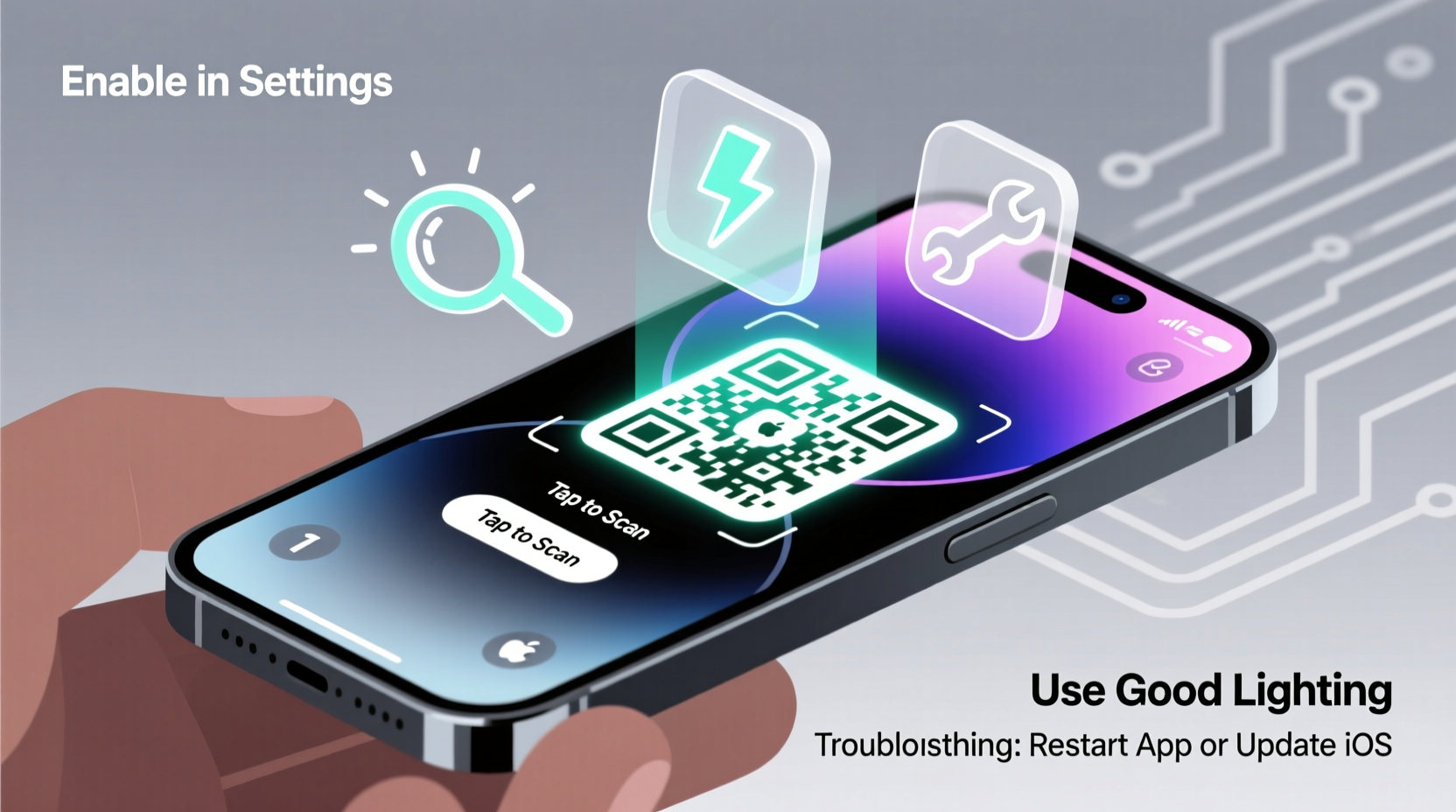
Since iOS 11, Apple has integrated native QR code recognition directly into the Camera app. Unlike third-party apps that once dominated this space, the iPhone now detects and interprets QR codes in real time without requiring additional software. When you point your camera at a QR code, a notification banner appears at the top of the screen, prompting you to tap and open the linked content—whether it's a website, email, phone number, or calendar event.
The system uses computer vision powered by the Neural Engine in A-series chips, allowing quick detection even in suboptimal lighting or angles. However, performance depends on several factors: camera cleanliness, focus speed, code quality, and iOS settings.
Step-by-Step Guide to Scanning QR Codes
Scanning a QR code on your iPhone doesn’t require opening any special app. Follow this simple process for consistent success:
- Unlock your iPhone and open the Camera app.
- Switch to the rear-facing camera if not already active.
- Point the camera directly at the QR code, keeping it within the viewfinder.
- Wait for the notification banner to appear at the top of the screen.
- Tap the banner to open the associated link or action.
If nothing happens, try adjusting the distance (6–18 inches is ideal), ensuring good lighting, and holding the phone steady for 2–3 seconds. Avoid glare or reflective surfaces that distort the code.
Advanced Tips and Hidden Features
Beyond basic scanning, there are lesser-known methods to enhance efficiency and accessibility:
- Use Control Center shortcut: Add the QR scanner to Control Center by going to Settings > Control Center > Customize Controls, then add “Code Scanner.” Tap it anytime for instant access.
- Scan from Photos: If someone sends you a QR code via message or saves one in Notes, take a screenshot and use the camera to scan the image directly from your photo library.
- VoiceOver assistance: For visually impaired users, enabling VoiceOver (Settings > Accessibility > Vision) will audibly announce detected QR codes and their actions.
- Scan business cards: Many digital business cards use vCard QR codes. Scanning them automatically prompts to save the contact.
Troubleshooting Common QR Scanning Issues
Even with advanced hardware, scanning can fail due to environmental or device-specific reasons. Here’s how to diagnose and fix the most frequent problems:
| Issue | Possible Cause | Solution |
|---|---|---|
| No notification appears | Camera can't detect code | Clean lens, increase lighting, zoom out slightly |
| Blurry or unfocused scan | Autofocus struggling | Tap screen near QR code to manually focus |
| Link opens incorrectly | Misread data or corrupted code | Verify source; try scanning again |
| Scanner not working at all | Camera permissions disabled | Check Settings > Privacy > Camera > ensure Camera app is enabled |
| Screen flashes but no action | Malicious or broken redirect | Avoid suspicious sources; reset network settings if issue persists |
In rare cases, outdated firmware or temporary software glitches may interfere. Restarting the device or updating iOS often resolves such anomalies.
Security Considerations When Scanning QR Codes
While convenient, QR codes pose potential security risks. Because they hide URLs behind invisible links, malicious actors can embed phishing sites or malware distribution points. Always exercise caution:
- Never scan QR codes from untrusted sources like flyers on streets or unknown emails.
- Preview the URL before proceeding: After scanning, pause before tapping the banner. iOS shows a preview of the destination site—verify it matches expectations.
- Use Safari’s built-in warnings: If the site is flagged as dangerous, a red alert will appear.
“QR codes are only as safe as their source. Treat them like hyperlinks—you wouldn’t click a random shortened URL, so don’t scan an unknown QR blindly.” — David Lin, Mobile Security Analyst at CyberShield Labs
Mini Case Study: Restaurant Menu Failures
During a busy lunch hour at a downtown café, Sarah pulled out her iPhone to scan the table’s QR menu. Despite multiple attempts, the camera didn’t recognize the code. Frustrated, she asked staff, who handed her a printed menu.
Later, she reviewed the situation: the vinyl sticker had developed micro-scratches, reducing contrast. The overhead fluorescent lights created glare, further impairing visibility. She also realized she was holding the phone too close. The next day, at another location, she applied what she learned—cleaned her lens, angled the phone to avoid reflection, and held it about a foot away. The scan succeeded instantly.
This experience highlights how small adjustments dramatically impact success rates, especially in real-world conditions.
Checklist: Optimize Your QR Scanning Experience
To ensure reliable performance every time, follow this actionable checklist:
- ✅ Keep your iPhone camera lens clean and smudge-free.
- ✅ Enable the Code Scanner in Control Center for quick access.
- ✅ Update iOS regularly to maintain optimal scanning algorithms.
- ✅ Position the QR code within the center of the frame.
- ✅ Verify the URL preview before opening any link.
- ✅ Avoid scanning codes in direct sunlight or low-light environments.
- ✅ Test scanning ability weekly using a known-safe code (e.g., your own Wi-Fi login).
Frequently Asked Questions
Can I scan QR codes without internet connection?
Yes, the iPhone can read the code offline, but if the code leads to a web page, you’ll need data or Wi-Fi to load it. Codes containing text, contacts, or Wi-Fi credentials work without connectivity.
Why does my iPhone not automatically scan QR codes?
If scanning isn’t working, check that Camera functionality isn’t restricted under Screen Time settings. Also confirm that the code isn’t damaged and that sufficient light is available. Some older iPhone models may require perfect alignment.
Is it possible to generate my own QR code on iPhone?
iOS doesn’t include a native QR generator, but you can create one using Shortcuts. Go to the Shortcuts app, create a new automation, choose “Create QR Code,” and input your desired text, URL, or contact. Save it and run whenever needed.
Conclusion: Take Control of Your Digital Interactions
Mastering QR code scanning on your iPhone empowers seamless interaction with the digital world—whether connecting to networks, sharing information, or navigating services. By understanding how the technology works, applying best practices, and staying vigilant about security, you turn a simple feature into a powerful daily tool.




 浙公网安备
33010002000092号
浙公网安备
33010002000092号 浙B2-20120091-4
Comments
No comments yet. Why don't you start the discussion?