
In an age where visual content dominates the internet, being able to trace the origin of an image or find higher-quality versions is more valuable than ever. Whether you're verifying authenticity, researching a product, identifying a location, or protecting your own creative work, reverse image search transforms how we interact with digital media. This guide walks through practical strategies, tools, and insider tips to help you conduct precise and effective reverse image searches—without guesswork.
Why Reverse Image Search Matters
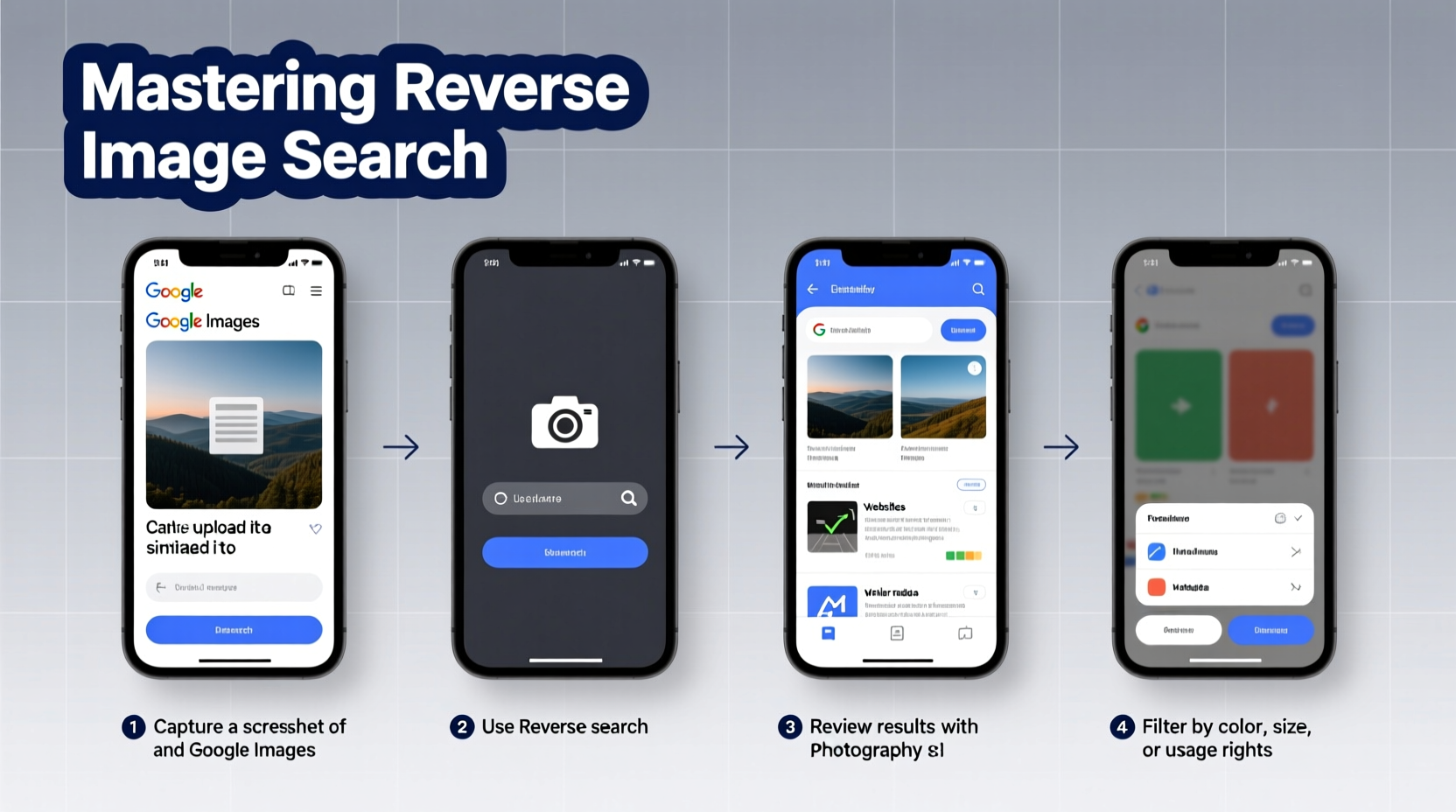
Images circulate rapidly across social media, marketplaces, and websites, often stripped of context. A photo might be used without permission, misrepresented as original content, or shared with misleading captions. Reverse image search allows you to go beyond text-based queries and use the image itself as your starting point.
This technique is widely used by journalists investigating misinformation, designers checking for copyright violations, shoppers verifying product authenticity, and travelers identifying landmarks from vacation photos. According to Google’s research team, over 10% of all searches on mobile devices are now image-based—a number that continues to grow.
“Reverse image search has become a fundamental tool in digital literacy. It empowers users to verify what they see online.” — Dr. Lena Patel, Digital Forensics Researcher at MIT
The Core Tools You Need
Several platforms offer robust reverse image search capabilities, each with unique strengths. Knowing which to use—and when—can significantly improve your results.
| Tool | Best For | Key Feature |
|---|---|---|
| Google Lens | Mobile searches, real-time identification | Live camera scanning and instant web lookup |
| Google Images (Web Upload) | Tracking image origins and duplicates | Vast index and \"visually similar images\" filter |
| TinEye | Finding exact matches and older versions | Proprietary image fingerprinting technology |
| Yandex.Images | Finding uncropped or altered versions | Superior performance with partial or edited images |
| Bing Visual Search | E-commerce and product lookups | Strong integration with shopping databases |
Step-by-Step Guide to Performing a Reverse Image Search
Follow this proven sequence to maximize your chances of success, whether you’re on desktop or mobile.
- Save the image: Right-click and download it (desktop), or screenshot and save it (mobile). Ensure the file is clear and complete.
- Choose your tool: For general use, start with Google Images. For edited or cropped images, try Yandex.
- Upload or paste the image: On Google, go to images.google.com, click the camera icon, and upload the file or insert its URL.
- Analyze the results: Look for exact matches first, then visually similar images. Pay attention to timestamps and source domains.
- Refine your search: Use keywords related to the image (e.g., “red dress,” “mountain cabin”) to narrow results.
- Verify credibility: Cross-reference findings with trusted sites or archives like Wikimedia Commons or official brand pages.
For mobile users, Google Lens offers the fastest route. Open the Google app, tap the Lens icon, point your camera at a physical photo or screen, and let AI identify objects, text, and related web content in real time.
Finding Higher-Quality Versions of an Image
A common use case is locating high-resolution originals of low-quality thumbnails. After uploading the image, scan the results for links to stock photography sites (like Shutterstock or Unsplash), official press releases, or artist portfolios. Often, the same image appears in blog posts, news articles, or e-commerce listings with better resolution.
If the image is part of a series (e.g., fashion shoots or product catalogs), clicking through to the source site may reveal additional uncredited photos from the same session.
Real-World Example: Tracking Down a Misattributed Photo
Sarah, a freelance writer, found a striking nature photo credited to a travel blog claiming it was taken in Iceland. Suspicious of the unusual rock formations, she ran a reverse image search using Yandex. The top results linked to a geotagged post from southern Utah. Further investigation revealed the image had been mislabeled and reused without permission by several blogs. Sarah corrected her article and credited the original photographer—a National Geographic contributor based in Colorado.
This case illustrates how reverse search not only prevents misinformation but also supports ethical content practices.
Advanced Techniques for Better Accuracy
Basic searches work well for clear, full-frame images. But when dealing with screenshots, memes, or heavily edited visuals, standard tools may fail. Here’s how to adapt:
- Crop strategically: Remove text overlays or borders that distract algorithms. Focus on the central subject.
- Adjust brightness or contrast: Some tools respond better to enhanced clarity. Use free editors like GIMP or Photopea if needed.
- Try multiple formats: Convert PNG to JPG or vice versa—sometimes one format yields better indexing.
- Use metadata extractors: Tools like ExifTool can reveal hidden data such as GPS coordinates or device info embedded in the image.
“Even a 20% crop can throw off some engines. Always test variations.” — Alex Rivera, Senior Developer at TinEye
Common Pitfalls to Avoid
Mistakes can lead to dead ends or false conclusions. Stay sharp with these do’s and don’ts:
| Do | Don’t |
|---|---|
| Verify sources before citing them | Assume the first result is correct |
| Check image dates across platforms | Ignore resized or watermarked copies |
| Use incognito mode to avoid personalized results | Rely solely on one search engine |
| Document your search process for accountability | Share unverified images as facts |
Frequently Asked Questions
Can I reverse search a screenshot?
Yes, but results depend on quality and content. Screenshots with UI elements (buttons, menus) may confuse algorithms. Crop tightly around the main image for best results.
Is reverse image search legal?
Yes, searching for an image’s origin or usage is legal. However, downloading or redistributing copyrighted images found through the search may violate terms of use. Always check licensing.
Why do different tools show different results?
Each platform uses distinct algorithms and crawls different parts of the web. Google indexes broadly, while TinEye focuses on exact matches. Combining tools increases coverage.
Take Control of What You See Online
Reverse image search isn’t just a technical skill—it’s a form of digital empowerment. With the right approach, anyone can uncover the story behind a photo, protect intellectual property, or simply satisfy curiosity with confidence. The tools are free, accessible, and increasingly intelligent. What matters most is consistency, skepticism, and attention to detail.




 浙公网安备
33010002000092号
浙公网安备
33010002000092号 浙B2-20120091-4
Comments
No comments yet. Why don't you start the discussion?