
Reverse image search is one of the most powerful tools available for identifying unknown objects, verifying authenticity, or tracing the origin of a photo. On an iPhone, the process isn’t always obvious—especially since Apple doesn’t build native support for reverse image search into its ecosystem. However, with the right techniques and apps, you can perform a reverse image search quickly and efficiently using Google, Safari, or Chrome. Whether you’re trying to identify a plant in your garden, track down the source of a meme, or find higher-resolution versions of a photo, this guide walks you through every method worth knowing.
Why Reverse Image Search Matters on iPhone
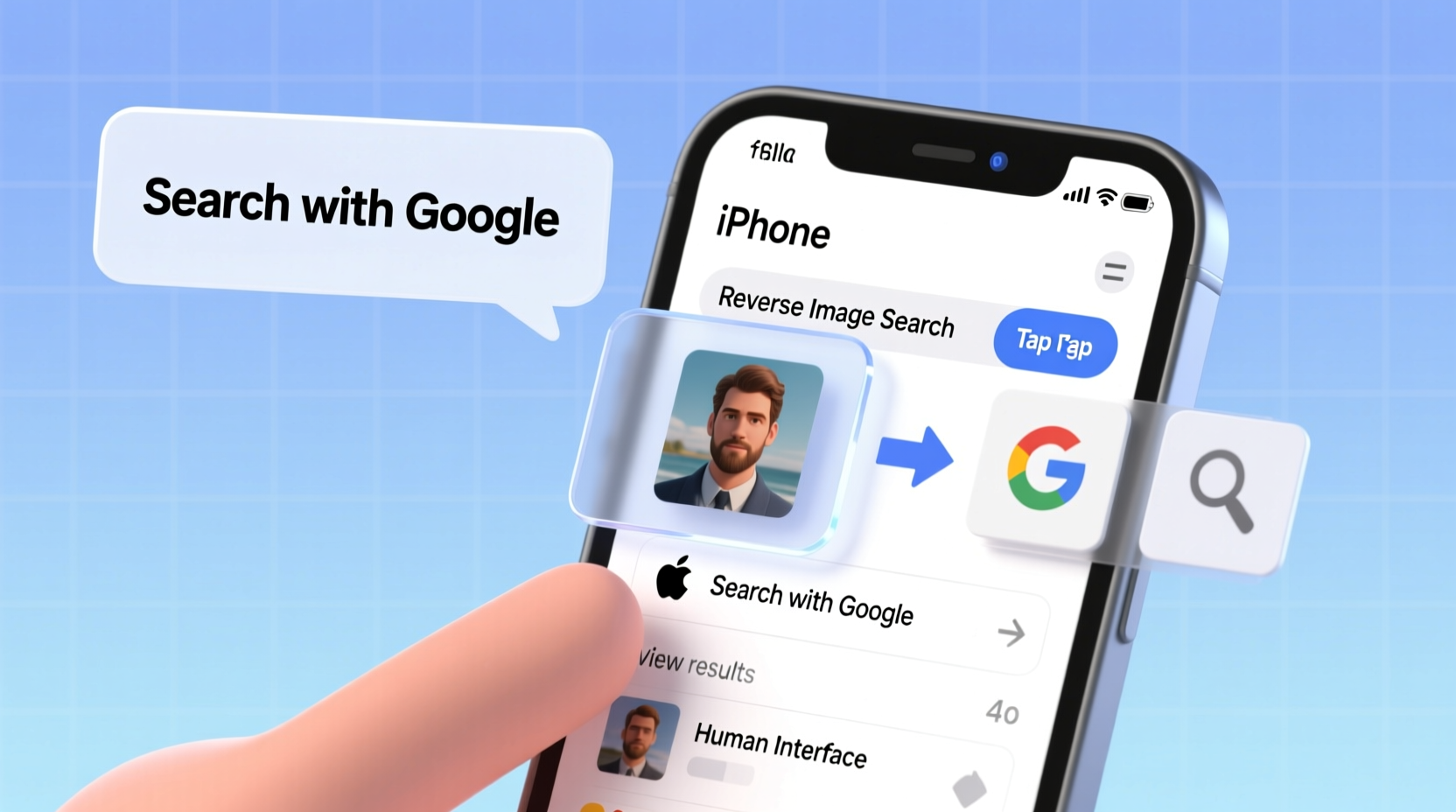
Social media, messaging apps, and digital content make it easy to receive photos without context. A mysterious dress from a friend’s message, a piece of street art, or even a screenshot of a product with no brand name—these are all situations where reverse image search becomes invaluable. It allows you to use a visual query instead of text, opening up possibilities beyond keywords.
Google’s reverse image search technology analyzes colors, shapes, patterns, and metadata to find matching or similar images across the web. While desktop users can simply right-click and “Search Google for image,” iPhone users need alternative workflows. Mastering these methods turns your iPhone into a visual detective tool.
Step-by-Step: How to Perform Reverse Image Search Using Safari
Safari, Apple’s default browser, supports reverse image search when used correctly. This method works best with images already displayed on a webpage.
- Open Safari and navigate to the webpage containing the image you want to search.
- Press and hold the image until a menu appears.
- Select “Look Up” or “Search Image with Google” (if available).
- If “Search Image with Google” appears, tap it to open Google Lens results in a new tab.
- If only “Look Up” is visible, release the image and try again—sometimes the option takes a second tap.
Note: The availability of “Search Image with Google” depends on iOS version and region. It may not appear consistently across devices.
Using Google Chrome for Reliable Reverse Image Search
Google Chrome offers the most consistent experience for reverse image searches on iPhone. Unlike Safari, Chrome integrates directly with Google Lens, making visual searches seamless.
- Install and open the Google Chrome app from the App Store if you haven’t already.
- Go to
images.google.comor perform a regular Google search that returns images. - Find the image you want to investigate and press and hold it.
- Select “Search Image with Google Lens” from the pop-up menu.
- Chrome will analyze the image and display relevant results, including similar images, websites where it appears, and contextual information.
This method also works with screenshots or saved images by uploading them directly to Google Images via the mobile site—a workaround detailed below.
Uploading Saved Images to Google Images
If you have a photo stored in your iPhone’s Camera Roll, such as a screenshot or a picture taken offline, follow these steps:
- Open Chrome and go to images.google.com.
- Tap the camera icon inside the search bar.
- Choose “Upload an image”.
- Select the photo from your library.
- Wait for Google to process the image and return results.
This technique bypasses the limitations of Safari and works regardless of where the image originated.
Alternative Methods and Third-Party Tools
While Google remains the gold standard for reverse image search, several third-party apps and services enhance functionality on iPhone.
- Google Lens App: Download the standalone Google Lens app for instant visual search by pointing your camera or selecting a photo.
- TinEye: A specialized reverse image search engine useful for finding older or cropped versions of photos.
- Bing Visual Search: Microsoft’s alternative, accessible through the Bing app or mobile site, offering competitive accuracy.
These tools are especially helpful when Google fails to return accurate matches or when you need to cross-reference results.
| Method | Best For | Limitations |
|---|---|---|
| Safari (Search Image with Google) | Quick searches on web images | Inconsistent availability; requires iOS 15+ |
| Chrome + Google Lens | All types of image searches | Requires Google account and app installation |
| Google Images Upload | Saved photos and screenshots | Manual upload required; slower process |
| Google Lens App | Real-time object identification | Additional app needed |
Expert Insight: The Power of Visual Queries
“Reverse image search transforms passive viewing into active investigation. It empowers users to verify truth, discover origins, and protect intellectual property—all from a smartphone.” — Dr. Lena Patel, Digital Forensics Researcher at Stanford University
Dr. Patel emphasizes that visual search literacy is becoming essential in an era of misinformation and deepfakes. Knowing how to trace an image’s history helps users avoid scams, confirm news authenticity, and respect copyright laws.
Mini Case Study: Identifying a Fake Product Listing
Sophia received a message about a luxury handbag deal on a social marketplace. The price was suspiciously low, but the photo looked authentic. Instead of replying, she saved the image and uploaded it to Google Images via Chrome. Within seconds, she found the same photo being used on multiple scam sites, some selling completely different products. Her reverse image search prevented a potential fraud. This real-world example shows how a 30-second check can save hundreds of dollars.
Checklist: Reverse Image Search Best Practices
Action Plan:
- ✅ Always verify unfamiliar images before engaging or purchasing.
- ✅ Use Chrome for the most reliable Google Lens integration.
- ✅ Save and upload images directly when searching from your gallery.
- ✅ Cross-check results using TinEye or Bing for deeper analysis.
- ✅ Avoid sharing personal photos without understanding their online footprint.
Frequently Asked Questions
Can I do reverse image search without installing extra apps?
Yes. You can use Safari or Chrome with Google Images to perform reverse searches without downloading additional software. However, features like Google Lens offer enhanced functionality with the dedicated app.
Does reverse image search work on private or encrypted images?
No. If an image has never been uploaded to a public website or indexed by search engines, reverse image search won’t find it. It only works with publicly available, indexed content.
Is reverse image search safe and private?
Generally yes. Google processes images securely, but avoid uploading sensitive personal photos. Uploaded images may be temporarily stored for processing, so use discretion with private content.
Final Thoughts: Turn Your iPhone Into a Visual Detective
Mastering reverse image search on iPhone unlocks a layer of digital awareness that many users overlook. From fact-checking viral content to avoiding online scams, the ability to ask, “Where did this image come from?” is now as important as typing a keyword. With Safari, Chrome, and Google Lens at your fingertips, the tools are already in your pocket—you just need to know how to use them effectively.
The next time you encounter an uncredited photo, a strange logo, or a too-good-to-be-true product listing, don’t guess. Search. Let the image speak for itself.




 浙公网安备
33010002000092号
浙公网安备
33010002000092号 浙B2-20120091-4
Comments
No comments yet. Why don't you start the discussion?