
In an era where digital convenience defines everyday transactions, mobile payment platforms have transformed how we shop, commute, and manage finances. Among the leaders in this space, Samsung Pay stands out for its broad compatibility, robust security, and seamless integration with Galaxy devices. Unlike other mobile wallets that rely solely on NFC, Samsung Pay uses both NFC and MST (Magnetic Secure Transmission), allowing it to work at nearly any payment terminal—even older ones without contactless support. This guide walks you through setting up, using, and maximizing Samsung Pay with confidence and control.
Why Samsung Pay is a Game-Changer for Mobile Payments
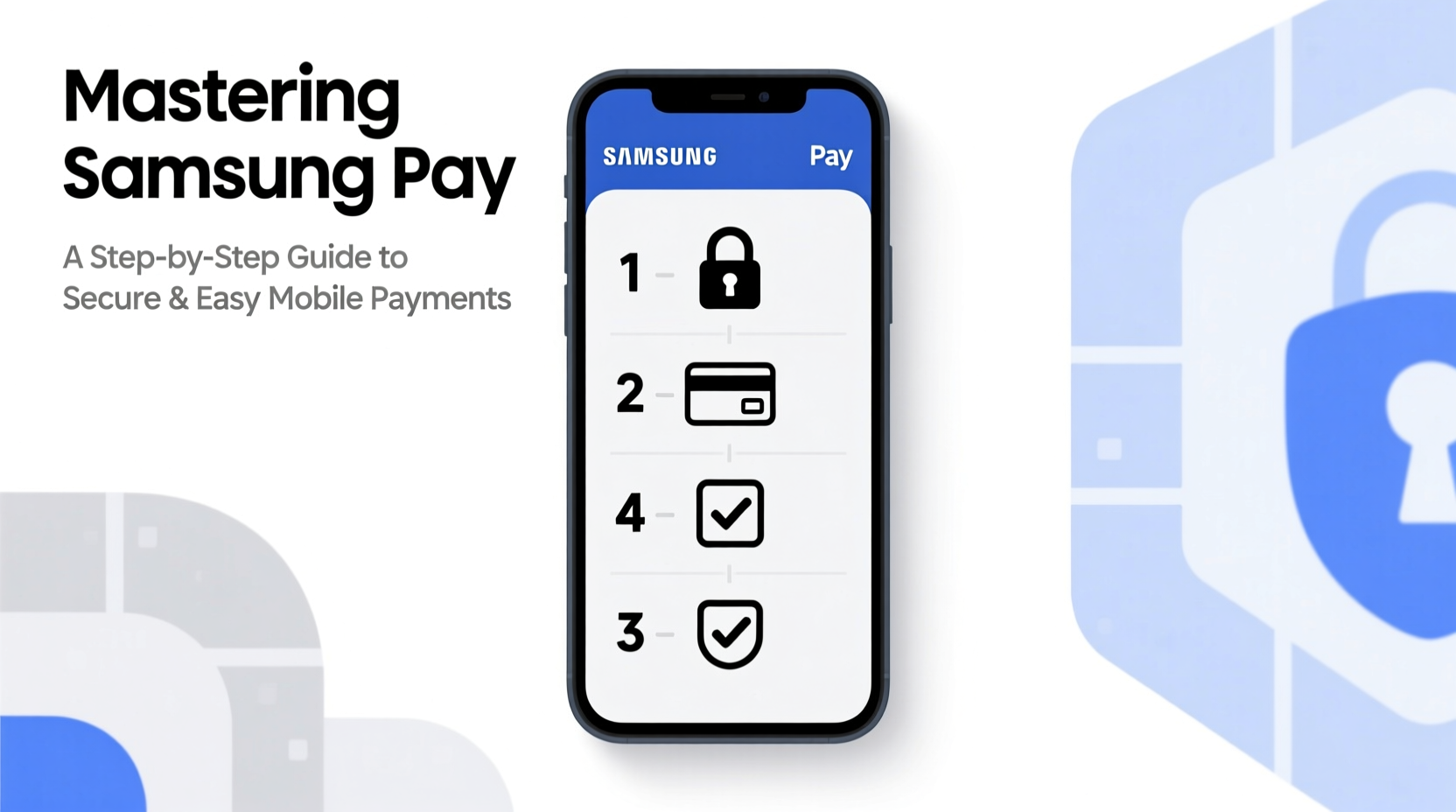
Samsung Pay isn’t just another digital wallet—it’s engineered for real-world usability. While Apple Pay and Google Pay require NFC-enabled terminals, Samsung Pay’s MST technology mimics the magnetic swipe of a physical card, making it compatible with over 90% of point-of-sale systems in the U.S. This means you can use it at small shops, gas stations, or transit kiosks where contactless payments might otherwise fail.
Beyond accessibility, Samsung Pay prioritizes security. Your actual card numbers are never stored on your device or shared during transactions. Instead, it uses tokenization—replacing your card details with a unique digital token—and combines it with biometric authentication like fingerprint scanning or facial recognition. This dual-layer protection ensures that even if your phone is lost, your financial data remains secure.
“Samsung Pay bridges the gap between legacy infrastructure and modern payment security, offering unmatched versatility.” — David Kim, Senior Analyst at FinTech Insights
Step-by-Step: Setting Up Samsung Pay on Your Device
Getting started with Samsung Pay takes just minutes. Follow this sequence to activate your digital wallet:
- Check Device Compatibility: Ensure your smartphone supports Samsung Pay. Most Galaxy S series (S6 and later), Note series (Note5 and later), and recent Z Fold/Flip models are eligible.
- Update Your Software: Go to Settings > Software Update to confirm your phone runs the latest OS version.
- Open Samsung Pay App: Locate the app on your home screen or app drawer. If not installed, download it from the Galaxy Store.
- Sign In to Samsung Account: You’ll need a registered Samsung ID. Create one if necessary.
- Add a Payment Card: Tap “Add Card,” then choose between credit, debit, or prepaid cards.
- Scan or Enter Card Details: Use your camera to scan the card or type the number, expiration date, and CVV manually.
- Verify Identity: Your bank may send a verification code via SMS, email, or within their own app.
- Accept Terms & Set Default: Review the service agreement and set the card as default if desired.
Using Samsung Pay in Daily Life: From Stores to Transit
Once set up, using Samsung Pay is intuitive. To make a purchase:
- Wake your phone (no need to unlock fully).
- Swipe up from the home button area or double-press the side key (on newer models).
- Select your preferred card if multiple are added.
- Authenticate with fingerprint, iris scan, or PIN.
- Hold the back of your phone to the payment terminal for 1–2 seconds.
- Wait for the confirmation vibration and on-screen checkmark.
This process works across retail stores, restaurants, vending machines, and public transit systems. In cities like New York, London, and Seoul, Samsung Pay integrates directly with subway and bus fare gates, eliminating the need for physical transit cards.
Real-World Example: Contactless Commute in Seoul
Ji-hoon, a daily commuter in Seoul, used to carry a T-money card and wallet. After linking his debit card to Samsung Pay and registering it as his transit pass, he now taps his Galaxy S23 against subway gates effortlessly. “It saves me time and reduces clutter,” he says. “Even during rush hour, the transaction completes in under a second.”
Security Features That Keep Your Data Safe
Samsung Pay incorporates multiple layers of protection far beyond traditional plastic cards:
| Feature | Description | Benefit |
|---|---|---|
| Tokenization | Replaces card numbers with dynamic digital tokens | Merchants never see your real card data |
| Biometric Authentication | Fingerprint, face recognition, or secure PIN required | Prevents unauthorized access even if phone is stolen |
| Samsung Knox | Hardware-backed security platform | Protects sensitive data in an isolated environment |
| Remote Lock & Wipe | Available via Find My Mobile | Disable Samsung Pay remotely if device is lost |
If your phone is misplaced, log into Find My Mobile to suspend Samsung Pay instantly. You can also report your virtual card lost through your bank’s app, which will deactivate the token immediately.
Pro Tips for Maximizing Samsung Pay Efficiency
- Use Rewards Cards: Many loyalty and gift cards can be added to Samsung Pay. Scan them once and access automatically at checkout.
- Monitor Transactions: View recent purchases directly in the app for quick fraud detection.
- Leverage Offers: Check the “Deals” tab for exclusive discounts at partnered retailers.
- Split Payments: At merchants that support it, toggle between cards mid-transaction for better budget control.
Essential Setup Checklist
Before relying on Samsung Pay daily, complete these actions:
- ✅ Verify all added cards are activated and in good standing
- ✅ Set a default card for faster checkout
- ✅ Enable biometric authentication (fingerprint/facial recognition)
- ✅ Install the latest version of Samsung Pay
- ✅ Register your device with Find My Mobile
- ✅ Test a small transaction (e.g., coffee or transit tap) to confirm functionality
Frequently Asked Questions
Can I use Samsung Pay without an internet connection?
Yes. Samsung Pay stores encrypted card tokens locally on your device, so offline transactions are possible. However, initial setup and some verifications require internet access.
Is Samsung Pay free to use?
There is no fee charged by Samsung to use the service. However, standard data rates may apply when adding cards or syncing offers. Your bank may also have terms regarding digital wallet usage—check with your issuer.
What should I do if my phone is stolen?
Immediately go to Find My Mobile, sign in, and select “Lock” or “Erase” to disable Samsung Pay. Also contact your bank to report potential fraud and freeze linked accounts.
Conclusion: Take Control of Your Financial Experience
Mastering Samsung Pay is more than adopting a new tech tool—it's about embracing a smarter, safer way to handle everyday transactions. With its blend of universal compatibility, military-grade security, and user-friendly design, it empowers you to leave your wallet behind without sacrificing control or peace of mind. Whether you're buying groceries, paying transit fares, or managing rewards, Samsung Pay streamlines your routine while keeping your financial data protected.




 浙公网安备
33010002000092号
浙公网安备
33010002000092号 浙B2-20120091-4
Comments
No comments yet. Why don't you start the discussion?