
In today’s digital world, the ability to capture what appears on your screen is more than a convenience—it’s a necessity. Whether you're troubleshooting an error, documenting a process, creating training materials, or sharing visual feedback, screenshots serve as powerful communication tools. Yet, many users rely only on basic shortcuts without unlocking the full potential of screen capture technology. This guide walks through advanced techniques, editing workflows, and best practices that turn casual screenshot takers into efficient digital communicators.
Essential Tools for Every Platform
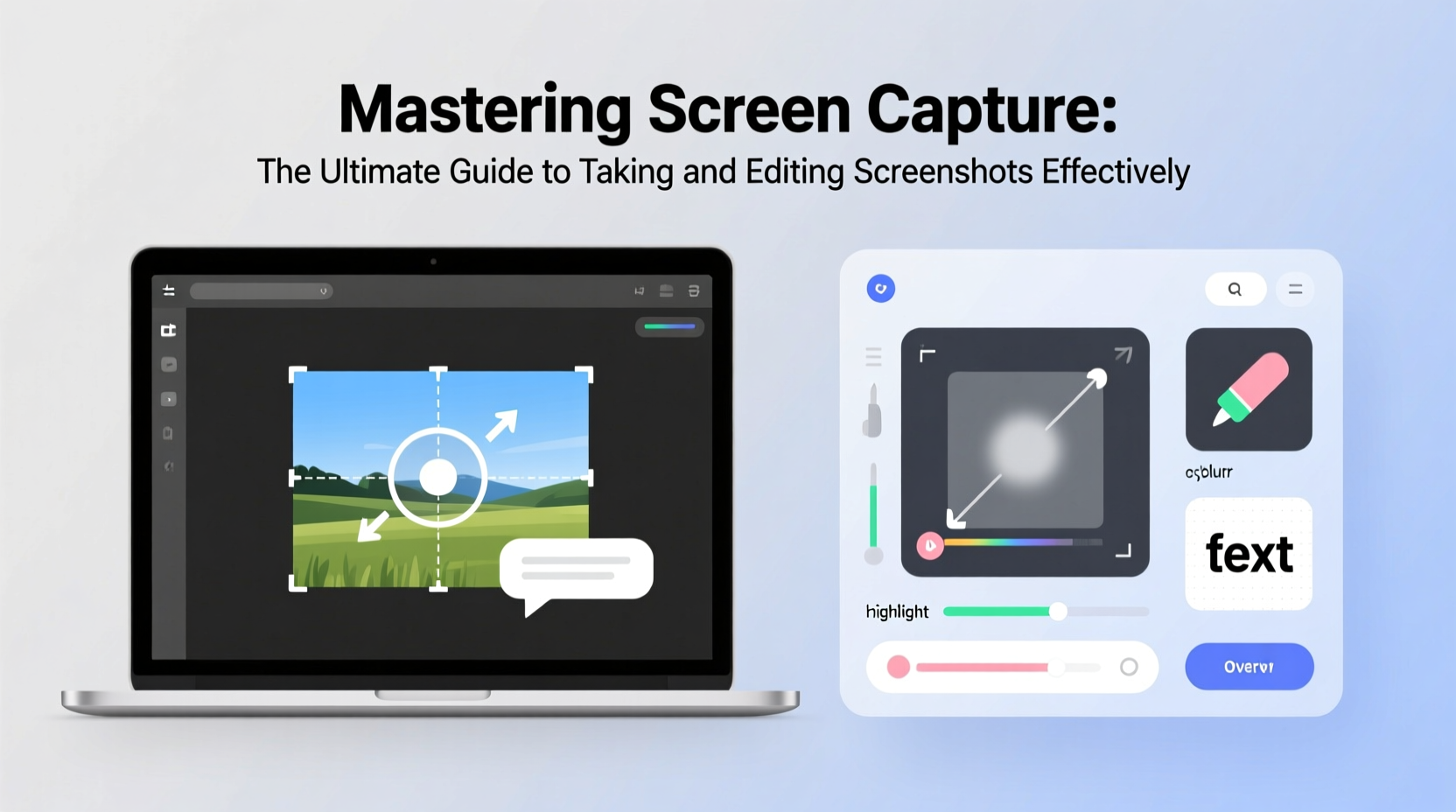
Different operating systems offer native and third-party tools tailored to specific needs. Knowing which tool to use—and when—can dramatically improve efficiency.
| Platform | Default Shortcut | Built-in Tool | Recommended Add-on |
|---|---|---|---|
| Windows 10/11 | Win + Shift + S | Snip & Sketch | Snagit |
| macOS | Cmd + Shift + 5 | Screenshot Utility | Skitch |
| iOS | Side Button + Volume Up | Markup Editor | N/A (native is robust) |
| Android | Power + Volume Down | Quick Panel Screenshot | Screen Master |
| Chromebook | Ctrl + Show Windows Key | Fullscreen Snip | Nimbus Screenshot |
Each platform has evolved beyond simple print-screen functions. For instance, macOS allows timed captures, window-specific snips, and screen recordings directly from the command panel. Windows’ Snip & Sketch enables delayed captures, ideal for dropdown menus or hover states. Leverage these features instead of relying solely on repetitive attempts.
Step-by-Step: Capturing the Right Content
A successful screenshot isn’t just about pressing a button; it’s about capturing the right context clearly and ethically. Follow this sequence for consistent results:
- Define the purpose: Are you reporting a bug, illustrating a workflow, or sharing information? Clarity of intent shapes how much you capture.
- Prepare the screen: Close unrelated tabs, disable notifications, and ensure sensitive data is hidden.
- Choose the capture type: Fullscreen, window, region, or scrolling (if supported).
- Use delay features when needed: Set a 5–10 second timer to navigate to hidden interface elements like context menus.
- Capture and verify: Check resolution, readability, and completeness immediately after.
- Save appropriately: Use descriptive filenames and organize by project or date.
For example, when documenting a software issue, avoid full desktop captures cluttered with icons. Instead, isolate the application window and highlight the error message with annotations post-capture.
Editing Screenshots for Maximum Impact
A raw screenshot often requires refinement before it's ready for sharing. Effective editing enhances clarity, protects privacy, and guides attention.
- Cropping: Remove irrelevant areas to focus on key content.
- Annotation: Use arrows, circles, and text labels to direct attention.
- Redaction: Blur or black out personal data, passwords, or confidential info.
- Resizing: Adjust dimensions for emails, documentation, or social media.
- Contrast adjustment: Improve legibility on low-light or washed-out images.
Most modern tools include basic markup features. macOS automatically opens screenshots in Markup upon capture. Windows allows quick annotation via the Photos app. For advanced needs, tools like Snagit, Lightshot, or even free options like GIMP or Photopea offer layer support, templates, and export presets.
“Clear visuals reduce miscommunication by up to 70% in remote teams.” — Dr. Lena Torres, UX Research Lead at TechFlow Insights
Mini Case Study: Streamlining Client Feedback
Jamie, a freelance web designer, used to write lengthy email explanations detailing layout issues clients couldn’t visualize. After switching to annotated screenshots, response time improved by 40%. Using Snagit, Jamie captured specific sections of websites, circled alignment problems, added brief callouts, and exported them as PNGs. Clients understood revisions faster, reducing back-and-forth and boosting satisfaction scores.
Best Practices Checklist
To maintain professionalism and consistency, follow this checklist every time you take or edit a screenshot:
- ✅ Clear the desktop and close unrelated applications
- ✅ Disable pop-up notifications temporarily
- ✅ Use high-resolution display settings when possible
- ✅ Capture in native format first, then edit
- ✅ Annotate with concise, action-oriented labels
- ✅ Redact any PII (personally identifiable information)
- ✅ Save with meaningful file names (e.g., “Login_Error_MacOS_v2.png”)
- ✅ Store in organized folders or cloud directories with access controls
- ✅ Compress files if sending via email to avoid size limits
- ✅ Verify accessibility: ensure text is readable and color contrast meets standards
Advanced Techniques: Scrolling and Screen Recording
Standard screenshots fall short when dealing with long web pages or dynamic interactions. Two advanced methods solve this:
Scrolling Capture: Available in tools like Snagit, ShareX (Windows), and certain browser extensions (Nimbus, GoFullPage), this feature stitches multiple segments of a webpage into one continuous image. Ideal for capturing entire forms, articles, or chat histories.
Screen Recording: When static images aren't enough, record a short clip demonstrating a process. Built-in tools like QuickTime Player (macOS), Xbox Game Bar (Windows), or mobile screen recorders allow narrated walkthroughs. Trim excess footage and export in MP4 format for universal compatibility.
Use these sparingly—only when motion or sequence is essential. Overuse increases file size and complicates sharing.
FAQ
Can I capture a password field or secure input?
No. Most operating systems and browsers block screenshots of password fields for security. If documentation is required, use placeholder text or mockups instead.
Why does my screenshot look blurry?
Blurriness usually occurs when images are resized improperly or saved at low quality. Always capture at native resolution, and avoid stretching during editing. Use \"nearest neighbor\" interpolation when scaling pixel-based UI elements.
How do I capture a dropdown menu or tooltip?
Use a delayed capture function. On Windows, set a 3–5 second timer in Snip & Sketch. On macOS, use the timer option in the Screenshot utility. Open the menu just before the capture triggers.
Conclusion
Mastery of screen capture goes far beyond knowing a keyboard shortcut. It involves intentionality, technical awareness, and attention to detail. By selecting the right tool, preparing your environment, editing thoughtfully, and following ethical guidelines, you transform simple snapshots into powerful assets for communication, documentation, and collaboration.




 浙公网安备
33010002000092号
浙公网安备
33010002000092号 浙B2-20120091-4
Comments
No comments yet. Why don't you start the discussion?