
In today’s digital world, staying connected through video calls is essential—whether for personal catch-ups, remote work, or virtual learning. Facebook, one of the most widely used social platforms, offers built-in video chat features that include screen sharing. While the tool is powerful, many users struggle to use it effectively due to unclear instructions or technical hiccups. This comprehensive guide walks you through everything you need to know to master screen sharing on Facebook, ensuring smooth, professional-quality video chats every time.
Understanding Facebook Screen Sharing: What It Is and Why It Matters
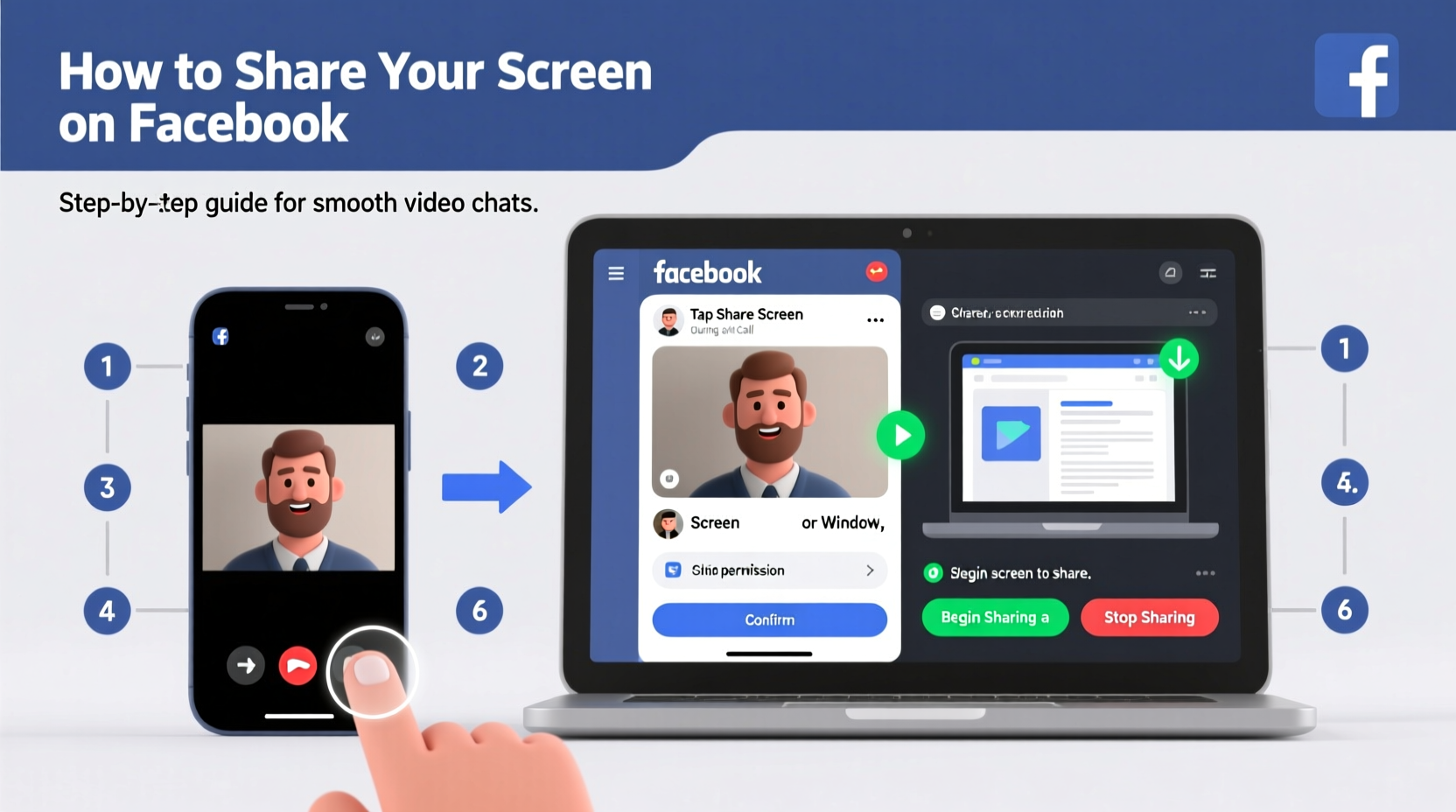
Screen sharing on Facebook allows you to broadcast your device’s display to others during a video call. This feature is particularly useful when demonstrating software, presenting slides, walking someone through a website, or even showing photos and videos stored locally. Unlike third-party tools that require downloads or account creation, Facebook integrates screen sharing directly into its Messenger platform—making it accessible without extra setup.
The functionality is available across devices, including desktops (via web browser), iOS, and Android apps. However, the experience varies slightly depending on your operating system and browser. For optimal performance, always ensure your app or browser is up to date before starting a shared session.
Step-by-Step Guide to Sharing Your Screen on Facebook
Follow these clear steps to begin sharing your screen seamlessly during a Facebook video chat. The process differs slightly between desktop and mobile devices.
On Desktop (Windows/Mac via Browser)
- Open Facebook.com and log in.
- Navigate to Messenger by clicking the chat icon in the top-right corner.
- Start a new video call or join an existing one with one or more contacts.
- Once in the call, click the “Screen Share” button (it looks like a rectangle with arrows).
- Select which window or tab you want to share from the dropdown menu.
- Choose whether to share audio (recommended if playing sound).
- Click “Share” to begin broadcasting your screen.
- To stop, click the red “Stop Sharing” button at the top of your screen.
On Mobile Devices (iOS and Android)
Few users realize that screen sharing is also possible on mobile—but with limitations. Native screen sharing within the Facebook app isn’t as robust as on desktop, but you can still achieve similar results using your phone’s built-in screen recording and mirroring features while on a Messenger video call.
- Open the Facebook or Messenger app and start a video call.
- On iPhone: Swipe down to open Control Center > Tap “Screen Recording” (hold to enable microphone if needed).
- On Android: Open Quick Settings > Tap “Screen Cast” or “Smart View.”
- Begin screen recording/casting while keeping the video call active.
- Perform actions on your screen—the other party will see everything live.
- End both the screen recording and the call when finished.
Optimizing Performance for Smooth Screen Sharing
A choppy or lagging screen share can disrupt communication and reduce credibility, especially in professional settings. To avoid common pitfalls, consider the following best practices:
- Use a stable internet connection: Wired Ethernet is ideal; otherwise, ensure strong Wi-Fi signal strength.
- Lower screen resolution temporarily: High-resolution displays demand more bandwidth. Reducing resolution improves stream stability.
- Close background apps: Free up RAM and CPU resources to prioritize the video call and screen sharing process.
- Disable notifications: Pop-ups during a presentation can be distracting or accidentally reveal private information.
- Test beforehand: Run a short trial call with a colleague or family member to verify audio, video, and screen quality.
“Smooth screen sharing hinges not just on software capability but on preparation. A five-minute pre-call check can prevent ten minutes of troubleshooting.” — David Lin, Remote Collaboration Specialist
Common Issues and How to Fix Them
Even with proper setup, technical issues may arise. Here are frequent problems and their solutions:
| Issue | Possible Cause | Solution |
|---|---|---|
| Screen share button missing | Outdated browser or unsupported browser (e.g., Safari) | Update Chrome or Firefox; avoid Safari for screen sharing |
| No audio shared with screen | Audio sharing not enabled during setup | Check “Share Audio” box before starting screen share |
| Lag or freezing | Slow internet or high system load | Close unused programs, restart router, or reduce screen content motion |
| Others can't see shared screen | Permissions blocked or ad blocker interfering | Allow screen sharing permissions in browser settings; disable ad blockers |
Real-World Example: Teaching a Relative to Use Online Banking
Maria, a teacher in Chicago, recently helped her 72-year-old mother set up online banking. Instead of giving confusing verbal instructions over the phone, she initiated a Messenger video call and used screen sharing to walk her through each step—from logging in to transferring funds. By highlighting buttons, zooming in on fields, and narrating each action, Maria made the process intuitive and stress-free. Her mother later said, “It felt like you were sitting right next to me.”
This scenario illustrates how screen sharing transforms abstract guidance into visual learning—making it invaluable for tech support, education, and collaborative tasks.
Best Practices Checklist Before You Share
Ensure a seamless experience every time with this actionable checklist:
- Update your browser or app to the latest version
- Confirm a stable internet connection (minimum 5 Mbps upload speed)
- Close unrelated browser tabs and applications
- Turn off notifications to avoid interruptions
- Decide what portion of your screen to share (entire screen vs. single window)
- Enable “Share Audio” if demonstrating videos or audio content
- Do a quick test call to verify functionality
Frequently Asked Questions
Can I share my screen on Facebook from a smartphone?
Yes, though not natively within the app. Use your phone’s screen recording or casting feature (like Screen Cast on Android or Screen Recording in Control Center on iPhone) while on a Messenger video call. Make sure to enable microphone access so the other person hears your voice alongside the visuals.
Why can’t my friend see my shared screen?
This usually happens due to browser permission blocks or outdated software. Ask them to refresh the page, allow screen-sharing permissions, and try again. Also, confirm they’re using a supported browser like Google Chrome or Mozilla Firefox.
Is screen sharing on Facebook secure?
Facebook encrypts video calls in transit, but remember that anything you share is visible to all participants. Avoid displaying sensitive data like passwords, financial documents, or private messages unless absolutely necessary and with trusted individuals.
Final Thoughts: Elevate Your Digital Communication
Mastering screen sharing on Facebook empowers you to communicate more effectively, teach confidently, and collaborate remotely without barriers. Whether you're guiding a loved one through a new app, conducting a team meeting, or hosting a virtual workshop, the ability to visually demonstrate ideas enhances understanding and engagement.
The key lies not just in knowing how to press the “Share Screen” button, but in preparing thoughtfully, troubleshooting proactively, and respecting your audience’s experience. With the steps and insights provided here, you’re now equipped to deliver smooth, professional-grade screen-sharing sessions anytime, anywhere.




 浙公网安备
33010002000092号
浙公网安备
33010002000092号 浙B2-20120091-4
Comments
No comments yet. Why don't you start the discussion?