
For many MacBook Air users, managing battery life and system responsiveness is essential—especially when working remotely, traveling, or juggling multiple tasks. One of the most effective ways to balance energy efficiency and usability is by mastering sleep settings. Sleep mode conserves power when your Mac isn’t in use, but default configurations may not align with your workflow. Whether you want your MacBook to stay awake longer during presentations or enter sleep faster to save battery, understanding how to customize these settings gives you full control.
This comprehensive guide walks through every aspect of configuring sleep behavior on your MacBook Air, from basic adjustments to advanced terminal commands. By the end, you’ll know exactly how to tailor sleep timing to match your habits and environment.
Understanding Sleep Modes on MacBook Air
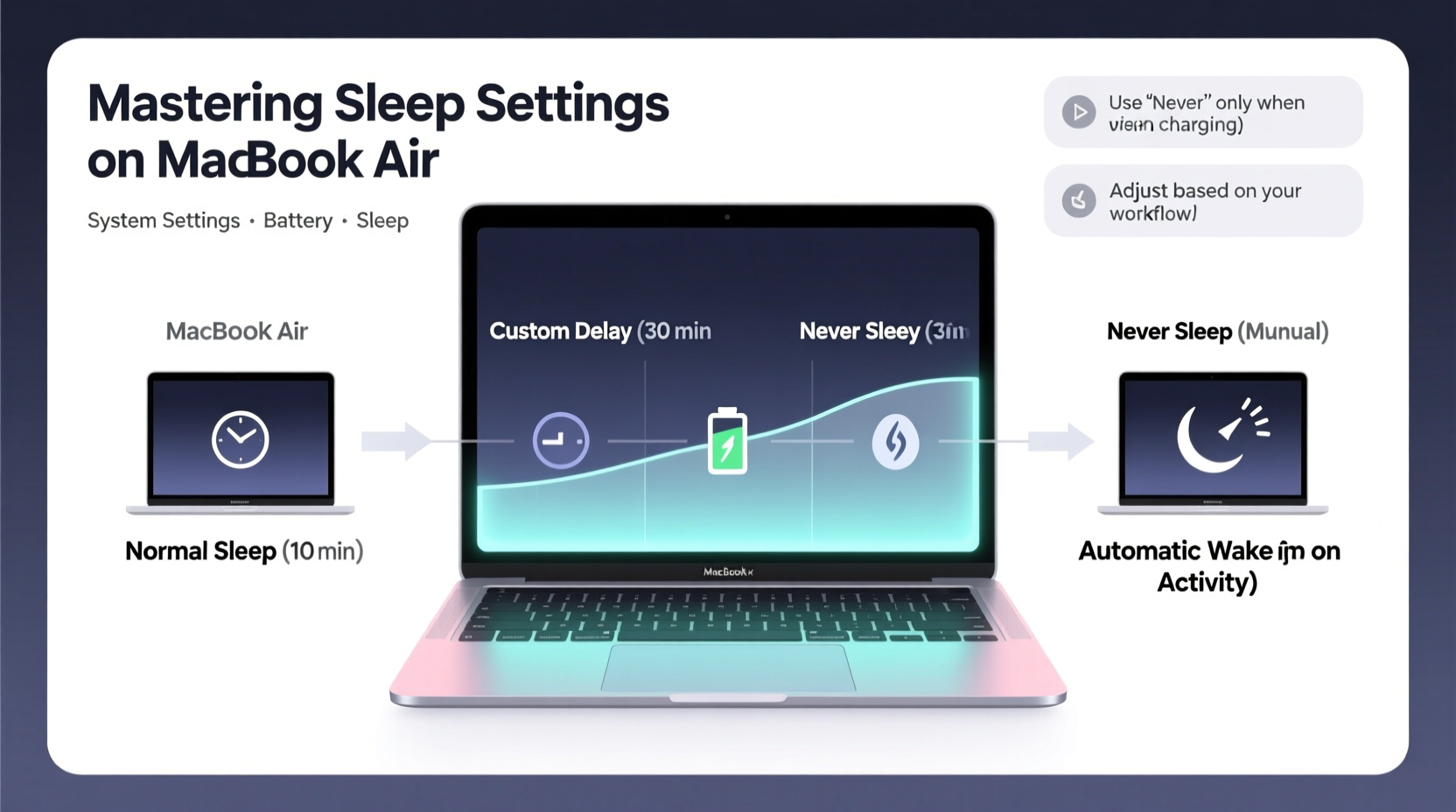
Sleep mode on macOS is designed to pause activity while preserving open documents and apps in memory. The system uses minimal power, allowing for quick wake-up times. There are three primary states related to sleep:
- Display Sleep: The screen turns off, but the system remains active.
- Computer Sleep: The entire system slows down, reducing CPU and drive activity.
- Standby (Deep Sleep): After extended inactivity, the Mac saves RAM contents to storage and shuts down further to preserve battery.
The transition between these stages depends on your settings and usage patterns. Apple defaults prioritize battery conservation, often triggering display sleep after 10 minutes and computer sleep shortly after. While suitable for casual use, these intervals can be too aggressive for creative professionals, developers, or anyone needing background processes to continue running.
“Optimizing sleep settings isn’t just about convenience—it’s about aligning your device’s behavior with real-world productivity needs.” — Dr. Lena Torres, Human-Computer Interaction Researcher
Step-by-Step: Adjusting Sleep Settings via System Settings
macOS provides an intuitive interface for modifying sleep behavior. Follow this sequence to access and customize the core settings:
- Click the Apple logo () in the top-left corner and select System Settings.
- Navigate to Displays if you want to adjust when the screen sleeps.
- Use the dropdown under “Turn display off on battery” to set idle time before display sleep (options range from 1 to 30 minutes, or “Never”).
- Go to Battery > Options to configure computer sleep timing.
- Set “Put laptop to sleep when inactive” to your preferred duration or choose “Never” for maximum uptime.
- Repeat steps for both “On Battery Power” and “Plugged In” modes, as they have separate controls.
These changes take effect immediately. No restart is required. However, note that setting sleep to “Never” increases battery drain and heat buildup during prolonged inactivity—use cautiously.
Advanced Customization Using Terminal Commands
For granular control beyond the GUI options, macOS offers command-line tools through Terminal. These allow you to fine-tune sleep parameters, including delays for specific components and wake triggers.
To access advanced settings:
- Open Terminal (found in Applications > Utilities).
- Use the following commands to modify sleep timers:
| Command | Description |
|---|---|
sudo pmset displaysleep 15 |
Sets display sleep to 15 minutes regardless of power source. |
sudo pmset sleep 30 |
Sets system sleep to 30 minutes on battery. |
sudo pmset acsleep 0 |
Prevents sleep when plugged in (0 = never). |
pmset -g |
Displays current power management settings. |
Example: To prevent your MacBook Air from sleeping when closed but connected to external power and peripherals (e.g., using clamshell mode), run:
sudo pmset disablesleep 1
Revert it later with:
sudo pmset disablesleep 0
⚠️ Use caution with sudo commands—they require admin privileges and can affect system stability if misused.
Real-World Scenario: Optimizing for a Mobile Designer
Consider Maya, a freelance graphic designer who works from coffee shops, client offices, and home. She uses her MacBook Air constantly but notices it often goes to sleep mid-sketch, losing her cursor position in design software. At home, she connects to an external monitor and wants the internal display off but the system active.
Her solution:
- On battery: Set display sleep to 10 minutes and system sleep to 20 minutes.
- When plugged in: Disable automatic sleep entirely using Terminal:
sudo pmset acsleep 0. - At her desk: Close the lid and use the external monitor in clamshell mode, keeping the system awake even when the lid is shut.
By tailoring settings per context, Maya avoids workflow disruption without sacrificing battery longevity during mobile use.
Do’s and Don’ts of Sleep Configuration
Misconfigured sleep settings can lead to data loss, overheating, or reduced battery lifespan. Use this checklist to stay safe while optimizing performance.
| Do’s | Don’ts |
|---|---|
| Adjust settings based on usage context (mobile vs. desktop) | Leave “Never” sleep enabled indefinitely on battery |
| Use Terminal only when GUI options are insufficient | Run pmset commands without understanding their impact |
| Test new settings with active applications running | Forget to re-enable sleep after presentations or downloads |
| Monitor battery health in System Settings > Battery | Ignore heat buildup when preventing sleep for long periods |
Frequently Asked Questions
Why does my MacBook Air wake up randomly?
Random wake-ups are often caused by network activity, Bluetooth devices, or scheduled tasks. Check logs via Terminal: log show --predicate 'eventMessage contains \"Wake reason\"' --last 24h. Common culprits include Wi-Fi wake (e.g., “OHR”) or peripheral input (e.g., “LID0”). Disable “Wake for Wi-Fi network access” in Battery > Options to reduce unwanted wakes.
Can I schedule sleep and wake times automatically?
Yes. In System Settings > Battery > Options, click “Schedule” to set daily routines for sleep and wake. This is useful for running overnight backups or ensuring your Mac is ready each morning. Note: Scheduling requires the MacBook to remain powered; it won’t wake from complete shutdown.
Does preventing sleep harm my MacBook Air?
Occasional use of “Never sleep” is safe, but prolonged wakefulness generates heat and accelerates battery cycle wear. Modern MacBooks include thermal throttling and battery conditioning, but best practice is to allow regular sleep cycles unless actively needed.
Final Checklist: Optimize Your Sleep Settings
Before finalizing your configuration, ensure you’ve completed the following:
- ✅ Reviewed current sleep settings using
pmset -g - ✅ Configured different behaviors for battery and AC power
- ✅ Tested display and system sleep transitions with active apps
- ✅ Disabled unnecessary wake triggers (Bluetooth, network)
- ✅ Scheduled automatic sleep/wake if used daily at fixed times
- ✅ Reverted experimental Terminal changes after testing
Take Control of Your MacBook Air’s Behavior
Your MacBook Air should adapt to you—not the other way around. Mastering sleep settings empowers you to eliminate interruptions, protect battery health, and maintain seamless productivity across environments. Whether you're editing video, coding, presenting, or simply reading, the right sleep configuration keeps your machine responsive and efficient.
Start today: Open System Settings, review your current sleep thresholds, and adjust them to reflect how you actually use your device. For advanced users, explore Terminal commands to unlock deeper customization. Small tweaks can yield significant improvements in both performance and peace of mind.




 浙公网安备
33010002000092号
浙公网安备
33010002000092号 浙B2-20120091-4
Comments
No comments yet. Why don't you start the discussion?