
Effective presentations don’t just rely on content—they depend on delivery. One of the most overlooked yet powerful tools in PowerPoint is the use of slide transitions. When used correctly, transitions can guide your audience’s attention, emphasize key points, and make your presentation feel polished and professional. Misused, they can distract, confuse, or even undermine your credibility. This guide walks you through every aspect of mastering slide transitions to ensure your next presentation flows seamlessly from start to finish.
Understanding Slide Transitions: More Than Just Eye Candy
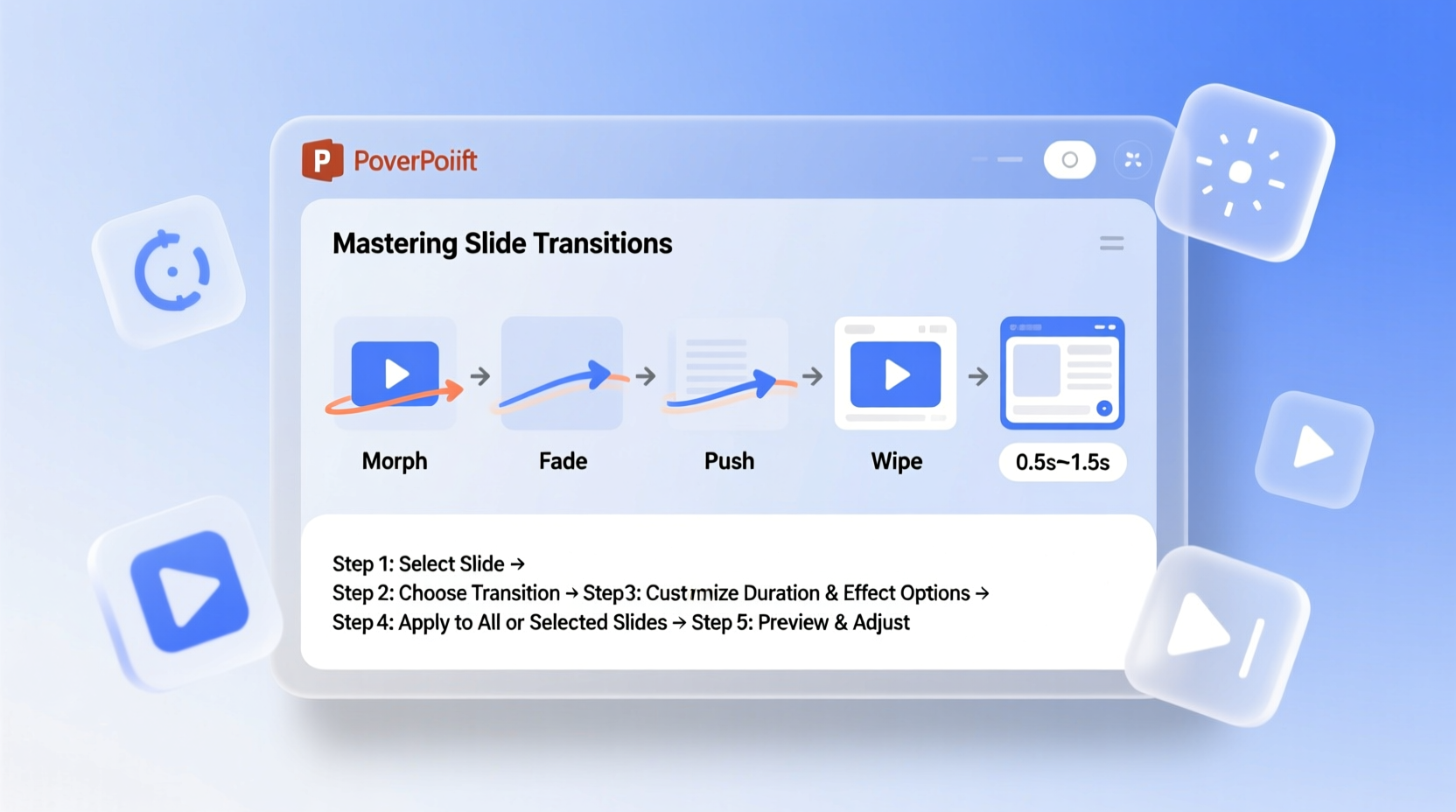
A slide transition is the animation effect that occurs when moving from one slide to the next. Unlike animations applied to individual elements (like text or images), transitions affect the entire slide. While it's tempting to view them as decorative flourishes, their real value lies in pacing and storytelling.
Transitions help signal shifts in topic, mark the beginning or end of sections, and maintain rhythm. For example, a simple fade can indicate continuity, while a push effect might suggest progression. The goal isn't to impress with motion but to support clarity and engagement.
“Transitions should serve the message, not steal the spotlight. A well-timed fade-in can be more effective than a flashy 3D spin.” — Dr. Linda Chen, Presentation Design Researcher, MIT Communication Lab
Step-by-Step Guide to Applying and Customizing Transitions
PowerPoint offers a wide range of transition effects, but knowing how to apply and fine-tune them is essential for professional results. Follow this sequence to master the process:
- Select the slide: Click on the thumbnail of the slide in the left-hand pane where you want to add a transition.
- Open the Transitions tab: Navigate to the ribbon at the top and click on “Transitions.”
- Choose an effect: Browse the gallery of transitions such as Fade, Push, Wipe, or Morph. Hover over each to preview its effect.
- Adjust duration: Use the “Duration” field to set how fast the transition plays. For most professional settings, durations between 0.5 and 1.2 seconds work best.
- Set sound (optional): Add subtle audio cues like a soft chime or swoosh if appropriate—though these are generally discouraged in formal environments.
- Apply to all (if consistent): If your presentation uses a uniform style, click “Apply to All” to maintain visual consistency.
- Preview the effect: Always test the transition in Slide Show mode to see how it feels in context.
Choosing the Right Transition for Your Message
Not all transitions are created equal. Some are better suited for specific contexts. Understanding the tone and purpose of your presentation helps determine which effects enhance rather than hinder communication.
| Transition Type | Best Use Case | When to Avoid |
|---|---|---|
| Fade | Formal reports, academic presentations, subtle scene changes | When you need strong visual separation between topics |
| Push / Wipe | Showing direction or progression (e.g., timeline slides) | In minimalist designs where simplicity is key |
| Morph | Animating charts, shifting layouts, or transforming objects smoothly | On older versions of PowerPoint (not supported before 2019/Microsoft 365) |
| Zoom | Emphasizing growth, expansion, or diving into detail | If the audience may perceive it as disorienting |
| Split | Dramatic reveals or contrasting ideas | In conservative business or technical settings |
Real-World Example: Transforming a Bland Sales Pitch
Jamal, a regional sales manager, struggled to keep his quarterly review engaging. His previous presentations were text-heavy and lacked flow. After applying strategic transitions, the impact was immediate.
He began by simplifying his deck—reducing bullet points and increasing visual aids. Then, he applied a consistent Fade transition across all slides for a clean, modern feel. For key performance graphs, he used the Morph transition to animate data changes between quarters, making trends instantly visible without flipping through separate charts.
The result? His team reported better comprehension, and leadership praised the clarity and professionalism. Jamal didn’t change the content—he changed the delivery. That shift made all the difference.
Common Mistakes and How to Avoid Them
Even experienced presenters fall into traps when using transitions. Here are frequent errors and how to fix them:
- Overusing effects: Applying a different transition to every slide creates chaos. Stick to one primary transition and use variation only for emphasis.
- Ignoring timing: Transitions that are too slow drag the pace; too fast, and they feel jarring. Test in full-screen mode with realistic pauses.
- Forgetting accessibility: Rapid flashing or complex motion can trigger discomfort in some viewers. Avoid strobe-like effects and provide verbal cues during transitions.
- Using transitions as crutches: Don’t rely on flashy effects to mask weak content. Strong structure and clear messaging come first.
Checklist: Optimizing Transitions for Professional Impact
Before finalizing your presentation, run through this checklist to ensure your transitions enhance—not hinder—your message:
- ✅ Used no more than two transition types throughout the deck
- ✅ Set consistent duration (0.5–1.2 seconds) for all transitions
- ✅ Applied “Morph” only where object movement or layout changes add value
- ✅ Removed all sound effects unless absolutely necessary and approved
- ✅ Previewed the entire presentation in Slide Show mode
- ✅ Tested on the actual equipment to be used during delivery
- ✅ Ensured transitions do not obscure text or visuals during playback
Frequently Asked Questions
Can I use transitions in PowerPoint Online?
Yes, most basic transitions (Fade, Push, Wipe) are supported in PowerPoint Online. However, advanced features like Morph may not function properly or appear differently depending on the browser and version.
Why does my Morph transition not work?
The Morph transition requires Microsoft 365 or PowerPoint 2019 and later. It also depends on consistent naming and positioning of objects across slides. Make sure identical shapes, text boxes, or images are present on both the current and next slide, preferably with matching names in the Selection Pane.
Are transitions appropriate for investor pitches?
Yes—but with restraint. In high-stakes environments like investor meetings, clarity and credibility matter most. Use subtle transitions like Fade or Cut. Avoid anything playful or exaggerated. The focus should remain on your data and narrative, not the animation.
Conclusion: Elevate Your Presentations One Transition at a Time
Mastering slide transitions isn’t about chasing trends—it’s about refining how your audience experiences your message. With thoughtful application, transitions become invisible guides that enhance understanding and maintain momentum. Whether you're presenting to a boardroom or a classroom, the smooth flow of your slides reflects the care you’ve put into your craft.




 浙公网安备
33010002000092号
浙公网安备
33010002000092号 浙B2-20120091-4
Comments
No comments yet. Why don't you start the discussion?