
Smartwatches have evolved from simple timekeepers into powerful personal assistants. They track health metrics, deliver notifications, control smart home devices, and even support standalone apps. Yet, many users only scratch the surface of their capabilities. A well-configured smartwatch becomes an intuitive extension of your digital life—responsive, efficient, and tailored to your habits. This guide walks you through the essential steps to fully personalize and optimize your device for maximum utility and comfort.
Step 1: Initial Setup and Pairing
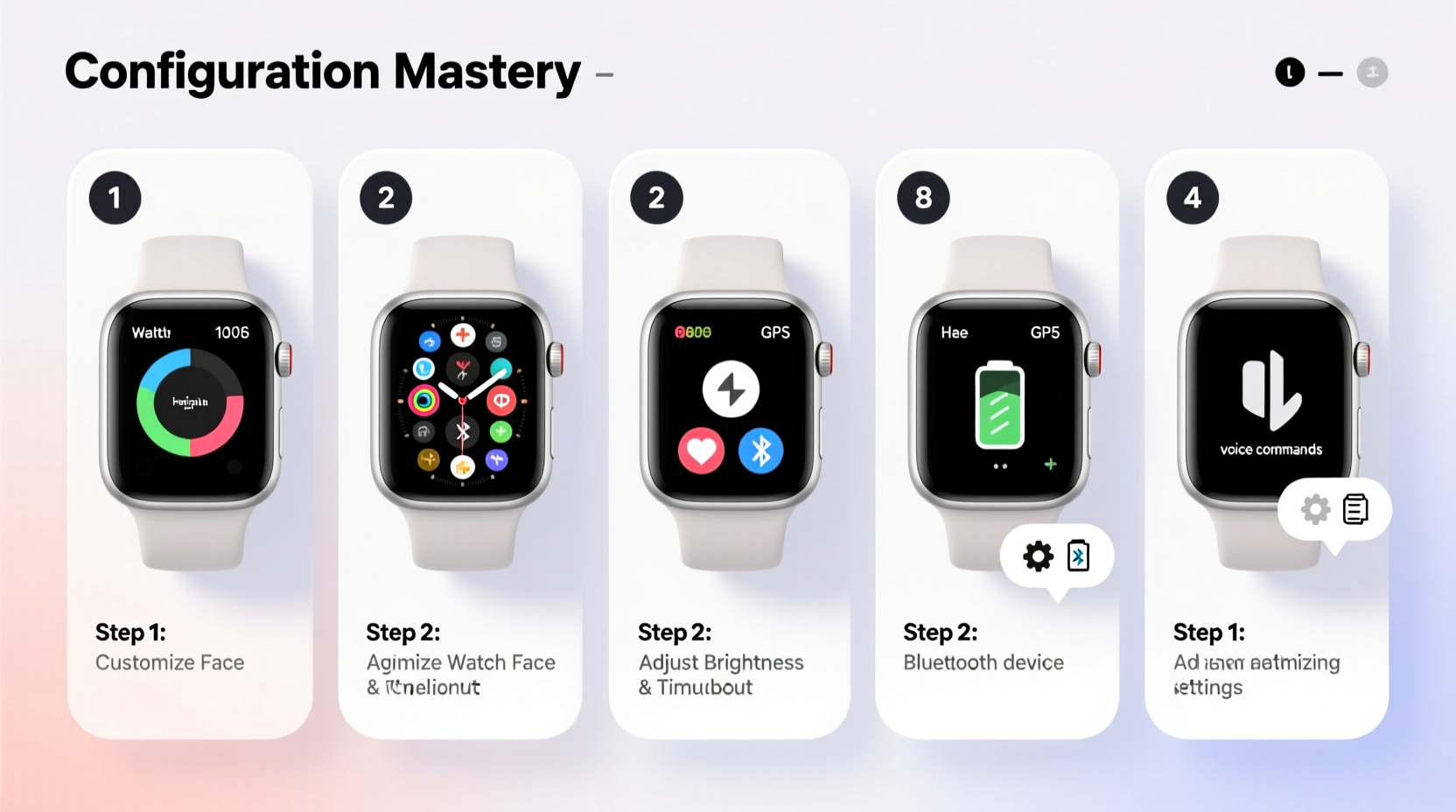
The foundation of effective smartwatch use begins during initial setup. Whether you’re using an Apple Watch, Samsung Galaxy Watch, or a Wear OS device, the pairing process establishes the connection between your watch and smartphone.
- Charge your watch: Ensure it has at least 50% battery before starting.
- Enable Bluetooth on your phone: This is required for pairing.
- Download the companion app: For Apple Watch, use the Watch app; for Samsung, use Galaxy Wearable; for others, check manufacturer instructions.
- Follow on-screen prompts: Align your phone camera with the animation on the watch screen (Apple) or manually select the device (Android).
- Sign in and restore data (if applicable): If upgrading from a previous model, restore settings and preferences.
Step 2: Customize Display and Interface
Your smartwatch is only as useful as it is readable and accessible. Adjusting display settings ensures that information is easy to view and interact with throughout the day.
- Choose a suitable watch face: Pick one that displays key information like time, date, heart rate, weather, or activity rings based on your priorities.
- Adjust brightness: Set auto-brightness or manually lower it in dark environments to save battery.
- Modify font size: Increase text size if readability is an issue, especially for older users.
- Set tap-to-wake or raise-to-wake: Decide whether you want the screen to activate when lifting your wrist or only when tapped.
| Setting | Recommended Option | Why It Matters |
|---|---|---|
| Brightness Mode | Auto | Adapts to ambient light, conserving battery and improving visibility. |
| Wake Gesture | Raise to Wake (selective) | Convenient but can drain battery; disable if overactive. |
| Always-On Display | On (with minimal info) | Useful for quick glances, but reduces battery life by up to 30%. |
Step 3: Optimize Notifications and App Permissions
One of the most common complaints about smartwatches is notification overload. The key is not to eliminate alerts, but to refine them so only what matters reaches your wrist.
Navigate to your companion app and adjust which apps can send alerts. Prioritize messaging apps, calendar events, and health reminders. Silence social media pings unless urgent.
“We’ve found that users who curate their notifications report 40% higher satisfaction with their wearables.” — Dr. Lena Patel, UX Researcher at Mobile Insights Group
Notification Optimization Checklist
- ✅ Disable non-essential app alerts (e.g., promotional emails, game updates)
- ✅ Enable haptic feedback for priority contacts
- ✅ Use “Do Not Disturb” during sleep or focused work hours
- ✅ Set up custom notification tones for different apps
- ✅ Review notification settings monthly to remove outdated permissions
Step 4: Personalize Health and Fitness Tracking
Modern smartwatches offer advanced biometrics: heart rate monitoring, blood oxygen levels, ECG, sleep tracking, and stress indicators. But raw data isn’t helpful without context or customization.
Start by entering accurate personal details—age, weight, height, and fitness goals—into the health app. Then configure automatic workout detection if you frequently forget to start tracking. You can also set personalized goals for steps, active minutes, or standing hours.
For runners or cyclists, calibrate GPS accuracy by performing an outdoor walk or run in open terrain. This improves distance calculations over time.
“Personalization turns generic data into actionable insights. A resting heart rate trend means little unless compared against your baseline.” — Marcus Tran, Digital Health Consultant
Real Example: From Overwhelmed to Informed
Sarah, a 34-year-old teacher, initially ignored her smartwatch’s sleep reports because they seemed confusing. After spending 15 minutes adjusting her sleep schedule input and enabling bedtime mode, she began receiving gentle wind-down reminders and morning summaries. Within two weeks, she improved her average sleep duration from 6.2 to 7.5 hours by acting on consistent wake-up time suggestions and reducing late-night screen exposure prompted by her watch.
Step 5: Maximize Battery Life and Performance
No matter how feature-rich your smartwatch is, poor battery life undermines usability. Most models last 1–2 days, but optimization can extend efficiency significantly.
Battery-Saving Strategies
- Reduce background app refresh: Limit apps that run continuously (e.g., music streaming).
- Turn off unnecessary sensors: Disable SpO2 monitoring or continuous ECG unless medically needed.
- Use power-saving modes: Activate during travel or long days away from chargers.
- Update firmware regularly: Manufacturers often release efficiency improvements in updates.
Frequently Asked Questions
How often should I restart my smartwatch?
Restart once every two weeks to clear cached data and resolve minor glitches. More frequent reboots aren’t necessary unless experiencing lag or unresponsiveness.
Can I use third-party watch faces?
Yes, both Wear OS and Samsung support third-party faces via app stores. Apple allows limited customization through curated complications. Always download from trusted sources to avoid security risks.
Why does my smartwatch disconnect from my phone?
This usually occurs due to Bluetooth interference, low phone battery, or app crashes. Try toggling Bluetooth off/on, restarting both devices, or reinstalling the companion app if the issue persists.
Conclusion: Take Control of Your Device
A smartwatch should enhance your life—not complicate it. By investing a small amount of time in proper configuration, you transform a piece of technology into a seamless partner for productivity, wellness, and connectivity. From refining notifications to tailoring health tracking and extending battery life, each adjustment adds up to a more intuitive experience.
Don’t accept factory defaults as final. Revisit your settings quarterly, explore new features as software updates roll out, and align your device’s behavior with your evolving lifestyle. The true mastery of smartwatch use lies not in knowing every button, but in shaping the device to serve you—quietly, efficiently, and reliably.




 浙公网安备
33010002000092号
浙公网安备
33010002000092号 浙B2-20120091-4
Comments
No comments yet. Why don't you start the discussion?