
SMS—Short Message Service—remains one of the most universal and reliable forms of communication. Despite the rise of messaging apps like WhatsApp and iMessage, SMS is still essential. It works across all phones, doesn’t require internet access, and reaches nearly every mobile user. Whether you're using a modern smartphone or an older flip phone, knowing how to send, manage, and troubleshoot text messages effectively can save time and improve your connectivity.
This guide walks through everything you need to know about SMS, from composing your first message to managing group texts, avoiding common errors, and maximizing security. No matter your device, you’ll gain confidence in using this foundational communication tool.
Understanding SMS: The Basics
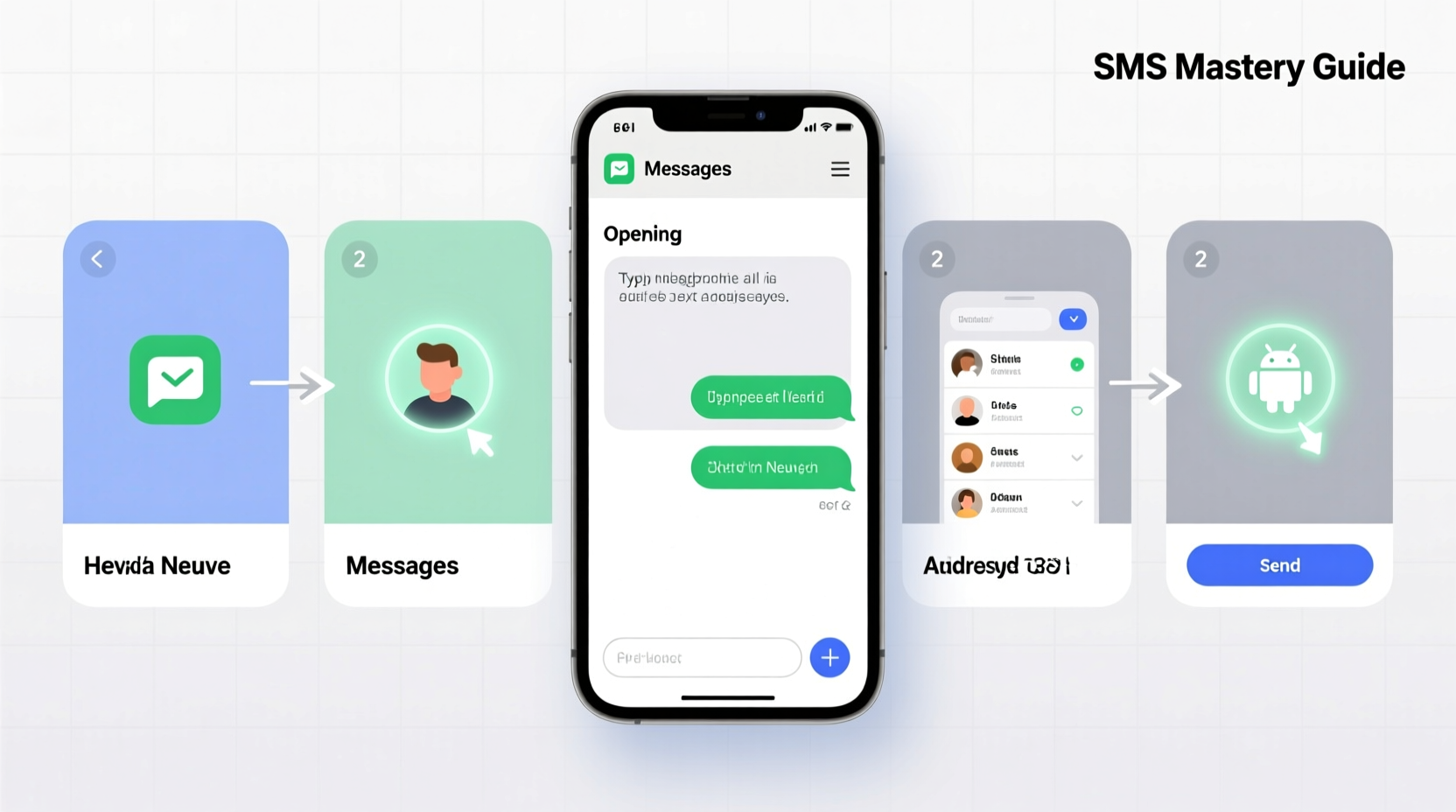
SMS allows you to send short text-based messages—up to 160 characters per segment—between mobile devices using cellular networks. Unlike data-dependent apps, SMS operates over voice networks, meaning it works even when Wi-Fi or mobile data is unavailable. This reliability makes it ideal for urgent alerts, verification codes, and reaching people in low-connectivity areas.
All mobile phones, including basic feature phones and smartphones, support SMS. However, the interface and functionality vary depending on the device’s operating system (iOS, Android) or hardware design. Modern smartphones enhance SMS with read receipts, typing indicators, and integration with multimedia (MMS), but the core function remains consistent.
Step-by-Step Guide to Sending Your First Text Message
Follow this universal process to send an SMS on any mobile phone, whether it's an iPhone, Android device, or basic model.
- Unlock your phone – Ensure your device is powered on and accessible.
- Open the messaging app – On smartphones, look for icons labeled “Messages,” “Text,” or “Messaging.” On basic phones, press the “Menu” button and navigate to “Messages” or “Send Text.”
- Start a new message – Tap the compose button (usually a pencil or “+” icon). On older phones, select “Create Message” from the menu.
- Enter the recipient’s number – Type the full 10-digit phone number, including area code. You can also begin typing a contact’s name if they’re saved in your phonebook.
- Type your message – Use the on-screen or physical keypad to enter up to 160 characters. If you exceed this limit, the message will split into multiple segments, which may be charged separately by some carriers.
- Send the message – Press the “Send” arrow or key (often a paper plane icon). On older phones, confirm with the “OK” or call button.
- Wait for delivery confirmation – Smartphones often show “Delivered” or “Sent” status. Basic phones typically provide no feedback unless an error occurs.
After sending, the conversation thread will appear in your inbox, allowing for back-and-forth communication. Most phones automatically group messages with the same contact into a single thread for easier tracking.
Advanced SMS Features Across Devices
While the fundamentals are consistent, smartphones offer enhanced capabilities that simplify communication.
| Feature | iOS (iPhone) | Android | Basic Phones |
|---|---|---|---|
| Group Messaging | Supported with MMS; replies go to all participants | Configurable as group or individual replies | Limited or not supported |
| Delivery & Read Receipts | Enabled via iMessage (blue bubbles); green indicates SMS | Depends on carrier and settings | Not available |
| Multimedia (MMS) | Photos, videos, audio clips sent over data or Wi-Fi | Auto-sent via MMS if enabled | Some models support picture messages |
| Typing Indicators | Shown only in iMessage; not in SMS mode | Varies by manufacturer and carrier | No |
On iPhones, note that blue messages use Apple’s iMessage (data-based), while green ones are traditional SMS. If iMessage is turned off or unavailable, messages default to SMS. Android users can toggle between SMS and Rich Communication Services (RCS), Google’s upgraded messaging protocol, which offers similar features to iMessage.
“SMS has a 98% open rate within three minutes—making it the most effective channel for time-sensitive communication.” — Dr. Linda Chen, Digital Communication Researcher, MIT Media Lab
Troubleshooting Common SMS Issues
Even with its simplicity, SMS can encounter problems. Here’s how to resolve the most frequent issues:
- Message not sending: Check signal bars. Restart your phone or toggle Airplane Mode on/off to refresh the network connection.
- Delayed delivery: Network congestion or poor coverage can cause delays. Avoid sending during peak hours if timing is critical.
- Recipient not receiving messages: Confirm they haven’t blocked your number. Ask them to check spam filters or carrier restrictions.
- Unexpected charges: International SMS or long messages (over 160 characters) may incur fees. Verify your plan with your carrier.
- MMS not working: Ensure mobile data is enabled. On Android, verify APN (Access Point Name) settings match your carrier’s configuration.
Mini Case Study: Reconnecting During a Power Outage
In rural Montana, during a winter storm that knocked out power and internet, Sarah used SMS to coordinate with her family. With Wi-Fi down and cell data spotty, only SMS remained functional. She sent brief updates about road conditions and safety checks using her iPhone’s native Messages app. Even though iMessage was disabled, green SMS bubbles ensured her messages went through. Her sister, using a basic Samsung flip phone, received each alert instantly. This real-world example underscores SMS’s resilience in emergencies when other platforms fail.
Best Practices for Secure and Effective Texting
To get the most out of SMS while minimizing risks, follow these guidelines:
✅ Do’s
- Use clear, concise language—SMS is best for short, direct messages.
- Verify recipient numbers before sending sensitive information.
- Enable two-factor authentication (2FA) via SMS for added account security.
- Save important contacts with full names and notes (e.g., “Mom – Home”).
❌ Don’ts
- Don’t share passwords, credit card details, or personal IDs via SMS.
- Avoid sending long paragraphs—split into multiple messages only if necessary.
- Never respond to suspicious messages asking for personal info (common phishing tactic).
Checklist: Optimizing Your SMS Experience
- ✔️ Update your phone’s software regularly for improved messaging stability.
- ✔️ Back up your messages (via iCloud or Google Drive) to prevent data loss.
- ✔️ Label unknown numbers as spam to reduce unwanted texts.
- ✔️ Disable auto-download of MMS for better data control.
- ✔️ Test message delivery by sending a quick note to yourself or a trusted contact.
Frequently Asked Questions
Can I send SMS without a SIM card?
No. SMS relies on a cellular network connection tied to a SIM card. While Wi-Fi calling may allow SMS over internet on some devices, a registered SIM is still required.
Why do some messages appear in green and others in blue on iPhone?
Green bubbles indicate SMS sent over the cellular network. Blue bubbles mean the message was sent via iMessage (Apple’s internet-based service) to another Apple user. iMessage offers more features, but SMS ensures broader compatibility.
Are SMS messages encrypted?
Traditional SMS is not end-to-end encrypted. Messages travel through carrier networks in plain text, making them less secure than encrypted apps like Signal. Avoid transmitting sensitive information via standard text.
Final Thoughts
SMS may seem outdated in an era of instant apps and rich media, but its universality, reliability, and simplicity ensure it remains indispensable. From confirming appointments to staying in touch during emergencies, mastering SMS empowers you to communicate effectively across all devices and situations.
Whether you're guiding an elderly relative through their first text or optimizing your own messaging habits, the skills covered here form the foundation of mobile communication. Apply these steps, use the checklist, and refer back when troubleshooting. In doing so, you’ll turn a basic function into a powerful, dependable tool.




 浙公网安备
33010002000092号
浙公网安备
33010002000092号 浙B2-20120091-4
Comments
No comments yet. Why don't you start the discussion?