
The Echo Plum series has carved a niche in the budget-friendly smartphone market, offering reliable performance with intuitive design. While smartphones today boast advanced messaging apps, SMS remains a universal, dependable method of communication—especially for reaching contacts without internet access or across different carriers. For Echo Plum users, mastering SMS is essential for staying connected in any situation. This guide walks through everything you need to know about composing, sending, managing, and troubleshooting text messages on your Echo Plum device.
Understanding SMS on Echo Plum Devices
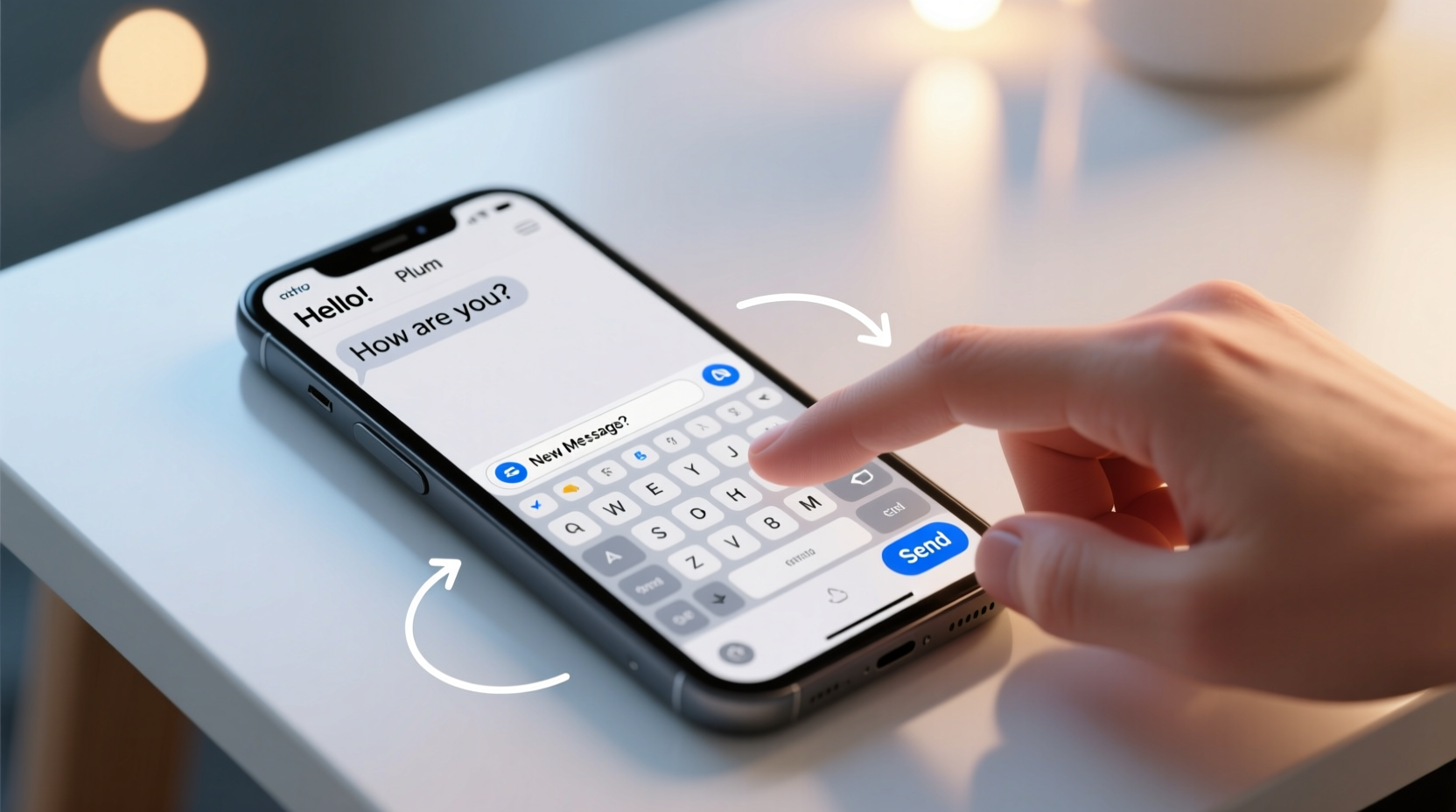
SMS (Short Message Service) allows you to send text messages up to 160 characters using your cellular network. Unlike data-dependent messaging apps, SMS works independently of Wi-Fi or mobile data, making it ideal for emergencies, rural areas, or low-connectivity zones. Echo Plum phones support standard SMS functionality out of the box, but many users underutilize its features due to unfamiliarity with the interface or settings.
All Echo Plum models run on a streamlined Android-based operating system optimized for simplicity. The default messaging app is pre-installed and designed for ease of use, even for first-time smartphone owners. It supports group texts, delivery reports, message threading, and basic multimedia attachments like emojis and small images when MMS (Multimedia Messaging Service) is enabled.
Step-by-Step Guide to Sending Your First Text
Sending an SMS on your Echo Plum phone is straightforward once you understand the process. Follow these steps to compose and deliver your first message:
- Unlock your phone and locate the “Messages” app, usually represented by a speech bubble icon on the home screen or app drawer.
- Tap the compose button (a pencil or “+” icon) to start a new message.
- Enter the recipient’s phone number in the “To” field. You can also begin typing a contact’s name if they are saved in your address book.
- Type your message in the text input box at the bottom. A character counter will appear as you approach the 160-character limit.
- Press the send arrow (usually a paper plane or right-facing arrow). The message will be sent via your carrier’s network.
If the recipient is within range and their carrier accepts messages, delivery typically occurs within seconds. If the phone is off or out of service, the message queues and delivers once connectivity resumes.
Adding Contacts for Faster Messaging
To avoid typing numbers manually every time, save frequent contacts:
- Open the “Phone” or “Contacts” app.
- Select “Add Contact” and enter the name and number.
- Save the entry. Now, when you type their name in the Messages app, it will auto-suggest.
Optimizing SMS Settings for Better Experience
Customizing your messaging preferences enhances usability and control. Access settings from the main menu of the Messages app:
| Setting | Purpose | Recommended Option |
|---|---|---|
| Delivery Reports | Notifies you when a message is received | Enable for important messages |
| Auto-Retrieve MMS | Downloads picture messages automatically | Disable if on limited data |
| Signature | Adds a custom tag at the end of messages | Optional (e.g., “Sent from Echo Plum”) |
| Notification Sound | Customizes alert tone | Choose a distinct sound for priority alerts |
| Default SMS App | Ensures Echo Plum’s app handles all texts | Set as default if installing third-party apps |
“Simple adjustments in SMS settings can reduce confusion and improve response tracking—especially for professionals relying on timely confirmations.” — Lena Torres, Mobile Communication Specialist
Common Issues and How to Fix Them
Even reliable systems encounter hiccups. Below are frequent SMS problems on Echo Plum phones and how to resolve them:
- Message fails to send: Check signal strength. Restart the phone or toggle Airplane mode on/off to reset the network connection.
- Delayed delivery: Carrier congestion may cause delays. Verify service status with your provider.
- Can’t receive texts: Confirm that SMS isn’t blocked in settings. Go to Messages > Settings > Blocked Numbers and remove restrictions.
- MMS not working: Ensure mobile data is enabled and APN (Access Point Name) settings are correct. Contact your carrier for configuration details.
Mini Case Study: Maria’s Emergency Outreach
Maria, a rural health worker in Idaho, relies on her Echo Plum phone during field visits where Wi-Fi is unavailable. One afternoon, her vehicle broke down on a remote road. With no data signal, she couldn’t use messaging apps—but her SMS worked perfectly. She sent a concise text to her supervisor: “Stranded on Route 7 near mile marker 12. Need tow.” Within minutes, help was dispatched. Because SMS uses minimal bandwidth and doesn’t require internet, it proved critical in an emergency where other tools failed.
Advanced Tips for Efficient SMS Use
Beyond basic texting, you can leverage built-in features to streamline communication:
Create Group Messages
To inform multiple people at once:
- Start a new message.
- Add multiple recipients by typing names or numbers separated by commas.
- Compose your message and send. All replies appear in one thread.
Note: Some carriers charge per recipient in group SMS, so check your plan.
Use Templates for Frequently Sent Messages
For common replies like “On my way” or “Will call later,” save time by creating templates:
- Write the message and long-press to select “Copy.”
- Paste it whenever needed instead of retyping.
- Some third-party keyboards offer snippet shortcuts—consider installing one if used often.
Enable Backup and Sync (If Available)
While Echo Plum’s native app may not sync to the cloud, some versions support Google Messages integration. If available, link your account to back up texts and access them across devices.
Checklist: Mastering SMS on Your Echo Plum Phone
- ✅ Verify your SIM card is active and seated correctly
- ✅ Save key contacts to avoid manual entry
- ✅ Enable delivery reports for confirmation
- ✅ Test sending and receiving a message to a friend
- ✅ Customize notification sounds for quick identification
- ✅ Clear old messages monthly to maintain performance
- ✅ Know the difference between SMS and MMS usage
- ✅ Keep your phone charged and within network coverage
Frequently Asked Questions
Can I send SMS without data on my Echo Plum?
Yes. SMS operates over the cellular voice network and does not require mobile data or Wi-Fi. As long as you have signal bars and an active plan, you can send and receive texts.
Why do some messages turn green and others blue?
On Echo Plum phones, color coding depends on the messaging app used. Green typically indicates traditional SMS/MMS, while blue suggests RCS (Rich Communication Services) or chat features if supported. Most Echo Plum models default to green for standard texts.
Is SMS secure on Echo Plum devices?
SMS is less secure than end-to-end encrypted apps like Signal. Messages are transmitted in plain text and can be intercepted. Avoid sharing sensitive information such as passwords or financial details via SMS.
Final Thoughts and Action Steps
Mastering SMS on your Echo Plum phone empowers you to communicate reliably, regardless of internet availability. Whether you're coordinating daily plans, reaching out in emergencies, or staying in touch with loved ones, understanding how to send, manage, and troubleshoot text messages ensures you’re never disconnected. These skills are especially valuable for seniors, travelers, and professionals operating in low-connectivity environments.
Take a moment today to review your messaging settings, save essential contacts, and test your SMS functionality. By building these habits now, you’ll gain confidence in your ability to stay connected—simply, safely, and effectively.




 浙公网安备
33010002000092号
浙公网安备
33010002000092号 浙B2-20120091-4
Comments
No comments yet. Why don't you start the discussion?