
For many professionals, freelancers, and power users, the first few minutes after turning on a computer can make or break daily productivity. Waiting for essential tools to launch one by one wastes time and disrupts focus. By configuring the right applications to start automatically, you streamline your workflow from the moment your system boots. This guide walks through everything you need to know about managing startup apps across operating systems, optimizing performance, and avoiding common pitfalls.
Why Startup Automation Matters
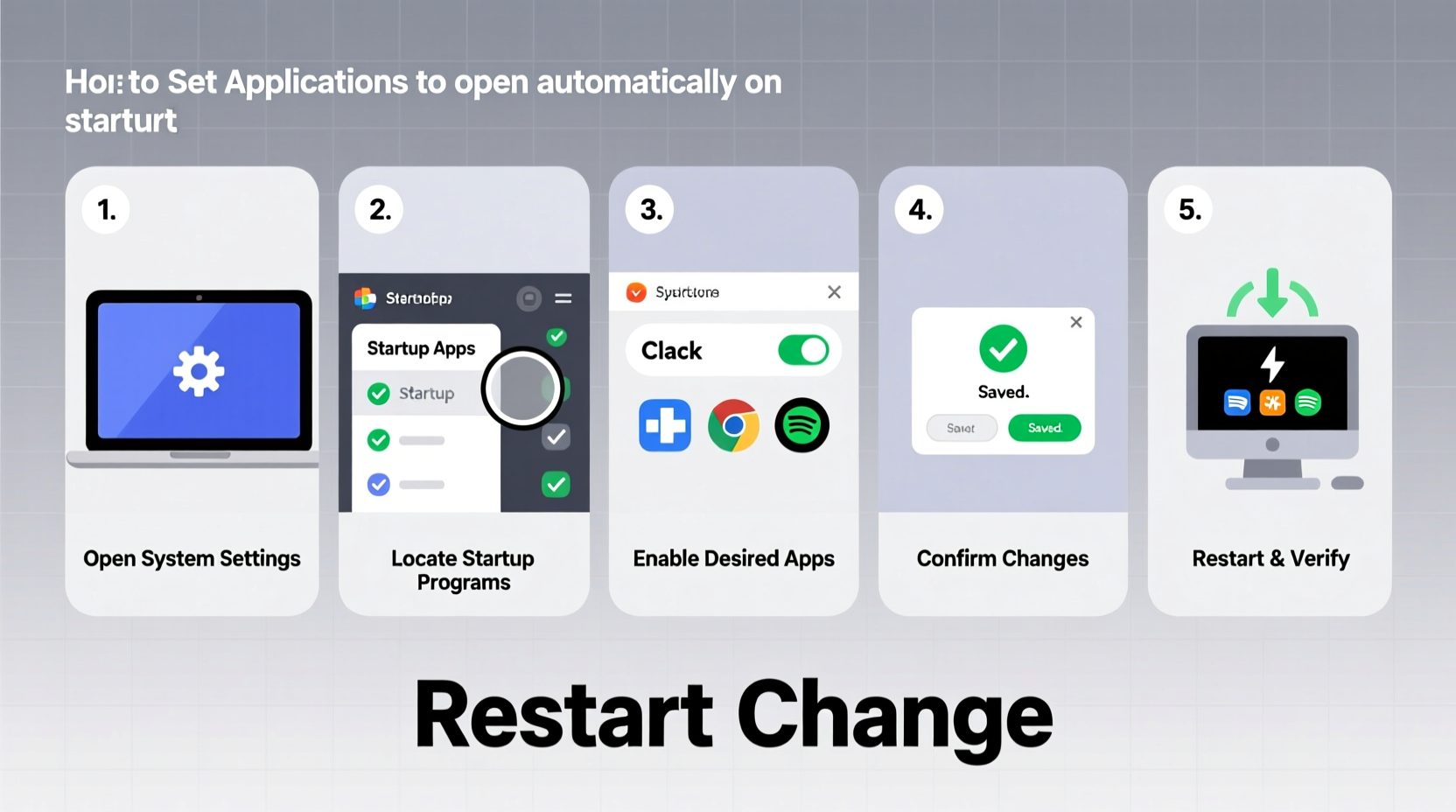
Automating which apps launch at startup isn’t just about convenience—it’s about consistency. When your email client, cloud sync service, communication platform, and task manager are ready when you are, you eliminate friction in your routine. Over time, those saved seconds accumulate into meaningful gains in efficiency.
However, poor management of startup programs can lead to slow boot times, high memory usage, and unresponsive systems. The key is balance: automate only what you use daily and ensure each app adds value without dragging down performance.
“Smart startup configuration turns a sluggish morning boot into a seamless transition into work mode.” — Jordan Lee, Systems Optimization Consultant
Step-by-Step Guide to Managing Startup Apps
Configuring startup applications varies slightly depending on your operating system. Below is a detailed walkthrough for Windows, macOS, and Linux (Ubuntu), including how to add, remove, and troubleshoot startup entries.
Windows: Using Task Manager and Settings
- Press Ctrl + Shift + Esc to open Task Manager.
- Navigate to the Startup tab.
- Review the list of applications set to run at startup. Each entry shows its impact on boot time (e.g., “High,” “Medium,” “Low”).
- To disable an app, select it and click Disable.
- To enable an app, locate its executable file and place a shortcut in the Startup folder: Press Win + R, type
shell:startup, and press Enter. Paste the shortcut here.
macOS: Managing Login Items
- Click the Apple menu and select System Settings (or System Preferences on older versions).
- Go to General > Login Items.
- You’ll see a list of apps that launch when you log in. Toggle them off to prevent auto-start.
- To add an app, click the Add (+) button, navigate to the app in Applications, and select it.
- Use the checkboxes under “Hide” to keep certain apps running in the background without opening their windows.
Linux (Ubuntu): Using Startup Applications Preferences
- Open the Activities overview and search for “Startup Applications.”
- Launch the tool and review the list of active startup programs.
- Toggle off any unnecessary entries.
- To add a new startup app, click Add, then enter:
- Name: A descriptive label (e.g., “Slack Auto-Start”)
- Command: Full path to the executable (e.g.,
/usr/bin/slack) - Comment: Optional note for future reference
- Click Add to confirm.
Best Practices for Optimizing Startup Performance
Just because you *can* launch ten apps at startup doesn’t mean you *should*. Strategic selection ensures fast boot times and smooth operation. Follow these best practices to maintain peak performance.
Select Only Essential Tools
Limit startup apps to those you interact with within the first 15 minutes of using your computer. Common examples include:
- Communication tools (Slack, Microsoft Teams)
- Email clients (Outlook, Thunderbird)
- Cloud storage sync (Dropbox, OneDrive, Google Drive)
- Password managers (Bitwarden, 1Password)
- Antivirus software (if not handled by the OS)
Delay Non-Critical Apps
If an app is important but not immediately needed, consider delaying its launch using scripts or third-party tools. For example, on Windows, you can create a batch file with a delay:
timeout /t 30 /nobreak >nul
start \"\" \"C:\\Program Files\\Notion\\Notion.exe\"
This delays Notion by 30 seconds, allowing core apps to load first.
Monitor Resource Usage
Regularly audit your startup list. An app that made sense six months ago might no longer be relevant. Use built-in tools like Task Manager (Windows) or Activity Monitor (macOS) to check CPU and memory usage during boot.
Do’s and Don’ts of Startup App Management
| Do | Don’t |
|---|---|
| Add cloud sync tools to ensure files are always up to date | Add multiple browser instances with many tabs—this slows boot significantly |
| Use the “Hide on Launch” option for background services like Dropbox | Enable games or media players to start automatically |
| Test boot performance after changes | Assume all pre-installed startup apps are necessary—many are bloatware |
| Use symbolic links or scripts for complex startup logic | Ignore startup impact ratings on Windows—“High” impact apps should be justified |
Real-World Example: Streamlining a Freelancer’s Workflow
Sophie, a freelance graphic designer, used to spend nearly five minutes each morning manually launching her tools: Adobe Creative Cloud, Trello, Gmail, Zoom, and her backup sync service. Her computer often felt sluggish due to too many background processes.
After auditing her startup items, she configured only Trello, Google Drive, and her password manager to launch automatically. She delayed the Adobe suite by 45 seconds using a script, ensuring her system remained responsive. Zoom was removed from startup entirely and opened only when a meeting was scheduled.
The result? Her boot time dropped from 2 minutes 10 seconds to 48 seconds, and she regained focus by eliminating repetitive manual steps.
Checklist: Optimizing Your Startup Routine
- ✅ Audit current startup apps using system tools
- ✅ Disable unnecessary or rarely used programs
- ✅ Add essential daily-use apps to login/startup
- ✅ Test boot speed and responsiveness after changes
- ✅ Implement delays for non-critical but useful apps
- ✅ Schedule monthly reviews of startup list
- ✅ Use “Hide” options to reduce desktop clutter
Frequently Asked Questions
Will having too many startup apps damage my computer?
No, having many startup apps won’t physically damage your computer, but it can severely degrade performance, especially on machines with limited RAM or older hardware. Excessive startup load may cause overheating over time due to sustained high CPU usage.
Can I set different startup apps for different user accounts?
Yes. Startup configurations are user-specific on all major operating systems. Each user profile maintains its own list of login items (macOS), startup entries (Windows), or autostart applications (Linux). This allows customized setups in shared environments.
Why doesn’t my app appear in the startup list even though it launches on boot?
Some applications bypass standard startup managers by registering as background services or using scheduler tasks (Windows) or launch agents (macOS). To manage these, use advanced tools like msconfig (Windows), launchctl (macOS), or inspect ~/.config/autostart/ (Linux).
Take Control of Your Digital Morning
Mastering startup apps is one of the simplest yet most impactful ways to enhance your computing experience. With intentional configuration, you transform boot time from a passive waiting period into an active preparation phase—your tools ready, your environment optimized, and your focus preserved.
Start today: open your startup settings, remove the clutter, and build a lean, purposeful launch sequence. Small adjustments now lead to significant long-term gains in efficiency and satisfaction.




 浙公网安备
33010002000092号
浙公网安备
33010002000092号 浙B2-20120091-4
Comments
No comments yet. Why don't you start the discussion?