
Navigating unfamiliar neighborhoods, scouting real estate, or planning a walking route? Google Maps Street View is an indispensable tool that brings the world to your screen with 360-degree panoramic imagery. Whether you're using a smartphone, tablet, or desktop computer, accessing Street View is simple once you know the right steps. This comprehensive guide walks you through everything from basic navigation to advanced features, ensuring you can explore any location with confidence and precision.
Understanding Google Maps Street View
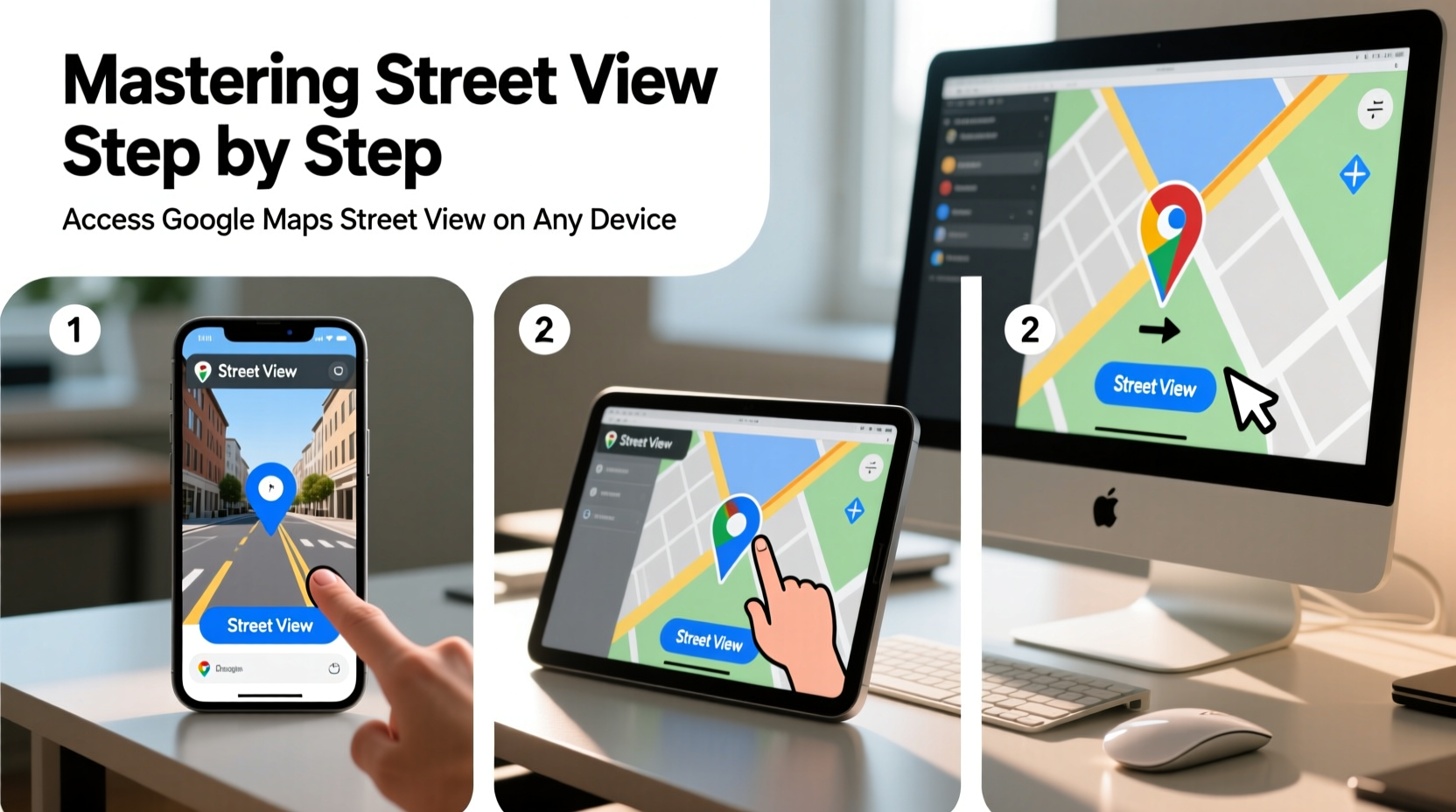
Launched in 2007, Google Maps Street View provides ground-level, interactive images of streets across more than 85 countries. These images are captured by specialized vehicles, backpacks (for remote trails), and even snowmobiles in certain regions. The result is a realistic visual experience that lets users virtually \"walk\" or \"drive\" through cities, rural roads, and tourist landmarks.
Street View isn’t just for curiosity—it’s used by travelers, urban planners, real estate agents, and educators. It enables people to preview routes, assess neighborhood safety, and even revisit childhood homes from afar. With regular updates and seasonal imagery in some areas, it offers both practical utility and emotional connection.
How to Access Street View on Desktop
Using Street View on a desktop browser offers the most control and detail. Here’s how to get started:
- Open Google Maps in your preferred browser (Chrome, Firefox, Safari, etc.).
- Search for a location or navigate manually using the zoom controls.
- Locate the yellow Pegman icon in the bottom-right corner of the map interface.
- Click and drag Pegman onto the map. Roads eligible for Street View will appear in blue.
- Release Pegman over a blue-highlighted area to enter Street View mode.
Once inside Street View, use your mouse to look around: click and drag to pan, scroll to zoom in or out, and click arrows on the ground to move forward or turn corners. You can also switch between different capture dates using the clock icon in the top-left corner, allowing you to see how a place has changed over time.
Pro Tips for Desktop Users
- Press and hold the right mouse button to smoothly rotate your view.
- Use keyboard shortcuts: W (forward), S (backward), A/D (turn left/right).
- Enable full-screen mode for immersive exploration—click the square icon in the top-right of the Street View window.
Accessing Street View on Mobile Devices
Smartphones and tablets make Street View accessible on the go. The process differs slightly between iOS and Android but remains intuitive.
iOS and Android Step-by-Step
- Open the Google Maps app on your device.
- Search for a destination or tap a place on the map.
- Tap the location’s info card at the bottom of the screen.
- Swipe up or tap “Explore” to reveal photos and Street View options.
- Select a Street View thumbnail or tap “See more panoramas” to launch the full view.
In Street View mode, swipe your finger to change direction, pinch to zoom, and tap directional arrows to advance along the street. Unlike desktop, you cannot drag Pegman freely on mobile—you must select a panorama from available thumbnails.
Advanced Features and Hidden Tools
Beyond basic navigation, Street View includes powerful tools that enhance usability:
- Time Travel via Historical Imagery: In desktop mode, click the clock icon to browse past captures. Useful for tracking construction progress or revisiting old neighborhoods.
- Street View in Google Earth: For a more immersive 3D experience, open the same location in Google Earth, where terrain and building height add depth.
- Street View Gallery: Visit google.com/streetview to explore curated tours of national parks, museums, and World Heritage Sites.
- Measurement Tool (Indirect): While not built into Street View, you can estimate distances by counting steps between arrows and cross-referencing with the map scale.
“Street View has transformed how we understand geography—not just as coordinates, but as lived spaces.” — Dr. Lena Patel, Urban Geographer at MIT
Device Comparison: What Works Best?
| Device Type | Best For | Limits |
|---|---|---|
| Desktop/Laptop | Detailed exploration, historical imagery, keyboard navigation | Requires internet browser; less portable |
| Smartphone (iOS/Android) | On-the-go navigation, quick previews, AR integration | Limited dragging; smaller screen size |
| Tablet | Balanced experience—larger screen than phone, more portable than desktop | Same app limitations as mobile; battery-intensive |
Troubleshooting Common Issues
Sometimes Street View doesn’t load as expected. Here’s how to resolve frequent problems:
- No Blue Roads When Dragging Pegman: The area may not be covered. Try zooming in or checking nearby streets.
- Blurry or Low-Resolution Images: Older captures may lack clarity. Check the date in the top-left corner.
- App Crashes on Mobile: Clear the app cache or update to the latest version via the App Store or Google Play.
- Slow Loading: Weak internet connection affects performance. Use Wi-Fi when possible, or preload views before going offline.
Real-World Example: Planning a City Walk
Sophia, a travel blogger based in Portland, planned a walking tour of downtown Seattle for her readers. Instead of relying solely on written descriptions, she used Street View to scout each block. She checked sidewalk conditions, identified photogenic alleyways, and confirmed the entrance to a hidden café mentioned in a forum. By virtually walking the route twice—once during daylight and once using a night-time capture—she ensured her guide was accurate and safe. Her post received high engagement, with readers praising the level of detail.
This demonstrates how Street View transcends convenience—it enables informed decisions and richer storytelling.
Frequently Asked Questions
Can I access Street View without an internet connection?
Not directly. Street View requires an active internet connection to stream imagery. However, you can save specific map areas for offline use in the Google Maps app, which includes limited Street View support if cached beforehand.
Why is some Street View footage blurred or missing?
Google blurs faces and license plates automatically for privacy. Some areas may lack coverage due to legal restrictions, rough terrain, or recent changes. Private properties and narrow alleys may also be inaccessible to capture vehicles.
Can I contribute my own Street View images?
Yes. Using a 360-degree camera, you can upload panoramas to Google Maps via the Street View app. Once verified, your images become part of the public database—a valuable contribution for under-mapped areas.
Conclusion: Take Control of Your Virtual Exploration
Mastery of Google Maps Street View unlocks a deeper understanding of the physical world. Whether you're house-hunting, planning a vacation, or simply satisfying curiosity, the ability to visually navigate any street enhances decision-making and enriches experiences. From desktop precision to mobile flexibility, every device offers unique advantages. Combine technical know-how with creative use, and you’ll transform how you interact with space and place.




 浙公网安备
33010002000092号
浙公网安备
33010002000092号 浙B2-20120091-4
Comments
No comments yet. Why don't you start the discussion?