
Subscripts are essential for clear communication in scientific, mathematical, and chemical writing. Whether you're drafting a research paper, preparing a chemistry formula, or documenting engineering specifications, proper use of subscript formatting ensures your work is accurate and professional. Microsoft Word offers multiple ways to apply subscripts—some intuitive, others less obvious. Knowing the right method for each scenario saves time and enhances precision.
Why Subscripts Matter in Professional Writing
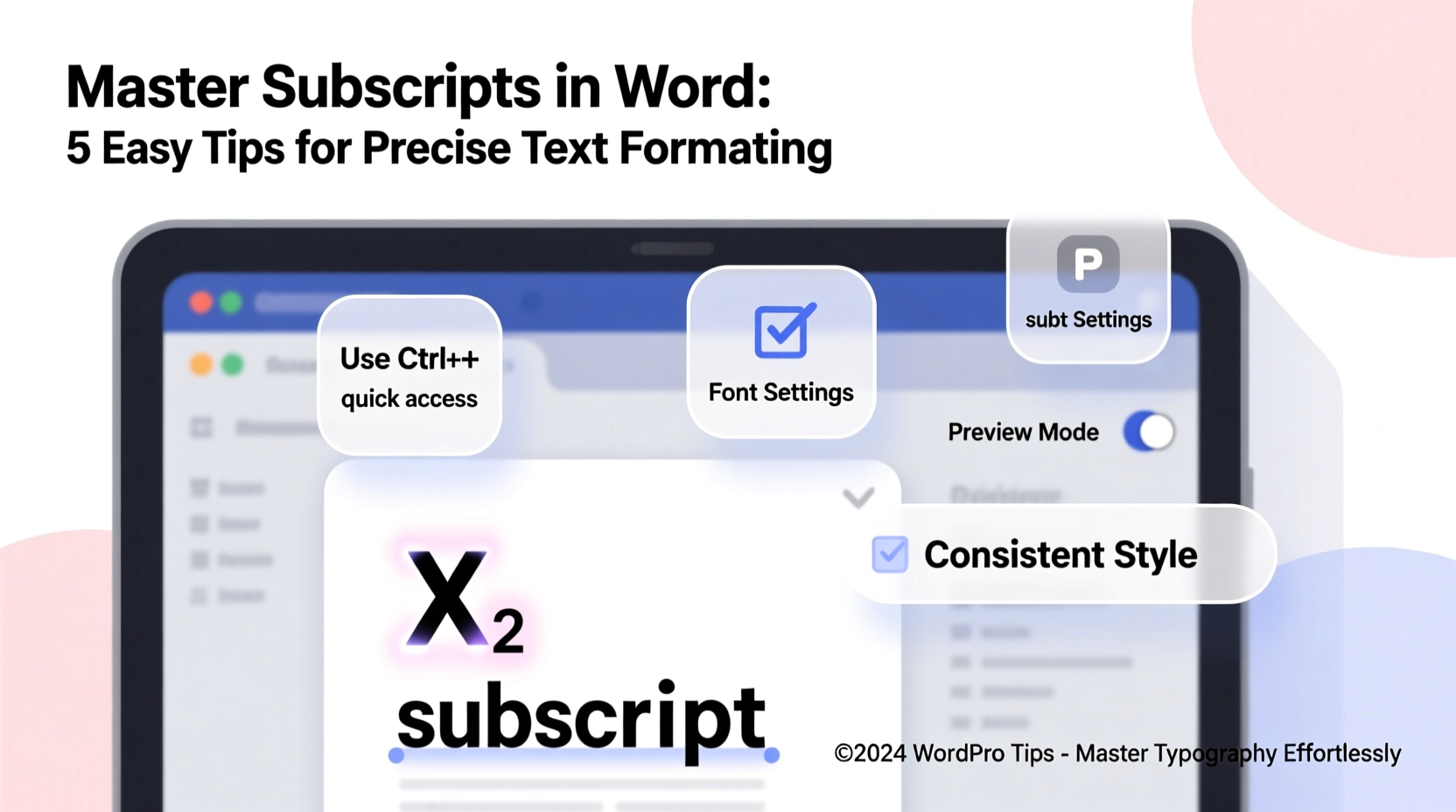
Subscripts appear below the baseline of regular text and are used across disciplines: H₂O for water, CO₂ for carbon dioxide, or x₁, x₂ in mathematical sequences. Misformatted subscripts can lead to confusion or misinterpretation. In peer-reviewed journals or technical reports, even minor formatting errors can undermine credibility.
The importance of consistency cannot be overstated. A document where some subscripts are too small, misaligned, or inconsistently applied distracts readers and reflects poorly on attention to detail. Mastering this feature isn’t just about aesthetics—it’s about clarity, correctness, and professionalism.
“Proper subscript usage is non-negotiable in scientific publishing. It separates amateur drafts from publication-ready manuscripts.” — Dr. Lena Torres, Journal Editor at *Applied Chemistry Today*
How to Apply Subscripts in Word: Step-by-Step Methods
Microsoft Word provides several reliable ways to insert subscripts. Choose the one that fits your workflow best.
Method 1: Keyboard Shortcut (Fastest for Regular Use)
- Type the full expression (e.g., H2O).
- Highlight the number or character to subscript (e.g., “2” in H2O).
- Press Ctrl + = (Windows) or Cmd + = (Mac).
- The selected text will instantly convert to subscript.
- To revert, reselect and press the same shortcut again.
Method 2: Using the Font Dialog Box (Precision Control)
- Select the text you want to format.
- Right-click and choose “Font,” or go to the Home tab > Font group > small arrow icon.
- In the Font dialog box, check the “Subscript” option under Effects.
- Adjust the offset percentage if needed (default is usually 33%) and size reduction (typically 50%).
- Click OK to apply.
This method gives fine control over vertical positioning and font scaling—useful when default settings don't align well with surrounding text.
Method 3: Ribbon Button (Beginner-Friendly)
- Highlight the characters to be subscripted.
- Navigate to the “Home” tab.
- In the Font group, click the X₂ button labeled “Subscript.”
- Formatting applies immediately.
Ideal for users unfamiliar with shortcuts, this visual approach reduces reliance on memory.
Method 4: AutoCorrect for Frequent Formulas
If you regularly type certain subscripted terms (like H₂O or CO₂), set up AutoCorrect rules:
- Type the term normally (e.g., H2O) and format the “2” as subscript.
- Select the entire formatted term.
- Go to File > Options > Proofing > AutoCorrect Options.
- In “Replace,” enter a shorthand like “h2o” (lowercase recommended).
- Click “Add,” then “OK.”
Now, typing “h2o” followed by a space automatically expands to H₂O with correct formatting.
Common Mistakes to Avoid When Using Subscripts
Even experienced users make avoidable errors. Recognizing these pitfalls improves document quality.
| Mistake | Why It's Problematic | Best Practice |
|---|---|---|
| Using lowercase letters instead of numbers (e.g., H₂O written as H₂o) | Looks unprofessional; may confuse automated parsing tools | Always maintain standard capitalization alongside subscripting |
| Manually shrinking font size without lowering baseline | Creates illusion of subscript but lacks proper alignment | Use actual subscript formatting, not visual mimicry |
| Forgetting to disable subscript after use | Leads to unintended formatting of subsequent text | Double-check cursor state; toggle off with Ctrl+= |
| Applying subscripts inconsistently across a document | Undermines readability and appears careless | Use Styles or templates to enforce uniformity |
Real-World Example: Formatting a Chemistry Lab Report
Sophie, a third-year chemistry student, was preparing her final lab report on acid-base titrations. Her initial draft included formulas like CO2, H2SO4, and NaOH—all typed without proper subscripting. After submitting a draft, her professor returned it with feedback: “Formulas must follow IUPAC standards. Superscripts and subscripts are required.”
Sophie revised her document using keyboard shortcuts and created AutoCorrect entries for common compounds. She also adjusted the subscript offset in the Font settings to ensure better alignment with italicized variables in equations. The final version looked polished and met academic standards. Her grade improved significantly—not because of new content, but due to precise formatting.
This case illustrates how mastering small technical details can have outsized impacts on perceived competence and evaluation outcomes.
Advanced Tips for Consistent Subscript Formatting
Beyond basic application, consider these advanced strategies for long-term efficiency and consistency.
- Create a custom style: Design a “Chemical Formula” paragraph or character style with subscript built-in for repeated use.
- Use Equation Editor for complex expressions: For formulas involving both subscripts and superscripts (e.g., SO₄²⁻), insert an equation (Alt + =) and use structured input fields.
- Leverage Find and Replace: Search for “H2O” and replace with properly formatted H₂O across the entire document.
- Check output in PDF: Always export to PDF to verify subscript rendering, especially if sharing with collaborators or publishers.
Frequently Asked Questions
Can I use subscripts in table cells and footnotes?
Yes. Subscripts work anywhere in Word—within tables, headers, footnotes, and text boxes. Apply formatting the same way as in body text.
Why does my subscript look blurry or pixelated?
This usually occurs in editing view due to screen resolution or zoom level. It typically resolves in print or high-resolution PDF output. If persistent, ensure you’re using TrueType fonts and avoid raster-based zoom tricks.
Is there a way to automate subscripting for all numbers in chemical formulas?
Not fully automatic, but you can streamline the process using wildcard search in Find and Replace (e.g., find [0-9] and apply subscript via Format > Font), though caution is needed to avoid affecting dates or page numbers.
Checklist: Perfect Subscript Workflow
Follow this checklist to ensure flawless subscript formatting every time:
- Identify all instances requiring subscript (chemicals, variables, isotopes).
- Apply formatting using Ctrl+= or the ribbon button.
- Verify alignment and size consistency across the document.
- Set up AutoCorrect for recurring terms.
- Review in Print Layout or PDF preview mode.
- Confirm no stray subscript formatting remains active after use.
Final Thoughts: Precision Builds Professionalism
Mastering subscripts in Word is more than a formatting trick—it’s a discipline in precision. Whether you're a student, researcher, or technical writer, the ability to format text accurately signals expertise and care. These skills compound over time: faster editing, fewer revisions, and greater confidence in your final output.
Don’t wait for feedback to fix what you can perfect now. Implement one new technique today—whether it’s memorizing the keyboard shortcut or setting up your first AutoCorrect rule. Small improvements lead to significant long-term gains in productivity and presentation quality.




 浙公网安备
33010002000092号
浙公网安备
33010002000092号 浙B2-20120091-4
Comments
No comments yet. Why don't you start the discussion?