
Creating a professional document in Google Docs often means organizing large amounts of information clearly and efficiently. A well-formatted table of contents (TOC) acts as a roadmap, guiding readers through sections and subsections with ease. But the real power lies not just in inserting a TOC—it's in knowing how to update and maintain it as your document evolves. Many users insert a TOC once and forget it, only to discover outdated page numbers or missing headings later. This guide walks you through the entire lifecycle of managing a dynamic table of contents in Google Docs, from creation to automatic updates and customization.
Why a Dynamic Table of Contents Matters
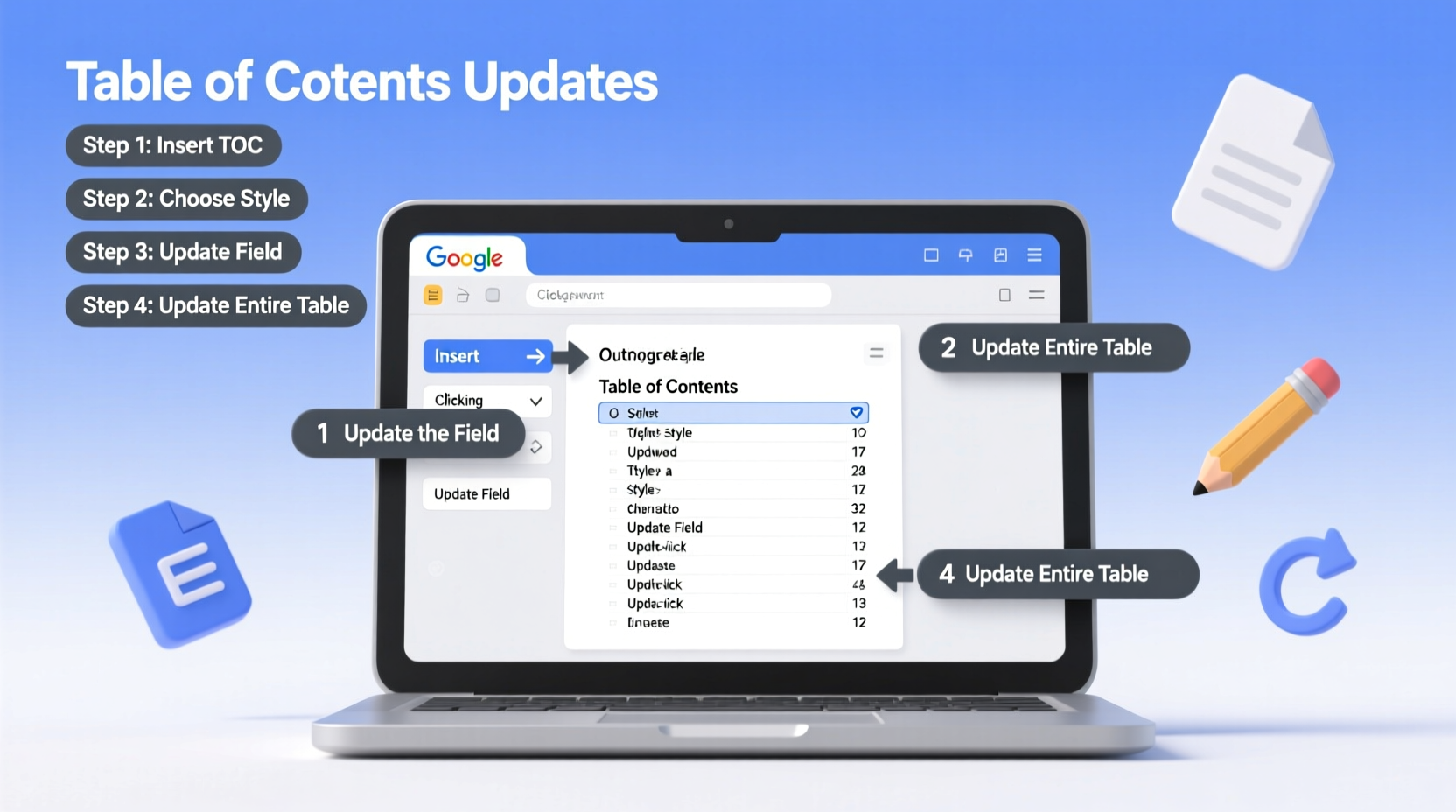
A static list of headings may look like a TOC, but it won’t serve its purpose if it doesn’t reflect changes made during editing. When you add, delete, or rearrange sections, page numbers shift and new headings emerge. Without an updated TOC, readers can become disoriented, reducing the document’s professionalism and usability.
Google Docs generates a live TOC based on heading styles (Heading 1, Heading 2, etc.). This means the TOC is only as accurate as the structure behind it. The system automatically pulls data from formatted text, so consistency in styling is crucial. Misusing bold text instead of proper headings breaks the link between content and TOC.
“An outdated table of contents undermines credibility. If readers can’t trust the navigation, they may question the accuracy of the content itself.” — Daniel Reeves, Technical Documentation Specialist
Step-by-Step: Inserting and Updating Your Table of Contents
To ensure your TOC remains accurate, follow this structured workflow every time you make significant edits to your document.
- Apply Proper Heading Styles: Highlight each section title and apply the appropriate style from the toolbar (e.g., “Heading 1” for main sections, “Heading 2” for subsections).
- Insert the TOC: Place your cursor where you want the TOC (usually after the title page). Go to Insert > Table of contents. Choose the format with page numbers or hyperlinks based on your needs.
- Edit Content Freely: Add, remove, or move paragraphs, pages, and headings as needed. Google Docs tracks structural changes in real time—but does not auto-update the TOC display.
- Update the TOC Manually: After editing, click anywhere inside the TOC. A small “Refresh” button will appear in the top-right corner of the box. Click it to sync the TOC with current headings and page numbers.
- Verify Accuracy: Scroll through the updated TOC and test hyperlinks (if used) by holding Ctrl (Cmd on Mac) and clicking entries to jump to sections.
Customizing Your Table of Contents for Clarity
Google Docs offers two default TOC formats: one with page numbers and another with clickable links. While both are functional, you can enhance readability by adjusting formatting manually after insertion—though with limitations.
For example, you can change the font size or alignment of the entire TOC block, but you cannot selectively style individual entries without breaking the live functionality. To preserve interactivity, avoid altering the internal structure of the TOC field.
If deeper customization is required—such as adding leaders (dots) between titles and page numbers or modifying indentation levels—consider using third-party add-ons like \"Table of Contents Plus.\" These tools extend Google Docs’ native capabilities while maintaining automation.
| Feature | Native Google Docs TOC | Third-Party Add-Ons |
|---|---|---|
| Automatic Updates | Yes (manual refresh) | Yes (often auto-sync) |
| Custom Indentation | Limited | Full control |
| Dotted Leaders | No | Yes |
| Hyperlink Navigation | Yes | Yes (enhanced) |
| Styling Flexibility | Low | High |
Common Pitfalls and How to Avoid Them
Even experienced users fall into traps that compromise TOC reliability. Recognizing these issues early prevents confusion down the line.
- Using Bold Instead of Headings: Formatting text as bold or increasing font size visually mimics a heading but isn't recognized by the TOC generator. Always use the Styles dropdown.
- Forgetting to Refresh: Many assume updates happen automatically. They don’t. The TOC must be refreshed post-editing.
- Manual TOC Entry Edits: Typing directly into the TOC breaks its connection to source content. Never rename entries manually—edit the original heading instead.
- Inconsistent Hierarchy: Jumping from Heading 1 to Heading 4 skips logical levels, creating gaps in the TOC structure and confusing navigation flow.
Mini Case Study: Academic Thesis Revision
Sophie, a graduate student, spent months writing her 80-page thesis in Google Docs. She inserted a TOC early on and shared drafts with her advisor. After several rounds of feedback, she restructured chapters, added appendices, and split long sections. When she submitted the final version, her advisor noted that the TOC didn’t match the actual page numbers.
Upon review, Sophie realized she had never clicked “Refresh” after making layout changes. Some sections were missing entirely because new headings were typed in bold rather than styled correctly. By applying consistent heading formats and refreshing the TOC, she resolved all discrepancies within ten minutes. Her final submission was polished and navigable, reflecting the effort she’d put into the research.
Essential Checklist for TOC Maintenance
Use this checklist before finalizing any document with a table of contents:
- ✅ All major sections use “Heading 1,” subsections use “Heading 2,” and sub-subsections use “Heading 3”
- ✅ No section titles are created with manual bolding or font size adjustments alone
- ✅ The TOC has been inserted via Insert > Table of contents, not typed manually
- ✅ You’ve clicked “Refresh” on the TOC after completing edits
- ✅ Hyperlinks (if enabled) lead to the correct sections when tested
- ✅ Page numbers align with printed or PDF-exported versions
- ✅ Document is shared or exported only after TOC verification
Frequently Asked Questions
Why won’t my table of contents update even after clicking “Refresh”?
This usually happens when headings aren’t properly formatted. Ensure you’re using the built-in heading styles (Heading 1, Heading 2, etc.) and not just bold or larger text. Also, check that no extra spaces or invisible characters interfere with recognition.
Can I include only certain headings in the TOC?
The native Google Docs TOC includes all text marked with heading styles. To exclude specific entries, consider using “Normal text” with custom formatting for those lines. Alternatively, third-party add-ons allow selective inclusion based on tags or styles.
Does the TOC work in downloaded PDFs?
Yes. When you download your document as a PDF (File > Download > PDF), the TOC retains page numbers. Clickable links also remain functional in most PDF readers, enabling digital navigation.
Final Thoughts: Building Reliable Documents Starts with Smart Navigation
A document’s value isn’t measured solely by its content, but by how easily that content can be accessed and understood. A well-maintained table of contents transforms a cluttered manuscript into a navigable resource. Whether you're drafting a business proposal, academic paper, or project report, taking a few seconds to refresh your TOC demonstrates attention to detail and respect for your reader’s time.
Mastery comes not from complexity, but from consistency—applying the same standards every time you write. Make updating the TOC part of your final review ritual, just like spell-check or margin adjustments. Over time, it becomes second nature.




 浙公网安备
33010002000092号
浙公网安备
33010002000092号 浙B2-20120091-4
Comments
No comments yet. Why don't you start the discussion?