
Telegram has redefined instant messaging with its blend of speed, privacy, and cross-platform flexibility. While the mobile and desktop apps are widely used, many users overlook the power of Telegram Web—a fully functional version accessible directly through your browser. Whether you're on a shared computer, traveling, or simply prefer working from a larger screen, Telegram Web offers seamless access without installation. More importantly, when used correctly, it delivers the same high level of security as its native counterparts.
This guide dives deep into optimizing Telegram Web for both performance and protection. From initial setup to advanced privacy controls, we’ll walk through everything you need to use Telegram securely and efficiently—all from your browser.
Why Choose Telegram Web?
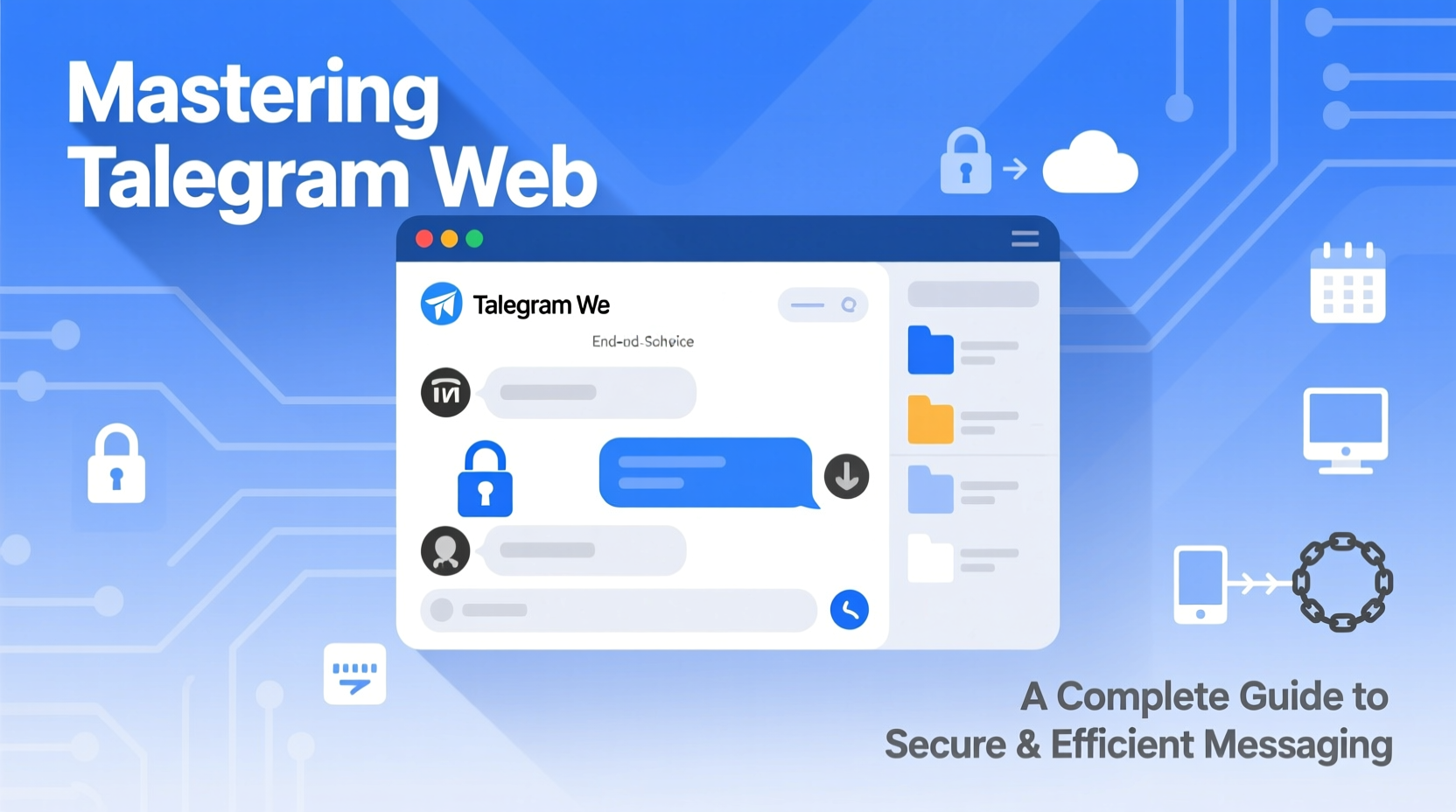
Telegram Web isn’t just a convenience—it’s a strategic tool. Unlike standalone apps, it requires no downloads, making it ideal for environments where software installation is restricted. It syncs instantly with your account across devices, ensuring messages, media, and settings remain consistent whether you’re using a phone, tablet, or public workstation.
The web client supports nearly all core features: sending messages, sharing files up to 2 GB, joining groups and channels, using bots, and even accessing saved messages. With end-to-end encryption available in Secret Chats (though limited in the browser), and robust cloud-based encryption by default, Telegram Web balances accessibility with strong data protection.
Setting Up Telegram Web Securely
Accessing Telegram Web is simple: visit web.telegram.org, enter your phone number, and confirm via SMS or an active Telegram session. However, the real challenge lies in maintaining security during and after login.
Because Telegram Web relies on your browser’s local storage to cache messages and maintain sessions, it's crucial to understand that anyone with access to your browser can potentially view your messages if you don’t log out properly.
- Navigate to web.telegram.org in a modern, updated browser (Chrome, Firefox, Edge recommended).
- Enter your full international phone number.
- Verify using the code sent via SMS or through an existing logged-in device.
- Once verified, your chats will load immediately from the cloud.
- Click the hamburger menu (☰) and select “Log out” when finished—especially on shared machines.
To enhance security, enable two-step verification in your Telegram settings. This adds a password layer beyond SMS confirmation, preventing unauthorized logins even if someone obtains your SIM or intercepts a code.
Optimizing Efficiency and Workflow
Using Telegram Web effectively means more than just reading messages—it’s about streamlining communication. Here’s how professionals maximize productivity:
- Pinning important chats: Keep key contacts or groups at the top for quick access.
- Keyboard shortcuts: Use Ctrl+K to search, Enter to send, and Esc to close popups—boosting typing efficiency.
- Draft synchronization: Start a message on mobile, finish it on desktop—your drafts follow you.
- File drag-and-drop: Drag media or documents directly into chat windows for fast sharing.
- Bulk actions: Select multiple messages to delete or forward together.
| Feature | Available on Web? | Notes |
|---|---|---|
| Secret Chats | No | End-to-end encrypted chats not supported in browser due to security model. |
| Voice Messages | Yes | Record and play directly in browser. |
| Group Video Calls | Limited | Supported only in newer versions; may require app fallback. |
| Bot Interaction | Yes | Full functionality including inline queries. |
| Two-Factor Authentication | Yes (via account settings) | Must be set up in app first. |
Real-World Example: Remote Team Coordination
A digital marketing team based across three continents uses Telegram Web daily to coordinate campaigns. Without relying on email or complex project tools, they manage deadlines, share design proofs, and run bot-powered polls—all within Telegram.
One member logs in from a library computer while traveling. She accesses pinned group chats, uploads a campaign report via drag-and-drop, and sets a reminder using a taskbot. Before closing the tab, she clicks her profile icon and selects “Log out.” Her session ends cleanly, leaving no trace on the public machine.
This scenario highlights how Telegram Web supports agile, secure collaboration—even in unpredictable environments—provided best practices are followed.
“Telegram’s web interface gives us the freedom to stay connected without compromising our workflow. The key is discipline: always logging out and using 2FA.” — Daniel Reyes, Remote Operations Lead
Security Best Practices Checklist
Maximize your safety every time you use Telegram Web with this actionable checklist:
- ✅ Use a private browsing window when on shared computers
- ✅ Enable two-step verification in Telegram settings
- ✅ Log out manually after each session
- ✅ Avoid saving passwords in the browser
- ✅ Regularly review active sessions under Settings > Devices
- ✅ Keep your browser updated to prevent vulnerabilities
- ✅ Never allow browsers to “remember” your phone number
Frequently Asked Questions
Can someone read my Telegram messages if they use my computer?
Yes—if you don’t log out. Telegram Web stores session data locally. Anyone with physical access to your device can open your chats unless you’ve ended the session. Always click “Log out” before stepping away.
Is Telegram Web end-to-end encrypted?
Only regular chats are encrypted between you and Telegram’s servers (client-server/server-client). True end-to-end encryption is available only in Secret Chats, which are not supported on Telegram Web for security reasons. For maximum confidentiality, use Secret Chats on mobile or desktop apps instead.
Does Telegram Web work offline?
No. Unlike installed apps, Telegram Web requires a constant internet connection. Messages won’t load until the page reconnects. However, recent interactions may appear temporarily cached until sync resumes.
Conclusion: Take Control of Your Messaging Experience
Telegram Web is more than a stopgap solution—it’s a powerful communication hub for users who value speed, flexibility, and continuity across devices. When used wisely, it becomes an extension of your digital presence, not a liability. By combining smart habits like manual logout, two-factor authentication, and session monitoring, you retain full control over your privacy and productivity.
The browser is no longer just for websites—it’s a gateway to secure, efficient messaging. Now that you know how to master Telegram Web, apply these insights today. Stay connected, stay protected, and make every keystroke count.




 浙公网安备
33010002000092号
浙公网安备
33010002000092号 浙B2-20120091-4
Comments
No comments yet. Why don't you start the discussion?