
Adding text to your videos transforms them from simple recordings into compelling visual stories. Whether you're labeling a scene, introducing a character, or emphasizing a quote, text in iMovie is a powerful tool for clarity, emotion, and professionalism. Despite its user-friendly interface, many creators underutilize iMovie’s text features or struggle with timing, placement, and readability. This guide walks through every stage of inserting and refining text in iMovie—on both Mac and iPhone—so you can elevate your storytelling with precision and style.
Understanding iMovie’s Text Tools
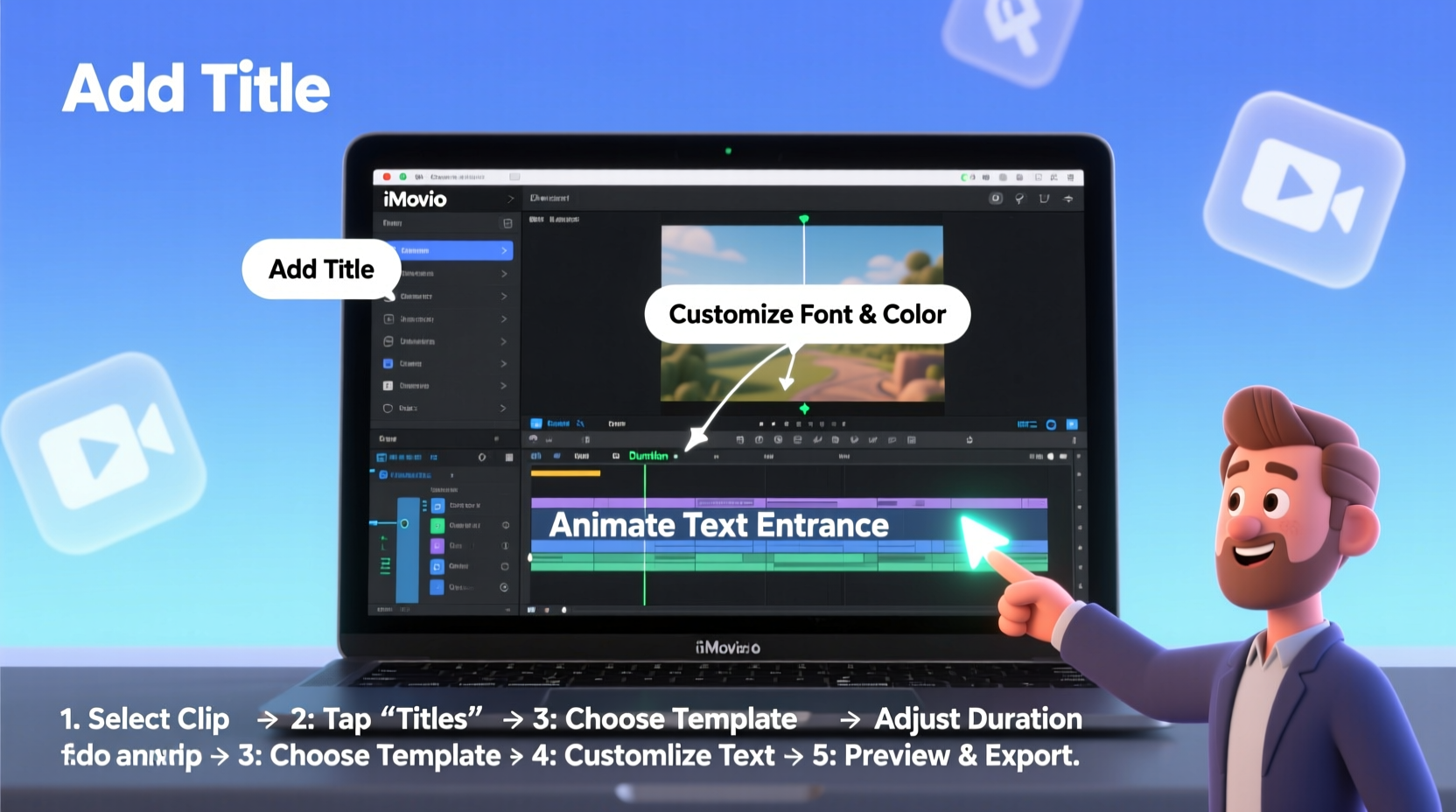
iMovie offers a range of built-in text options designed for different purposes. These are accessible via the \"Titles\" browser in the app. Each type serves a specific function:
- Credit Roll – Ideal for end-of-video credits that scroll vertically.
- Lower Third – Perfect for displaying names, titles, or short descriptions at the bottom of the screen.
- Centered Title – Great for chapter headings or impactful quotes.
- Opening Title – Designed to appear at the beginning of a project with fade-in animation.
- Banner – Slides in from the side, useful for dynamic scene transitions.
The default animations (fade, slide, pop) help integrate text smoothly into your video without abrupt appearances. You don’t need advanced editing skills to use these effectively—just an understanding of when and how to apply them.
Step-by-Step Guide to Inserting Text
Follow this sequence to add and customize text in iMovie on Mac. The process is nearly identical on iOS, with slight interface differences.
- Open Your Project – Launch iMovie, select your video project, and navigate to the timeline.
- Position the Playhead – Move the vertical line (playhead) to the exact frame where you want the text to appear.
- Open the Titles Browser – Click the “T” icon above the viewer to reveal available text styles.
- Select a Text Style – Click on the desired title (e.g., Lower Third), and it will automatically insert at the playhead position.
- Edit the Text – A text box appears over your preview. Type your message—names, dates, quotes, or calls to action.
- Adjust Duration – Drag the edges of the text clip in the timeline to make it longer or shorter.
- Customize Appearance – Click the text in the viewer to access font, alignment, and color options in the inspector panel.
On iPhone or iPad, tap the \"+\" button, choose “Title,” pick a style, place it on the timeline, and tap to edit. The touch interface makes adjustments intuitive, though finer control is easier on desktop.
Designing Readable and Visually Appealing Text
Even perfectly placed text fails if viewers can’t read it. Consider these design principles:
- Contrast – Ensure text stands out against the background. Use drop shadows or semi-transparent overlays if needed.
- Font Size – Keep it large enough to be legible on small screens. Avoid overly decorative fonts for critical information.
- Timing – Display text long enough to be read comfortably. A good rule: allow 3–4 seconds for a short sentence.
- Placement – Avoid edges where TV safe zones may crop content. Center or upper/lower thirds are safest.
| Text Purpose | Recommended Style | Duration |
|---|---|---|
| Speaker Name (Interview) | Lower Third | 3–5 seconds |
| Scene Title | Centered Title | 2–3 seconds |
| Final Credits | Credit Roll | 8–12 seconds per section |
| Call to Action | Banner | 4–6 seconds |
Real-World Example: Enhancing a Travel Vlog
Sophia films weekly travel vlogs using her iPhone and edits them in iMovie. In one episode filmed in Kyoto, she wanted to highlight key locations without voiceover. She used text to label each site as it appeared.
At the Fushimi Inari Shrine, she inserted a “Lower Third” with the text “Fushimi Inari, Kyoto – 2024.” She adjusted the duration so it stayed on screen for four seconds while the camera panned up the red torii gates. For the final montage, she added a slow “Credit Roll” listing all visited spots.
The result? Viewers praised the clarity and professional look. No narration was needed—the text guided the story seamlessly. By using consistent styling and appropriate durations, Sophia turned raw clips into a polished narrative.
“Text isn’t just decoration—it’s part of the storytelling. When timed well, it directs attention and adds context without words.” — Daniel Park, Video Storytelling Coach
Common Mistakes and How to Avoid Them
Even experienced editors sometimes make avoidable errors. Here’s what to watch for:
- Overloading the Screen – Too much text overwhelms viewers. Stick to one idea per text clip.
- Poor Timing – Text that flashes too quickly frustrates audiences. Test playback before finalizing.
- Inconsistent Styling – Mixing fonts and colors creates visual chaos. Pick one style and stick with it.
- Ignoring Mobile Viewers – Many watch on phones. Always preview text on a small screen.
Checklist: Optimizing Text in Your iMovie Projects
Before exporting, run through this checklist to ensure your text enhances rather than distracts:
- ✅ Is the text easy to read against the background?
- ✅ Does it stay on screen long enough to be read twice?
- ✅ Is the font size large enough for mobile viewing?
- ✅ Are all spelling and grammar correct?
- ✅ Is the style consistent across the video?
- ✅ Have you used drop shadows or backgrounds for contrast if needed?
- ✅ Is the animation smooth and appropriate for the mood?
Frequently Asked Questions
Can I change the font in iMovie?
iMovie offers a limited selection of system fonts. On Mac, you can use any installed font by selecting the text and using the Font panel (Cmd+T). On iOS, only Apple’s default fonts are available, and customization is more restricted.
How do I make text appear over video without cutting the clip?
Place the text directly on top of the video clip in the timeline. iMovie automatically overlays it. Ensure the text clip is positioned above the video track (in the overlay layer), which happens automatically when using the Titles feature.
Why does my text look blurry?
Blurry text usually results from low-resolution export settings or zooming in too much on the viewer. Always export in at least 1080p and avoid excessive scaling of text in the editor.
Mastering the Details for Maximum Impact
Great video editing lies in the details. While visuals and audio form the foundation, text acts as a silent narrator—guiding, informing, and emphasizing. With iMovie’s intuitive tools, even beginners can produce professional-looking results. The key is intentionality: choosing the right style, timing it precisely, and ensuring readability across devices.
As video continues to dominate digital communication—from social media to education—your ability to convey messages clearly and elegantly sets you apart. Mastering text insertion isn’t just about technical skill; it’s about enhancing human connection through better storytelling.




 浙公网安备
33010002000092号
浙公网安备
33010002000092号 浙B2-20120091-4
Comments
No comments yet. Why don't you start the discussion?