
Text messaging remains one of the most widely used communication tools in the digital age. Despite the rise of social media and instant messaging apps, SMS and RCS (Rich Communication Services) continue to play a vital role in daily interactions—whether coordinating with family, confirming appointments, or staying in touch with colleagues. On Android devices, users have access to powerful built-in features that go far beyond basic texting. When leveraged correctly, these tools can save time, reduce clutter, and enhance clarity in every message sent.
The key to mastering text messaging on Android lies not just in knowing how to open the Messages app, but in understanding its full capabilities—from smart replies and scheduled messages to privacy settings and cross-device sync. This guide breaks down practical strategies to help you send texts more efficiently, avoid common pitfalls, and make the most of what modern Android messaging has to offer.
Optimize Your Messaging App Settings
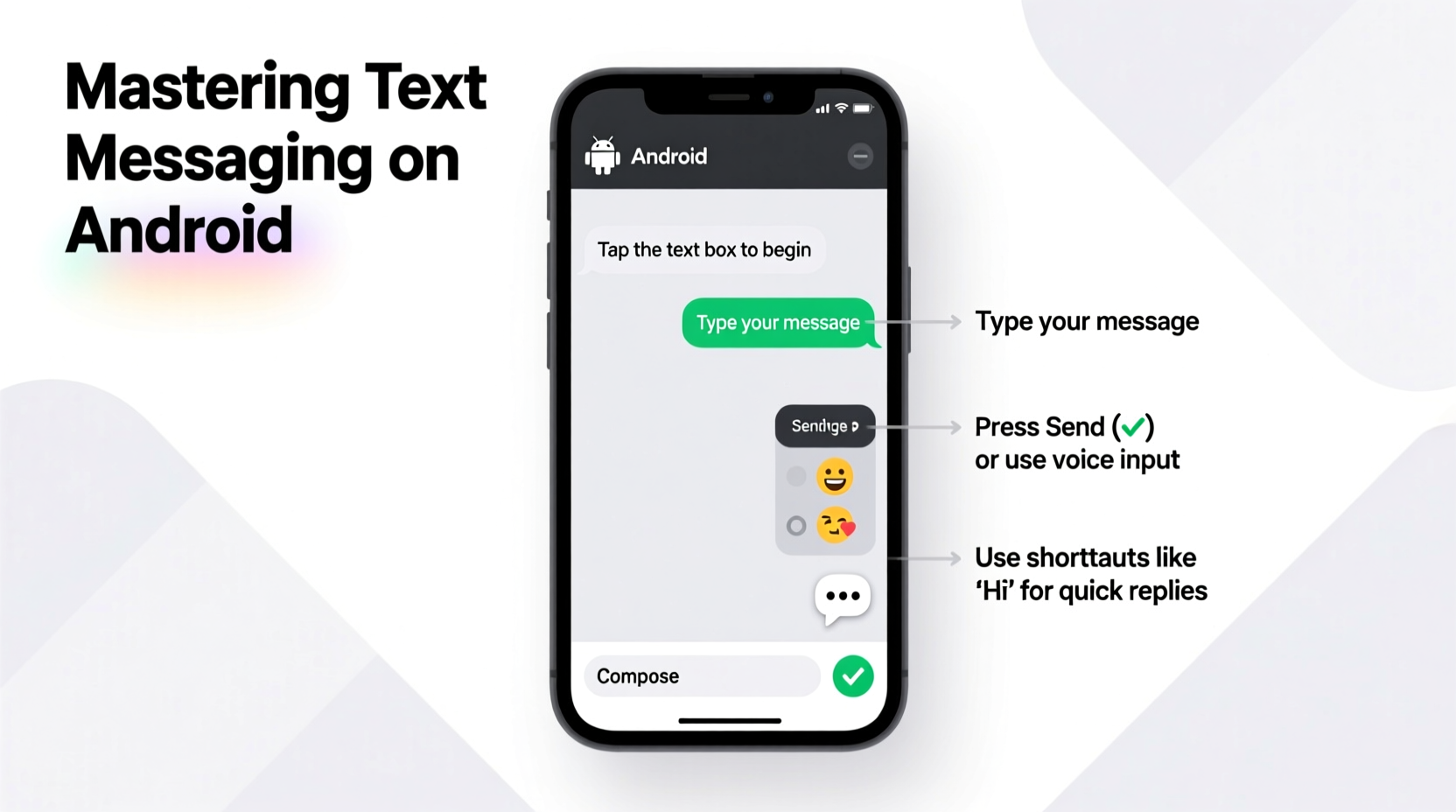
Before diving into advanced techniques, ensure your default messaging app—usually Google Messages—is properly configured. Many users overlook settings that directly impact efficiency and security. Start by verifying that you're using Google’s official Messages app, which supports both SMS and RCS. RCS enables read receipts, typing indicators, high-resolution media sharing, and end-to-end encryption when messaging other RCS users.
Within the app, customize notification preferences to avoid distractions. You can set priority contacts for louder alerts or disable pop-up notifications for group chats that tend to flood your screen. Additionally, enable “Smart Reply” suggestions to respond quickly based on context—especially useful while multitasking.
Use Keyboard Shortcuts and Text Expansion
Typing out full messages repeatedly slows you down. Android allows several input optimizations that cut down on repetitive typing. One of the most effective is text expansion via predictive text and custom shortcuts.
In Gboard (Google’s keyboard), navigate to Settings > Text correction > Personal dictionary. Here, you can create abbreviations that expand into frequently used phrases. For example:
- Type “brb” → expands to “Be right back, just stepping away.”
- Type “addr” → expands to your home address.
- Type “sig1” → expands to a professional signature like “Best regards, Alex.”
This feature is particularly helpful for standard responses such as confirmations, reminders, or greetings. Over time, it reduces keystrokes significantly, especially if you’re managing multiple conversations across personal and professional contexts.
Send Messages More Strategically
Efficiency isn’t just about speed—it’s about intentionality. Poorly timed or unclear messages often require follow-ups, creating unnecessary back-and-forth. Consider these best practices before hitting send:
- Clarify purpose upfront: Begin with the main point. Instead of “Hey, are you free?” say “Hey, can we reschedule our call to Thursday at 3 PM?”
- Batch related information: Combine questions or updates into a single message rather than five separate ones.
- Avoid vague references: Don’t assume context. Include dates, names, and specifics even if the recipient might infer them.
- Use line breaks wisely: Long blocks of text are hard to parse. Press Enter between ideas for better readability.
“Clear, concise messaging prevents miscommunication and saves everyone time. A well-crafted text should require zero clarification.” — Jordan Lee, Digital Communication Consultant
Schedule Messages for Better Timing
Sometimes, the most efficient message is one you don’t send immediately. Google Messages allows you to schedule texts for a later time—a feature ideal for thoughtful timing without needing third-party apps.
To schedule a message:
- Type your message in the compose field.
- Long-press the send button (paper plane icon).
- Select a preset time (e.g., “Tomorrow morning”) or choose a custom date and time.
- Confirm and the message will send automatically.
This function is perfect for birthday wishes, work reminders, or messages to people in different time zones. It eliminates the need to remember to send something later and ensures your message arrives at an appropriate hour.
Manage Conversations to Reduce Clutter
An overloaded inbox leads to missed messages and stress. Android gives you tools to keep your conversation list clean and focused.
Archive old threads instead of deleting them. Archiving removes chats from your main view but keeps them searchable and accessible. This is ideal for completed projects or seasonal conversations (like holiday planning). To archive, long-press a chat and tap “Archive.”
You can also mute group messages that generate constant pings. Muting doesn’t stop messages from arriving; it silences notifications while keeping you in the loop. Tap and hold a group chat > Mute > Choose duration (8 hours, 1 week, etc.).
| Action | Best For | How to Access |
|---|---|---|
| Archive | Completed conversations you may need later | Long-press chat > Archive |
| Mute | Active groups with excessive notifications | Chat info > Mute notifications |
| Delete | Sensitive or irrelevant messages | Long-press > Delete |
| Pin | High-priority ongoing conversations | Long-press > Pin |
Ensure Security and Privacy
Not all texts are created equal—some contain sensitive information like passwords, financial details, or personal news. Protect these messages with Android’s built-in security features.
If you use Google Messages, take advantage of end-to-end encryption in RCS chats. Look for the padlock icon next to the contact’s name to confirm encryption is active. Note: Both parties must use Google Messages with RCS enabled.
For added protection, lock the Messages app using biometrics or a PIN. Go to Settings > Apps & notifications > Messages > Lock screen > Enable “Show notifications on lock screen” only if you’ve set up secure preview options (e.g., hide content).
Checklist: Secure Your Texting Habits
- ✅ Use Google Messages for RCS and encryption support
- ✅ Verify the padlock icon in sensitive conversations
- ✅ Mute or leave groups that share too much personal data
- ✅ Avoid sending passwords or IDs via SMS (use secure apps instead)
- ✅ Regularly clear old messages containing private info
Real Example: Streamlining Family Coordination
Sarah, a project manager and mother of two, used to spend 20 minutes each evening replying to scattered family messages about schedules, groceries, and school events. Her inbox was chaotic, and she often missed critical updates.
She implemented a few changes: She scheduled weekly Sunday night reminders to her partner about upcoming events. She created text shortcuts for common phrases like “I’ll pick up milk and eggs” (abbreviated as “grocs”). She muted the PTA group chat during work hours and pinned her husband’s number at the top.
Within two weeks, her messaging time dropped by half, and her family reported clearer communication. “It felt like hiring a personal assistant,” she said. “All I did was tweak how I used the same phone I’ve had for a year.”
Frequently Asked Questions
Can I edit or unsend a message after sending it?
No, traditional SMS cannot be edited or recalled. However, with RCS in Google Messages, you can edit a sent message within 24 hours. Tap and hold the message, select “Edit,” make changes, and resend. The recipient will see an “edited” label.
Why do some messages appear in blue and others in green?
Blue bubbles indicate RCS or iMessage-style features (in this case, RCS over internet). Green means the message was sent as a standard SMS/MMS via cellular network. Blue offers richer features like read receipts and higher-quality media.
How do I know if someone has blocked me?
There’s no definitive signal, but clues include: messages remaining undelivered without error, no read receipts (even if they’re enabled for others), and inability to see their typing indicators or profile updates in Google Messages.
Final Thoughts: Turn Texting Into a Productivity Tool
Text messaging doesn’t have to be a source of distraction or inefficiency. With deliberate setup and consistent habits, your Android messaging experience can become a streamlined, secure, and surprisingly powerful part of your daily routine. From scheduling thoughtful messages to automating responses and protecting privacy, every small adjustment compounds into significant time savings and improved communication quality.




 浙公网安备
33010002000092号
浙公网安备
33010002000092号 浙B2-20120091-4
Comments
No comments yet. Why don't you start the discussion?