
Text is the backbone of digital communication. Whether you're designing a website, crafting a presentation, or laying out a document, the size of your text directly impacts readability, accessibility, and user experience. Yet, many creators struggle with choosing the right size—not too small to strain the eyes, not so large that it overwhelms the layout. Mastering text sizing isn’t just about picking a number; it’s about understanding context, hierarchy, and responsiveness. This guide dives into actionable strategies for creating text at any desired size while maintaining clarity and visual harmony.
Understanding Text Size Units
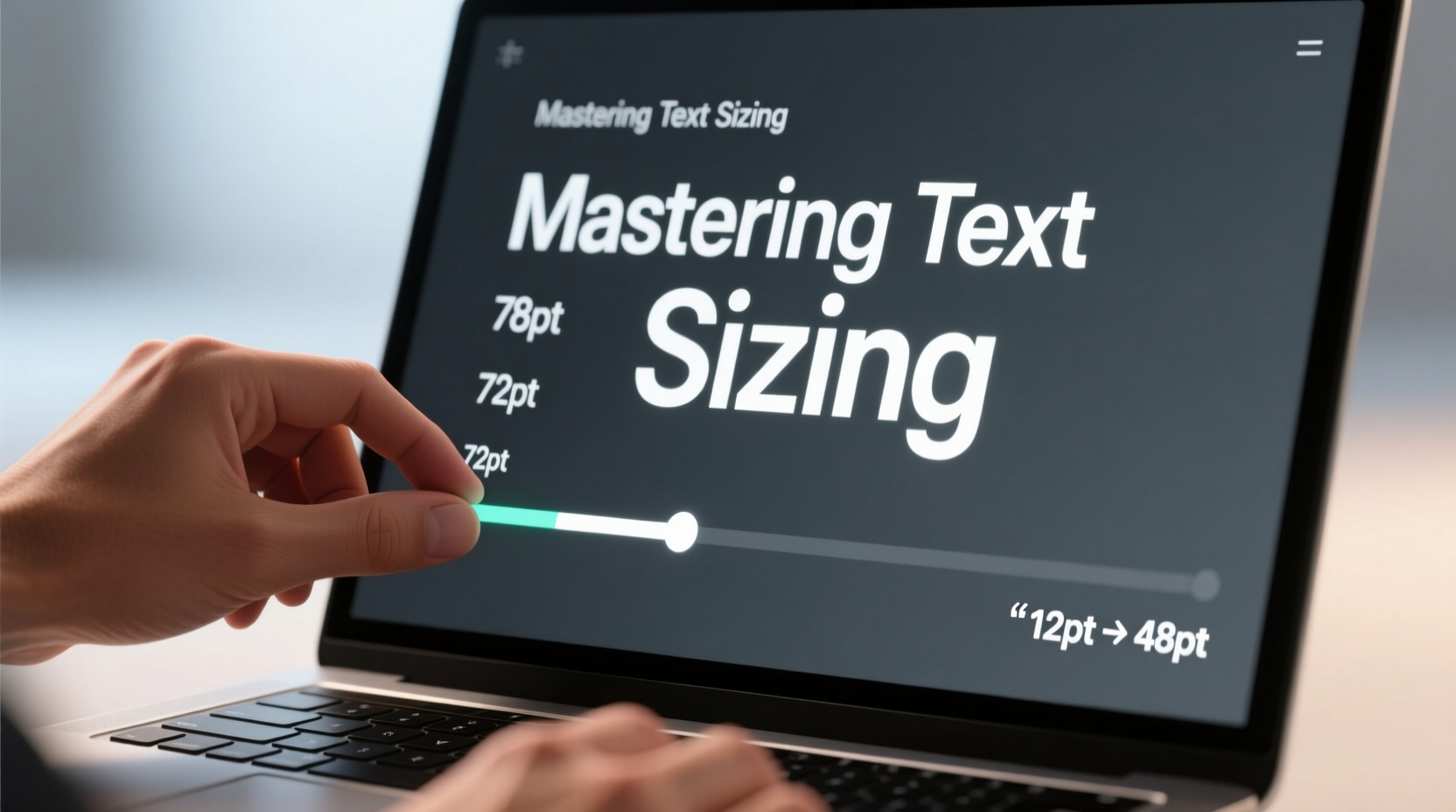
The first step in mastering text sizing is knowing which units to use and when. Different units behave differently across devices and contexts, and selecting the right one ensures consistency and scalability.
| Unit | Description | Best For |
|---|---|---|
| px (pixels) | Fixed size relative to screen resolution | Precise control on static designs |
| em | Relative to the font size of the parent element | Nested components and scalable modules |
| rem | Relative to the root (html) font size | Consistent scaling across entire layouts |
| % (percentage) | Relative to the parent's font size | CSS-based fluid designs |
| vw / vh (viewport units) | Relative to viewport width/height | Responsive headlines and hero text |
For long-form content, rem is often preferred because it scales uniformly with user preferences and browser settings. Viewport units shine in headline design where text should dynamically resize based on screen dimensions.
Establishing Visual Hierarchy Through Sizing
A well-structured layout guides the reader’s eye through content using size, weight, and spacing. Without clear hierarchy, even beautifully written text becomes hard to navigate.
Start by defining a typographic scale—a set of predetermined font sizes used consistently throughout your project. A common approach uses a modular scale based on ratios like 1.2 or 1.5. For example:
- H1: 2.25rem (36px)
- H2: 1.875rem (30px)
- H3: 1.5rem (24px)
- Body: 1rem (16px)
- Small text: 0.875rem (14px)
This progression feels natural because each step is proportionally larger than the last. Avoid arbitrary sizes like “19px” unless justified by design constraints.
“Typography is not just about making words look pretty—it’s about enabling comprehension.” — Karen Cheng, Design Educator & Type Specialist
Responsive Text Sizing for All Devices
With users accessing content on phones, tablets, laptops, and ultra-wide monitors, fixed font sizes no longer suffice. Responsive text adapts to different screens while preserving legibility.
CSS offers several tools for this:
- Media queries: Adjust font sizes at specific breakpoints.
- clamp(): Set a minimum, preferred, and maximum size.
- Fluid typography: Use viewport units with safeguards to ensure readability.
For instance, a responsive heading can be defined as:
font-size: clamp(1.5rem, 4vw, 3rem);
This means the text will never be smaller than 1.5rem, grows with the viewport up to an optimal point, but caps at 3rem to prevent overscaling on huge displays.
Step-by-Step Guide: Implementing Fluid Headlines
- Determine the ideal minimum and maximum font sizes (e.g., 1.5rem and 3rem).
- Identify the screen widths where these extremes apply (e.g., 320px and 1200px).
- Use the
clamp()function with viewport units as the preferred size. - Test across devices to ensure text remains legible and doesn’t dominate the layout.
- Adjust line height and letter spacing accordingly to maintain comfort.
Avoiding Common Text Sizing Mistakes
Even experienced designers fall into traps that undermine readability. Recognizing these pitfalls helps refine your approach.
| Mistake | Why It’s Problematic | Solution |
|---|---|---|
| Using only pixels | Ignores user accessibility settings | Prefer rem or em for scalable text |
| Overly large hero text | Takes focus from content, causes wrapping issues | Cap headline size with clamp() or max() |
| Inconsistent scale | Breaks visual flow | Adopt a typographic scale and stick to it |
| Ignoring line length | Long lines reduce readability | Limit line length to 50–75 characters per line |
One frequent oversight is neglecting contrast between text size and container width. A 2rem heading may look great on desktop but become cramped on mobile if the column narrows significantly.
Real-World Example: Redesigning a Blog Header
A lifestyle blog had complaints about its mobile readability. The desktop version featured a bold 40px headline, but on smartphones, it wrapped into three lines, pushing content below the fold.
The redesign applied:
- Font size changed from
40pxtoclamp(1.8rem, 5vw, 2.5rem) - Line height adjusted to
1.2for tighter fit - Max-width added to text container to prevent stretching
Result: On small screens, the headline scaled down gracefully to 28px, fitting in two lines without sacrificing impact. User engagement increased by 18% within a month due to faster content visibility.
Checklist: Optimizing Text Sizing in Your Projects
- ✅ Define a typographic scale before starting design
- ✅ Use rem for body text and em for nested elements
- ✅ Apply clamp() for responsive headings
- ✅ Test font sizes on multiple devices
- ✅ Ensure line length stays between 50–75 characters
- ✅ Pair font size with appropriate line height and spacing
- ✅ Respect user zoom and accessibility preferences
Frequently Asked Questions
What is the ideal body text size for websites?
The standard is 16px (1rem) for body text. This size balances readability and space efficiency across most devices. For older audiences or accessibility-focused sites, consider 18px.
Can I mix px and rem in the same project?
You can, but it’s not recommended. Mixing units can lead to inconsistent scaling, especially when users adjust default font sizes. Stick to rem or em for all text to maintain flexibility and accessibility.
How do I make text bigger without breaking layout?
Use relative units and test incrementally. Increase size alongside padding, margins, and line height. Consider container constraints and use media queries to adjust surrounding elements when text scales up.
Conclusion: Take Control of Your Typography
Mastering text sizing is more than technical know-how—it’s about empathy for the reader. Whether you’re setting a delicate caption or a bold display headline, every size choice shapes how information is received. By leveraging responsive units, respecting hierarchy, and testing across contexts, you gain precise control over how your text appears and performs.




 浙公网安备
33010002000092号
浙公网安备
33010002000092号 浙B2-20120091-4
Comments
No comments yet. Why don't you start the discussion?