
The Apple Home app is more than just a tool for turning lights on and off—it's the central nervous system of an intelligently connected home. Integrated seamlessly into every iPhone, it offers powerful automation, intuitive controls, and robust privacy features. Yet, many users only scratch the surface of what’s possible. Whether you're new to smart home technology or looking to refine your setup, understanding how to fully leverage the Home app can transform your daily routines, improve energy efficiency, and enhance security—all from your pocket.
Getting Started: Setting Up Your First Device
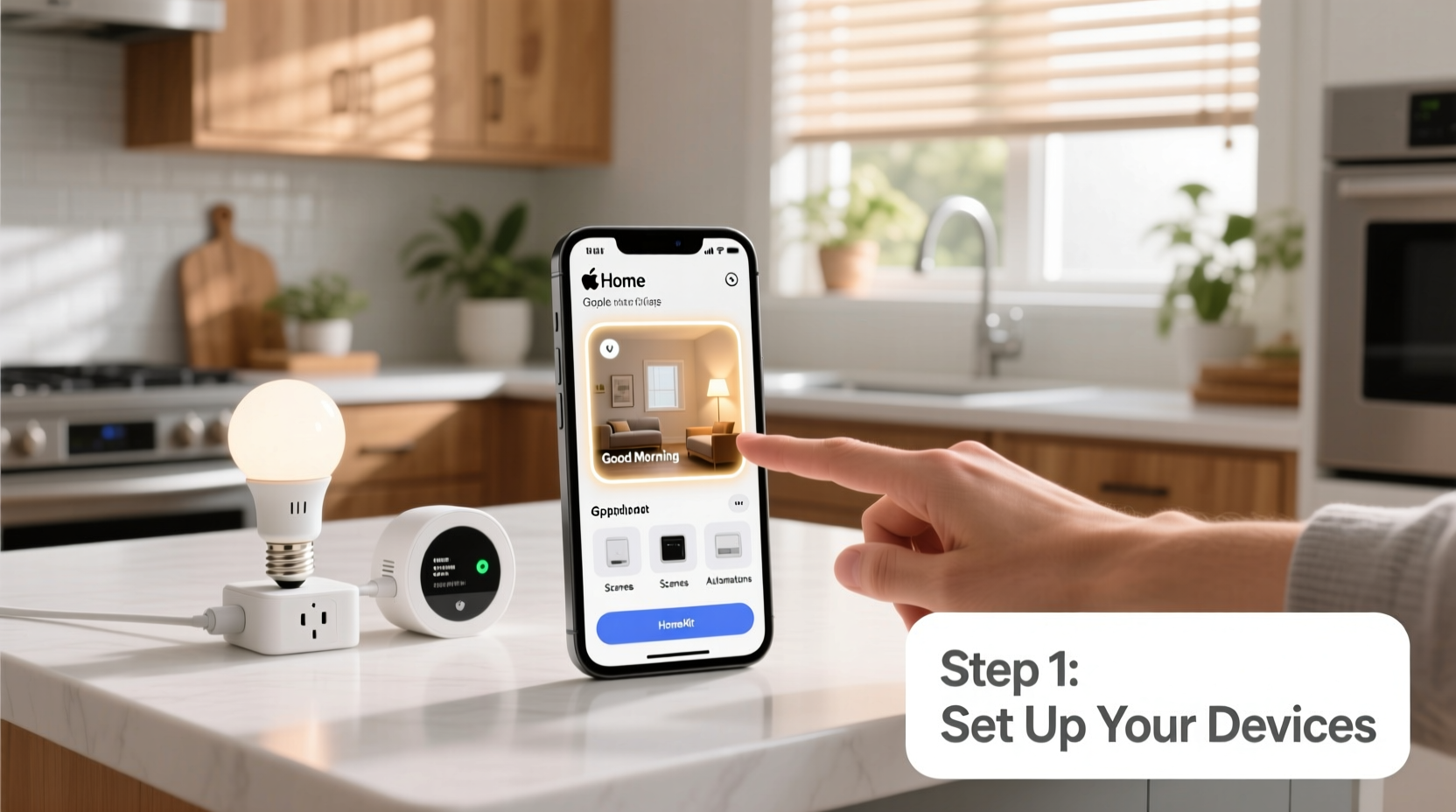
Before diving into advanced automations, ensure your smart home foundation is solid. The first step is adding a compatible device to the Home app. Most modern smart home products—lights, locks, cameras, thermostats—support Apple’s HomeKit protocol, identifiable by the “Works with Apple Home” badge.
- Open the Home app on your iPhone.
- Tap the + icon in the upper-right corner.
- Select “Add Accessory” and scan the HomeKit code (usually found on the device or its packaging).
- Follow the on-screen prompts to assign the device to a room and name it clearly (e.g., “Bedroom Lamp” instead of “Device 3”).
Once added, test the device by toggling it on and off directly from the app. This confirms connectivity and ensures it appears in the correct room.
Organizing Your Smart Home: Rooms, Zones, and Hubs
A well-organized Home app saves time and reduces confusion. The structure begins with rooms, which group devices by physical location. You can create custom rooms like “Home Office,” “Porch,” or “Basement Gym” under the Home Settings menu.
Beyond rooms, consider using Zones for broader control. For example, group all outdoor lights into a “Exterior” zone to turn them on simultaneously at dusk.
To enable remote access and automation when you’re away from home, you need a home hub. Compatible devices include:
- Apple TV (4th generation or later)
- HomePod or HomePod mini
- iPad (left at home and signed in to iCloud)
With a hub, you can trigger scenes while at work or check your doorbell camera from across town—all encrypted end-to-end for privacy.
Creating Scenes and Automations
Scenes let you control multiple devices with one tap. For instance, a “Movie Night” scene might dim the lights, close the blinds, and set the thermostat to 70°F. To create one:
- Navigate to the Rooms tab and tap “Add Scene.”
- Choose a name and icon (e.g., a moon for “Goodnight”).
- Select devices and set their desired states (on/off, brightness, color, etc.).
- Save and test the scene from your Home screen or via Siri.
Automations take this further by triggering actions based on time, location, or sensor input. Examples include:
- “When sunset occurs, turn on porch lights.”
- “When I arrive home, unlock the front door and turn on hallway lights.”
- “When motion is detected after 10 PM, turn on the entryway light.”
To configure automations, go to the Automation tab, tap “Create Automation,” and follow the builder. Note: Location-based triggers require precise permissions—ensure Location Services are enabled for the Home app.
“Smart homes should adapt to your life, not the other way around. Well-designed automations reduce friction and make technology feel invisible.” — Dr. Lena Torres, Human-Computer Interaction Researcher, Stanford University
Optimizing Control: Widgets, Shortcuts, and Siri
Quick access enhances usability. The Home app supports interactive widgets on your iPhone’s home screen. Long-press your desktop, tap the +, select “Home,” and choose a size. You can display individual accessories, scenes, or entire rooms for instant control.
For deeper customization, pair the Home app with the Shortcuts app. Create a shortcut that says, “Good morning,” and have it trigger a sequence: open blinds, start the coffee maker (if supported), announce weather, and play soft music.
Voice control via Siri remains one of the most natural interfaces. Try commands like:
- “Hey Siri, set the living room to warm white.”
- “Turn off all lights except the kitchen.”
- “Is the garage door closed?”
Siri understands context and relative terms (“brighter,” “warmer”), making interactions conversational rather than robotic.
Troubleshooting and Security Best Practices
Even the best setups encounter hiccups. Common issues include unresponsive devices, failed automations, or missing camera feeds. Start troubleshooting with these steps:
- Ensure your iPhone and home hub are on the same Wi-Fi network.
- Restart the Home app and check for iOS updates.
- Remove and re-add problematic devices if needed.
- Verify that two-factor authentication is enabled on your Apple ID—critical for HomeKit security.
Security is non-negotiable. All HomeKit data is encrypted, but you must safeguard your ecosystem:
- Use strong, unique passwords for your Apple ID.
- Review connected devices regularly under Home Settings > Users.
- Disable remote access if not needed, or restrict it to trusted individuals.
| Do | Don’t |
|---|---|
| Use two-factor authentication | Share your Apple ID password |
| Assign guests limited access via “Home Invitations” | Allow universal control to temporary visitors |
| Update firmware on smart devices regularly | Ignore software update notifications |
Real-World Example: A Smarter Morning Routine
Sarah, a graphic designer in Portland, used to fumble for light switches and brew coffee manually each morning. After setting up her Home app, she created an automation: “At 7:00 AM on weekdays, gradually brighten bedroom lights over 15 minutes, turn on the kitchen kettle, and announce the day’s schedule via HomePod.”
This gentle wake-up sequence replaced jarring alarms. Over three months, Sarah reported improved alertness and a 20-minute gain in productive morning time. Her setup cost nothing extra—just smarter use of existing tools.
Frequently Asked Questions
Can I use the Home app without an Apple Watch or HomePod?
Yes. While Apple Watch and HomePod enhance functionality (like wrist gestures or hands-free control), the iPhone alone provides full access to all core features including automations, scenes, and remote monitoring.
Why won’t my accessory connect to the Home app?
First, confirm it supports HomeKit. If it does, reset the device, ensure your iPhone is updated to the latest iOS version, and double-check that you’re scanning the correct HomeKit code. Network interference or weak Wi-Fi can also prevent pairing.
Are third-party apps safe to use with HomeKit?
Only use apps from trusted developers. While the Home app itself encrypts data, external apps may introduce vulnerabilities. Stick to reputable brands and review app permissions carefully.
Conclusion: Take Control of Your Environment
Mastering the Apple Home app isn’t about technical prowess—it’s about reclaiming time, reducing stress, and living more intentionally. From waking up gently to securing your home with a single command, the tools are already in your hand. Begin with one room, one routine, one automation. Build confidence through small wins, then expand thoughtfully. Your smart home shouldn’t complicate life; it should simplify it. Now that you understand the full potential of the Home app, the next step is yours to take.




 浙公网安备
33010002000092号
浙公网安备
33010002000092号 浙B2-20120091-4
Comments
No comments yet. Why don't you start the discussion?