
In today’s fast-paced world, staying organized isn’t just helpful—it’s essential. Your wristwatch, once a simple timekeeping tool, has evolved into a powerful personal assistant. Among its most useful features is the built-in calendar function, available across many modern smartwatches and even some advanced analog models. Yet, too many users overlook or underutilize this capability. When mastered, the calendar on your watch can streamline your day, reduce phone dependency, and keep you ahead of deadlines, meetings, and personal events.
This guide walks through every aspect of using your watch’s calendar—setup, customization, navigation, syncing, and optimization—with practical steps applicable to major platforms like Apple Watch, Samsung Galaxy Watch, Garmin, and Wear OS devices. Whether you’re a busy professional, student, or someone striving for better time management, these insights will help you get the most from your wearable.
Understanding Calendar Capabilities by Watch Type
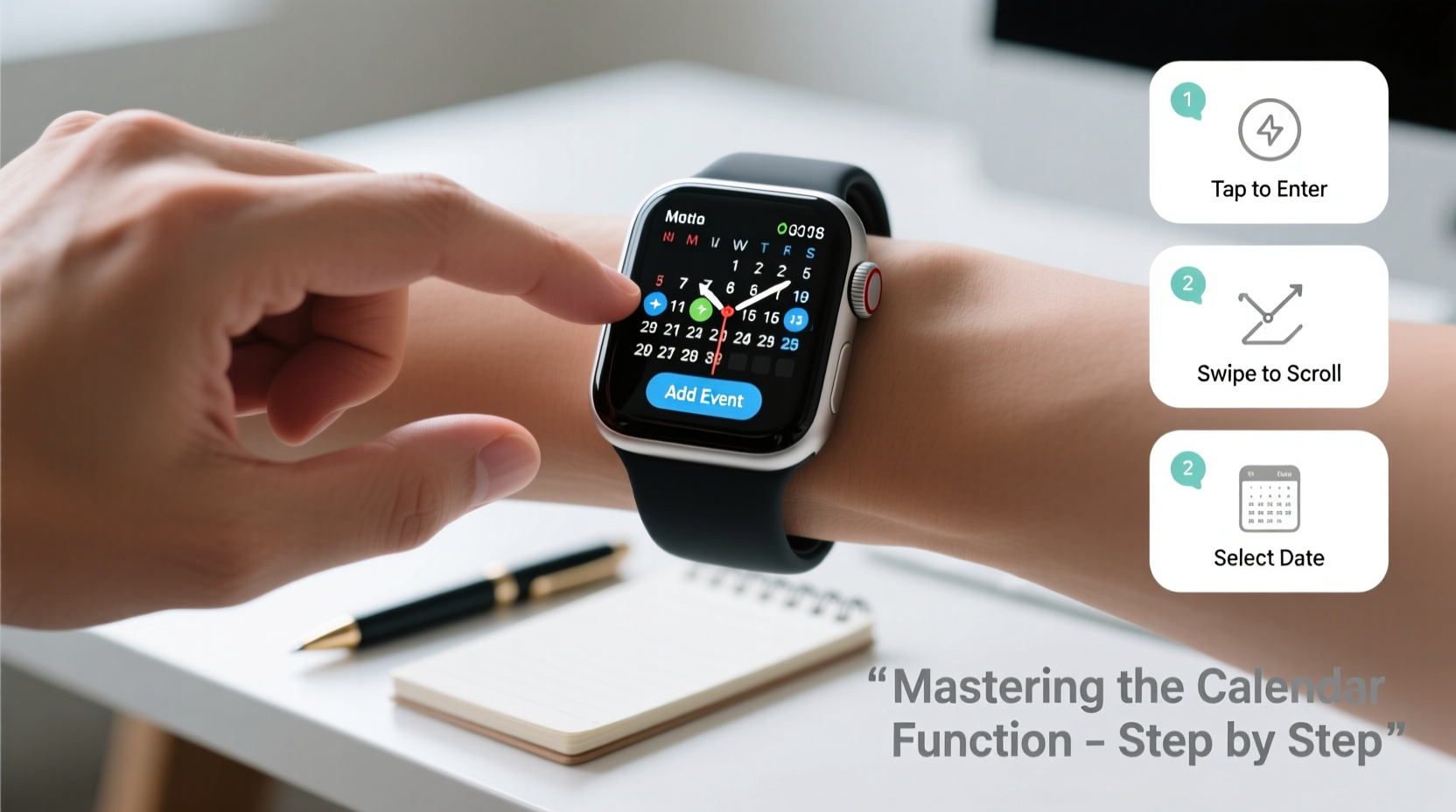
Not all watches offer the same calendar functionality. The depth of features depends on whether your device is analog, hybrid, or digital smartwatch. Understanding your model’s capabilities sets realistic expectations and helps you use it more effectively.
| Watch Type | Calendar Features | Limits |
|---|---|---|
| Analog (e.g., Seiko Astron) | Date window, moon phase, perpetual calendar | No event alerts or syncing |
| Hybrid Smartwatch (e.g., Withings ScanWatch) | Basic event reminders, date/day display | Limited interface; no touch screen |
| Smartwatch (Apple Watch, Galaxy Watch) | Full calendar sync, notifications, event creation, voice input | Battery drain with heavy use |
If you own a smartwatch, you likely have access to real-time calendar integration, push alerts, and even the ability to respond to invites directly from your wrist. Analog users can still benefit from mechanical calendar functions but must manually track events elsewhere.
Step-by-Step: Setting Up Your Watch Calendar
The first step to mastering your watch calendar is proper setup. This process ensures your schedule appears seamlessly across devices. Follow these universal steps, adjusted slightly based on your ecosystem.
- Enable Bluetooth on both your smartphone and watch to establish a connection.
- Open the companion app (Apple Watch app, Galaxy Wearable, Fitbit, etc.) and navigate to Notifications or Apps.
- Ensure Calendar Sync is enabled. Toggle on “Show Calendar Alerts” or similar settings.
- Select your default calendar account (Google, iCloud, Outlook) to avoid mixed data sources.
- Customize alert preferences: choose sound, haptic feedback, and preview length.
- Test the sync by adding an event on your phone and checking if it appears on your watch within seconds.
For Apple Watch users, go to the Watch app > Notifications > Calendar and set \"Mirror iPhone Alerts.\" Android users should ensure Google Calendar is updated and notifications are allowed in the Wear OS app.
Efficient Navigation and Daily Use
Once synced, accessing your calendar should be quick and intuitive. Most watches allow multiple ways to view your schedule:
- Raise-to-Wake + Swipe: On most smartwatches, raising your wrist shows upcoming events. Swiping up or down scrolls through the day.
- Digital Crown or Bezel: Rotate to move between days or zoom in/out on event details.
- Voice Commands: Say “Show my calendar” or “What’s next?” to pull up immediate events.
- Tap-to-Expand: Tap an event to see location, invitees, notes, or response options.
Some watches support glanceable widgets. Add a calendar widget to your watch face for at-a-glance visibility of the next meeting. On Apple Watch, edit your face and include the “Up Next” complication. On Galaxy Watch, use the “Agenda” widget.
“Having my next meeting vibrate on my wrist cuts down context-switching and keeps me focused.” — David Lin, Project Manager & Wearable Tech Enthusiast
Maximizing Productivity: Advanced Tips and Checklist
Going beyond basic viewing, you can turn your watch calendar into a proactive scheduling partner. These strategies enhance usability and prevent missed commitments.
Calendar Optimization Checklist
- ✅ Sync primary calendar accounts (Google, iCloud, Exchange)
- ✅ Enable haptic alerts for high-priority events
- ✅ Customize event colors per category (Work, Personal, Health)
- ✅ Use voice commands to add impromptu events (“Add lunch with Sarah at 1 PM tomorrow”)
- ✅ Review weekly agenda each Sunday evening via watch
- ✅ Disable non-essential calendar notifications to reduce clutter
Color-coding events is especially useful. On Apple devices, assign different calendars unique colors; these carry over to the watch display. A red bar means urgent work task, blue could be personal, green for fitness—visual cues speed recognition.
You can also create recurring events directly on some watches. For example, on Wear OS, open the Calendar app, tap “+”, select “Event”, set time and frequency (daily, weekly), and save. Ideal for habits like workouts, medication, or team stand-ups.
Mini Case Study: How Sarah Regained 7 Hours a Week
Sarah, a marketing director, used to check her phone over 40 times daily for schedule updates. After configuring her Apple Watch calendar with color-coded events, custom vibrations for key clients, and morning agenda glances, she reduced phone checks to under 15 times per day. She began using voice commands to add events during walks and relied on haptic alerts to transition between tasks. Within three weeks, she reported regaining approximately seven hours per week in focus time—time previously lost to distractions and manual planning.
Common Issues and FAQs
Why aren’t my calendar events showing on my watch?
This usually stems from sync settings. First, confirm your phone’s calendar app is updated. Then, in your watch’s companion app, verify that calendar notifications are enabled and the correct account is selected. Also, ensure your watch is connected to Wi-Fi or your phone via Bluetooth.
Can I create or edit events directly on my watch?
Yes, on most smartwatches. Open the Calendar app, tap the “+” icon, and fill in event details using voice input, scribble text, or preset phrases. Editing existing events is also supported, though complex changes may require phone interaction.
Does the calendar work without my phone nearby?
If your watch has LTE or Wi-Fi connectivity (e.g., Apple Watch Cellular, Galaxy Watch with Wi-Fi), calendar alerts will still function independently. However, full interactivity—like responding to invites—may require network access. Offline, you’ll see cached events but won’t receive new updates until reconnected.
Conclusion: Take Control of Your Time, One Wrist Tap at a Time
Your watch is more than a timepiece—it’s a gateway to smarter time management. By fully leveraging its calendar function, you gain instant access to your schedule, reduce reliance on your phone, and maintain better control over your day. From initial setup to advanced customization, each step brings you closer to seamless organization.
Start today: review your sync settings, add a critical event using voice, and wear your watch with purpose. Small actions compound into powerful habits. Master your calendar, and you master your time.




 浙公网安备
33010002000092号
浙公网安备
33010002000092号 浙B2-20120091-4
Comments
No comments yet. Why don't you start the discussion?