
The em dash—often called the long dash—is one of the most expressive punctuation marks in English. It adds drama, clarity, and rhythm to sentences, setting it apart from the more restrained hyphen or en dash. Yet, many writers still struggle to use it correctly or efficiently type it across different devices. Whether you're drafting a novel, editing a blog post, or composing an email, knowing how to insert an em dash quickly and accurately can elevate your writing game.
Unlike the simple hyphen (-), the em dash (—) spans the width of the letter \"M\" and serves a distinct grammatical purpose: it sets off clauses, replaces commas or parentheses for emphasis, or indicates abrupt interruptions. Despite its power, too many default to double hyphens (--) or rely on auto-replacement features that don’t always behave as expected. This guide breaks down everything you need to know about typing and using the em dash effectively—without guesswork.
Understanding the Em Dash vs. Other Dashes
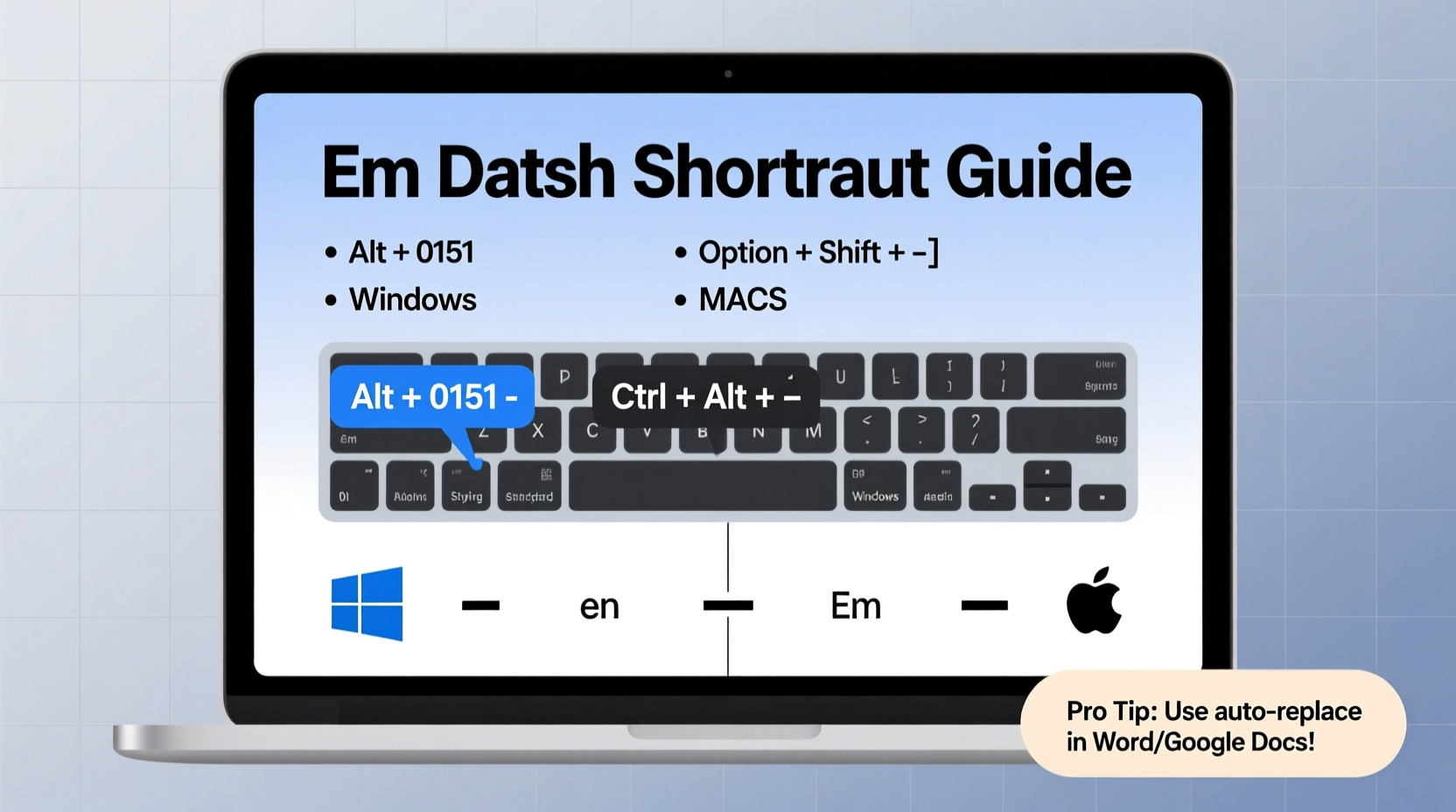
Before mastering how to type an em dash, it's crucial to distinguish it from similar-looking marks:
- Hyphen (-): Used for compound words (e.g., well-known, twenty-one).
- En dash (–): Slightly longer than a hyphen; used for ranges (e.g., pages 10–15, New York–London flight).
- Em dash (—): The longest of the three; used for emphasis, interruption, or parenthetical statements.
Mistaking these dashes undermines professionalism in formal writing. For example, writing “She was excited—but nervous—about the trip” with hyphens instead of em dashes may seem minor, but typographic precision reflects attention to detail.
“Punctuation is not just grammar—it’s tone. The em dash gives writing breath and pause.” — Helen Conroy, Copyediting Specialist at The Editorial Guild
Keyboard Shortcuts by Operating System
Typing an em dash doesn’t require digging through symbol menus. With the right shortcut, you can insert it instantly. Here’s how:
| Platform | Shortcut | Alternative Method |
|---|---|---|
| Windows (Standard) | Alt + 0151 (on numeric keypad) | Type two hyphens; most word processors auto-convert to em dash |
| Mac | Option + Shift + - (hyphen) | Use Control + Command + Space to open emoji & symbols menu |
| Google Docs | Shift + Ctrl + - (hyphen) [Chrome/Windows] | Type -- and it converts automatically |
| iOS (iPhone/iPad) | Long-press the hyphen key on keyboard → slide to select em dash | Enable “.” Shortcut in Settings > General > Keyboard |
| Android | Long-press hyphen or comma key; varies by keyboard app | Gboard users: swipe up on hyphen key to access em dash |
Step-by-Step Guide to Typing an Em Dash Anywhere
Follow this universal process to insert an em dash regardless of your device or software:
- Identify your platform: Determine whether you're on Windows, Mac, iOS, Android, or Linux.
- Use the correct modifier keys: Apply Alt, Option, Shift, or Ctrl combinations based on your OS.
- Test in your application: Some programs like Microsoft Word, Pages, or Scrivener auto-correct -- into — when spaces are absent.
- Verify appearance: Zoom in if needed to confirm it’s a true em dash, not two hyphens glued together.
- Create a text replacement shortcut: Set up a custom phrase (like “;md”) to expand into an em dash automatically (see next section).
Boost Efficiency with Text Expansion Tools
If you write frequently, manually entering em dashes slows you down. Instead, automate the process using built-in text expansion tools:
- Mac: Go to System Settings > Keyboard > Text Replacements. Add a replacement such as \";md\" → \"—\".
- Windows: Use PowerToys’ Text Extractor or third-party apps like AutoHotkey to create shortcuts.
- Google Docs: Use add-ons like \"Text Blaze\" to define snippets like \"/emdash\" that insert — instantly.
Once configured, typing your chosen trigger inserts the em dash seamlessly—ideal for bloggers, editors, and authors producing large volumes of text.
Real Example: From Draft to Polished Prose
Consider this draft sentence written with basic punctuation:
\"She opened the door she wasn't sure what she would find.\"
A writer unfamiliar with em dashes might add a comma: “She opened the door, she wasn’t sure what she would find.” But that creates a comma splice. Using a period works, but lacks tension. Enter the em dash:
\"She opened the door—she wasn’t sure what she would find.\"
The em dash introduces suspense and connection. It signals hesitation, making the moment feel immediate. Now imagine having to stop every time to hunt for the symbol. That disruption kills flow. With a memorized shortcut or text expansion rule, the thought-to-text pipeline stays intact.
Common Mistakes and How to Avoid Them
Even experienced writers slip up. Here are frequent errors and their fixes:
| Mistake | Why It’s Wrong | Solution |
|---|---|---|
| Using two hyphens (--) instead of — | Outdated practice; looks unprofessional in modern publishing | Use proper keyboard shortcut or enable smart quotes |
| Adding spaces around em dashes | Inconsistent with U.S. style (APA, Chicago); disrupts visual flow | Type em dash directly adjacent to words: “word—word” |
| Overusing em dashes | Too many create choppy, erratic rhythm | Limits to one per sentence unless stylistically intentional |
| Confusing em dash with en dash | En dash is for ranges; em dash is for breaks | Memorize usage: “Chapter 3–7” vs. “Wait—I forgot my keys!” |
FAQ
Is there a difference between an em dash and a minus sign?
Yes. While they may look similar, the em dash (—) is a typographic character used in prose, while the minus sign (−) is a mathematical operator. They differ slightly in length and weight depending on the font. Never substitute one for the other in professional writing.
Do I need spaces before and after an em dash?
In U.S. publishing standards (Chicago Manual of Style), no spaces are used: “She left—without saying goodbye.” However, British style sometimes uses thin spaces. Always follow your target publication’s guidelines.
Why doesn’t my double hyphen turn into an em dash automatically?
Auto-conversion depends on software settings. In Microsoft Word, go to File > Options > Proofing > AutoCorrect Options > “Replace -- with em dash.” In plain text editors like Notepad or code IDEs, this feature is usually disabled.
Checklist: Mastering Em Dash Usage
- ✅ Learn the keyboard shortcut for your operating system
- ✅ Test em dash insertion in your primary writing app
- ✅ Set up a text expansion shortcut for faster input
- ✅ Review recent documents for incorrect dash usage
- ✅ Limit em dash use to one per sentence unless emphasis demands more
- ✅ Disable auto-hyphen conversion if it interferes with coding or data entry
Final Thoughts
The em dash is more than decoration—it’s a tool for precision and voice. When used wisely, it sharpens sentences, conveys emotion, and guides readers through complex ideas. But its effectiveness hinges on correct usage and effortless access. By internalizing the right shortcuts, configuring automation tools, and avoiding common pitfalls, you remove friction between thought and expression.
Great writing isn’t just about what you say—it’s about how clearly and elegantly you say it. Start today: practice the em dash shortcut until it becomes second nature. Edit one old document to replace weak punctuation with purposeful em dashes. Notice the difference in tone and impact.




 浙公网安备
33010002000092号
浙公网安备
33010002000092号 浙B2-20120091-4
Comments
No comments yet. Why don't you start the discussion?