
The @ symbol is one of the most universally recognized characters in modern communication. From email addresses to social media handles, it’s a small mark with massive utility. Yet, many users still struggle to type it quickly or correctly across different devices and platforms. Whether you're using a desktop, laptop, smartphone, or tablet, knowing how to access the @ sign efficiently can save time and reduce frustration. This guide breaks down practical methods for typing @ on virtually any device, explains regional keyboard differences, and offers expert-backed tips for seamless digital interaction.
Why the @ Symbol Matters More Than You Think
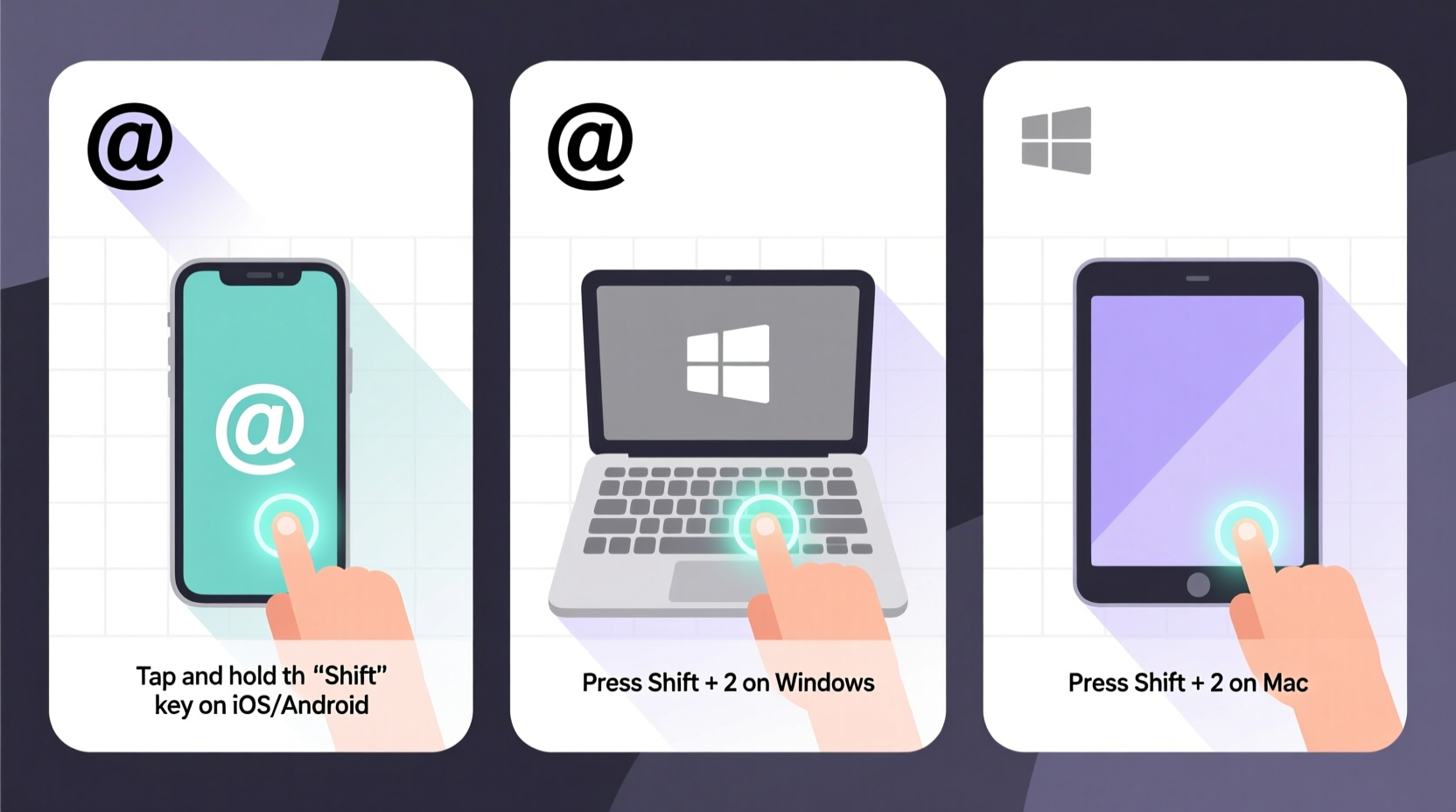
Originally used in accounting to mean “at the rate of,” the @ symbol gained global prominence with the rise of email in the 1970s. Today, it's embedded in daily digital life—email addresses, social media tags, programming syntax, and even informal texting. Despite its simplicity, incorrect input or inefficient access can disrupt workflows, delay messages, or lead to login errors.
Understanding how to produce this character across platforms isn’t just about convenience—it’s about maintaining digital fluency. As remote work and online collaboration grow, the ability to type essential symbols like @ without hesitation becomes a subtle but meaningful productivity skill.
“Typing efficiency includes mastery of common symbols. The @ sign may be small, but its impact on communication speed is significant.” — Dr. Lena Torres, Human-Computer Interaction Researcher
How to Type @ on Different Devices
The method for typing @ varies widely depending on your device, operating system, and keyboard layout. Below are step-by-step instructions for the most common setups.
On Windows PCs and Laptops
For standard English (US) QWERTY keyboards:
- Hold down the Shift key.
- Press the number 2 key (located at the top row).
- Release both keys—the @ symbol appears.
On UK keyboards, the process differs slightly:
- Hold Shift + press the ' (apostrophe) key, usually located next to the Enter key.
On Mac Computers
Mac keyboards follow similar logic but vary by region:
- US Mac: Shift + 2
- UK Mac: Option + 2
- European Macs (e.g., German): Often require Alt Gr + L or a dedicated @ key near Enter.
To switch between keyboard layouts on macOS, use Control + Space or set up multiple input sources in System Settings > Keyboard.
On iPhones and iPads
iOS makes the @ symbol easily accessible:
- Open any app with a text field (Messages, Mail, etc.).
- Tap the text box to bring up the keyboard.
- Tap the “.?123” key to switch to numbers and symbols.
- Tap the @ symbol directly—it’s front and center.
You can also customize your keyboard by adding a text replacement shortcut:
- Go to Settings > General > Keyboard > Text Replacement.
- Add a phrase like “@” with a shortcut such as “at”.
- Type “at” anywhere, and iOS will suggest the @ symbol.
On Android Devices
Android behavior depends on the manufacturer and keyboard app (Gboard, Samsung Keyboard, etc.), but general steps apply:
- Open a text field and tap to activate the keyboard.
- Tap the ?123 key to enter the numeric/symbol layout.
- Locate and tap the @ symbol—usually on the second row.
In Gboard, you can also long-press the A key in the symbols layout to reveal additional options, including @ if not immediately visible.
Regional Keyboard Layouts and the @ Symbol
One of the biggest challenges in typing @ comes from regional keyboard variations. What works in the US may not apply in France, Sweden, or Brazil. Here’s a quick reference table:
| Region/Keyboard | Key Combination | Notes |
|---|---|---|
| US English | Shift + 2 | Standard on most American keyboards |
| UK English | Shift + ' | Apostrophe key to the right of semicolon |
| German (QWERTZ) | Alt Gr + Q | Or dedicated @ key near Enter |
| French (AZERTY) | Alt Gr + à | @ shares a key with lowercase ù |
| Spanish (Latin America) | Alt Gr + 2 | May require changing input language |
| Scandinavian | Alt Gr + 2 | Common across Nordic countries |
If you frequently switch between regions or use a foreign keyboard, consider changing your system’s input language settings to match the physical layout. This prevents confusion and ensures correct symbol mapping.
Tips for Faster Access and Fewer Errors
Speed and accuracy matter when typing emails or logging into accounts. These strategies help you type @ faster and more reliably.
Create Keyboard Shortcuts
Both Windows and macOS allow custom text replacements:
- Windows: Use AutoHotkey scripts or built-in accessibility tools to assign @ to a simple keystroke.
- macOS: Set up a substitution in System Settings > Keyboard > Text Replacements (e.g., “@@” → “@”).
- Mobile: Add “@” as a shortcut in your keyboard’s text prediction settings.
Use On-Screen Keyboards When Stuck
If your physical keyboard isn’t responding correctly:
- Enable the on-screen keyboard (Windows: Win + Ctrl + O; macOS: Enable in Accessibility settings).
- Click the @ symbol visually—this bypasses hardware or driver issues.
Real-World Example: A Freelancer’s Workflow Fix
Sophie, a freelance graphic designer based in Berlin, frequently collaborates with clients across the US and UK. She uses a German-layout keyboard but often types email addresses for American platforms. Initially, she struggled to remember that @ required Alt Gr + Q instead of Shift + 2. After repeatedly mistyping client emails, she began double-checking every address—a time-consuming habit.
She solved the issue by switching her Windows input language to “English (US)” while keeping her physical keyboard. This allowed her to use familiar Shift + 2 for @, reducing errors and saving an estimated 15 minutes per week. Later, she added a custom AutoHotkey script to insert @ with a single keypress, further streamlining her workflow.
Her experience highlights how small symbol-access hurdles can accumulate into real productivity losses—and how simple fixes can restore efficiency.
Frequently Asked Questions
Why doesn’t Shift + 2 give me @ anymore?
This usually happens when your keyboard layout doesn’t match your physical keyboard. Check your operating system’s language and input settings. If you’re using a non-US layout (like UK or European), the @ symbol may be mapped elsewhere.
Can I change where the @ symbol is on my keyboard?
You can’t physically move keys, but you can remap them using software. Tools like Microsoft PowerToys (Windows) or Karabiner-Elements (macOS) let you reassign keys. For example, you could make a less-used key output @ with a single press.
Is there a universal shortcut for @?
There’s no universal hardware shortcut, but many applications support Alt codes or Unicode input. On Windows, try Alt + 64 on the numeric keypad. On macOS, some apps accept Option + L (in US layout). However, these are context-dependent and not always reliable.
Conclusion: Make the @ Symbol Work for You
The @ symbol is more than a punctuation mark—it’s a gateway to digital identity and connection. Mastering how to type it quickly and accurately across devices enhances your efficiency, reduces errors, and supports smoother communication. Whether you're drafting an important email, tagging someone on social media, or coding a script, confidence with basic symbols reflects digital competence.




 浙公网安备
33010002000092号
浙公网安备
33010002000092号 浙B2-20120091-4
Comments
No comments yet. Why don't you start the discussion?