
Your iPhone’s clock is more than just a digital face—it’s the backbone of your daily schedule, calendar alerts, travel plans, and even health tracking. An incorrect time setting can disrupt alarms, delay notifications, or cause confusion during video calls across regions. While iOS simplifies time management with automatic syncing, understanding how to manually adjust and optimize these settings ensures precision and flexibility no matter where you are.
Whether you're traveling across time zones, troubleshooting sync issues, or simply want full control over your device's clock, mastering date, time, and time zone settings is essential. This guide walks through every aspect of time configuration on iPhone, from enabling automatic updates to diagnosing common problems.
How iPhone Handles Time: Automatic vs. Manual
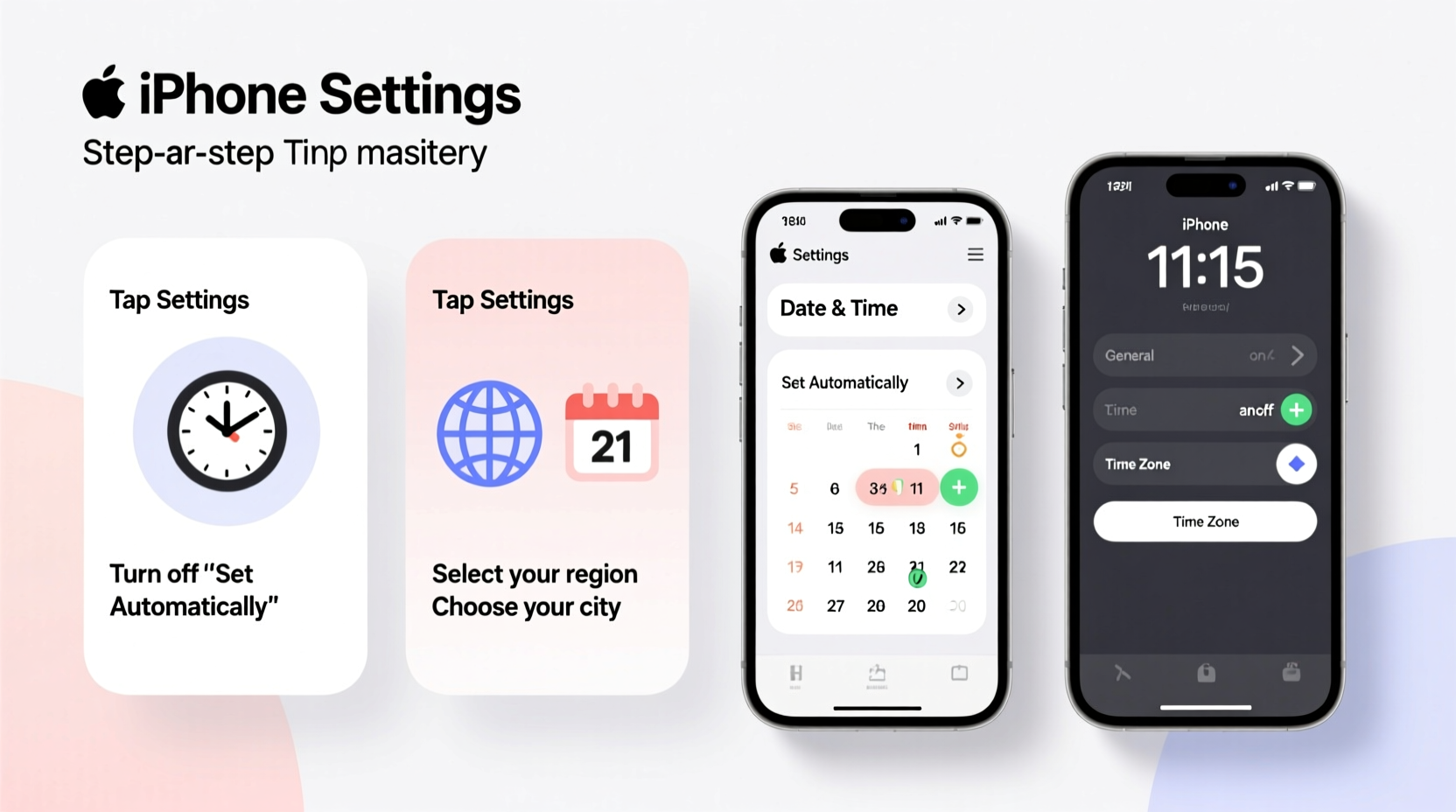
iOS uses a combination of network signals, GPS data, and user preferences to maintain accurate time. By default, most iPhones are set to update time automatically using Apple’s atomic clock servers via cellular or Wi-Fi networks. This ensures high precision—often within milliseconds of global standards.
However, there are situations where manual control becomes necessary:
- You’re in an area with poor connectivity and need to set the time locally.
- You're testing apps that depend on specific timestamps.
- You prefer not to rely on network-based synchronization for privacy reasons.
- You're experiencing glitches after daylight saving changes.
Step-by-Step: Adjusting Date & Time Settings
To access and modify your iPhone’s time settings, follow this clear sequence:
- Open the Settings app.
- Tap General, then select Date & Time.
- Toggle Set Automatically to ON (recommended) or OFF if you wish to make manual adjustments.
- If turned off, tap Time Zone to enter a city or search by region.
- Tap Date or Time to adjust them individually using scroll wheels.
- Confirm your selections; changes apply immediately.
When “Set Automatically” is active, your iPhone cross-references its location services and carrier information to detect the correct local time. Disabling this feature locks the clock to your last configured values—even when traveling.
Changing Time Zones Accurately
Even with automatic settings enabled, you may want to verify or change your time zone manually—especially when crossing multiple regions quickly or if location services fail temporarily.
In the Date & Time menu, tapping Time Zone allows you to input a city name rather than selecting from a map. For example, typing “Tokyo” sets your device to Japan Standard Time (UTC+9), regardless of your physical location. This is particularly useful for business travelers preparing for remote meetings ahead of arrival.
“Precise timekeeping isn’t just about punctuality—it affects calendar integrations, medication reminders, and productivity tools.” — Dr. Alan Torres, Digital Wellness Researcher at Stanford University
Tips for Travelers: Managing Time Across Borders
Frequent flyers often encounter discrepancies between their home and destination clocks. Fortunately, iOS offers robust support for managing international transitions without constant recalibration.
Here’s how to stay synchronized while traveling:
- Enable Location Services: Go to Settings > Privacy > Location Services > System Services and ensure “Setting Time Zone” is toggled on. This lets your iPhone auto-adjust based on GPS.
- Use World Clock Widgets: Add secondary time zones to your Today View for quick reference.
- Double-check Alarm Times: Even if your clock updates correctly, alarms remain tied to your current local time—no conversion needed.
Mini Case Study: Business Trip Gone Smooth
Sophia, a marketing consultant based in Chicago, flies weekly between North America and Europe. On one trip to Berlin, her iPhone failed to update the time upon landing due to airplane mode being left on. She missed a critical 8 AM client call scheduled in Central European Time.
Afterward, she reviewed her settings and discovered that “Set Automatically” was enabled but dependent on active internet. Now, before every flight, she ensures Wi-Fi reconnects shortly after landing and has added Frankfurt to her World Clock widget. Since implementing this routine, she hasn’t had a single timing-related mishap.
Common Issues and Troubleshooting
Despite automation, users occasionally report incorrect times, frozen clocks, or failure to switch zones. Below is a checklist to resolve typical problems:
Troubleshooting Checklist
- ✅ Ensure “Set Automatically” is enabled in Settings > General > Date & Time.
- ✅ Confirm that Location Services > Setting Time Zone is turned on.
- ✅ Restart your iPhone if the time appears stuck.
- ✅ Check carrier settings: Outdated profiles may interfere with network time signals.
- ✅ Update iOS: Bugs affecting time display are often patched in newer versions.
- ✅ Reset Network Settings (as last resort): Settings > General > Transfer or Reset iPhone > Reset > Reset Network Settings.
| Issue | Possible Cause | Solution |
|---|---|---|
| Clock doesn’t update after landing | Airplane mode or disabled Wi-Fi/cellular | Re-enable connectivity and wait 1–2 minutes |
| Wrong time despite auto-setting | Incorrect time zone detection | Manually enter major city in destination zone |
| Alarms go off at wrong hour | Manual time override active | Disable manual mode and re-enable auto-sync |
| Time jumps forward/backward unexpectedly | Daylight Saving Time transition bug | Install latest iOS update |
FAQ: Frequently Asked Questions
Does turning off 'Set Automatically' affect my alarms?
No, alarms will still trigger based on your currently displayed time. However, if you manually set the wrong time, your alarms will ring at inaccurate moments. For example, setting your clock two hours ahead means alarms will sound two hours early. It's best to keep automatic settings enabled unless under special circumstances.
Can I view multiple time zones simultaneously?
Yes. Use the built-in World Clock feature in the Clock app to add cities globally. You can also add a World Clock widget to your Home Screen or Today View for instant access. Open the Widgets gallery by long-pressing the Home Screen, tap the \"+\" next to \"Clock,\" and choose which locations to display.
Why does my iPhone show a different time than my smartwatch?
This usually occurs when either device has disabled automatic time syncing or operates on separate time sources. Ensure both devices are connected to the same iPhone (for Apple Watch) and have “Set Automatically” enabled. Also, confirm they share the same time zone preference.
Conclusion: Take Control of Your Time
Accurate time settings are foundational to seamless digital living. From waking up on schedule to joining online meetings without delay, your iPhone’s ability to reflect the correct moment hinges on proper configuration. While automatic syncing handles most scenarios flawlessly, knowing how to intervene when needed gives you confidence and control.
Take a few minutes today to review your Date & Time settings. Enable automatic updates, verify location permissions, and consider adding key time zones for work or family. These small actions prevent future disruptions and keep your rhythm aligned with the world around you.




 浙公网安备
33010002000092号
浙公网安备
33010002000092号 浙B2-20120091-4
Comments
No comments yet. Why don't you start the discussion?