
Twitter is more than just a platform for real-time updates—it's a dynamic space where personal expression, professional networking, and public discourse intersect. Yet many users operate on default settings, missing opportunities to enhance security, reduce distractions, and tailor the experience to their needs. Customizing your Twitter (now known as X) settings isn’t just about aesthetics; it’s about control. From privacy preferences to notification filters, understanding how to navigate these options empowers you to use the platform more effectively and safely.
Understanding the Settings Dashboard
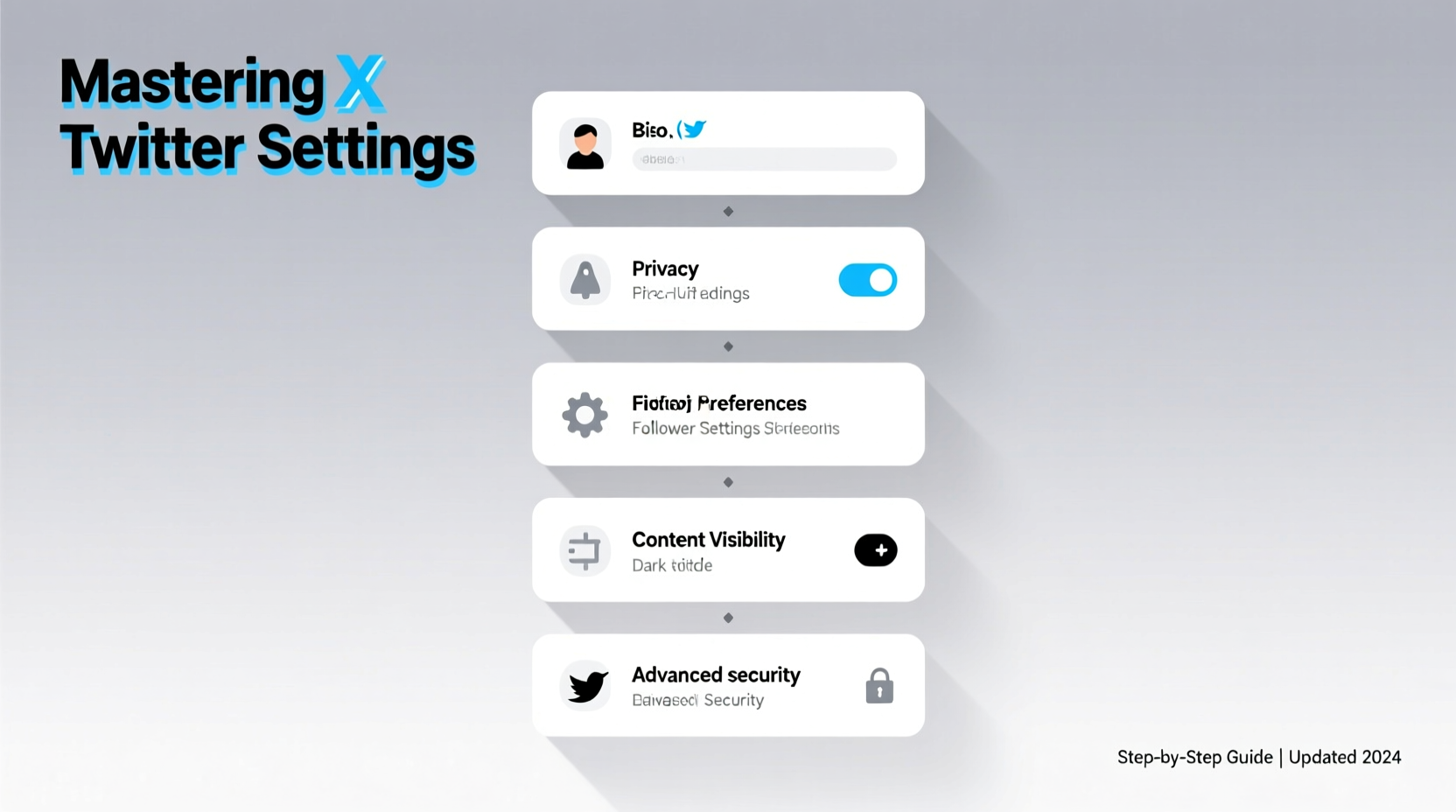
The first step in mastering your Twitter experience is becoming familiar with the settings interface. Whether you're using the mobile app or desktop version, access settings by clicking your profile icon, then selecting “Settings and privacy.” This central hub contains multiple sections that govern everything from who can message you to how your data is used.
Key categories include:
- Account: Manage login info, email, phone number, and username.
- Privacy and safety: Control tweet visibility, tagging, and data sharing.
- Notifications: Customize alerts for mentions, likes, DMs, and trends.
- Display and sound: Adjust theme, text size, and audio cues.
- Accessibility: Enable features like alt text prompts and caption support.
- Ads preferences: Influence the types of ads you see based on interests.
Navigating this menu systematically ensures no critical setting is overlooked.
Step-by-Step Guide to Securing Your Privacy
Privacy should be your top priority when customizing any social media account. Twitter offers granular controls to manage who sees your content and interacts with you. Follow this sequence to lock down your digital footprint:
- Make your account private: Under “Privacy and safety” > “Audience and tagging,” toggle on “Protect your posts.” This means only approved followers can view your tweets.
- Limit photo tagging: Disable “Anyone can tag you” to prevent unwanted associations in photos.
- Control replies: When composing a tweet, choose who can reply—everyone, only people you follow, or only mentioned accounts.
- Disable direct messages from strangers: Go to “Privacy and safety” > “Direct Messages” and uncheck “Allow others to send you private messages.”
- Manage location data: Turn off “Add location to your Tweets” unless geotagging serves a purpose.
- Review connected apps: In “Security and account access,” check third-party services linked to your account and revoke access to unused ones.
These steps significantly reduce exposure to spam, harassment, and data harvesting.
“Users who proactively configure privacy settings report 70% fewer unwanted interactions.” — Dr. Lena Torres, Digital Safety Researcher at CyberWell Institute
Optimizing Notifications Without Overload
Twitter’s real-time nature makes it easy to fall into notification fatigue. The key is not to disable alerts entirely but to refine them so only meaningful activity reaches you.
Under “Notifications,” explore these subcategories:
| Notification Type | Recommended Setting | Rationale |
|---|---|---|
| Likes & Retweets | Off or filtered | Avoid clutter from passive engagement. |
| Mentions | On (include replies & quote tweets) | Stay aware of direct conversations. |
| New Followers | Off | Follower count matters less than interaction quality. |
| Trends & Moments | Customize by interest | Receive updates only on topics you care about. |
| Push vs. Email | Use push sparingly, email for summaries | Reduce interruptions while staying informed. |
You can also mute specific keywords, hashtags, or accounts under “Muted and blocked.” For example, muting terms like “spoiler” or politically charged phrases helps maintain a focused feed.
Personalizing Display and Accessibility
Your visual and auditory experience shapes how long—and how comfortably—you engage with Twitter. These adjustments improve readability and inclusivity:
- Switch to dark mode: Reduces eye strain, especially in low-light environments.
- Increase text size: Found under “Display and sound” > “Text size,” ideal for users with visual impairments.
- Enable high contrast mode: Improves legibility for color-blind or low-vision users.
- Turn off autoplay videos: Prevents unexpected noise and data usage.
- Add alt text to images: When uploading media, always describe the image so screen readers can interpret it.
Twitter also supports closed captions for video content. While you can’t add captions directly, uploading videos with embedded subtitles ensures broader accessibility.
Real Example: A Journalist’s Workflow
Sophia, an investigative reporter, uses Twitter to monitor breaking news and source tips. Initially overwhelmed by constant pings, she reconfigured her settings: disabling follower notifications, muting generic terms like “breaking,” and enabling keyword alerts for specific regions and organizations. She now receives only targeted updates, reducing distraction while increasing signal accuracy. Her DM settings allow messages only from verified followers, minimizing scam attempts. By customizing both privacy and display, Sophia transformed Twitter from a chaotic feed into a precision tool.
Essential Checklist for Full Account Customization
Before declaring your Twitter settings complete, run through this checklist to ensure nothing is missed:
- ✅ Updated profile photo, header image, and bio with current information.
- ✅ Enabled two-factor authentication under “Security and account access.”
- ✅ Reviewed and removed unused third-party app connections.
- ✅ Set preferred language, region, and display preferences.
- ✅ Muted offensive or irrelevant keywords and accounts.
- ✅ Configured notification filters to prioritize mentions and DMs.
- ✅ Activated “Protect your posts” if seeking maximum privacy.
- ✅ Verified email and phone number for account recovery.
- ✅ Disabled location tagging unless necessary.
- ✅ Enabled alt text prompts for inclusive media sharing.
This checklist takes less than 20 minutes but delivers lasting benefits in usability and protection.
Frequently Asked Questions
Can I change my Twitter handle without losing followers?
Yes. Changing your @username does not affect your follower count. However, inform your audience of the update to avoid confusion. Your old handle becomes available for others after a grace period.
How do I stop seeing political content on my timeline?
While you can't fully eliminate algorithmic recommendations, you can reduce political exposure by unfollowing relevant accounts, muting keywords (e.g., party names, election terms), and curating your following list aggressively. Use “Not interested in this” frequently to train the algorithm.
Is it safe to let Twitter access my contacts?
Only enable contact syncing if you want to find friends on the platform. Otherwise, disable it under “Privacy and safety” > “Discoverability and contacts.” Twitter states that uploaded contacts are anonymized, but privacy-conscious users often opt out.
Take Control of Your Twitter Experience
Twitter doesn’t come pre-configured for every user’s lifestyle or goals. Default settings favor openness and engagement, which may not align with your need for privacy, focus, or professionalism. By methodically adjusting your account settings—from securing your DMs to refining your feed—you reclaim agency over your digital presence. These changes don’t require technical expertise, only intentionality. Spend an hour today fine-tuning your preferences, and you’ll enjoy a cleaner, safer, and more personalized experience tomorrow.




 浙公网安备
33010002000092号
浙公网安备
33010002000092号 浙B2-20120091-4
Comments
No comments yet. Why don't you start the discussion?