
Video editing is no longer reserved for professionals with high-end gear. With the right tools and knowledge, anyone using a Windows PC can create polished videos for social media, YouTube, or personal projects. Whether you're just starting out or looking to refine your skills, this guide walks you through every stage of the editing process—equipping you with practical strategies that scale with your experience.
Understanding Your Tools: Choosing the Right Software
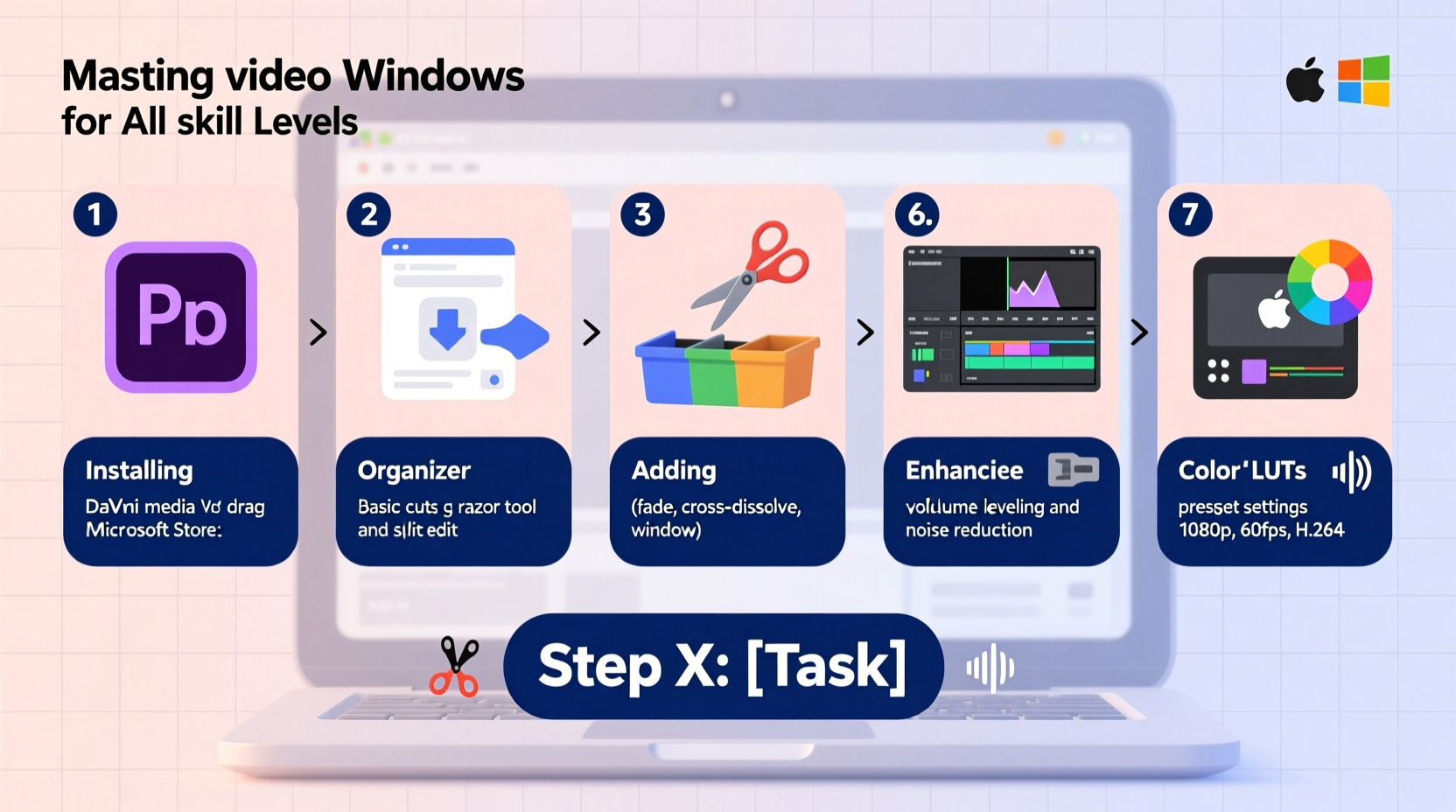
Windows offers a range of video editing applications, from built-in options to powerful third-party software. The key is selecting one that matches your skill level and project needs.
| Software | Skill Level | Key Features | Price |
|---|---|---|---|
| Clipchamp (Built-in) | Beginner | Cloud-based, templates, screen recording | Free (with Microsoft account), Premium plans available |
| DaVinci Resolve | Intermediate to Advanced | Professional color grading, audio post-production, visual effects | Free version; Studio version $295 |
| Adobe Premiere Pro | Advanced | Industry-standard timeline, multi-cam editing, integration with Creative Cloud | $20.99/month |
| Shotcut | Beginner to Intermediate | Open-source, supports 4K, no watermark | Free |
For newcomers, Clipchamp provides an intuitive interface and automatic enhancements. As your confidence grows, DaVinci Resolve offers professional-grade features without cost—a rare advantage in creative software.
Step-by-Step Workflow: From Footage to Final Export
A structured workflow ensures efficiency and reduces errors. Follow these stages regardless of the software you choose.
- Ingest and Organize: Transfer all clips, audio files, and images to a dedicated project folder. Use clear naming conventions like “Interview_Main,” “Broll_Park,” or “Music_Upbeat.”
- Create a Rough Cut: Import media into your editor and assemble clips in chronological order. Focus on flow, not perfection.
- Trim and Refine: Remove pauses, mistakes, or redundant footage. Use split tools to cut at precise frames.
- Add Transitions and Effects: Apply subtle transitions (e.g., cross-dissolves) between scenes. Avoid overusing flashy effects unless stylistically intentional.
- Enhance Audio: Balance voice levels, reduce background noise, and add background music at lower volume (ideally -20dB).
- Color Correction and Grading: Adjust white balance, exposure, and contrast for consistency. Use LUTs (Look-Up Tables) sparingly for cinematic styles.
- Export: Choose the correct format and resolution. For YouTube, use MP4 with H.264 codec, 1080p or 4K, and a bitrate of 8–12 Mbps.
Real Example: Creating a Travel Vlog
Lena, a hobbyist videographer, filmed a weekend trip to the mountains using her smartphone and a budget gimbal. She imported 35 minutes of footage into DaVinci Resolve. Using the step-by-step workflow, she organized clips by location, created a rough narrative arc—arrival, exploration, sunset—and trimmed down to a tight 6-minute vlog. She enhanced natural lighting in the color panel, added royalty-free acoustic music, and exported in 1080p. The final video gained over 12,000 views on YouTube, praised for its clean pacing and immersive feel.
“Editing isn’t about fixing bad footage—it’s about revealing the story already present.” — Mark Tran, Documentary Editor and Adobe Certified Instructor
Optimizing Performance on Windows
Video editing demands significant system resources. Even capable machines can struggle without proper optimization.
- Use SSD storage: Store both your OS and project files on an SSD to minimize lag during playback.
- Close background apps: Disable unnecessary startup programs via Task Manager to free up RAM.
- Enable Hardware Acceleration: In your editing software settings, turn on GPU decoding (NVENC for NVIDIA, AMF for AMD).
- Proxy Editing: For 4K or higher footage, generate lower-resolution proxy files to edit smoothly, then relink to originals before export.
Essential Checklist for Every Edit
Before exporting, run through this checklist to ensure quality and consistency:
- ✅ All clips are synced (audio/video aligned if recorded separately)
- ✅ Audio levels peak below -6dB to prevent distortion
- ✅ Background music doesn’t overpower speech
- ✅ Text overlays are readable (font size ≥ 40 for 1080p)
- ✅ Transitions are consistent in style and duration
- ✅ Color looks balanced across all shots in a scene
- ✅ Export settings match platform requirements (e.g., Instagram Reels: 9:16 aspect ratio)
Common Pitfalls and How to Avoid Them
Even experienced editors make avoidable mistakes. Recognizing them early saves time and improves output.
| Mistake | Why It’s a Problem | Solution |
|---|---|---|
| Over-editing with effects | Distracts viewers and reduces professionalism | Stick to one transition style per project; use effects only when they serve the story |
| Ignoring audio quality | Poor sound makes even great visuals unwatchable | Use noise reduction tools and always wear headphones while editing audio |
| Skipping backups | Hardware failure can erase hours of work | Save project versions hourly and store copies on external drives or cloud storage |
FAQ
Can I edit 4K video on a regular Windows laptop?
Yes, but performance depends on your specs. A modern processor (Intel i5/i7 10th gen or better), 16GB RAM, and a dedicated GPU (like NVIDIA GTX/RTX series) will handle 4K smoothly. For weaker systems, use proxy editing or stick to 1080p timelines.
Is free video editing software good enough?
Absolutely. Tools like DaVinci Resolve Free and Shotcut offer professional features at no cost. Many indie creators and educators produce high-quality content exclusively with free tools. The software matters less than your storytelling and attention to detail.
How long should a typical edit take?
It varies by complexity. A 5-minute vlog might take 2–4 hours for a beginner. An experienced editor can complete it in under an hour. More complex projects—like short films with effects—can take days. Speed improves significantly with practice.
Conclusion
Mastering video editing on Windows is within reach for anyone willing to learn and practice. Start simple, build a repeatable workflow, and gradually incorporate advanced techniques as your confidence grows. The tools are accessible, the community is supportive, and the ability to tell stories through video has never been more valuable. Whether you're documenting life, building a brand, or exploring creativity, every edit brings you closer to mastery.




 浙公网安备
33010002000092号
浙公网安备
33010002000092号 浙B2-20120091-4
Comments
No comments yet. Why don't you start the discussion?