
In today’s fast-paced world, efficiency isn’t just convenient—it’s essential. One of the most underutilized tools in daily productivity is voice control through “Ok Google.” Whether you're at home, driving, cooking, or juggling work and family, speaking your commands can save time, reduce distractions, and streamline your routine. This guide explores how to fully leverage Google’s voice assistant to manage communication, navigation, smart devices, information retrieval, and more—using only your voice.
How \"Ok Google\" Works: The Basics
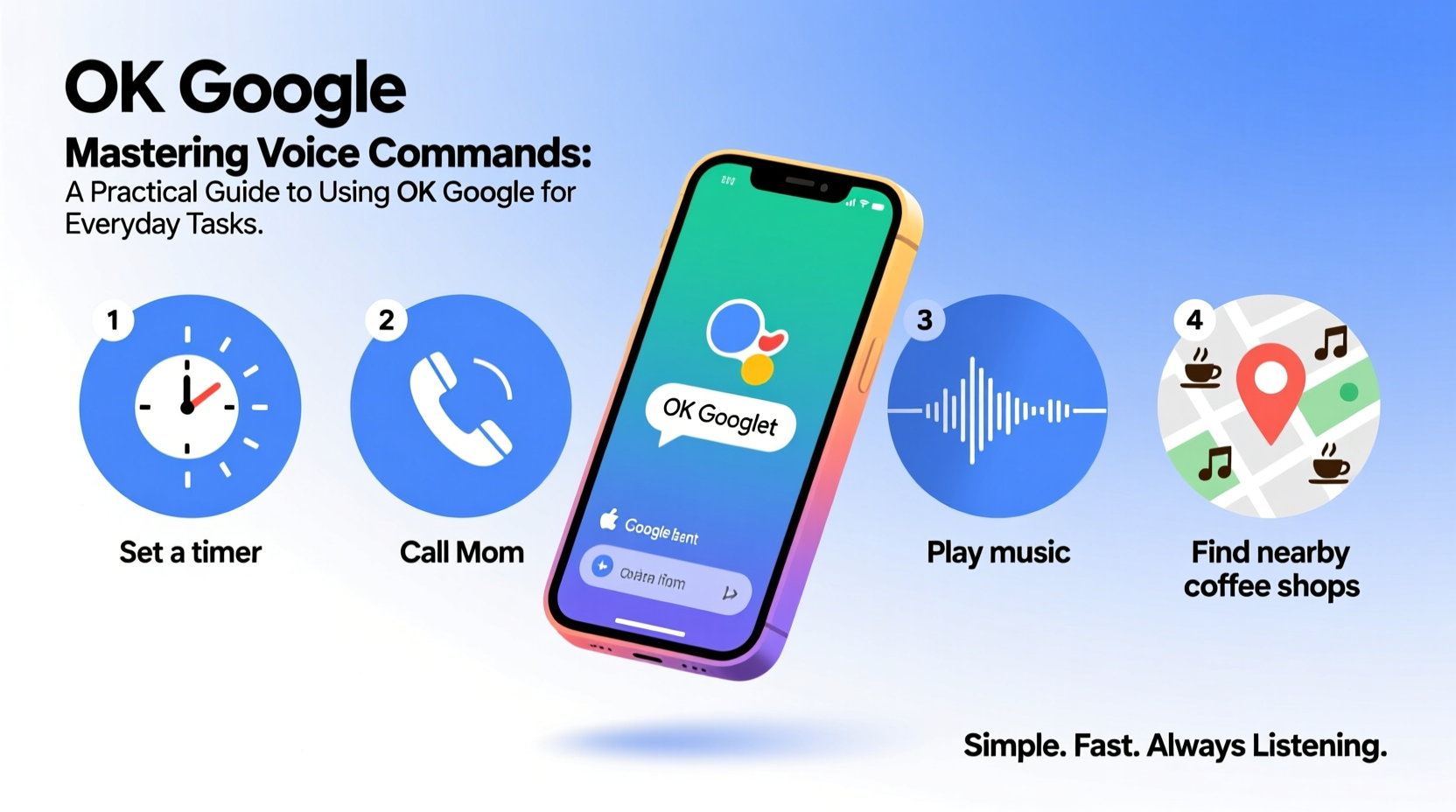
“Ok Google” activates Google Assistant, an AI-powered virtual helper embedded across Android devices, smart speakers, wearables, and even some cars. When you say the wake phrase, your device listens, processes your request via cloud-based natural language understanding, and responds accordingly—either by speaking, displaying results, or taking action.
To begin, ensure that Google Assistant is enabled:
- Open the Google app or Settings on your Android device.
- Navigate to “Google Assistant” or “Voice” settings.
- Turn on “Hey Google” detection (or “Ok Google”) from any screen.
- Complete voice match setup so it recognizes your voice.
Once configured, you can trigger it hands-free. On supported devices like Pixel phones or Nest speakers, simply say “Ok Google” followed by your command—even when the screen is off.
Everyday Tasks You Can Automate with Voice Commands
From setting alarms to controlling smart lights, Google Assistant handles hundreds of common activities. Here are key categories where voice commands make a tangible difference.
Communication & Scheduling
- \"Call Mom\" – Initiates a phone call via your contacts.
- \"Send a message to Alex: Running 10 minutes late\" – Sends a text without touching your phone.
- \"Set up a meeting tomorrow at 3 PM with team review\" – Adds an event to Google Calendar.
- \"What’s on my schedule today?\" – Reads out upcoming appointments.
Navigation & Travel
- \"Navigate home\" – Launches turn-by-turn directions in Google Maps.
- \"How long will it take to get to the airport?\" – Provides real-time traffic estimates.
- \"Find gas stations nearby\" – Lists local fuel options with ratings and prices.
Home Automation
If you have smart lights, thermostats, or plugs connected to Google Home, voice becomes your remote control.
- \"Turn off the living room lights\"
- \"Set the thermostat to 72 degrees\"
- \"Start the robot vacuum\"
Information & Quick Answers
- \"What’s the capital of Portugal?\"
- \"Define resilience\"
- \"Flip a coin\" or \"Roll a dice\" – Useful for quick decisions.
Media & Entertainment
- \"Play jazz music on Spotify\"
- \"Pause YouTube\"
- \"Show me funny cat videos on TV\"
“We’re moving toward ambient computing, where technology recedes into the background and responds to natural human behavior—like speaking.” — Sundar Pichai, CEO of Google
Step-by-Step Guide: Building Effective Voice Habits
Adopting voice commands doesn’t happen overnight. Follow this timeline to integrate them smoothly into your life:
- Week 1: Master Core Functions
Focus on basic tasks: setting timers, checking weather, making calls. Use these during low-stress moments like morning routines. - Week 2: Add Smart Home Integration
Connect one or two smart devices (e.g., smart bulb or speaker). Practice turning them on/off with voice. - Week 3: Optimize Communication
Use voice-to-text messaging while commuting or cooking. Try scheduling events verbally. - Week 4: Create Routines
Build custom routines like “Good morning” that trigger multiple actions: turn on lights, read news, start coffee maker (if compatible).
Common Pitfalls and How to Avoid Them
Even experienced users encounter hiccups. These mistakes often stem from unclear phrasing, poor setup, or environmental interference.
| Do’s | Don’ts |
|---|---|
| Speak clearly and at a moderate pace | Mumble or rush through commands |
| Use specific names (“text John”) instead of vague terms (“text him”) | Assume context is understood without clarity |
| Test commands in quiet environments first | Expect perfect performance in noisy areas like gyms or busy streets |
| Review permissions (contacts, location, microphone access) | Ignore privacy settings; always disable mic when not needed |
Real-Life Example: Sarah’s Morning Routine
Sarah, a working mother of two, used to spend her mornings rushing—making breakfast, packing lunches, and checking schedules. After learning about Google Assistant, she redesigned her routine:
- At 6:45 AM, her alarm says, “Good morning, Sarah. Today’s forecast is sunny, high of 75. You have a doctor’s appointment at 9:30.”
- She replies, “Ok Google, start coffee,” which triggers her smart coffee maker.
- While brushing her teeth, she says, “Remind me to pick up dry cleaning after school drop-off.”
- As she leaves, she commands, “Ok Google, navigate to elementary school,” and gets real-time traffic updates.
These small changes saved her nearly 15 minutes each day—and reduced stress significantly.
Expert Tips for Maximizing Accuracy and Efficiency
Voice recognition has improved dramatically, but precision still depends on user habits and system configuration.
- Train Your Voice Model: Go to Assistant settings > Voice Match > re-train your voice profile monthly for best accuracy.
- Use Location-Based Triggers: Set reminders like “When I get home, turn on the AC” using GPS detection.
- Leverage Routines: Create multi-step actions. For instance, “Bedtime” could dim lights, lock doors (via smart lock), play white noise, and set an alarm.
- Sync Across Devices: Ensure all your gadgets (phone, tablet, speaker) use the same Google account for seamless continuity.
Frequently Asked Questions
Can “Ok Google” work offline?
Limited functions like timers, alarms, and some reminders work offline. Most queries require internet connectivity for processing.
Is my voice data private?
Google stores voice recordings by default to improve services, but you can disable this. Visit My Activity > Voice & Audio Activity to pause saving or delete history.
Why doesn’t “Ok Google” respond sometimes?
Check microphone permissions, ensure “Hey Google” detection is enabled, and verify that background noise isn’t interfering. Also, battery-saving modes may disable hotword detection.
Conclusion: Speak Smarter, Live Better
Mastering voice commands with “Ok Google” isn’t about replacing touch—it’s about choosing the right tool for the moment. In situations where your hands are full, your eyes are busy, or speed matters, voice is unmatched. With consistent practice and smart configuration, you’ll find yourself accomplishing more with less effort.
The future of personal technology isn’t just smart—it’s conversational. Start small, build confidence, and let your voice lead the way.




 浙公网安备
33010002000092号
浙公网安备
33010002000092号 浙B2-20120091-4
Comments
No comments yet. Why don't you start the discussion?