
Navigating the digital world begins with your web browser—the gateway to information, communication, and entertainment. Yet many users operate on autopilot, relying on default settings and basic functions without unlocking the full potential of their browsing tools. With a few strategic adjustments, you can transform your browser from a simple page viewer into a personalized command center. Whether you're using Chrome, Firefox, Safari, or Edge, mastering how to open, organize, and customize your browser enhances efficiency, security, and enjoyment.
Understanding Your Browser’s Core Functions
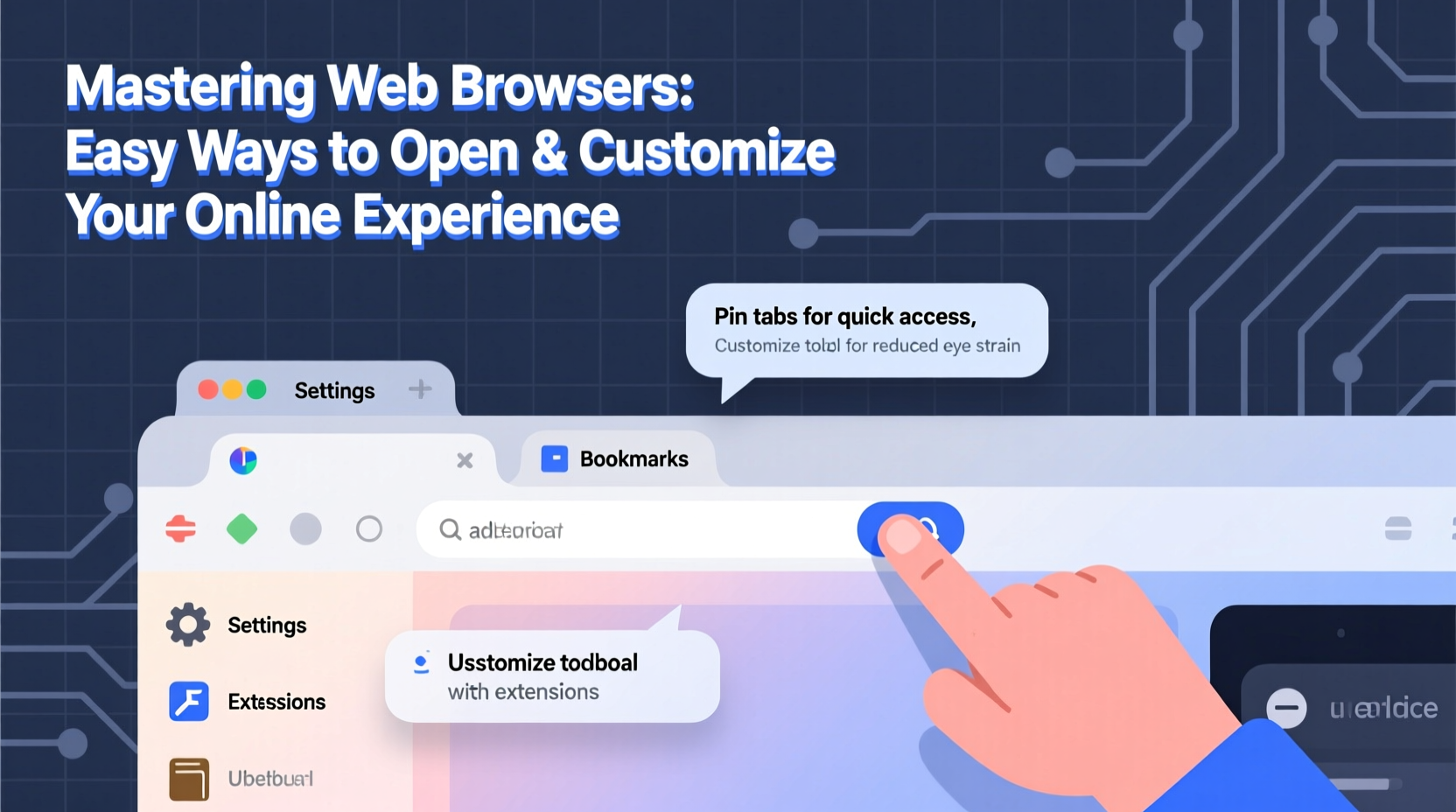
Before diving into customization, it's essential to understand the foundational features every modern browser shares. These include tabs, bookmarks, history, extensions, privacy modes, and search integration. Each plays a role in shaping your experience. Tabs allow multitasking across websites; bookmarks save frequently visited pages; history helps retrace steps; and extensions add new capabilities like ad-blocking or password management.
The way you open your browser also influences your workflow. Most people double-click the desktop icon or select it from the Start menu or Dock. However, advanced users leverage keyboard shortcuts (like Win + R, then typing \"chrome\") or create pinned taskbar/dock shortcuts for instant access. On mobile devices, long-pressing the app icon often reveals quick actions such as opening an incognito window or searching directly.
Customizing the Interface for Speed and Comfort
A cluttered browser interface slows you down. Take control by streamlining toolbars, rearranging buttons, and enabling only what you need. For example, in Google Chrome, right-click the toolbar to show or hide the Bookmarks Bar, which keeps favorite sites one click away. In Firefox, you can drag and drop navigation buttons to suit your hand position—ideal for mouse-heavy workflows.
Themes and color schemes aren’t just aesthetic choices—they reduce eye strain and improve focus. Dark mode, now standard across most browsers, is especially beneficial during evening use. To enable it, go to Settings > Appearance and select “Dark” under theme options. Some browsers even sync this preference with your operating system’s night-time schedule.
| Browser | Customization Strengths | Quick Access Path |
|---|---|---|
| Google Chrome | Extensive extension library, sync across devices | Settings > Appearance |
| Mozilla Firefox | Highly customizable UI, strong privacy controls | Menu > Customize |
| Microsoft Edge | Vertical tabs, built-in PDF tools, AI integration | Settings > Appearance |
| Apple Safari | Energy efficiency, seamless iCloud integration | Safari > Preferences > Tabs |
Optimizing Startup and Tab Management
How your browser starts sets the tone for your session. You can configure it to restore previous tabs, open a specific homepage, or launch with a blank slate. For users who rely on consistent workspaces—such as researchers or project managers—setting the browser to reopen last-used tabs ensures continuity.
Tab overload is a common issue. Instead of dozens of open tabs competing for memory and attention, adopt a tiered approach:
- Pinned Tabs: Reserve for essential services (email, calendar, messaging).
- Active Tabs: Keep only those currently in use.
- Saved Sessions: Use bookmark folders or tab manager extensions to archive groups of related pages.
“Effective tab management isn’t about minimizing quantity—it’s about maximizing relevance.” — Dr. Lena Torres, Digital Productivity Researcher at UX Institute
Step-by-Step: Set Up a Custom Home Page
A personalized home page accelerates access to your most-used tools. Follow these steps in any major browser:
- Open browser Settings.
- Navigate to \"On startup\" or \"Home page\" section.
- Select “Open a specific page or set of pages.”
- Add URLs like your email, calendar, news site, or dashboard.
- Save changes and restart the browser to test.
This setup turns your first screen into a productivity hub rather than a blank void.
Enhancing Functionality with Extensions and Tools
Browser extensions are small software programs that add features directly within the browser. They range from practical (password managers, grammar checkers) to creative (dark readers, screenshot tools). But not all extensions are equal—some slow performance or compromise privacy.
When selecting extensions, prioritize those with high user ratings, regular updates, and transparent data policies. Stick to official stores like Chrome Web Store or Firefox Add-ons. Install only what you truly need.
Essential Extension Categories
- Password Managers: Bitwarden, 1Password – securely store and autofill credentials.
- Ad Blockers: uBlock Origin – reduces distractions and speeds up loading.
- Grammar Checkers: Grammarly – improves writing in emails and forms.
- Dark Mode Enablers: Dark Reader – applies consistent dark themes across sites.
- Tab Organizers: OneTab, Toby – group and save tabs efficiently.
Real Example: How Sarah Streamlined Her Remote Work Setup
Sarah, a freelance content strategist, used to spend the first 20 minutes of each day reopening her research tabs, checking five different dashboards, and logging into client portals. Frustrated by the inefficiency, she decided to optimize her browser.
She started by setting her startup pages to include her project management tool, email, and analytics dashboard. She pinned these as permanent tabs. Next, she installed Bitwarden to eliminate repeated logins and added the Toby extension to save weekly research sessions as collections. Finally, she enabled dark mode and disabled non-essential notifications.
The result? Her morning routine dropped to under five minutes, and she reported feeling more focused throughout the day. “I didn’t realize how much mental load came from just opening my browser,” she said. “Now it works for me, not against me.”
Privacy and Security Through Smart Configuration
Customization isn’t just about convenience—it’s also about safety. Browsers collect data by default: search history, cookies, location, and more. Adjusting privacy settings gives you control over what’s tracked and stored.
Enable “Do Not Track” requests, block third-party cookies, and clear browsing data automatically upon exit. Use private browsing (incognito mode) when handling sensitive tasks like banking or gift shopping. While incognito doesn’t make you anonymous online, it prevents local storage of history and form data.
“Most users don’t change default privacy settings, leaving them exposed to tracking they never consented to.” — James Reed, Cybersecurity Analyst at NetShield Labs
FAQ
How do I reset my browser if it becomes slow or glitchy?
Start by clearing cache and cookies through Settings > Privacy. If problems persist, consider resetting the browser to default settings—this removes customizations but often resolves performance issues. In Chrome, go to Settings > Reset settings > Restore to original defaults.
Can I sync my bookmarks and settings across devices?
Yes. Sign in to your browser account (Google Account for Chrome, Apple ID for Safari, etc.) to sync bookmarks, passwords, extensions, and preferences across phones, tablets, and computers. This creates a seamless experience no matter which device you’re using.
Are browser extensions safe?
Most reputable extensions from official stores are safe. However, always review permissions before installing. Avoid extensions asking for excessive access (e.g., “read all website data”). Regularly update and remove unused ones to minimize risk.
Final Checklist: Master Your Browser in 7 Steps
- Set a productive startup behavior (restore tabs or open homepage).
- Enable dark mode or a comfortable theme.
- Pick and pin 3–5 essential websites as permanent tabs.
- Install 2–3 trusted extensions for productivity or security.
- Configure privacy settings: block trackers, manage cookies.
- Organize bookmarks into folders for easy retrieval.
- Sync your browser across devices using a secure account.
Take Control of Your Digital Experience
Your web browser is more than a tool—it’s an environment you inhabit daily. Small, intentional changes in how you open, navigate, and personalize it compound into significant gains in clarity, speed, and satisfaction. Don’t settle for generic defaults. Experiment with layouts, explore extensions, and refine your workflow until your browser feels like a natural extension of your mind.




 浙公网安备
33010002000092号
浙公网安备
33010002000092号 浙B2-20120091-4
Comments
No comments yet. Why don't you start the discussion?