
The Apple Watch Series 9 isn’t just a timepiece—it’s a powerful extension of your iPhone, fitness companion, health monitor, and productivity tool. While its sleek design and intuitive interface make it easy to pick up, unlocking its full potential requires more than basic navigation. Whether you’ve had it for weeks or just unboxed it, mastering the subtle features can transform how you interact with your device daily.
From optimizing battery performance to customizing controls for one-handed operation, these strategies go beyond the setup guide. They’re designed to save time, reduce frustration, and help you get more out of every tap, swipe, and glance.
1. Optimize Battery Life Without Sacrificing Functionality
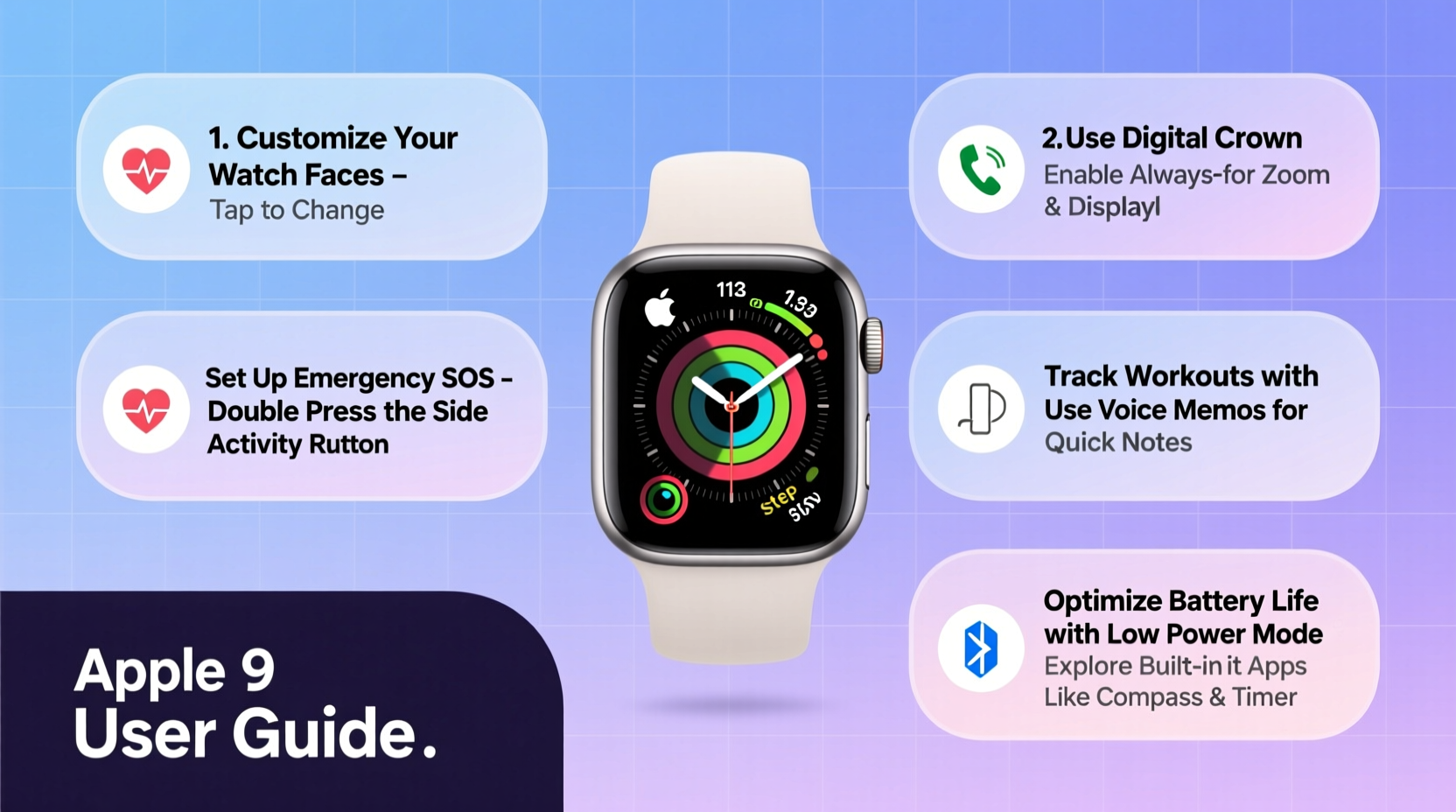
The Apple Watch 9 delivers impressive performance, but heavy usage can drain the battery by midday. Instead of turning off useful features entirely, fine-tune settings to extend longevity while keeping core functions active.
To access Low Power Mode, open the Settings app on your watch, tap \"Battery,\" then toggle on Low Power Mode. It disables features like always-on display and reduces haptic feedback intensity—ideal when you're away from a charger.
Other effective habits include reducing motion effects (Settings > Accessibility > Motion), disabling unnecessary notifications, and scheduling Theater Mode during meetings or sleep hours. You can even set automations via the iPhone's Watch app under \"Battery\" to activate Low Power Mode based on location or calendar events.
“Most users don’t realize that animated watch faces consume significantly more power than static ones. Switching to a simple face can add two to three hours of usage.” — David Lin, Wearable Tech Analyst at MobileInsight Group
2. Customize Your Control Center for One-Touch Access
The Control Center is your command hub, accessible with an upward swipe from any watch face. By default, it includes common toggles like Airplane Mode and Do Not Disturb—but you can tailor it to match your lifestyle.
Navigate to Settings > Control Center on your Apple Watch to reorder or replace items. Frequent travelers might prioritize Flashlight, Wallet, and Wi-Fi. Fitness enthusiasts may prefer Heart Rate monitoring, Workout, and Audio Controls. Parents could benefit from enabling Flashlight, Timer, and Screen Curtain for quick access in low-light environments.
Once customized, this menu becomes an extension of muscle memory. Need to silence alerts quickly? Swipe up and tap the bell icon. Want to start a breathing session mid-stress? The Mindfulness shortcut is now just one tap away.
Recommended Control Center Layout by Use Case
| User Type | Suggested Controls | Purpose |
|---|---|---|
| Fitness Enthusiast | Workout, Heart Rate, Audio, Flashlight | Quick tracking and music control during exercise |
| Business Professional | Airplane Mode, Do Not Disturb, Theater Mode, Microphone | Meeting readiness and call preparation |
| Parent / Caregiver | Timer, Flashlight, Screen Curtain, Wallet | Managing routines and nighttime tasks |
| Traveler | Wi-Fi, Bluetooth, Wallet, Flashlight | Staying connected abroad without cellular data |
3. Master Gesture-Based Navigation
The Apple Watch 9 introduces enhanced gesture support through Tap to Click and improved back gestures. These features are especially helpful when wearing gloves or operating the device one-handed.
Tap to Click replaces the need to press the Digital Crown or side button to select items. Go to Settings > Accessibility > Touch > Tap to Click and enable it. Now, double-tap your index and middle fingers together twice to simulate a click—perfect for cycling through menus while jogging or cooking.
For faster navigation, use the back gesture: swipe left from the edge of the screen to return to the previous screen. This works in most apps and eliminates the need to hunt for a back arrow. Combine this with the Dock (double-press the side button) to switch between recent apps fluidly.
Step-by-Step: Set Up Tap to Click and Back Swipes
- On your Apple Watch, open the Settings app.
- Go to Accessibility > Touch.
- Select “Tap to Click” and toggle it on.
- Return to Accessibility and choose “Back Gestures.”
- Ensure “Enable Back Gesture” is turned on.
- Test both features in the Messages or Calendar app.
4. Automate Routines with Shortcuts and Focus Modes
One of the most underused capabilities of the Apple Watch 9 is automation via the Shortcuts app. With minimal setup, you can trigger multi-step actions using voice commands, time, or location.
Create a “Morning Routine” shortcut that turns off Do Not Disturb, starts a weather briefing, logs your water intake, and begins playing your favorite podcast—all with a single phrase like “Good morning.” Similarly, a “Workout Ready” shortcut can launch GPS, silence calls, and start a hydration reminder.
To maximize effectiveness, pair shortcuts with Focus modes. For example, create a “Sleep” Focus that activates at 10 PM, silences non-urgent alerts, dims the screen, and launches Wind Down. Your watch will prompt you with mindfulness exercises or bedtime stories if enabled.
“Automation isn’t about doing less—it’s about making technology work around your life instead of the other way around.” — Sarah Kim, Productivity Consultant
Essential Shortcuts to Build Today
- Commute Home: Checks traffic, sends ETA to family, plays audiobook.
- Work Start: Enables Work Focus, logs into time tracker, silences social media.
- Emergency Contact: Sends location and message to designated contacts with one tap.
5. Real-World Example: How Jamie Uses Her Apple Watch 9 Efficiently
Jamie, a nurse and mother of two, relies on her Apple Watch 9 to stay organized across shifts and school runs. Each morning, her “Family Morning” shortcut triggers at 6:30 AM, displaying the day’s forecast, medication reminders, and her children’s schedules.
During her hospital shift, she uses Tap to Click to navigate patient records hands-free, avoiding the need to remove gloves. When a critical alert comes in, her Emergency SOS shortcut shares her current location with her partner automatically.
In the evening, her Sleep Focus engages at 9 PM, silencing all notifications except those from immediate family. She reviews her heart rate variability and respiratory rate each night to monitor stress levels—a feature she credits with helping her avoid burnout.
By integrating small automations and custom controls, Jamie gains back nearly 45 minutes per day previously lost to manual tasks and distractions.
FAQ
Can I reply to messages without speaking?
Yes. Open a message, tap the Apps button (square icon), and choose from Quick Replies, emojis, handwritten responses, or pre-written text snippets. You can customize these replies in the iPhone’s Messages settings under “Composing and Sending.”
How do I prevent accidental screen touches?
Enable Wrist Detection and turn on Screen Lock when unlocked. Additionally, activate “Cover to Mute” in Settings > Sounds & Haptics. This silences alarms and notifications when you cover the display with your palm for three seconds.
Is there a way to see all upcoming calendar events at once?
Use the Calendar app and scroll down—it shows a list view of all future events. Alternatively, add the Calendar complication to your watch face for a glanceable agenda. Some third-party complications offer expanded views with color-coded event types.
Final Thoughts
The Apple Watch 9 excels not because of its specs, but because of how seamlessly it integrates into daily life. The difference between casual use and true mastery lies in intentionality—choosing which features serve you and shaping them to fit your rhythm.
Start with one tip—customize your Control Center, set up a single Shortcut, or adjust your battery settings. Over time, layer in additional habits until your watch operates like a silent assistant, anticipating needs before you voice them.




 浙公网安备
33010002000092号
浙公网安备
33010002000092号 浙B2-20120091-4
Comments
No comments yet. Why don't you start the discussion?