
Your home screen is more than just a launchpad for apps—it’s the central hub of your digital life. Whether you're using an iPhone, Android phone, or tablet, how you organize and personalize your home screen directly impacts efficiency, accessibility, and even mood. A cluttered layout leads to wasted time; a well-designed one makes daily tasks feel effortless. Yet most users never go beyond default settings, missing out on powerful customization tools built into their devices.
This guide walks through every essential step to take full control of your home screen. From unlocking access and arranging icons to enabling gestures and widgets, you’ll learn how to build a setup that reflects your habits—not someone else’s idea of usability.
Understanding Home Screen Access Across Platforms
The first step in mastering your device is knowing how to reach and interact with your home screen reliably. While all smartphones use the home screen as the primary interface, access methods vary slightly between operating systems.
On iPhones (iOS), pressing the physical home button—or swiping up from the bottom bezel on newer models without a button—returns you to the home screen from any app. On Android devices, a swipe up from the navigation bar or tapping the circular home icon accomplishes the same. These gestures are foundational: knowing them ensures you can always reset your view and regain orientation within your device.
It's also important to distinguish the home screen from the lock screen and app drawer. The lock screen appears when the device wakes but remains secured. The home screen becomes visible only after unlocking. Meanwhile, Android users may have an app drawer—a separate menu containing all installed apps—while iOS integrates everything directly onto home and secondary screens.
Step-by-Step: How to Customize Your Home Screen Layout
Customization begins with rearranging what you see. A thoughtful layout reduces friction between intention and action—getting to your calendar, messages, or music should require minimal taps.
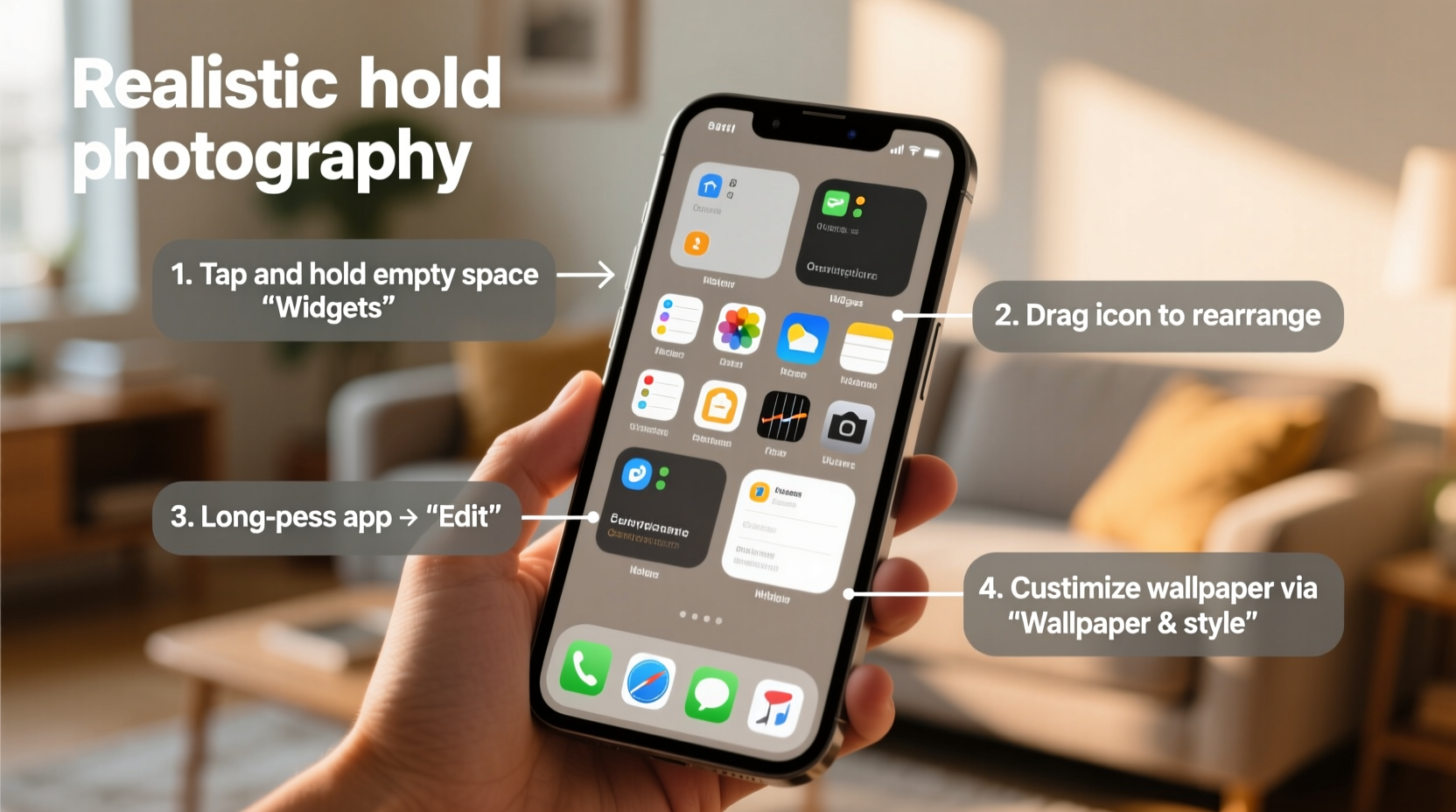
- Enter Edit Mode: Press and hold any empty area on the home screen until icons begin to wiggle (iOS) or a menu appears (Android).
- Move Apps: Drag any app icon to a new location. Group frequently used apps together—such as social media, utilities, or work tools.
- Create Folders: Drop one app icon over another to create a folder. Name it accordingly (e.g., “Finance,” “Travel”) for easy identification.
- Add Screens: Swipe to the rightmost page and drag an app there to automatically generate a new home screen panel.
- Delete Unused Apps: Tap the “X” on unwanted app icons (iOS) or drag them to “Remove” (Android). Note: Some pre-installed apps cannot be deleted, only hidden.
Consider organizing by function rather than frequency. For example, keep communication tools (Messages, WhatsApp, Email) on your first screen, while reserving secondary panels for entertainment or infrequently used utilities. This structure supports both speed and mental clarity.
Best Practices for Icon Arrangement
| Do | Don’t |
|---|---|
| Place high-use apps near thumb zones (bottom center or corners) | Scatter similar apps across multiple screens |
| Use folders to minimize visual clutter | Leave unused apps on main screens |
| Align icons neatly using grid snap features | Overload one screen while neglecting others |
| Label folders clearly and consistently | Use vague names like “Stuff” or “Misc” |
Leveraging Widgets for Real-Time Information
Widgets transform passive screens into dynamic information centers. Unlike static icons, widgets display live data—calendar events, weather forecasts, upcoming reminders, or fitness stats—without opening the associated app.
To add a widget:
- iOS: Press and hold the home screen, tap the “+” in the top-left corner, choose a widget size, and place it where desired.
- Android: Long-press the home screen, select “Widgets,” then drag your preferred widget to the layout.
Effective widget placement enhances awareness. A weather widget at the top of your first screen helps plan your day; a calendar snippet keeps meetings visible. Avoid overcrowding—two to three well-chosen widgets are more effective than five competing updates.
“Users who integrate widgets report up to 30% faster access to time-sensitive information.” — Dr. Lena Torres, Human-Device Interaction Researcher, Stanford HCI Lab
Personalization Beyond Layout: Themes, Wallpapers & Gestures
A truly mastered home screen reflects personal preference and workflow. Modern devices offer deep customization layers beyond app positioning.
Wallpapers: Choose images that inspire calm or focus. Dark wallpapers on OLED screens save battery. Consider using different wallpapers for the lock and home screens to create visual distinction.
Themes & Icons (Android): Launchers like Nova or Microsoft Launcher allow complete theme changes, including icon packs and font styles. iOS offers limited theming unless jailbroken, but App Library organization and color-coordinated folders can simulate consistency.
Gestures: Enable swipe actions for faster navigation. For example, swiping down on the home screen opens search (iOS/Android); swiping left may open a news feed or photo library. Disable distracting animations under Accessibility settings to improve responsiveness.
Mini Case Study: Transforming a Cluttered Interface
Sophie, a freelance designer, found herself spending extra minutes each day searching for tools buried across five chaotic home screens. After applying structured customization:
- She grouped design apps (Photoshop Express, Procreate, Dropbox) into a single folder on her first screen.
- Added a widget showing her project deadlines from Notion.
- Set a minimalist wallpaper to reduce visual noise.
- Moved shopping and gaming apps to the last screen, accessible but out of sight.
Within a week, she reported feeling more focused and efficient. “I’m not fighting my phone anymore,” she said. “It finally feels like an extension of my workflow.”
Essential Checklist: Optimize Your Home Screen in One Session
Follow this checklist during your next 20-minute optimization session:
- ✅ Remove or archive unused apps
- ✅ Arrange core apps on the first screen
- ✅ Create labeled folders for app categories
- ✅ Add 1–3 functional widgets (weather, calendar, notes)
- ✅ Set a clear, non-distracting wallpaper
- ✅ Test gesture navigation and adjust sensitivity if needed
- ✅ Review accessibility settings (reduce motion, increase text size if necessary)
Frequently Asked Questions
Can I hide apps without deleting them?
Yes. On Android, disable apps via Settings > Apps or use a launcher that supports hiding. On iOS, remove apps from the home screen but leave them accessible via the App Library by swiping left past your last home screen.
How many home screens should I use?
Most users benefit from 2–3 organized screens. More than four often leads to disuse and confusion. If you have many apps, rely on the App Library (iOS) or search function (Android) instead of spreading icons endlessly.
Will customizing my home screen drain the battery?
Not significantly. However, large or animated widgets—especially those refreshing frequently—can increase power usage. Stick to static or low-update widgets for optimal efficiency.
Take Control Today
Mastering your device starts with ownership of its most visible space: the home screen. You don’t need advanced technical skills—just intention and a few deliberate choices. By streamlining layout, integrating useful widgets, and aligning design with daily needs, you turn your smartphone from a distraction machine into a precision tool.




 浙公网安备
33010002000092号
浙公网安备
33010002000092号 浙B2-20120091-4
Comments
No comments yet. Why don't you start the discussion?