
Digital sports watches have evolved far beyond simple timekeepers. With the rise of hybrid technology, dual display models—featuring both analog hands and a digital screen—offer the best of both worlds: classic aesthetics and modern functionality. Whether you're training for a marathon, tracking daily activity, or managing a busy schedule, understanding how to interpret and interact with your watch is essential. This guide breaks down every element of your dual display sports watch into actionable steps, helping you unlock its full potential.
Understanding the Dual Display Layout
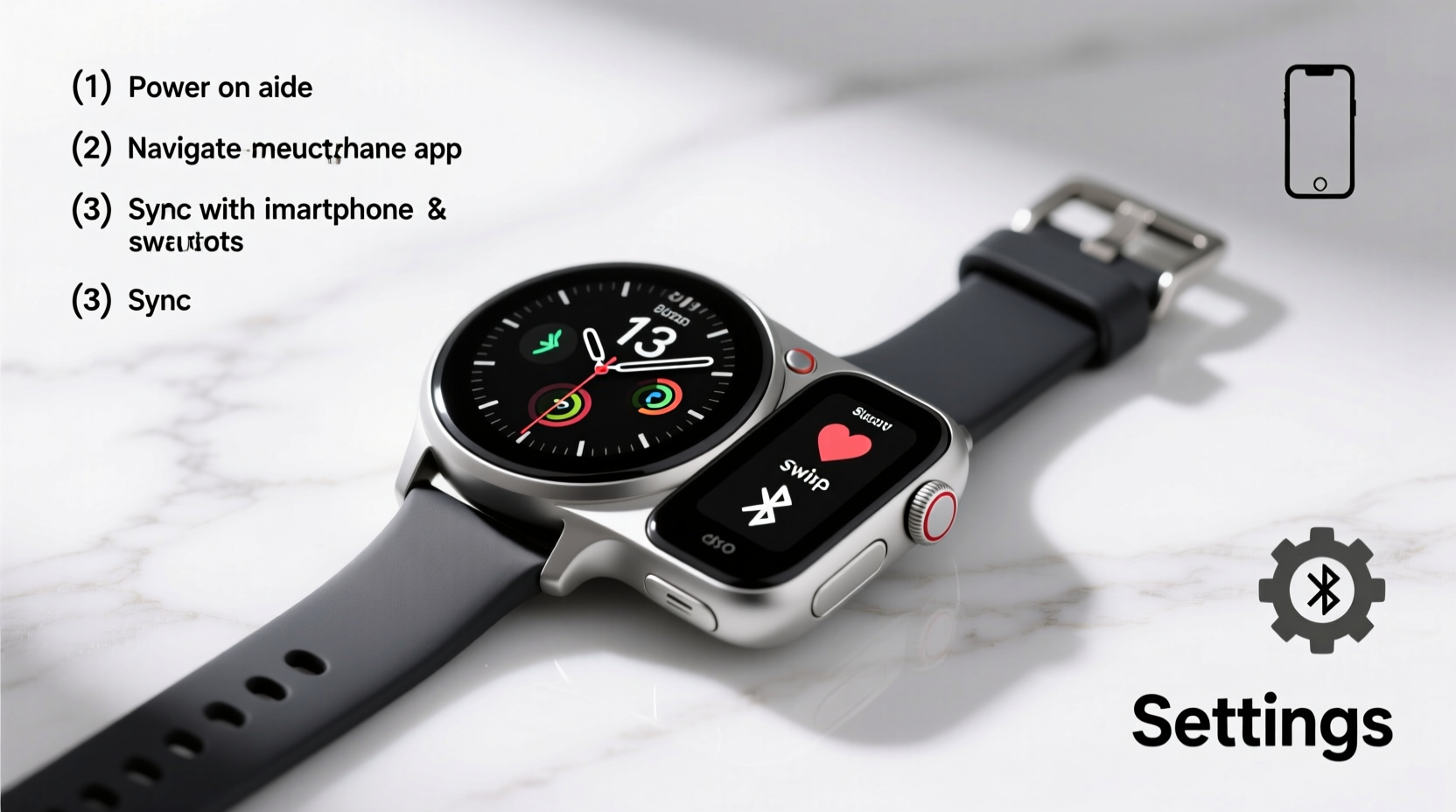
The core advantage of a dual display digital sports watch lies in its layered interface. The analog face typically shows hours, minutes, and sometimes seconds via physical hands, while the digital sub-display—usually located at the bottom or center—delivers real-time data such as time mode, date, stopwatch, heart rate, GPS status, and more. Unlike fully digital models, dual displays maintain readability at a glance without sacrificing access to advanced metrics.
Most models use a combination of buttons (mode, start/stop, lap/reset) and touchscreen functions (on select variants). The digital segment cycles through modes using the mode button, while other buttons control actions within each screen. Familiarizing yourself with the default layout prevents confusion during high-intensity workouts or time-sensitive tasks.
Step-by-Step Navigation Through Key Modes
Using your dual display watch efficiently starts with mastering navigation. Follow this sequence to move through primary functions:
- Time Mode (Default View): Shows current time and date. Press the \"Mode\" button once to cycle out.
- Stopwatch: Start, pause, and reset lap times. Ideal for interval training or timing sprints.
- Timer: Set countdowns for warm-ups, cooldowns, or rest periods.
- Alarm: Configure multiple daily alerts for hydration, medication, or meetings.
- Sports Mode: Select running, cycling, swimming, etc. Activates sensors like accelerometer, GPS, or heart rate monitor.
- Activity Tracking: View steps, calories burned, active minutes, and sleep patterns from the previous day.
- Compass & Altitude (if equipped): Useful for hiking or trail running. Calibrate periodically for accuracy.
- Bluetooth & Connectivity: Check sync status with your smartphone for notifications and app updates.
Cycling back to the first mode usually happens automatically after the final screen or by holding the mode button for two seconds, depending on the brand. Practice this loop until transitions feel intuitive.
Reading the Digital Sub-Screen: Decoding Icons and Data
The digital portion uses symbols and abbreviations that may not be immediately obvious. Understanding these ensures you’re not missing critical information.
| Icon/Symbol | Meaning | When It Appears |
|---|---|---|
| ⏱️ or [ST] | Stopwatch Active | During timed exercise or manual stopwatch use |
| ⟳ or [LAP] | Lap Time Recorded | After pressing lap button during workout |
| 📡 or [GPS] | GPS Connected | When location tracking is active |
| ❤️ or [HR] | Heart Rate Monitoring | During fitness mode or continuous tracking |
| 🔋 | Battery Level | Always visible in settings or low-power warnings |
| 📶 | Bluetooth Connected | Paired with phone; receives notifications |
| ☾ / ☼ | Sleep/Wake Mode | Auto-detection based on movement and time |
Some watches also display elevation (m or ft), weather indicators (sun, cloud, rain), or hydration reminders. Refer to your user manual for model-specific symbols, but most follow industry-standard conventions.
Optimizing Performance: Real-World Usage Tips
Even with perfect navigation, poor habits can limit your watch’s effectiveness. Consider the following strategies to get the most from your device.
- Charge before long workouts—many dual display models last 7–10 days, but GPS-heavy activities drain power faster.
- Wear snugly, but not tightly, to ensure accurate heart rate readings and motion detection.
- Sync daily with the companion app to review trends and update firmware.
- Use vibration alerts in noisy environments where audio cues might be missed.
- Enable auto-lap in running mode to track distance intervals without manual input.
“Consistency in wear and calibration leads to more reliable biometrics. A poorly worn sensor is worse than no sensor.” — Dr. Lena Torres, Sports Biomechanics Researcher
Mini Case Study: Marathon Training with Limited Tech Experience
James, a 38-year-old teacher preparing for his first marathon, struggled with his new dual display watch during early runs. He often forgot to start GPS mode and misread lap times, leading to inconsistent pacing. After reviewing the digital icons and practicing pre-run routines—pressing “Mode” until he saw [RUN], confirming [GPS] signal, and testing lap function—his confidence improved. Within three weeks, he was accurately logging splits and adjusting pace mid-run. His race-day performance improved by 12% compared to previous attempts without structured tracking.
Essential Setup Checklist
Before relying on your watch for serious training or daily tracking, complete this checklist:
- ✓ Sync with smartphone app (e.g., Garmin Connect, Polar Flow)
- ✓ Set correct time zone and 12/24-hour format
- ✓ Calibrate step counter by walking a known distance
- ✓ Test GPS acquisition in open area
- ✓ Program personal data: age, weight, height, resting heart rate
- ✓ Enable automatic sleep tracking
- ✓ Assign primary sports mode for quick access
- ✓ Update firmware to latest version
Frequently Asked Questions
Can I swim with my dual display sports watch?
Most models are water-resistant up to 50 meters (5 ATM), making them suitable for swimming and snorkeling. However, avoid pressing buttons underwater unless specified as safe by the manufacturer. Rinse with fresh water after saltwater exposure.
Why does my step count seem inaccurate?
Inaccuracy often stems from loose fit or arm swing limitations (e.g., pushing a stroller or carrying groceries). Ensure the watch sits just below the wrist bone and consider enabling wrist tilt-to-wake if available. Recalibrate using a measured walk or run.
How do I switch between 12-hour and 24-hour time format?
Hold the “Mode” button in time display for 3 seconds to enter settings. Navigate to “Time Format,” select your preference, and confirm. The analog hands will adjust automatically.
Conclusion: Make Your Watch Work for You
A dual display digital sports watch isn’t just a tool—it’s a personal performance partner. By mastering its interface, interpreting data correctly, and maintaining consistent usage habits, you gain insights that go far beyond telling time. From optimizing workouts to improving daily activity, the value comes not from owning the device, but from knowing how to use it effectively. Take ten minutes today to walk through each mode, test key functions, and personalize your settings. That small investment now will pay dividends in precision, motivation, and long-term health.




 浙公网安备
33010002000092号
浙公网安备
33010002000092号 浙B2-20120091-4
Comments
No comments yet. Why don't you start the discussion?