
The Google Home Mini has become a staple in modern homes—not just for playing music, but as a central hub for managing daily life. With voice control, smart integrations, and evolving AI features, its potential goes far beyond simple queries. Yet many users only scratch the surface of what it can do. This guide dives into advanced yet practical techniques to help you unlock its full capabilities, streamline routines, protect privacy, and make your device work harder with less effort.
Optimize Voice Recognition for Multiple Users
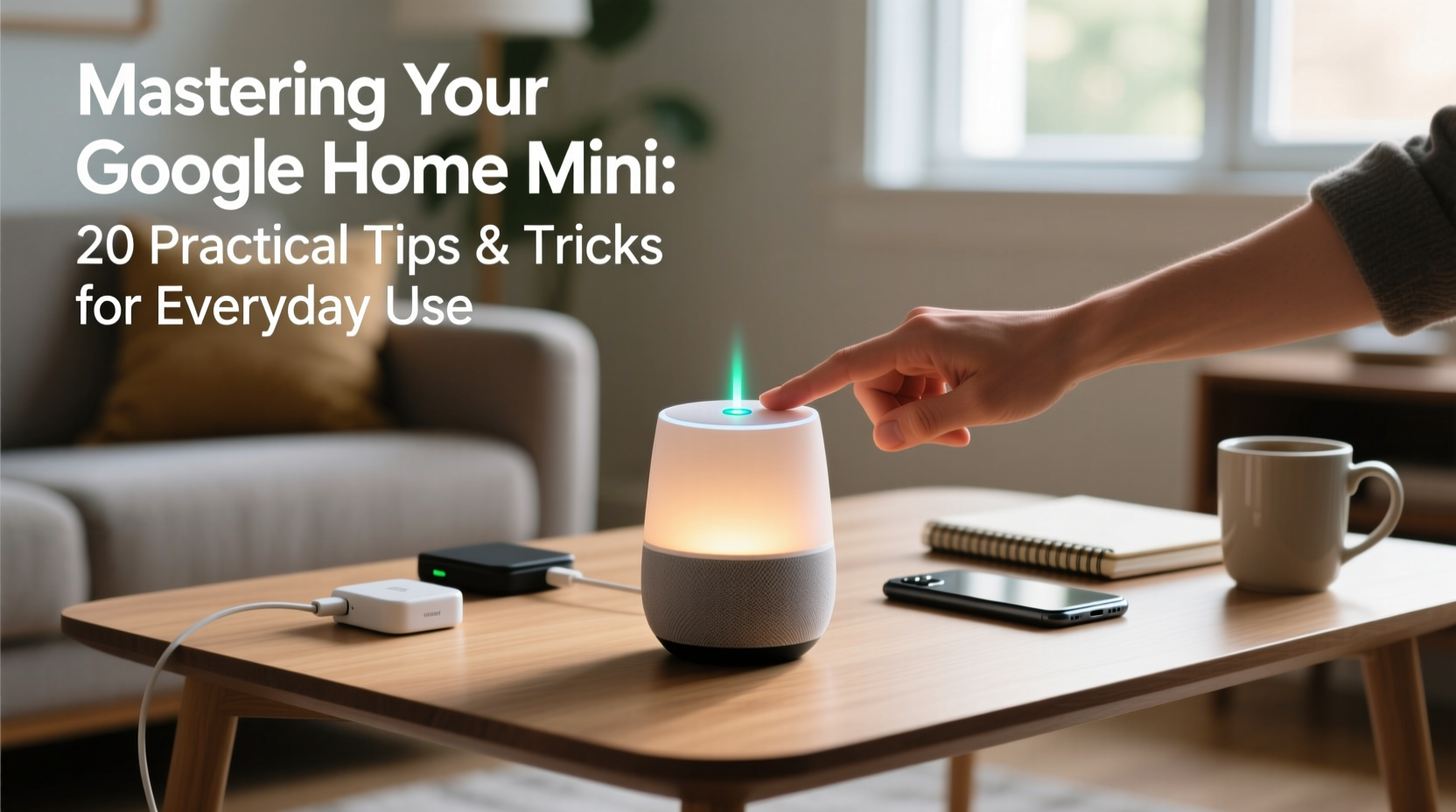
One of the most underused features of the Google Home Mini is its ability to recognize different voices. When set up correctly, it can distinguish between household members and personalize responses—from calendar events to preferred music playlists.
To enable this, open the Google Home app, go to your device settings, and select “Voice Match.” Follow the prompts to record your voice saying specific phrases. Repeat for each family member. Once configured, the device will respond with tailored results based on who’s speaking.
Voice Match also enables personalized routines. For example, when Sarah says “Good morning,” her Mini could announce traffic to work, while John hears his gym schedule and kids’ school reminders—all from the same device.
Create Smarter Routines with Automation
Routines are where the Google Home Mini truly shines. Instead of issuing multiple commands, you can trigger a series of actions with one phrase. These aren’t limited to turning lights on or off—they can include weather updates, news briefings, thermostat adjustments, and even sending messages.
- Open the Google Home app.
- Navigate to Routines under the More tab.
- Select “Add Routine” and define a trigger (e.g., voice command, time, or location).
- Add actions like adjusting volume, starting a playlist, or activating smart plugs.
- Name your routine and save.
For instance, say “Bedtime” to dim the lights, lock compatible smart locks, lower the thermostat, and set an alarm—all in sequence.
| Routine Name | Trigger | Actions |
|---|---|---|
| Morning Boost | Voice: “Good morning” | Play news, read calendar, turn on lights, start coffee maker |
| Leaving Home | Location-based (when phone leaves) | Turn off lights, adjust thermostat, arm security system |
| Movie Time | Voice: “Let’s watch a movie” | Dim lights, mute device, pause notifications |
Enhance Privacy Without Sacrificing Functionality
With any always-listening device, privacy concerns are valid. The good news is that Google offers robust tools to maintain control over your data without disabling useful features.
- Use the physical mute button on top to disable microphones instantly.
- Review and delete voice recordings via My Activity.
- Set automatic deletion of voice history after 3 or 18 months in settings.
- Disable ad personalization if you prefer not to have voice data used for targeting.
“Users should treat smart speakers like any connected device—regular maintenance and awareness of permissions are key to secure usage.” — Dr. Lena Patel, Cybersecurity Analyst at Digital Trust Labs
You can also ask your Mini to forget specific interactions: simply say, “Hey Google, delete what I just said.” It’s a quick way to remove accidental or sensitive queries from your history.
Integrate with Smart Home Ecosystems Efficiently
The Google Home Mini excels as a command center for smart homes. However, compatibility varies across brands. To maximize performance, ensure all devices are certified for Google Assistant and use consistent naming conventions.
Group related devices into rooms. In the Google Home app, assign lights, thermostats, and sensors to specific areas like “Living Room” or “Upstairs Bathroom.” Then control them collectively: “Hey Google, turn off everything in the bedroom.”
For non-compatible gadgets, consider using a smart plug or bridge (like Philips Hue Bridge or Samsung SmartThings) to bring them under Google’s control. Many budget-friendly Wi-Fi plugs now support Google Assistant out of the box.
Mini Case Study: The Johnson Family’s Evening Routine
The Johnsons struggled with evening chaos—kids forgetting homework, lights left on, and inconsistent bedtimes. After setting up a “Wind Down” routine on their Google Home Mini, they transformed their evenings.
At 7:30 PM, the Mini announces: “Time to start winding down.” It dims hallway lights, reads the next day’s schedule, plays calming music for 20 minutes, and reminds each child to brush their teeth. Parents receive a notification when the routine completes. Within two weeks, bedtime resistance dropped significantly, and energy bills decreased due to automated light management.
Advanced Voice Commands You’re Probably Missing
Most users stick to basics like setting timers or checking the weather. But Google Assistant supports hundreds of nuanced commands that save time and reduce friction.
- “Hey Google, remind me to call Mom when I get home.” – Uses geolocation to trigger the alert upon arrival.
- “Add eggs to my shopping list.” – Syncs with Google Keep or compatible apps.
- “Translate ‘Where is the nearest pharmacy?’ into Spanish.” – Real-time translation with spoken output.
- “What did I do last Friday?” – Summarizes calendar events and activities from your timeline.
- “Is my garage door closed?” – Works with smart sensors or connected openers.
You can also chain commands: “Hey Google, turn on the fan, set a 30-minute timer, and play white noise.” The device processes multi-part requests efficiently, reducing back-and-forth.
Frequently Asked Questions
Can I use Google Home Mini without a smartphone?
Initial setup requires the Google Home app on a smartphone or tablet. However, once configured, the device operates independently via voice. Some advanced settings still require app access.
Why does my Mini sometimes misunderstand me?
Background noise, accent variation, or outdated voice models can impact accuracy. Recalibrate Voice Match, speak clearly, and minimize competing sounds. Placing the device away from walls or obstructions also improves microphone sensitivity.
Can I make phone calls with Google Home Mini?
Yes. You can make free calls to contacts in the U.S. and Canada using your Google account. Just say, “Hey Google, call [contact name].” Emergency calling (911) is supported in select regions with proper address registration.
Checklist: Maximize Your Google Home Mini in One Weekend
- ✅ Set up Voice Match for all household members
- ✅ Create at least two custom routines (morning and bedtime)
- ✅ Review and trim voice history in My Activity
- ✅ Group devices by room in the Google Home app
- ✅ Test five advanced voice commands
- ✅ Enable automatic voice deletion (3-month cycle)
- ✅ Integrate one new smart device (plug, bulb, or sensor)
Final Thoughts: Turn Convenience Into Consistency
The Google Home Mini isn’t just a gadget—it’s a tool for simplifying life when used intentionally. Most people adopt it for convenience but stop short of true integration. By refining voice profiles, building meaningful routines, securing privacy, and exploring advanced commands, you shift from reactive use to proactive assistance.
Technology should serve you quietly and effectively. Take an hour this week to fine-tune your device. The difference won’t be flashy, but it will be felt—in calmer mornings, fewer forgotten tasks, and a home that responds before you even ask.




 浙公网安备
33010002000092号
浙公网安备
33010002000092号 浙B2-20120091-4
Comments
No comments yet. Why don't you start the discussion?