
Huawei has cemented its place in the wearable tech space with sleek designs, long battery life, and deep integration across Android ecosystems. Yet many users barely scratch the surface of what their Huawei smartwatch can do. From health tracking precision to seamless smartphone control, mastering your device goes beyond checking notifications. This guide walks you through essential setup steps, advanced features, customization options, and real-world tips that transform your watch from a novelty into an indispensable tool.
1. Initial Setup: Laying the Foundation
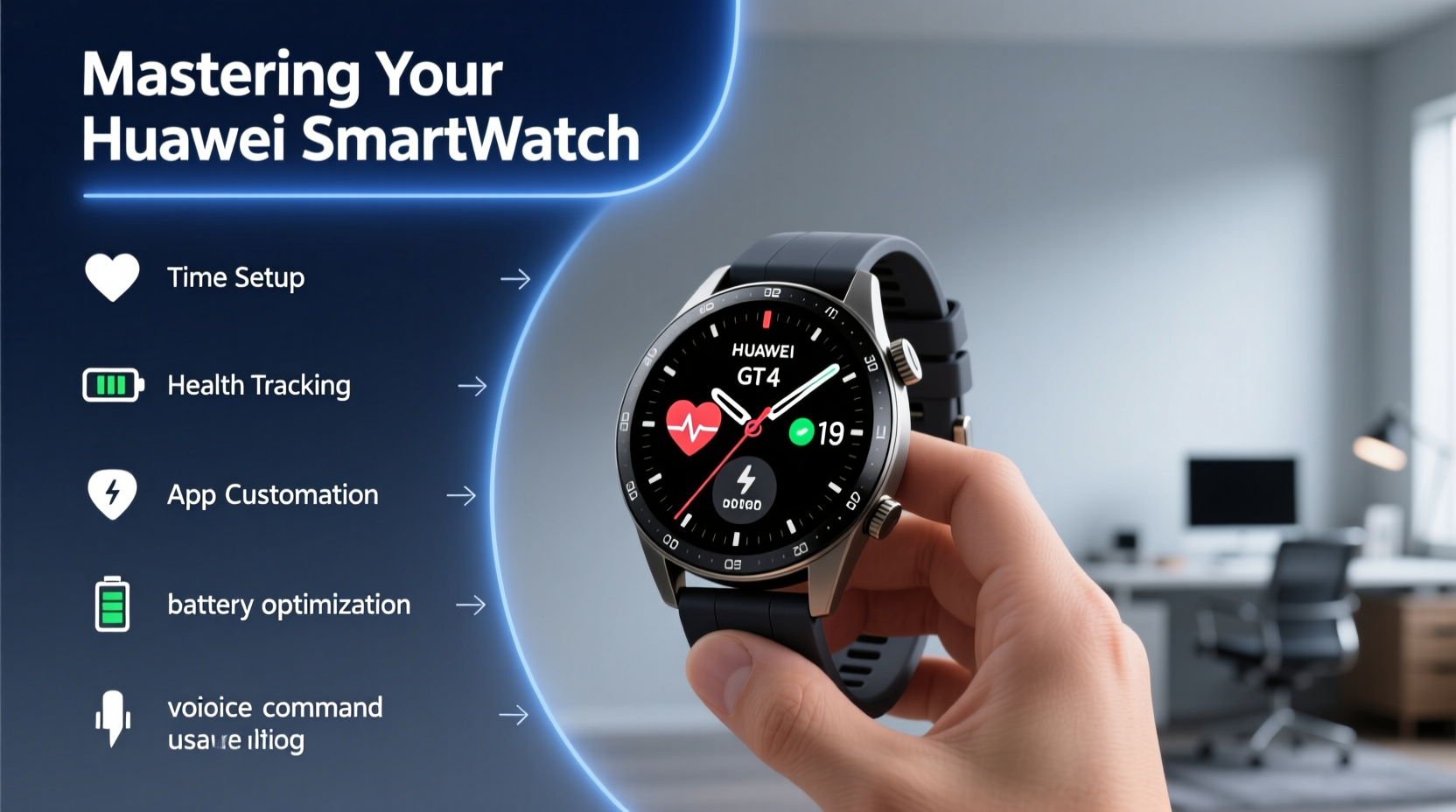
The first interaction with your Huawei smartwatch sets the tone for its usefulness. A proper setup ensures all sensors function correctly and your preferences are aligned from day one.
- Download Huawei Health App: Available on both iOS and Android, this app is the central hub for syncing data, managing apps, and customizing settings.
- Pair via Bluetooth: Open the app, tap \"Devices,\" then select \"Add Device.\" Follow the on-screen prompts to pair using NFC or manual scanning.
- Complete Profile Setup: Input accurate details—height, weight, age, sleep patterns—for personalized health insights.
- Update Firmware: The app will notify you if a firmware update is available. Always install updates immediately for bug fixes and new features.
2. Optimizing Core Functions for Daily Use
Once paired, focus shifts to making the most of built-in capabilities. These functions form the backbone of your experience.
Health & Fitness Tracking
The TruSeen™ heart rate sensor and TruSleep™ technology deliver continuous monitoring. Enable automatic detection for workouts like running, swimming, or cycling under “Exercise Mode” settings. For accuracy, calibrate your stride length manually in the app if you're a runner.
Notifications & Smart Control
Customize which apps send alerts to your wrist. In the Huawei Health app, go to Device > Notifications > Manage Notifications. Disable low-priority apps (e.g., social media) to reduce distractions.
You can also control music playback, find your phone, and trigger voice assistants directly from the watch face—simply swipe up or hold the power button depending on model.
| Feature | How to Access | Best Use Case |
|---|---|---|
| Blood Oxygen Monitoring | Swipe left on home screen → SpO₂ | Morning check-ins or post-workout recovery |
| Stress Level Detection | Open Health app → Stress tab | Daily mental wellness checks |
| Remote Camera Shutter | Tap camera icon in app list | Selfies or group photos without reaching for phone |
| Sleep Apnea Screening | Enabled automatically in TruSleep™ | Long-term respiratory health awareness |
3. Customization: Make It Truly Yours
A personalized interface improves usability and keeps you engaged. Take time to tailor your watch face, shortcuts, and layout.
- Change Watch Faces: Long-press the home screen to browse preloaded faces or download more from the “Watch Face Market” within the Huawei Health app.
- Add Complications: Choose data points like step count, weather, next alarm, or heart rate to display directly on the face.
- Rearrange Apps: Edit the app grid order so frequently used tools (heart rate monitor, timer, flashlight) appear first.
4. Advanced Tips for Power Users
Go beyond defaults with these lesser-known but powerful techniques.
Use Offline Music Storage (on supported models)
If your Huawei watch supports LTE or internal storage (e.g., Watch GT 3 Pro), sync playlists directly from Huawei Music or transfer MP3 files via USB. Pair Bluetooth headphones and enjoy runs without carrying your phone.
Create Automated Routines
Leverage IFTTT or Huawei’s native automation (via third-party integrations) to trigger actions. Example: When your watch detects sleep mode, dim home lights via connected smart devices.
Maximize Battery Life Strategically
Depending on usage, battery lasts 7–14 days. Extend it further with these adjustments:
- Lower screen brightness manually instead of using auto-brightness.
- Disable always-on display unless necessary.
- Turn off SpO₂ monitoring if not medically required.
- Reduce notification frequency for non-critical apps.
“Users who customize sensor schedules based on lifestyle see up to 40% longer battery cycles without sacrificing core functionality.” — Lin Tao, Senior Wearable Engineer at Huawei R&D Center
5. Real-World Application: A Day in the Life
Consider Maria, a project manager and fitness enthusiast. She starts her morning with a silent haptic alarm synced to her optimal wake window via TruSleep analysis. As she gets ready, her watch displays the day’s agenda, weather, and hydration goal. During her commute, she replies to urgent messages using voice-to-text. At lunch, she logs food intake via a linked nutrition app. After work, her run is auto-detected, tracked with GPS, and later analyzed for heart rate zones. That evening, guided breathing exercises help her unwind before bed—all controlled from her wrist.
This isn’t fantasy; it’s achievable with intentional configuration. Maria didn’t become proficient overnight. She spent one weekend exploring menus, testing features, and building habits. Within two weeks, her watch became an extension of her routine.
Essential Checklist: Master Your Huawei Smartwatch in 7 Days
Follow this daily plan to fully integrate your device into your life:
- Day 1: Complete pairing, firmware update, and profile setup.
- Day 2: Customize watch faces and enable key health monitors (heart rate, sleep).
- Day 3: Configure notifications and test smart controls (music, phone finder).
- Day 4: Perform a full workout test and review data accuracy in the app.
- Day 5: Explore offline music or payment setup (Huawei Pay).
- Day 6: Adjust battery-saving settings based on personal usage patterns.
- Day 7: Review weekly health report and set one wellness goal (e.g., improve deep sleep).
Frequently Asked Questions
Can I use my Huawei smartwatch with an iPhone?
Yes, but with limitations. While basic functions like step counting, heart rate, and notifications work, some features such as Huawei Pay, call rejection, and app installations may be restricted due to iOS restrictions.
Why isn’t my sleep data accurate?
Inaccuracies often stem from wearing the watch too loosely or removing it during night movements. Ensure snug (not tight) fit and consistent wear. Also verify that TruSleep is enabled and firmware is updated.
How do I reset my Huawei smartwatch?
Go to Settings > System > Reset > Erase All Data. You’ll need your Huawei account password to confirm. This is useful before selling or troubleshooting persistent glitches.
Conclusion: Turn Technology Into Habit
Your Huawei smartwatch is more than a gadget—it's a personal assistant, fitness coach, and wellness tracker rolled into one. Mastery comes not from knowing every feature, but from integrating the right ones into your rhythm. Whether you're streamlining communication, improving sleep quality, or staying motivated during workouts, the potential lies in consistent, informed use.




 浙公网安备
33010002000092号
浙公网安备
33010002000092号 浙B2-20120091-4
Comments
No comments yet. Why don't you start the discussion?