
For many, the iPhone is more than a phone—it's a camera, a planner, a fitness coach, and a communication hub all in one. Yet most users only scratch the surface of what their device can do. With iOS constantly evolving, mastering your iPhone means staying ahead of the curve, unlocking powerful tools, and using them intuitively. This guide dives into practical, lesser-known features that enhance usability, privacy, and productivity—so you can use your iPhone with real confidence.
Optimize Notifications for Focus and Clarity
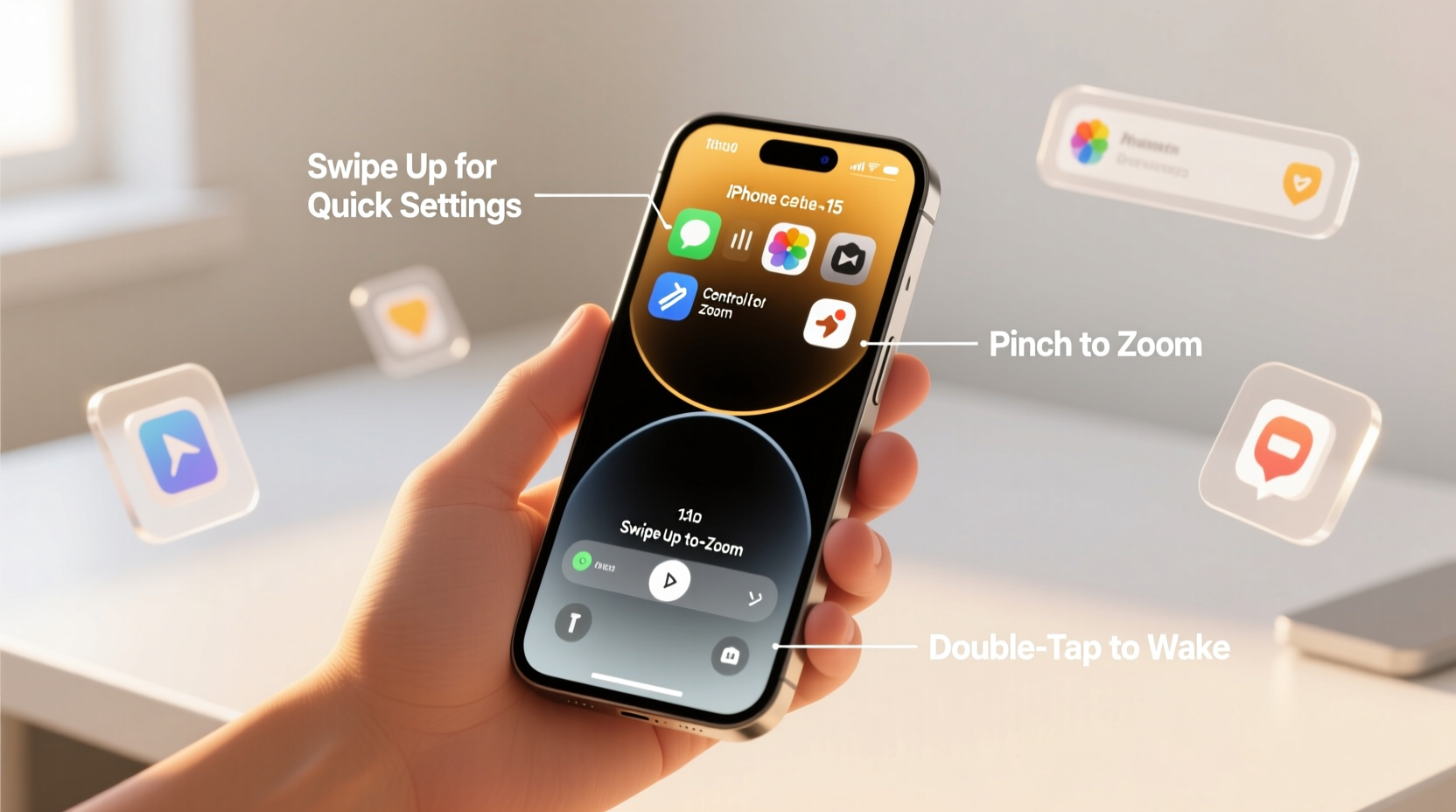
Notifications are essential, but unchecked, they become distractions. iOS offers granular control to ensure you're alerted only when it matters. Instead of silencing everything or missing key updates, customize notification behavior per app.
- Set time-sensitive alerts to bypass Do Not Disturb.
- Use “Deliver Quietly” for apps like social media to prevent interruptions.
- Pin critical apps (e.g., Messages, Calendar) to the top of Notification Center.
Navigate to Settings > Notifications to assign alert styles, sounds, and banner duration. Consider grouping notifications by app or topic to reduce visual clutter—especially useful if you use email clients or messaging platforms with multiple threads.
Create Custom Shortcuts for Daily Tasks
The Shortcuts app transforms repetitive actions into one-tap automations. Whether sending a routine text, launching a playlist with home lighting, or logging water intake, shortcuts save time and mental effort.
- Open the Shortcuts app (preinstalled on newer iPhones).
- Tap the \"+\" icon to create a new shortcut.
- Add actions like \"Send Message,\" \"Play Music,\" or \"Log Health Data.\"
- Assign a name and tap icon, then add to Home Screen or trigger via Siri.
For example, create a “Good Morning” shortcut that reads the weather, starts your coffee machine via HomeKit, and plays your favorite news podcast. Trigger it by saying, “Hey Siri, good morning,” or tapping its Home Screen icon.
“We underestimate how much cognitive load small routines create. Automating just three daily tasks can reclaim up to 15 minutes a day.” — Dr. Lena Patel, Digital Wellbeing Researcher at Stanford
Enhance Privacy with App Tracking and Permissions
iOS gives you unprecedented control over data access. Apps routinely request permissions for location, photos, microphone, and more—but not all need full access. Regular audits protect your privacy and improve performance.
| Permission Type | Recommended Setting | Risk of Over-Access |
|---|---|---|
| Location | Select “While Using” or “Ask Next Time” | Potential tracking even when idle |
| Photos | Limited to Selected Photos | Unnecessary access to private images |
| Microphone | Only when needed (e.g., voice memos) | Background listening concerns |
| Camera | Allow only for specific apps (camera, video calls) | Unauthorized scanning or recording |
To review permissions: go to Settings > Privacy & Security. Here, you’ll see which apps accessed your microphone, camera, or location in the last 24 hours—indicated by a green or orange dot in the status bar.
Master Text Selection and Keyboard Efficiency
Typing on an iPhone doesn’t have to be slow. Once you learn gesture-based editing, you can navigate text like a pro—without switching to a cursor tool every time.
- Move the cursor: Press and hold the spacebar to turn the keyboard into a trackpad.
- Select text: While using the trackpad, swipe with another finger to highlight.
- Cut, copy, paste: Use three-finger pinch-in to copy, pinch-out to paste.
- Undo typing mistakes: Shake your iPhone to trigger the undo prompt (enable in Accessibility settings if disabled).
Additionally, enable Text Replacement in Settings > General > Keyboard. Create shortcuts like “addr” to auto-expand into your full address or “sig” for your email signature. These tiny efficiencies compound across hundreds of messages.
Mini Case Study: From Frustrated User to Confident Typist
Sarah, a freelance writer, used to dread replying to emails on her iPhone. She found selecting text tedious and often made errors. After learning the spacebar trackpad trick and setting up text replacements for her bio and contact info, her mobile writing speed increased by nearly 40%. Within two weeks, she was drafting full articles on her commute. “I didn’t realize how much friction came from small gestures,” she said. “Now I feel in control, not fighting the keyboard.”
Use Focus Modes to Match Your Lifestyle
Focus Modes go beyond Do Not Disturb—they let you tailor your iPhone experience to your current activity. Whether working, exercising, or winding down, a custom Focus filters notifications and apps accordingly.
- Go to Settings > Focus.
- Select a template (Work, Sleep, Personal) or create a custom one.
- Choose allowed contacts and apps.
- Set activation triggers: time, location, or device connection (e.g., when you connect to car Bluetooth).
- Customize Home Screen: show only relevant apps during that Focus.
For instance, set a “Reading” Focus that disables social media, dims the screen, and activates grayscale to reduce temptation. Schedule it for 9 PM nightly. Pair it with a bedtime routine in the Health app for seamless wind-down.
📋 **Quick Setup Checklist:**- ✅ Choose a primary Focus mode (e.g., Work, Personal, Sleep)
- ✅ Select allowed people and apps
- ✅ Set automatic activation (time or location)
- ✅ Customize lock screen appearance for each Focus
- ✅ Test by triggering manually before relying on automation
Frequently Asked Questions
Can I schedule Focus Modes in advance?
Yes. In the Focus settings, tap “Add Schedule” to set recurring times (e.g., weekdays from 9 AM to 5 PM for Work mode). You can also trigger modes based on location, like turning on “Gym” Focus when you arrive at the fitness center.
How do I quickly switch between Focus Modes?
Swipe down from the top-right corner to open Control Center. Tap the Focus icon (moon for Do Not Disturb, star for custom modes) and select the one you want. You can also ask Siri: “Turn on Sleep mode.”
Will my alarms still sound in a Focus Mode?
Absolutely. Alarms set in the Clock app always ring, regardless of active Focus settings. This ensures you won’t miss critical wake-up calls or reminders, even in silent modes.
Final Thoughts: Take Control, One Feature at a Time
Mastering your iPhone isn’t about memorizing every setting—it’s about aligning the device with your life. The most effective users don’t use every feature; they use the right ones consistently. By refining notifications, automating routines, protecting privacy, improving text input, and leveraging Focus Modes, you shift from reactive to intentional use.
Start with one tip from this guide. Implement it for three days. Then add another. Small changes compound into lasting confidence. Your iPhone should serve you—not distract, frustrate, or overwhelm.




 浙公网安备
33010002000092号
浙公网安备
33010002000092号 浙B2-20120091-4
Comments
No comments yet. Why don't you start the discussion?