
The iPhone Wallet case isn’t just an accessory—it’s a digital command center for your daily life. Whether you're using it to store credit cards, boarding passes, loyalty rewards, or even home keys, mastering its full potential can streamline routines, enhance security, and reduce physical clutter. With Apple continuously expanding Wallet's capabilities across iOS updates, now is the perfect time to understand how to use it effectively and securely.
This guide breaks down everything you need to know about the iPhone Wallet case: its core features, best practices for organization, security considerations, and real-world applications that go far beyond replacing your leather wallet.
Understanding the Core Features of iPhone Wallet
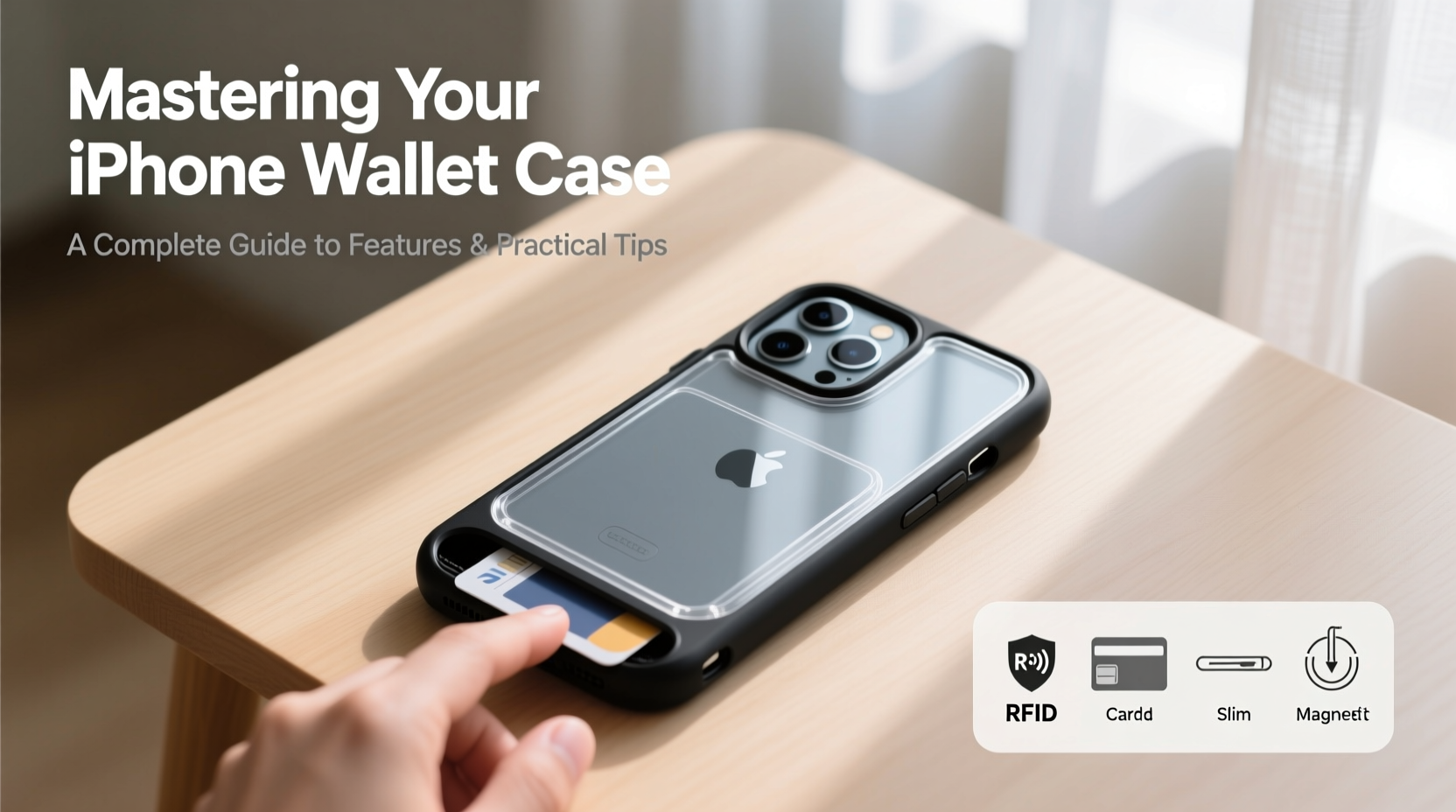
At its foundation, the Wallet app (formerly Passbook) serves as a centralized hub for digital credentials. It supports several types of passes, each designed for specific uses:
- Payment Cards: Add debit, credit, or prepaid cards for contactless payments via Apple Pay.
- Transit Cards: Store regional transit cards like Suica, Oyster, or NYC MTA Express Transit.
- Boarding Passes: Automatically add flight details from supported airlines when you receive email confirmations.
- Loyalty & Rewards Cards: Link grocery stores, coffee shops, pharmacies, and more.
- Event Tickets: Store concert, movie, or sports tickets with automatic entry alerts.
- Keys: Home, hotel, or office access keys through compatible smart lock systems.
- ID Cards: In select U.S. states, driver’s licenses or state IDs can be added for TSA checkpoints.
Each pass is optimized for quick access, location-based triggering, and real-time updates—such as gate changes on boarding passes or balance updates on transit cards.
Setting Up Your Wallet: A Step-by-Step Guide
Getting started with Wallet is simple, but doing it right ensures long-term usability and security.
- Open the Wallet app on your iPhone (pre-installed on all modern devices).
- Tap the \"+\" icon in the top-right corner to begin adding a new card or pass.
- Select category: Choose between Credit/Debit Card, Transportation, Loyalty, etc.
- Follow prompts: For payment cards, use the camera to scan your card or enter details manually.
- Verify with your bank: Most institutions require authentication via SMS, email, or their own app.
- Set default card (optional): Go to Settings > Wallet & Apple Pay and assign a preferred card for Apple Pay.
- Customize appearance: Tap individual passes to rename them or change icons for easier identification.
Once added, most passes appear in the Today View widget for instant access without unlocking your phone—provided your device supports double-click activation.
Optimizing Organization and Daily Use
As your digital wallet grows, clutter becomes a real issue. Unlike a physical wallet where you can shuffle cards around, the iPhone Wallet sorts items primarily by usage frequency and recency. However, you can still take control of the experience.
| Feature | Benefit | How to Use |
|---|---|---|
| Pass Sorting | Control order of cards | Long-press, drag to reorder in Wallet |
| Double-Tap to Pay | Faster transactions | Enable in Accessibility settings; defaults to last-used card |
| Express Mode | Use transit card without unlocking | Set in Wallet settings; works even when battery is low |
| Widget Integration | Quick glance at upcoming events or passes | Add Wallet widget to Home Screen or Today View |
Consider grouping similar passes—like all grocery loyalty cards—and renaming them clearly (e.g., “Costco Card” instead of “COSTCO #****5678”). This makes selection faster when scanning at checkout.
“We’ve seen a 30% reduction in transaction time among users who organize their Wallet app strategically.” — Lisa Tran, Senior UX Analyst at Apple Retail Insights
Security and Privacy: What You Need to Know
One of the biggest concerns people have about storing sensitive data digitally is security. The good news is that Apple has built multiple layers of protection into the Wallet ecosystem.
- Device Encryption: All Wallet data is encrypted and stored in the Secure Enclave, a dedicated chip isolated from the main processor.
- No Raw Data Stored: When you add a credit card, Apple doesn’t store your actual card number. Instead, it assigns a unique Device Account Number.
- Biometric Authentication: Face ID, Touch ID, or passcode required for most transactions.
- Remote Lock & Wipe: If your iPhone is lost, you can suspend or remove cards via iCloud.com or Find My iPhone.
Even if someone gains temporary access to your unlocked phone, they cannot export or view full card details from within Wallet. Additionally, Apple does not track how or where you use your cards—preserving user privacy.
Real-World Example: Travel Made Seamless
Sarah, a frequent business traveler based in Chicago, used to juggle paper boarding passes, rental car keys, and hotel check-in emails. After consolidating everything into her iPhone Wallet, her travel process transformed.
She adds her United Airlines boarding pass as soon as it’s issued. Upon arriving at O’Hare, her phone automatically surfaces the pass on the lock screen. At security, she taps her phone to the scanner—no need to open the app. At her hotel in Austin, she bypasses the front desk entirely; her room key is already active in Wallet thanks to integration with the Hilton Honors app.
“I haven’t printed a boarding pass in over a year,” Sarah says. “My iPhone Wallet cuts at least 15 minutes off every trip.”
Essential Tips Checklist
To get the most out of your iPhone Wallet, follow this actionable checklist:
- ✅ Add your primary credit/debit card to Apple Pay
- ✅ Enable Express Transit mode if you use public transport regularly
- ✅ Reorder cards so your most-used ones appear first
- ✅ Rename generic passes for clarity (e.g., “Whole Foods Rewards”)
- ✅ Enable automatic pass addition from emails
- ✅ Store digital IDs if available in your region
- ✅ Test Apple Pay at a nearby terminal to ensure setup success
- ✅ Review card permissions and disable unnecessary notifications
Frequently Asked Questions
Can I use Apple Wallet without internet access?
Yes. Once a pass is downloaded, it remains accessible offline. Payment cards, transit passes, and keys work even in Airplane Mode or areas with no signal. However, initial setup and verification require connectivity.
What happens if I lose my iPhone?
Immediately use Find My iPhone (via iCloud.com or another Apple device) to put your phone in Lost Mode. This disables Apple Pay and prevents unauthorized use. You can also remotely erase your device or remove specific cards.
Are small business loyalty cards supported?
Not directly through Wallet unless the business offers an official app that integrates with it. However, you can take a photo of the card and save it in Notes or a password manager as a workaround.
Final Thoughts: Embrace the Digital Shift
The iPhone Wallet case represents more than convenience—it reflects a broader shift toward a minimalist, secure, and highly functional digital lifestyle. By understanding its features, organizing content intentionally, and leveraging automation, you can reduce dependency on physical cards and streamline daily interactions.
Whether you're tapping to pay for coffee, boarding a flight, or unlocking your front door, your iPhone is already equipped to handle it all. The only step left is mastering how to use it to its fullest.




 浙公网安备
33010002000092号
浙公网安备
33010002000092号 浙B2-20120091-4
Comments
No comments yet. Why don't you start the discussion?