
The MacBook Air’s built-in camera—known as the FaceTime HD camera—is more than just a tool for video calls. It's central to virtual meetings, online learning, content creation, and even casual photography. Yet many users underutilize its capabilities or struggle when issues arise. Understanding how to get the most from your MacBook Air camera, and how to resolve common problems, ensures you're always ready to connect clearly and confidently.
Understanding Your MacBook Air Camera
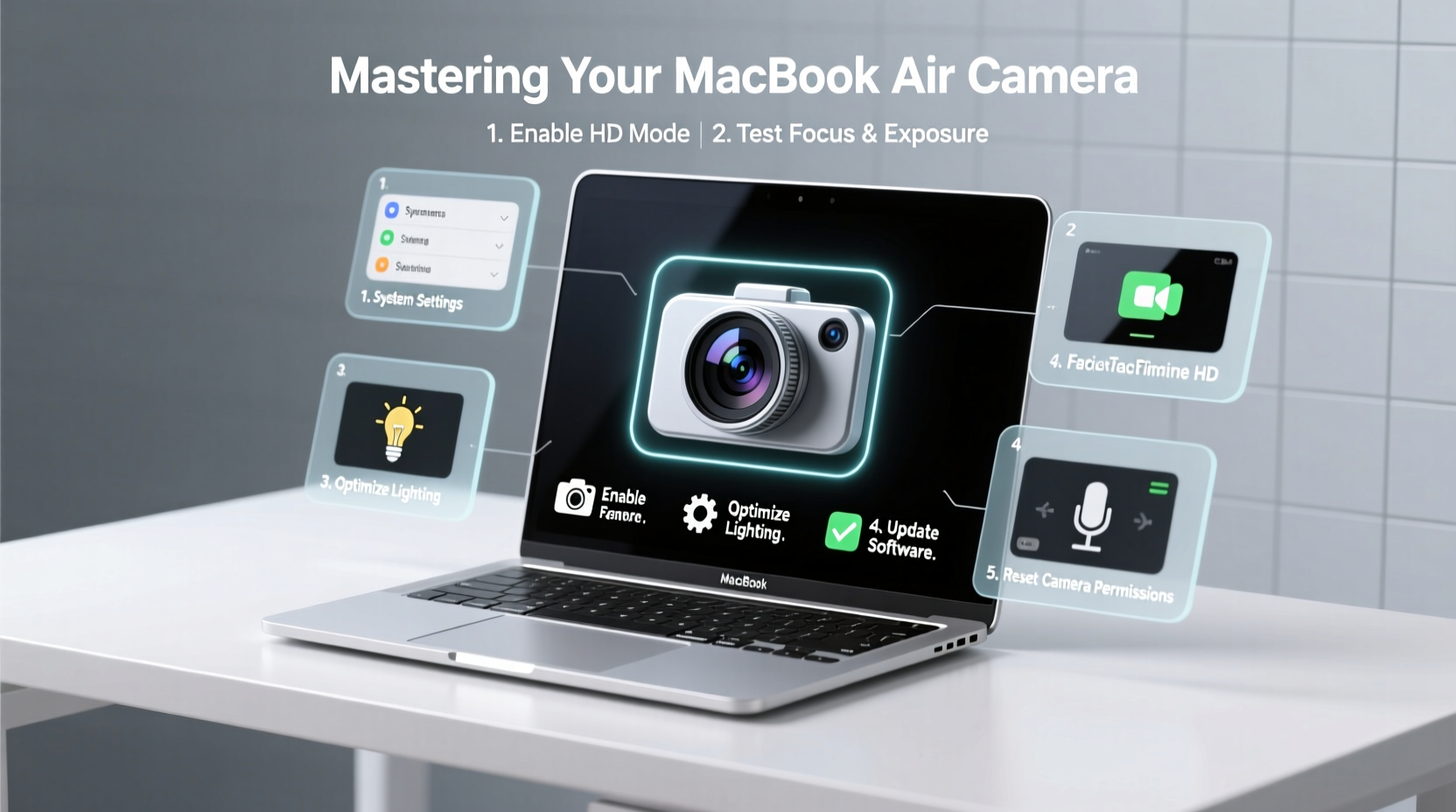
All modern MacBook Air models come equipped with a 720p FaceTime HD camera positioned above the display. While not as advanced as external webcams or smartphone cameras, it delivers solid performance in well-lit environments. The camera works seamlessly with macOS applications like FaceTime, Photo Booth, Zoom, Teams, and Safari-based conferencing tools.
The system integrates hardware and software intelligence: automatic exposure adjustment, noise reduction, and face detection help maintain image clarity. Additionally, Apple prioritizes privacy—the camera activates only when an app explicitly requests access, and a green indicator light beside the lens signals when it’s in use.
“Apple’s tight integration between macOS and the FaceTime camera ensures consistent performance across apps, but lighting and positioning remain critical for optimal results.” — Jordan Lee, Mac Systems Analyst
Optimizing Camera Use for Video Calls and Recordings
Whether you're presenting at work or catching up with family, small adjustments can dramatically improve your on-camera presence.
Lighting and Positioning
Natural light is ideal. Position yourself facing a window during daylight hours to achieve soft, even illumination. Avoid backlighting, which silhouettes your face. If natural light isn’t available, consider a desk lamp placed slightly above eye level to mimic overhead lighting.
Software Settings and App Integration
In macOS Ventura and later, camera settings are managed per application through System Settings > Privacy & Security > Camera. Ensure each app (Zoom, Google Meet, etc.) has permission enabled. Some third-party tools like OBS Studio or Ecamm Live offer advanced controls such as virtual backgrounds and multi-source recording, extending what the built-in camera can do.
For quick self-checks, open Photo Booth. It launches instantly and allows you to preview lighting, focus, and background before joining a call.
Troubleshooting Common Camera Issues
Even with robust design, the MacBook Air camera may occasionally fail to respond. Most problems stem from software conflicts, permissions, or environmental factors rather than hardware defects.
Step-by-Step Guide to Resolving Camera Access Problems
- Close all applications currently using the camera (e.g., Zoom, Safari, Photo Booth).
- Restart your MacBook Air to clear temporary glitches.
- Go to System Settings > Privacy & Security > Camera.
- Toggle camera access off and back on for the affected app.
- Reopen the app and test the camera again.
- If the issue persists, create a new user account temporarily to determine if the problem is profile-specific.
If none of these steps work, reset the System Management Controller (SMC) by shutting down the Mac, waiting 15 seconds, then powering it back on. This rarely needed step can resolve deeper hardware communication errors.
Camera Shows Black Screen or “No Device Found”
This error often appears in third-party apps despite working fine in Photo Booth. Check that the app isn't outdated—update via the App Store or developer website. Also verify that no other app is monopolizing camera access; macOS allows only one app to use the camera at a time.
Maximizing Photo and Video Features with Built-In Tools
While primarily designed for communication, the FaceTime camera can capture still images and short videos through Photo Booth. Though limited compared to dedicated cameras, it’s useful for quick selfies, documentation, or testing setups.
| Feature | How to Access | Best Use Case |
|---|---|---|
| Photo Capture | Photo Booth → Camera icon | Quick ID photos, visual notes |
| Video Recording | Photo Booth → Video button | Short personal messages, practice clips |
| Effects & Filters | Photo Booth → Effects panel | Fun social content, engagement |
| Screenshot with Camera Overlay | Shift+Cmd+5 > Options > Show Floating Thumbnail | Sharing setup previews with tech support |
Real-World Example: Remote Work Setup Challenges
Sophie, a freelance graphic designer in Portland, began experiencing frequent \"camera not responding\" alerts during client check-ins. Her calls would start audio-only, undermining her professionalism. After ruling out internet issues, she discovered that her browser-based design feedback tool was running in the background, silently locking camera access. Closing unused tabs resolved the conflict immediately. She now uses Photo Booth to test her camera two minutes before every meeting—a simple habit that eliminated recurring issues.
Essential Checklist for Peak Camera Performance
- ✅ Test camera weekly using Photo Booth
- ✅ Ensure proper app permissions in System Settings
- ✅ Position light source in front of you, not behind
- ✅ Keep lens clean with microfiber cloth
- ✅ Update macOS and apps regularly
- ✅ Close unused apps before joining video calls
- ✅ Restart your Mac if camera freezes or lags
Frequently Asked Questions
Why does my MacBook Air camera look blurry?
Blurriness is typically due to poor lighting or being too far from the camera. The FaceTime HD camera performs best in bright conditions. Clean the lens gently with a dry microfiber cloth to remove smudges that degrade image quality.
Can I upgrade the MacBook Air’s built-in camera?
No, the camera is integrated into the display assembly and cannot be upgraded independently. For higher resolution or low-light performance, consider using an external USB webcam compatible with macOS.
Is there a way to turn off the green camera light?
The green LED cannot be disabled—it’s a hardware-level privacy feature mandated by Apple to indicate camera activity. If the light stays on when no app is using the camera, restart your Mac and check for rogue processes in Activity Monitor.
Conclusion: Take Control of Your Visual Communication
Your MacBook Air’s camera is a powerful tool when used wisely. From adjusting your environment to managing app permissions and performing routine checks, small habits lead to consistently clear, professional visuals. Whether you're attending a job interview, teaching a class, or documenting a project, mastering your camera means mastering your digital presence.




 浙公网安备
33010002000092号
浙公网安备
33010002000092号 浙B2-20120091-4
Comments
No comments yet. Why don't you start the discussion?