
The Sanda 9005 is a rugged, water-resistant digital-analog hybrid watch designed for outdoor enthusiasts, professionals, and everyday wearers who value precision and durability. While its bold design and military-grade construction stand out, one of its most useful features—the integrated calendar—can be overlooked if not properly configured. Setting the calendar correctly ensures you stay on schedule without relying on external devices. This guide walks you through every step with clarity, offers troubleshooting tips, and helps you get the most from your timepiece.
Understanding the Sanda 9005 Interface
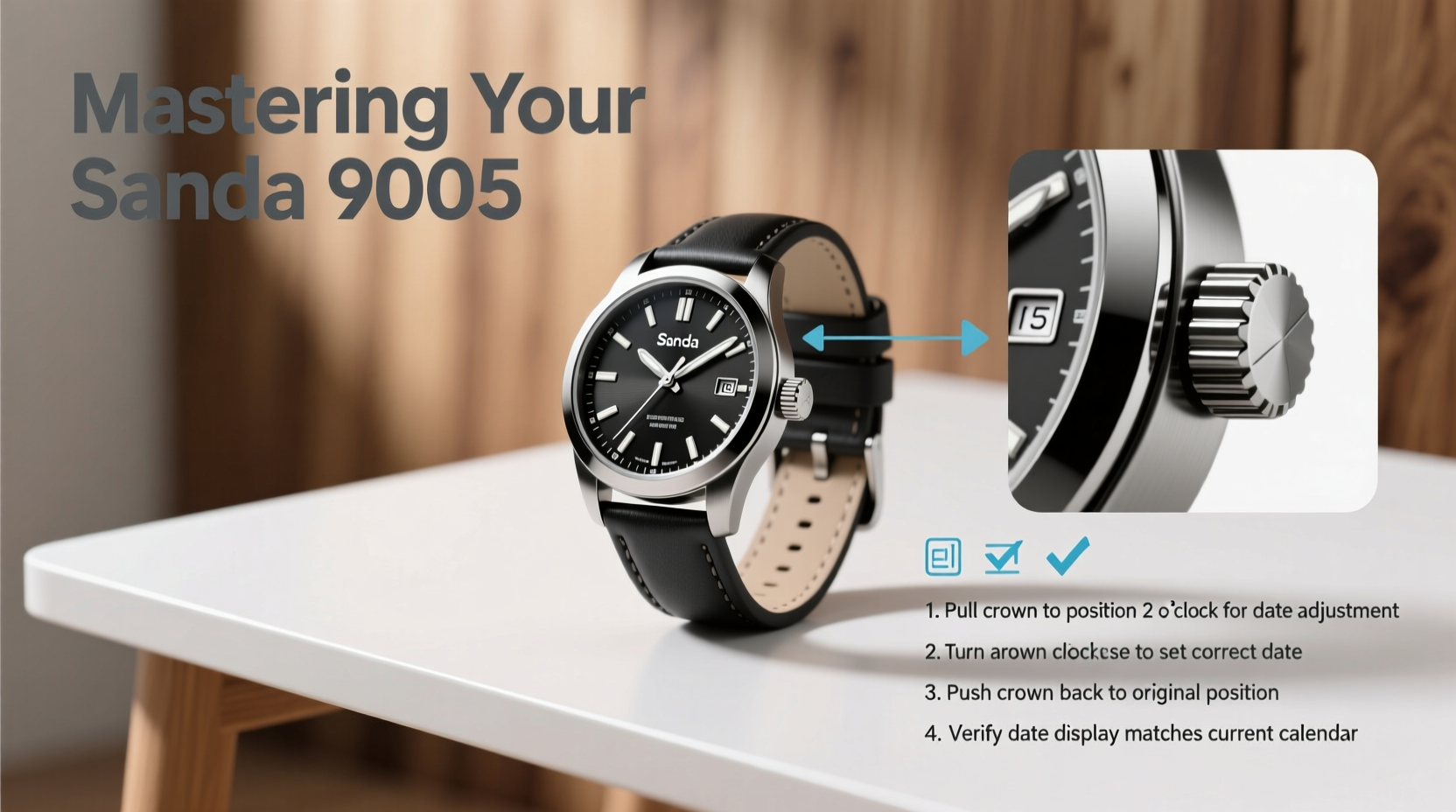
The Sanda 9005 combines analog hands for timekeeping with a digital sub-display that shows date, day, stopwatch, alarm, and other functions. The interface uses three primary buttons: Mode (M), Adjust (A), and Start/Stop (S). These are located on the right side of the case and control navigation and input.
- Mode (M): Cycles through different modes—Time, Alarm, Stopwatch, Calendar, etc.
- Adjust (A): Confirms selections or scrolls through options.
- Start/Stop (S): Used in conjunction with other buttons to enter settings or increment values.
Before adjusting the calendar, ensure the watch has sufficient battery power and is displaying the correct current time. An inaccurate base time will lead to incorrect calendar synchronization.
Step-by-Step Guide to Setting the Calendar
Follow this precise sequence to set the calendar on your Sanda 9005. The process takes less than two minutes once familiarized.
- Enter Time Mode: Press the Mode (M) button repeatedly until the main analog dial displays the current time and the digital window shows “TME” or nothing at all.
- Access Calendar Settings: Hold the Mode (M) button for 3 seconds. The digital display will flash “CAL,” indicating you’ve entered calendar setup mode.
- Select Year: Use the Adjust (A) button to cycle through available years (typically from 2020 to 2039). Once the correct year appears, press Start/Stop (S) to confirm.
- Set Month: The display will now prompt for month input. Use Adjust (A) to select the correct month (e.g., “JAN”, “FEB”). Confirm with Start/Stop (S).
- Set Date: Navigate to the correct date using Adjust (A). Note that the date must correspond to the actual day of the month (e.g., February won’t allow 30th). Confirm with Start/Stop (S).
- Set Day of the Week: The final field displays days as abbreviations (“MON”, “TUE”, etc.). Use Adjust (A) to match the current weekday. Confirm with Start/Stop (S).
- Exit Setup: After confirming the day, the watch will automatically return to normal time display. If it doesn’t, press Mode (M) to exit manually.
Once complete, verify that the digital display shows the correct date and day. The analog hands should also reflect the accurate time.
“Many users overlook the importance of synchronizing the day-of-week field—it’s not just cosmetic. It affects long-term tracking accuracy, especially when using alarms tied to specific weekdays.” — Daniel Reyes, Watch Calibration Specialist
Troubleshooting Common Calendar Issues
Even with careful setup, minor issues can occur. Here’s how to resolve them efficiently:
| Issue | Possible Cause | Solution |
|---|---|---|
| Date changes at noon instead of midnight | Incorrect AM/PM setting | Re-enter time mode and ensure 12-hour format is correct; adjust to 24-hour mode if needed |
| Day of week doesn’t advance automatically | Improper leap year or month length configuration | Verify the year is set correctly—leap years auto-adjust February 29; otherwise, manual override may be required |
| Calendar resets after battery replacement | No backup capacitor or prolonged power loss | Reconfigure full calendar settings; consider replacing battery promptly to retain memory |
| Buttons unresponsive during setup | Water lock or moisture interference | Dry the watch thoroughly and retry; avoid pressing buttons underwater unless fully submerged per specs |
Real-World Example: Preparing for a Multi-Day Hike
Consider Alex, an avid hiker preparing for a seven-day trek across the Sierra Nevada. He relies solely on his Sanda 9005 for timekeeping and daily planning. Before departure, he sets the calendar to July 14, 2025 (Sunday), ensuring the watch reflects the correct day so he can track rest days and resupply points. During the trip, the automatic date rollover at midnight confirms he’s on schedule—even without phone service. On day five, noticing the date didn’t change, he realizes the battery dipped below threshold overnight. After replacing it, he re-enters the calendar settings in under 90 seconds, minimizing disruption.
This scenario illustrates why mastering the calendar function isn’t just about convenience—it enhances reliability in critical situations where digital backups aren’t available.
Best Practices Checklist
To maintain optimal performance of your Sanda 9005’s calendar feature, follow this checklist:
- ✅ Set the correct time before configuring the calendar
- ✅ Verify all four fields: Year, Month, Date, Day of Week
- ✅ Test automatic rollover by waiting near midnight or advancing time manually
- ✅ Avoid pressing buttons underwater unless diving (IPX7-rated, not dive-proof)
- ✅ Replace battery before it dies completely to preserve settings
- ✅ Clean around button seals monthly to prevent debris jamming
- ✅ Reset calendar after long storage periods (>3 months)
Frequently Asked Questions
Does the Sanda 9005 automatically adjust for leap years?
Yes, the Sanda 9005 recognizes leap years within its supported range (typically 2020–2039). As long as the year is set correctly, February will include the 29th during leap years and skip it otherwise.
Can I disable the calendar display?
You cannot permanently disable the calendar, but you can cycle away from it using the Mode button. The date and day remain active in the background and will reappear in the default view after a reset or mode rotation.
Why does my watch show 'ERR' when setting the month?
The 'ERR' message typically appears when an invalid date combination is entered—such as selecting April (30 days) but trying to set the 31st. Double-check month lengths and ensure the year is valid before proceeding.
Maximize Your Timepiece’s Potential
The Sanda 9005 is more than a durable field watch—it’s a functional tool that supports organization, punctuality, and preparedness. Taking a few moments to correctly configure the calendar pays dividends in daily use, travel, and emergency scenarios. Unlike smartwatches that require charging and connectivity, the Sanda 9005 delivers reliable mechanical and digital coordination powered by a simple battery. Once mastered, its interface becomes second nature, blending utility with timeless design.




 浙公网安备
33010002000092号
浙公网安备
33010002000092号 浙B2-20120091-4
Comments
No comments yet. Why don't you start the discussion?