
In an age where digital footprints are permanent unless actively managed, understanding and controlling your search history is essential. Every query you type into a search engine contributes to a detailed profile of your interests, habits, and even personal concerns. While convenient for personalized results, unchecked search history can compromise privacy, clutter your browsing experience, and expose sensitive data. This guide walks through practical steps to view, manage, and secure your online activity across major platforms—giving you full command over your digital trail.
Why Your Search History Matters
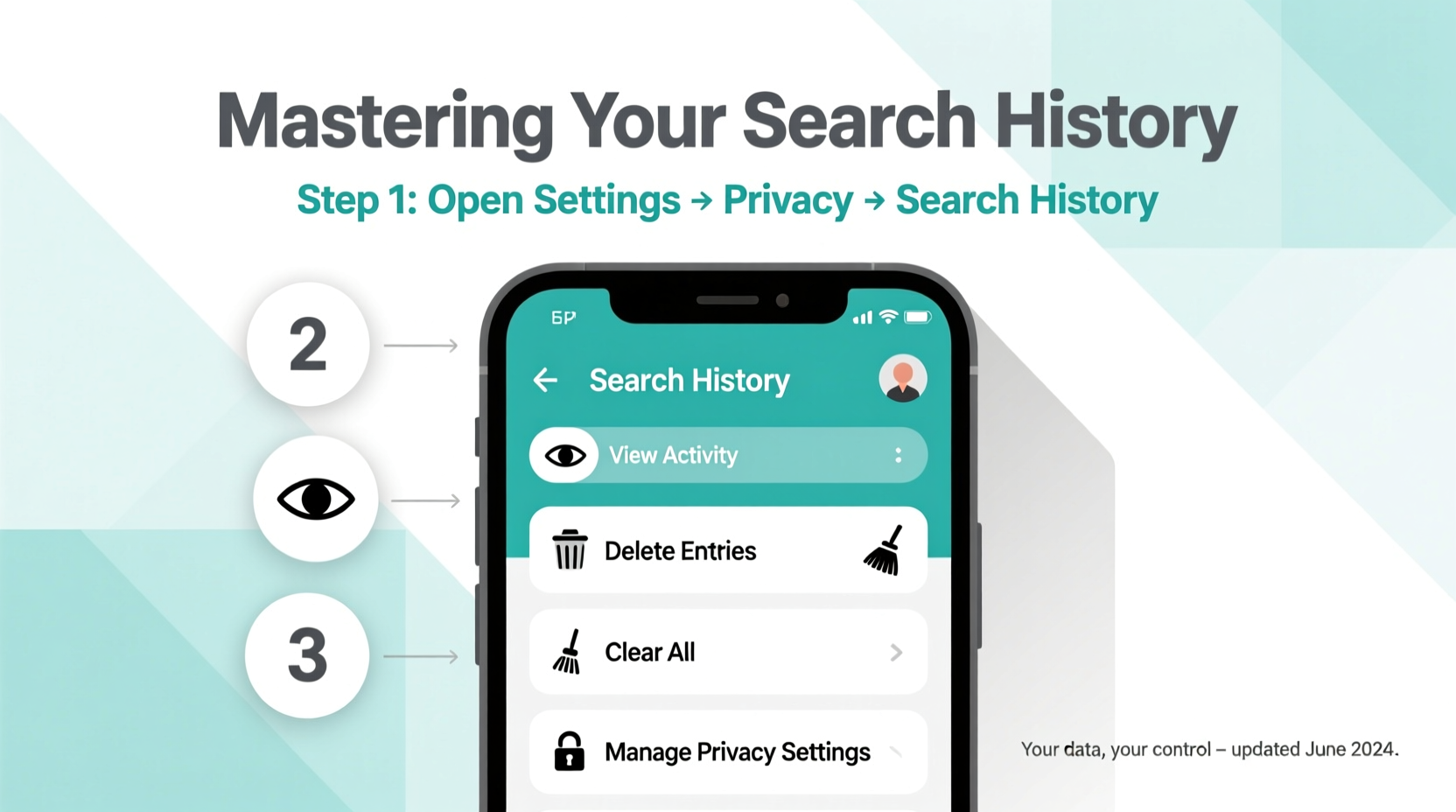
Your search history does more than recall past queries—it shapes the ads you see, influences search suggestions, and informs algorithms that track user behavior. Companies like Google, Bing, and social media platforms use this data to refine targeting, often without explicit consent. Over time, accumulated searches can reveal patterns about your health, finances, relationships, or location. Even if you trust the platform today, breaches or policy changes tomorrow could expose information you'd prefer to keep private.
“Your search history is one of the most revealing datasets about your personal life. Controlling it is not paranoia—it’s digital self-defense.” — Dr. Lena Patel, Cybersecurity Researcher at Stanford University
Beyond privacy, managing your history improves device performance. Clearing outdated entries reduces clutter in autocomplete suggestions and resets algorithmic bias in search results, helping you find what you need faster and more accurately.
Step-by-Step: How to View and Manage Search History by Platform
Different services store and handle search history differently. Below is a clear, actionable process for the most widely used platforms.
1. Google Search & Chrome Browser
Google maintains a comprehensive record of your searches, website visits (via Web & App Activity), and location history if enabled. To access and manage it:
- Go to myactivity.google.com and sign in.
- Use filters to sort by product (e.g., “Search,” “YouTube”), date range, or device.
- To delete individual items, hover over an entry and click the three-dot menu → “Delete”.
- To delete all history: Click “Three-dot menu” → “Delete activity by” → Choose time range (e.g., “All time”) → Confirm deletion.
- To prevent future tracking: Visit Activity Controls, then turn off “Web & App Activity”.
2. Microsoft Bing & Edge Browser
If you use Windows devices or Microsoft accounts, Bing tracks searches similarly. To manage it:
- Visit account.microsoft.com/privacy.
- Under “Browsing activity,” click “Manage browsing history”.
- Select time range and delete history as needed.
- Turn off “Save my browsing history” to stop future collection.
- For Edge browser: Open Settings → Privacy, search, and services → Clear browsing data → Choose “Browsing history” and time range.
3. Apple Safari (iPhone & Mac)
iOS and macOS users benefit from strong default privacy settings, but manual management is still recommended.
- On iPhone: Go to Settings → Safari → Clear History and Website Data.
- On Mac: Open Safari → History → Clear History → Select time frame.
- To prevent tracking: Enable “Prevent cross-site tracking” and “Hide IP address” in Safari Preferences → Privacy.
- Disable Spotlight Suggestions and Siri suggestions if you don’t want queries synced across devices.
Managing Autocomplete and Predictive Text
Even after deleting search history, predictive text may continue suggesting old queries. These appear due to local device storage, separate from cloud-based logs.
- Android: Long-press unwanted suggestions in the search bar and tap “Remove” or “Never show.”
- iPhone: Tap the “X” next to a suggestion in Safari or Google app. Reset keyboard dictionary via Settings → General → Transfer or Reset iPhone → Reset → Reset Keyboard Dictionary.
- Chrome: Type the suggestion in the address bar, use arrow keys to highlight it, then press Shift + Delete.
Best Practices for Ongoing Search Management
Maintaining control over your digital footprint isn't a one-time task. Regular maintenance ensures long-term privacy and efficiency. Follow this checklist to stay on top of your online activity.
Search History Maintenance Checklist
- ✅ Review search history monthly across all devices
- ✅ Disable Web & App Activity on Google if not needed
- ✅ Turn off ad personalization in Google and Microsoft accounts
- ✅ Use private browsing for sensitive searches
- ✅ Enable auto-delete features where available
- ✅ Log out of shared or public devices immediately
- ✅ Audit permissions for third-party apps linked to your search accounts
Do’s and Don’ts of Search Privacy
| Do | Don’t |
|---|---|
| Use two-factor authentication on your primary accounts | Assume “private mode” makes you anonymous online |
| Delete history after researching sensitive topics (e.g., medical issues) | Click “Accept All Cookies” without reviewing site policies |
| Regularly clear cache and cookies alongside history | Store passwords or personal info in browser autofill |
| Check which apps have access to your location and search data | Share logged-in devices with others without supervision |
A Real Example: Recovering Control After a Privacy Scare
Sarah, a freelance writer from Portland, noticed targeted ads for depression therapy and divorce lawyers appearing across her devices—topics she had only researched privately. Alarmed, she realized her Google account had been syncing years of mental health searches despite minimal sharing. She followed the steps outlined above: cleared her entire Web & App Activity, turned off future tracking, and switched to private browsing for sensitive topics. Within days, the invasive ads disappeared. More importantly, she regained confidence in her digital autonomy. Her experience underscores how passive data collection can escalate into tangible privacy violations—and how simple corrective actions restore control.
Frequently Asked Questions
Does deleting search history remove it from all devices?
Yes, if you're signed into the same account across devices and have sync enabled. For example, deleting Google activity from a laptop will also remove it from your phone. However, local browsing history in standalone browsers (like Safari without iCloud) must be cleared separately on each device.
Can someone else see my search history?
Potentially. If you’re using a shared device without logging out, anyone with access can view your history. Employers or schools may monitor network activity if you're on their Wi-Fi. Additionally, authorities can request search data from providers with legal justification. Using private browsing and logging out promptly minimizes these risks.
Will clearing history improve my device speed?
Indirectly, yes. Over time, stored history, cookies, and cached files consume memory and slow down browsers. Regular cleanup frees up space and reduces lag in page loading and search responsiveness. It won’t boost hardware performance, but it optimizes software efficiency.
Take Charge of Your Digital Identity
Your search history is more than a list of queries—it's a reflection of your inner world. Left unmanaged, it becomes a liability. But with deliberate action, you transform it into a tool for smarter, safer browsing. The steps in this guide aren’t just technical fixes; they’re habits of digital hygiene. Start today: review your activity, disable unnecessary tracking, and schedule regular cleanups. Empower yourself with knowledge and consistency. In a world where data is currency, your awareness is your greatest asset.




 浙公网安备
33010002000092号
浙公网安备
33010002000092号 浙B2-20120091-4
Comments
No comments yet. Why don't you start the discussion?