
Zsh, or the Z Shell, has evolved from a niche alternative to the default Bash shell into the preferred command-line environment for many macOS users. Since Apple transitioned from Bash to Zsh as the default shell in macOS Catalina, understanding and mastering Zsh is no longer optional for developers, system administrators, and tech-savvy users. This guide walks through everything from initial setup to advanced personalization, helping you unlock the full potential of your terminal.
Why Zsh Over Bash?
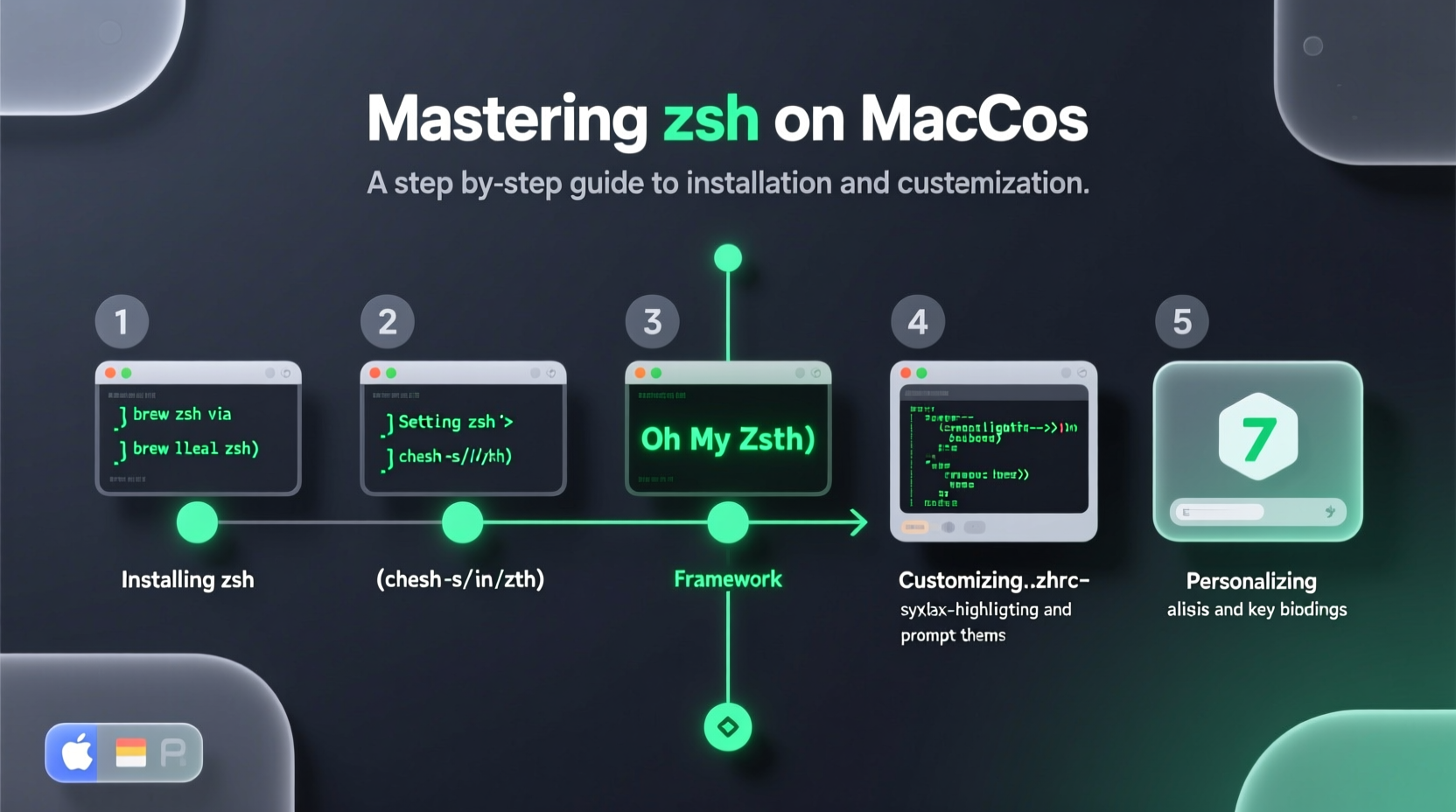
Zsh combines the familiarity of Bash with powerful enhancements that improve productivity and usability. It supports advanced tab completion, spelling correction, themeable prompts, and plugin ecosystems—features that make navigating files, running commands, and managing workflows faster and more intuitive.
Unlike Bash, Zsh allows deep customization without requiring external tools. Its compatibility with Bash scripts ensures a smooth transition, while features like shared command history across terminals and dynamic loading of functions elevate the user experience.
“Zsh isn’t just a shell—it’s a productivity layer over your operating system.” — Dan Luu, Systems Performance Engineer
Step-by-Step Installation and Setup
While Zsh comes preinstalled on modern versions of macOS, ensuring it's properly configured and set as your default shell is essential. Follow these steps to get started:
- Check Your Current Shell: Run
echo $SHELL. If it returns/bin/zsh, you're already using Zsh. - Install or Update Zsh (if needed): Use Homebrew:
brew install zsh. - Verify Installation: Type
zsh --versionto confirm the installed version. - Change Default Shell: Run
chsh -s /bin/zsh. You may need to enter your password. - Restart Terminal: Close and reopen your terminal app to load Zsh.
/bin/zsh isn't found, use
which zsh to locate the correct path after installing via Homebrew.
Enhance Zsh with Oh My Zsh
Oh My Zsh is an open-source framework that simplifies Zsh configuration with themes, plugins, and community-driven tools. It dramatically reduces the effort required to customize your shell.
Installing Oh My Zsh
Run the official installer in your terminal:
sh -c \"$(curl -fsSL https://raw.githubusercontent.com/ohmyzsh/ohmyzsh/master/tools/install.sh)\"
This automatically backs up your existing configuration (if any), clones the Oh My Zsh repository, and sets up a default .zshrc file.
Key Features of Oh My Zsh
- Themes: Over 140 visually rich prompt themes.
- Plugins: Support for Git, Docker, AWS, Node.js, and more.
- Auto-updates: Built-in update mechanism (enabled by default).
- Aliases: Predefined shortcuts for common commands.
DISABLE_AUTO_UPDATE=\"true\" to your
.zshrc if you prefer manual control.
Customizing Your Zsh Experience
Personalization is where Zsh truly shines. The main configuration file, ~/.zshrc, controls everything from appearance to behavior.
Changing Your Prompt Theme
Edit ~/.zshrc and locate the line starting with ZSH_THEME. Replace the value with your preferred theme. For example:
ZSH_THEME=\"agnoster\"
Some popular themes include:
| Theme | Description |
|---|---|
robbyrussell |
Default; clean and minimal. |
agnoster |
Popular two-line theme with Git status. |
powerlevel10k |
Highly customizable, fast, and feature-rich (requires separate install). |
af-magic |
Colorful and user-friendly. |
Enabling Plugins
In the same .zshrc file, find the plugins=() line. Add plugins inside the parentheses, separated by spaces:
plugins=(git docker npm node yarn)
Commonly used plugins:
git: Adds Git branch and status to prompt.osx: Mac-specific aliases (e.g.,oto open a file).sudo: Press Esc twice to prependsudoto the last command.z: Jump to frequent directories quickly.
Adding Custom Aliases
Add your own shortcuts at the bottom of .zshrc:
alias ll='ls -la'
alias c='clear'
alias weather='curl wttr.in'
After editing, reload the configuration with source ~/.zshrc.
Advanced Configuration: Powerlevel10k and Beyond
For users seeking maximum visual feedback and performance, Powerlevel10k is the gold standard. It’s a theme engineered for speed and configurability.
Installing Powerlevel10k
brew install powerlevel10k
Then add to your .zshrc:
ZSH_THEME=\"powerlevel10k/powerlevel10k\"
Restart your terminal. The first launch triggers an interactive configuration wizard guiding you through prompt style, icons, and layout preferences.
Font Requirements
Powerlevel10k uses special glyphs and icons. Install a compatible font such as Meslo Nerd Font and configure your terminal app (Terminal, iTerm2) to use it.
“Powerlevel10k turns the terminal into a dashboard. I see Git status, time, battery, and more—all without leaving the shell.” — Sofia Tran, DevOps Engineer
Real-World Workflow: A Developer’s Daily Use Case
Meet Jordan, a full-stack developer working on multiple projects. Each morning, Jordan opens the terminal and navigates between React frontends, Node backends, and Docker containers.
With Zsh configured using Oh My Zsh and the powerlevel10k theme, Jordan sees the Git branch and status instantly. Typing gco main (thanks to the git plugin’s aliases) switches branches effortlessly. When debugging, docker ps is shortened to dps via a custom alias. Frequent project directories are accessed using z client-project.
The unified, intelligent prompt reduces cognitive load. Commands are completed faster, errors are caught earlier, and navigation feels seamless—all because of thoughtful Zsh customization.
Essential Checklist for Mastering Zsh
Follow this checklist to ensure a robust and personalized Zsh setup:
- ✅ Confirm Zsh is installed and set as default shell
- ✅ Install Oh My Zsh for easy management
- ✅ Choose and apply a theme (e.g., agnoster or powerlevel10k)
- ✅ Enable useful plugins (git, docker, z, etc.)
- ✅ Create custom aliases for frequently used commands
- ✅ Install a Nerd Font if using icon-heavy themes
- ✅ Reload config with
source ~/.zshrcafter changes - ✅ Backup your
.zshrcfile for reuse on other machines
Frequently Asked Questions
Can I switch back to Bash if needed?
Yes. Run chsh -s /bin/bash to revert to Bash as your default shell. Your Zsh configuration remains intact for future use.
How do I fix broken colors or missing icons in my prompt?
This usually happens when your terminal font doesn’t support Powerline or Nerd Fonts. Download and install a compatible font (like Meslo LG M Regular Nerd Font), then set it in your terminal preferences.
Is Oh My Zsh safe to use?
Yes. Oh My Zsh is open-source, actively maintained, and widely adopted. However, always review any script before running it. The installer uses HTTPS and checks integrity via raw GitHub content.
Conclusion: Take Control of Your Terminal
Mastering Zsh on macOS transforms the terminal from a basic command interpreter into a responsive, intelligent workspace. With smart configuration, powerful plugins, and a polished interface, every interaction becomes faster and more efficient. Whether you’re deploying code, managing containers, or simply navigating directories, a well-tuned Zsh environment pays dividends in daily productivity.




 浙公网安备
33010002000092号
浙公网安备
33010002000092号 浙B2-20120091-4
Comments
No comments yet. Why don't you start the discussion?