
The PlayStation 5 delivers a next-gen gaming experience, but its built-in storage—approximately 667GB of usable space on the 825GB SSD—can fill up fast. With modern games regularly exceeding 80GB, managing storage becomes essential for uninterrupted play. Whether you're juggling multiple AAA titles or building a digital library, maximizing your PS5's storage isn't optional—it's a necessity. The good news is that Sony has designed the system with expansion in mind, offering flexible solutions beyond simple deletion.
Understanding Your PS5’s Storage Architecture
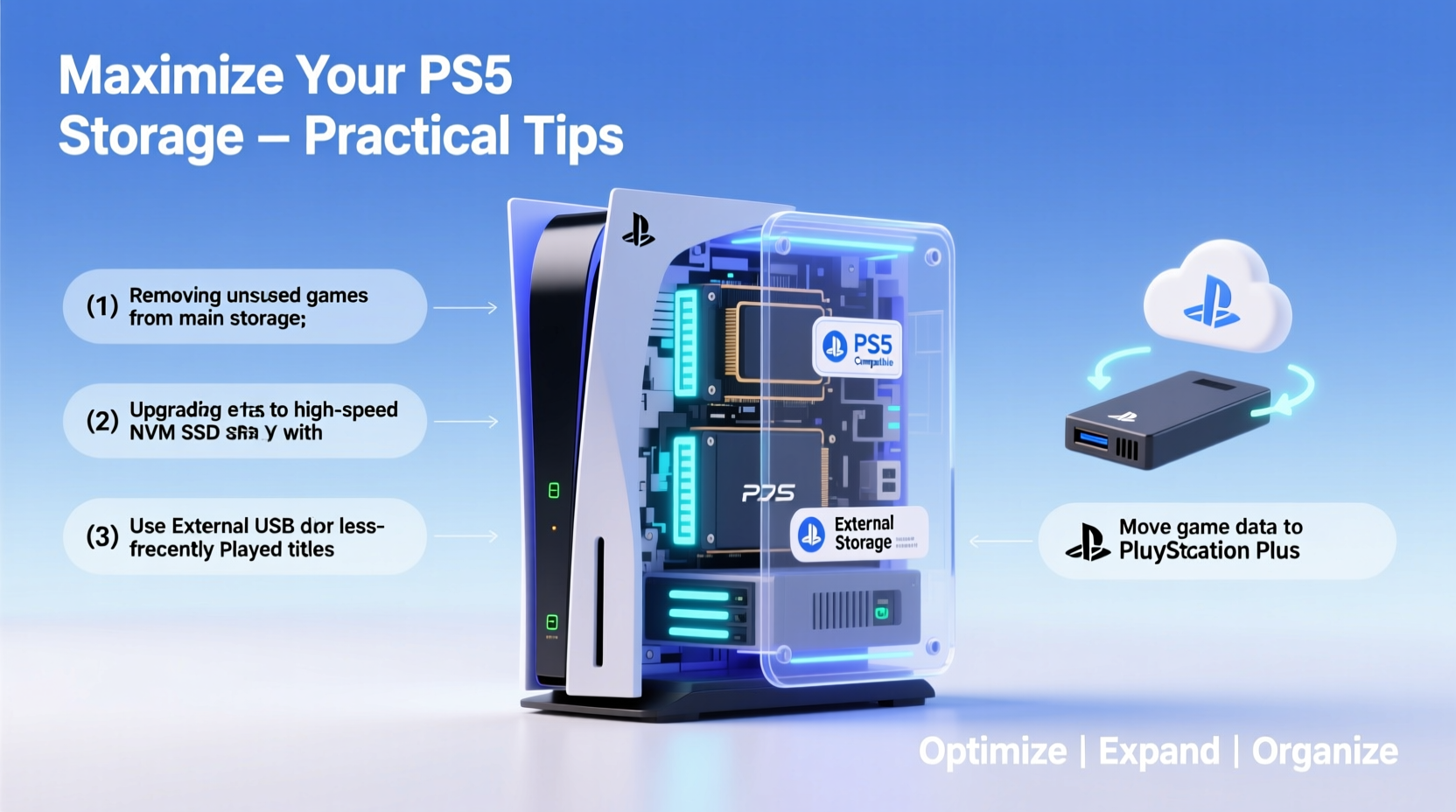
The PS5 uses a custom NVMe SSD optimized for high-speed data streaming, which enables rapid load times and seamless gameplay. However, not all storage is created equal on this console. There are three distinct types of storage you can use:
- Internal SSD (Custom): The default drive, ideal for PS5 games due to its speed and compatibility.
- M.2 NVMe SSD (Expansion Slot): A user-upgradable slot on the motherboard allows for additional high-speed storage specifically for PS5 games.
- External USB Drive: Can store both PS4 and PS5 games, but only PS4 titles can be played directly from it.
Knowing these distinctions is crucial when planning your storage strategy. While external drives are great for archiving, only internal or M.2 expansions let you play PS5 games at full performance.
Step-by-Step Guide to Installing an M.2 SSD
Expanding your PS5’s internal storage via the M.2 slot is one of the most effective upgrades. Here’s how to do it safely and correctly:
- Power down your PS5 completely. Do not put it in rest mode—fully shut it down using the power menu.
- Lay the console horizontally. The expansion slot is more accessible in this position, and it prevents strain on the cover.
- Remove the side panel. Slide off the outer casing by pressing the release button near the rear.
- Locate the M.2 bay. It’s under a small screw-secured cover on the front-left side of the chassis.
- Insert your compatible NVMe SSD. Angle the drive into the slot at about 30 degrees, then secure it with the provided screw.
- Reattach the cover and side panel. Ensure everything clicks securely into place.
- Power on the PS5 and format the drive. Navigate to Settings > Storage > M.2 SSD Storage > Format as Install Drive.
Once formatted, your new drive will act as an extension of the internal SSD, allowing you to install and play PS5 games directly from it.
“Upgrading to a high-speed M.2 SSD transforms the PS5 from a constrained device into a true long-term gaming platform.” — David Chen, Console Hardware Analyst at TechPlay Insights
Optimizing Storage with External Drives
If opening your console feels daunting, or you’re looking for a budget-friendly option, external USB drives offer excellent backup capabilities. You can connect portable SSDs or traditional HDDs via USB-A or USB-C ports.
While PS5 games cannot be played directly from external drives, they can be stored there. This means you can move less-played titles to an external drive, freeing up internal space without redownloading later.
| Drive Type | Best For | Speed (Read) | PS5 Game Playable? |
|---|---|---|---|
| Internal/M.2 SSD | Active PS5 games | 5,500+ MB/s | Yes |
| External SSD (USB 3.2) | Storing & transferring PS5 games | 400–1,000 MB/s | No (but fast transfer back) |
| External HDD | Archiving PS4 games and older titles | 100–200 MB/s | PS4: Yes | PS5: No |
An external SSD provides the fastest transfer speeds when moving games between internal and external storage. For example, shifting a 70GB game from internal to external takes under 2 minutes with an SSD, compared to 10+ minutes with an HDD.
Smart File Management Strategies
Beyond hardware upgrades, optimizing how you manage game data significantly extends usable space. Consider these practices:
- Delete unnecessary game captures. Screenshots and video clips accumulate quickly. Regularly review and delete unneeded media in Capture Gallery.
- Uninstall game add-ons you’ve completed. DLCs like bonus missions or cosmetics can be re-downloaded later if needed.
- Use selective updates. Some games allow you to download only specific modes (e.g., multiplayer only), reducing initial footprint.
- Move games instead of deleting. Use the “Move to External USB Storage” option to preserve progress and avoid re-downloading.
Think of your PS5 storage like a wardrobe: rotate seasonal items rather than throwing them away. Games you’re not currently playing don’t need prime real estate.
Mini Case Study: Recovering 200GB Overnight
Mark, a dedicated gamer from Austin, found his PS5 nearly full after installing *Call of Duty: Modern Warfare III*, *Spider-Man 2*, and *Final Fantasy XVI*. He had just 18GB free and was facing constant deletion cycles. Instead of removing games, he purchased a 1TB Samsung T7 portable SSD. Over one evening, he moved all but his most-played title (*Spider-Man 2*) to the external drive. This freed up over 200GB instantly. When he wanted to return to *Final Fantasy XVI*, he moved *Spider-Man 2* out and swapped it in—total transfer time: 3 minutes. His workflow improved dramatically, and he avoided repurchasing or redownloading content.
Storage Maintenance Checklist
Keep your PS5 running efficiently with this monthly maintenance routine:
- Review installed games and flag those no longer actively played.
- Transfer flagged games to external storage or uninstall them.
- Clear captured videos and screenshots older than 30 days.
- Check for firmware updates (Settings > System > System Software).
- Verify M.2 SSD health (if installed) through reliable benchmarks or monitoring tools.
- Back up save data to PlayStation Plus cloud (if subscribed).
Frequently Asked Questions
Can I use any M.2 SSD in my PS5?
No. Only M.2 NVMe SSDs with a PCIe Gen4 interface and sequential read speeds of at least 5,500 MB/s are supported. Additionally, the physical size must fit within PS5 specifications: 2230, 2242, 2260, 2280, or 22110 lengths, with a single-sided design preferred.
Why can’t I play PS5 games from my external drive?
PS5 games are optimized for the internal SSD’s speed. External USB drives, even fast SSDs, don’t meet the bandwidth requirements for real-time asset streaming. However, you can store PS5 games externally and transfer them back to internal storage when ready to play.
Is it safe to remove the external drive while the PS5 is off?
Yes, as long as the console is fully powered down (not in rest mode) and no data transfers are active. Always eject the drive via Settings > Storage > External USB Storage > Stop Using This Drive before disconnecting.
Conclusion: Take Control of Your Gaming Experience
Your PS5’s storage doesn’t have to limit your gaming potential. With the right combination of hardware expansion and smart management, you can maintain a vast, responsive library without constant cleanup. Whether you’re adding a high-speed M.2 SSD, leveraging external drives for archiving, or refining your file habits, every step contributes to a smoother, more enjoyable experience. Don’t wait until “Storage Full” interrupts your gameplay—plan ahead, upgrade wisely, and play freely.




 浙公网安备
33010002000092号
浙公网安备
33010002000092号 浙B2-20120091-4
Comments
No comments yet. Why don't you start the discussion?