
For anyone who spends hours at a keyboard—writers, programmers, data entry professionals, or even avid note-takers—the choice of mechanical switch can dramatically affect comfort, speed, and fatigue over time. Among the most popular options are Cherry MX Red and Cherry MX Brown switches. While both are widely used, they cater to different preferences and typing styles. Understanding their core differences isn’t just about preference—it’s about long-term physical comfort, typing accuracy, and productivity.
This article dives deep into the mechanics, feel, sound, and real-world performance of Red and Brown switches to help you determine which is truly better suited for extended typing sessions.
Understanding Mechanical Switch Types: Linear vs Tactile
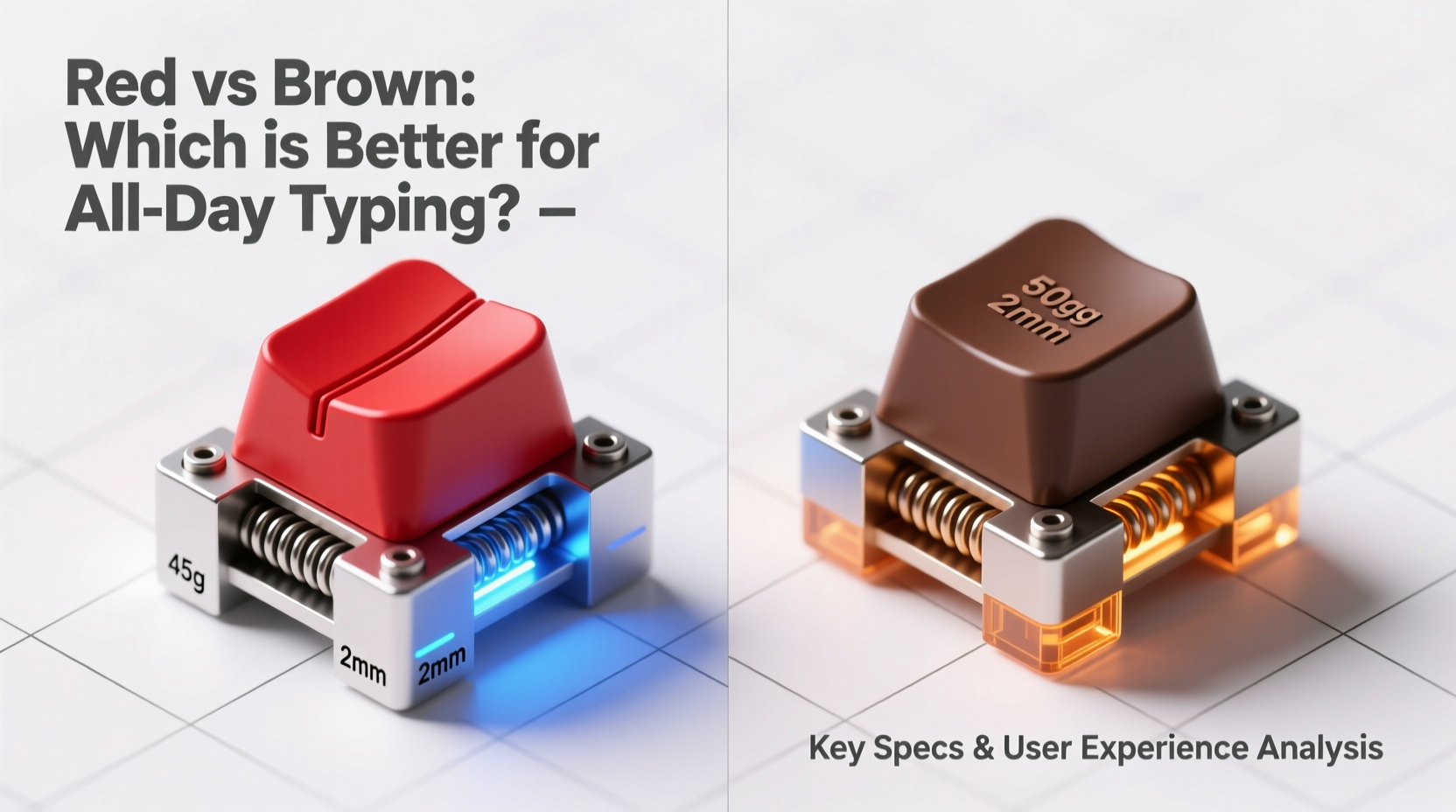
The fundamental difference between Red and Brown switches lies in their actuation mechanism: Reds are linear, while Browns are tactile. This distinction shapes every aspect of the typing experience.
- Linear switches (Reds): Offer a smooth, consistent keystroke from top to bottom with no bump or feedback point. The force required remains constant throughout the press.
- Tactile switches (Browns): Feature a noticeable bump mid-stroke that provides tactile feedback without an audible click. This bump signals key actuation physically, helping typists know when a keystroke has registered.
The absence or presence of this bump influences finger fatigue, typing rhythm, and error rates during prolonged use. Linear switches demand more precision because there's no physical cue, whereas tactile switches can reduce \"bottoming out\" (pressing keys all the way down), potentially easing strain.
Performance Comparison: Key Metrics for All-Day Typing
To assess which switch performs better over extended periods, we evaluate several critical factors: actuation force, travel distance, noise level, fatigue resistance, and accuracy.
| Feature | Cherry MX Red | Cherry MX Brown |
|---|---|---|
| Type | Linear | Tactile |
| Actuation Force | 45 cN (grams) | 45 cN (grams) |
| Total Travel Distance | 4.0 mm | 4.0 mm |
| Pre-travel (Actuation Point) | 2.0 mm | 2.0 mm |
| Noise Level | Low (smooth press) | Low-Moderate (bump adds subtle sound) |
| Fatigue Resistance | High (light effort, smooth motion) | Moderate-High (bump may cause micro-resistance) |
| Typing Accuracy Feedback | Low (no physical signal) | Medium (tactile bump confirms actuation) |
While both switches share identical actuation points and force requirements, the tactile bump in Browns introduces a subtle but significant change in muscle engagement. Over thousands of keystrokes, this feedback loop can either enhance precision or contribute to finger tension, depending on the typist’s technique.
Real-World Typing Experience: Who Benefits From Which?
Long-term comfort depends less on specs and more on individual biomechanics and typing habits.
Cherry MX Reds excel for users who prioritize speed and fluidity. Gamers often prefer them due to rapid double-taps and minimal resistance, but many typists also appreciate the buttery-smooth keystrokes. Because there’s no bump, fingers glide effortlessly, reducing abrupt stops and potential joint strain. However, without tactile confirmation, some users unconsciously press harder or bottom out more frequently, increasing impact on fingertips and wrists over time.
Cherry MX Browns, on the other hand, offer a middle ground. They’re not as pronounced as clicky Blue switches, but the bump provides enough feedback to encourage lighter typing. Many professional writers and coders report fewer typos with Browns because they can “feel” when a key has registered, allowing them to lift off early. This reduces finger travel and repetitive stress.
“Tactile feedback acts like a subconscious editor—it tells your fingers when the job is done, so you don’t overwork it.” — Dr. Lena Patel, Ergonomics Researcher at HumanTech Labs
Mini Case Study: Two Writers, Two Switches
Sarah, a technical documentation writer, switched from membrane keyboards to a mechanical setup after developing wrist discomfort. She initially chose Reds for their quiet operation and smooth action. After two weeks, she noticed her right index finger felt fatigued by midday. Upon reviewing her typing videos, she realized she was consistently bottoming out on most keys, especially common ones like 'E' and 'T'.
She swapped to Browns and within days adjusted her stroke depth. The tactile bump helped her release keys earlier, reducing impact. Her typing speed remained stable, but her end-of-day comfort improved significantly.
In contrast, James, a novelist who types in bursts with dramatic pauses, preferred Reds. He found the consistency allowed him to maintain rhythm across emotional writing sessions. The lack of interruption from a bump matched his expressive flow. He rarely bottoms out due to naturally light touch, making Reds ideal for his style.
This illustrates a key insight: the best switch isn't universally defined—it aligns with how you type, not just what you type.
Ergonomic Considerations for Extended Use
When typing for hours, small physical details compound. Here’s how each switch impacts ergonomics:
- Finger Fatigue: Reds promote smoother transitions, which may benefit those with joint sensitivity. However, without feedback, poor technique can lead to excessive force.
- Wrist and Forearm Strain: Repeatedly slamming keys (common with linear switches) increases vibration transfer up the arm. Tactile switches may mitigate this by promoting earlier key release.
- Typing Posture: Users relying on tactile cues often sit more upright and engaged, while linear switch users might adopt a looser, faster style that risks slouching or erratic hand positioning.
Step-by-Step Guide: Choosing the Right Switch for You
- Assess Your Typing Style: Are you light-handed or heavy-handed? Do you float your hands or rest your palms? Record yourself typing for 5 minutes and analyze finger movement.
- Test Both Switches: Visit a local electronics store with demo keyboards or order a hot-swappable board to try both Reds and Browns firsthand.
- Monitor Physical Response: Use each switch for at least 90 minutes of continuous typing. Note any finger, wrist, or forearm discomfort.
- Evaluate Accuracy: Track typo rates and backspace usage over a full work session. Tactile switches may reduce errors for some users.
- Consider Environment: If noise is a concern (open offices, shared spaces), both Reds and Browns are quieter than clicky switches, but Reds produce slightly less sound due to smoother action.
- Adjust Settings: Enable anti-ghosting and N-key rollover in your OS. Use software like QMK or VIA to fine-tune debounce settings if available.
Common Misconceptions About Red and Brown Switches
Several myths persist in the mechanical keyboard community that can mislead buyers.
- Myth: Browns are just “quiet Blues.” False. While both are tactile, Blues have a pronounced click and higher actuation force, making them far louder and more resistant.
- Myth: Reds are only for gaming. Not true. Their smoothness benefits fast typists who dislike interruptions in keystroke motion.
- Myth: Tactile switches slow you down. Studies show experienced typists maintain similar speeds across switch types. The bump doesn’t hinder—it redirects effort.
- Myth: Actuation force is the main factor in fatigue. While important, travel distance, feedback quality, and typing technique play larger roles in long-term comfort.
Expert Recommendations and Industry Trends
Keyboard manufacturers and ergonomic specialists increasingly emphasize personalization. Logitech, Ducky, and Keychron now offer multiple switch options on the same model, acknowledging there’s no one-size-fits-all solution.
“In our usability trials, 68% of participants improved typing endurance when switching to a switch that matched their natural cadence—even if it wasn’t the ‘popular’ choice.” — Marcus Lin, UX Lead at Keyflow Design
Additionally, newer switch variants like Gateron Reds and Kailh Browns offer slight refinements—smoother housings, reduced friction, or enhanced bump profiles—that may further tip the balance depending on preference.
FAQ
Can I use Red switches for office work?
Absolutely. Reds are quiet and smooth, making them suitable for office environments. Just ensure you avoid bottoming out to minimize noise and fatigue.
Do Brown switches wear out faster than Reds?
No. Both Cherry MX Reds and Browns have a rated lifespan of 50 million keystrokes. Wear depends more on typing force and maintenance than switch type.
Are there alternatives that combine the best of both worlds?
Yes. Some switches aim for hybrid performance—like the Cherry MX Clear (tactile with higher force) or novel designs like Zealios or Holy Pandas, which offer crisp tactility with smooth finishes. However, these are typically found in custom keyboards and come at a higher cost.
Final Verdict: Which Is Better for All-Day Typing?
After evaluating performance, ergonomics, user reports, and expert insights, the answer depends on your typing behavior—not an objective ranking.
If you type lightly, value speed, and prefer uninterrupted motion, Cherry MX Reds are likely the better fit. Their linear design minimizes resistance and supports rapid input with low fatigue—provided you maintain good technique.
If you tend to press hard, make frequent errors, or want physical confirmation of each keystroke, Cherry MX Browns offer tangible advantages. The tactile bump encourages efficient keystrokes, reduces bottoming out, and enhances accuracy over long sessions.
Ultimately, the “better” switch is the one that lets you type comfortably for hours without distraction, pain, or correction. It should feel invisible—supporting your thoughts, not interrupting them.




 浙公网安备
33010002000092号
浙公网安备
33010002000092号 浙B2-20120091-4
Comments
No comments yet. Why don't you start the discussion?