
As remote work becomes a permanent fixture for millions, the tools we use daily matter more than ever. Among them, the keyboard is one of the most personal and frequently used devices. It shapes our workflow, influences fatigue, and even affects mental focus. Two dominant types dominate the market: mechanical and membrane keyboards. While both get the job done, their impact on typing comfort during extended work sessions can differ significantly. Understanding these differences helps remote workers make informed decisions that support health, efficiency, and overall satisfaction at home desks.
How Mechanical and Membrane Keyboards Work
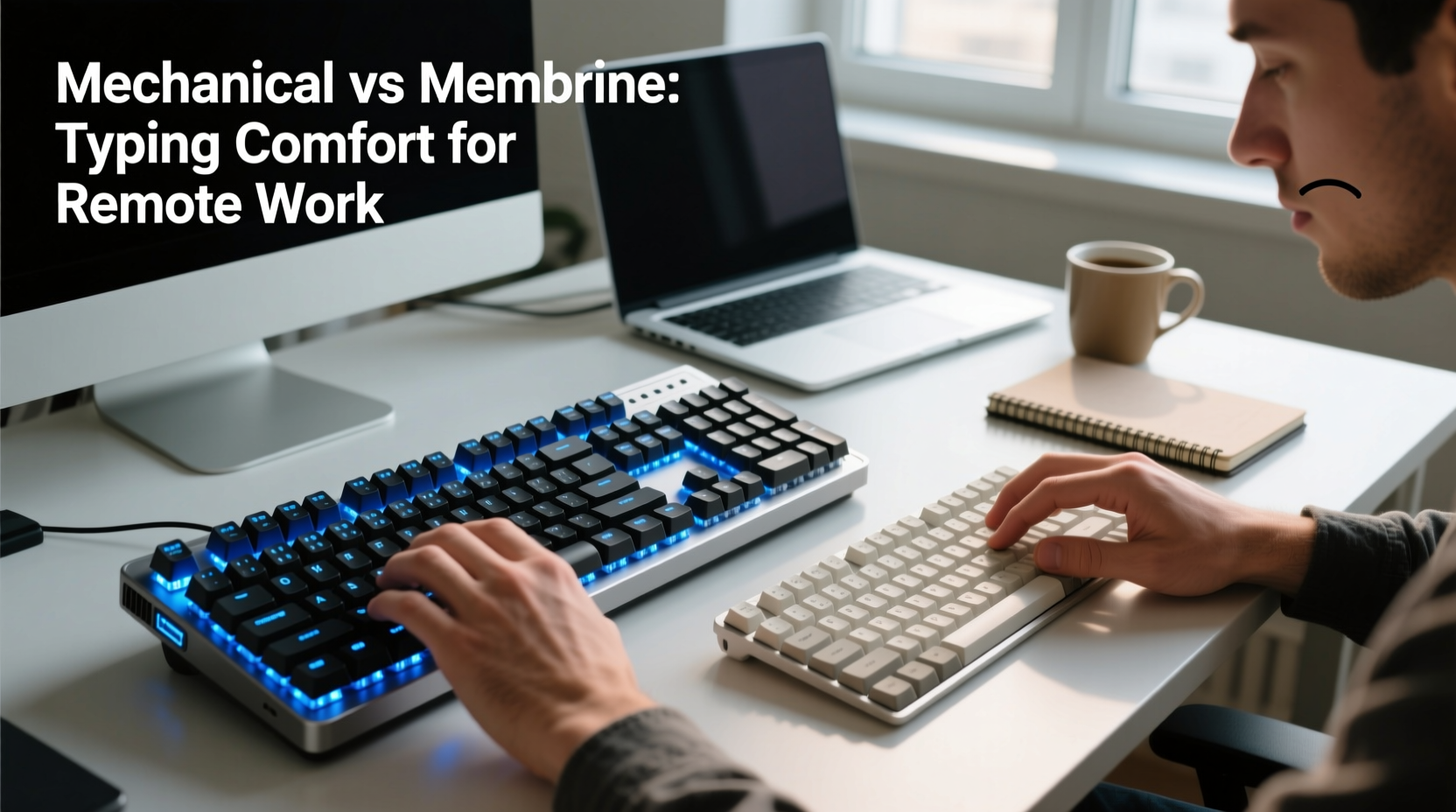
The fundamental difference between mechanical and membrane keyboards lies in how keystrokes are registered.
Mechanical keyboards use individual mechanical switches under each keycap. Each switch contains physical components—typically a spring and metal contacts—that register input when pressed. This design allows for precise actuation points, tactile feedback, and audible clicks (depending on the switch type). Brands like Cherry MX, Kailh, and Gateron offer various switch variants tailored to different preferences—linear, tactile, or clicky.
Membrane keyboards, on the other hand, rely on a layered rubber or silicone sheet beneath the keys. When you press a key, it pushes down on this membrane, completing an electrical circuit to register the keystroke. These keyboards lack individual mechanical components per key, resulting in a softer, mushier feel with less distinct feedback.
This core distinction sets the stage for differences in typing experience, especially over hours of daily use common in remote work environments.
Typing Comfort: Pressure, Travel, and Feedback
Comfort during prolonged typing isn’t just about wrist support—it’s influenced by actuation force, key travel distance, and sensory feedback.
- Actuation Force: Mechanical switches typically require 45–60 grams of force to actuate, though lighter options exist (e.g., 35g red switches). Membrane keys often need similar or slightly higher pressure but distribute it unevenly due to their dome structure.
- Key Travel: Mechanical switches usually have 2–4 mm of total travel with a defined actuation point around 2 mm. Membrane keys may compress fully only after deeper presses, leading to finger fatigue from over-travel.
- Tactile Feedback: Many mechanical switches provide a noticeable bump or click upon actuation, helping typists know a keystroke was registered without bottoming out. Membrane keyboards generally offer minimal feedback, encouraging users to press harder or fully depress keys unnecessarily.
For remote workers spending six to ten hours a day typing emails, reports, or coding, these factors accumulate. A keyboard with clear tactile response reduces finger strain because less effort is required to confirm input registration. Over time, this contributes to reduced muscular tension and improved endurance.
Noise Levels and Shared Living Spaces
One of the most debated aspects of mechanical keyboards is sound. Clicky switches—such as Cherry MX Blues or Kailh Box Whites—produce sharp, audible feedback with every keystroke. While some find this satisfying, others (and nearby family members) may find it distracting, especially during video calls or early-morning work sessions.
Membrane keyboards, by contrast, operate almost silently. Their rubber-dome mechanism absorbs most impact noise, making them ideal for shared homes, apartments, or cohabiting setups where quiet operation is essential.
However, not all mechanical keyboards are loud. Linear switches (e.g., Cherry MX Reds) and tactile non-clicky variants (e.g., Browns) produce significantly less noise. Additionally, features like O-rings, foam padding inside the case, or silent switch designs (e.g., Gateron Silent Reds) can dampen sound effectively.
“Sound matters more in remote work than people realize. A noisy keyboard can disrupt concentration—not just yours, but others nearby.” — Dr. Lena Patel, Ergonomic Consultant at Remote Workspace Labs
Comparison Table: Mechanical vs Membrane for Remote Work
| Feature | Mechanical Keyboard | Membrane Keyboard |
|---|---|---|
| Typing Feedback | Clear tactile or auditory confirmation; consistent actuation | Mushy feel; inconsistent feedback; requires full press |
| Fatigue Resistance | Higher—due to precision actuation and ergonomic switch options | Lower—requires more finger effort over time |
| Noise Output | Varies: clicky (high), linear/tactile (moderate), silent (low) | Low—nearly silent operation |
| Durability | High—rated for 50M+ keystrokes per switch | Moderate—typically 5M–10M keystrokes |
| Customization | High—swappable switches, programmable keys, RGB lighting | Low—limited to basic layouts and functions |
| Portability & Size | Often heavier and bulkier; varies by model | Lightweight and compact; easier to move |
| Price Range | $70–$250+ (premium models with extras) | $20–$60 (budget-friendly) |
Real-World Example: Sarah’s Transition to Remote Work
Sarah, a technical writer based in Denver, shifted to full-time remote work in 2020. Initially using her laptop’s built-in membrane-style keyboard, she began experiencing fingertip soreness and shoulder tension after long writing sessions. After researching ergonomic solutions, she invested in a mid-range mechanical keyboard with Brown switches.
Within two weeks, she noticed improvements. “I no longer have to ‘mush’ the keys down completely,” she said. “The tactile bump tells me the letter registered, so I can lift my fingers sooner. My wrists feel lighter, and I’m not tensing up by noon.”
Her only challenge was noise—her partner found the tapping disruptive during morning meetings. To resolve this, Sarah added a silicone o-ring mod and switched to a desk mat with damping properties. The compromise worked: she retained typing comfort while minimizing disturbance.
Sarah’s experience illustrates how small hardware changes can yield significant ergonomic benefits—provided environmental constraints are considered.
Ergonomic Longevity and Maintenance
Remote work isn’t a sprint—it’s a marathon. Choosing equipment that supports long-term well-being is crucial.
Mechanical keyboards excel in longevity. Individual switches can be replaced, keycaps swapped, and internal components cleaned easily. Most high-quality models last a decade or more with proper care. This durability makes them cost-effective over time despite higher upfront prices.
Membrane keyboards degrade faster. Repeated compression wears down rubber domes, leading to missed keystrokes or double-taps. Spills are harder to clean since liquid penetrates beneath the membrane layer, potentially shorting circuits. Replacement is often cheaper than repair.
From an ergonomic maintenance perspective, mechanical keyboards also allow customization to suit evolving needs. For example, switching to lower-profile switches or adjusting actuation sensitivity via software can accommodate changing hand strength or injury recovery.
Actionable Checklist: Choosing the Right Keyboard for Your Setup
Before purchasing, assess your workspace and usage patterns. Use this checklist to guide your decision:
- ✅ Evaluate your daily typing volume: Do you write code, draft documents, or mostly browse?
- ✅ Consider your environment: Do you share space with others? Are video calls frequent?
- ✅ Test switch types: Try linear (Red), tactile (Brown), or silent variants if possible.
- ✅ Check build quality: Look for aluminum frames, PBT keycaps, and detachable cables.
- ✅ Assess portability: Will you move the keyboard often or keep it on a dedicated desk?
- ✅ Set a realistic budget: Entry-level mechanical boards now start around $60 with good performance.
- ✅ Prioritize ergonomics: Consider split, angled, or tented designs if you experience discomfort.
Frequently Asked Questions
Can a mechanical keyboard reduce typing injuries?
While no keyboard eliminates risk entirely, mechanical models may help prevent repetitive strain injuries (RSIs). Their responsive actuation reduces finger exertion, promotes lighter keystrokes, and encourages better typing rhythm. Paired with proper posture and regular breaks, they contribute to healthier typing habits.
Are membrane keyboards obsolete?
No. Membrane keyboards remain relevant for casual users, travelers, or those on tight budgets. They’re reliable for light tasks and excel in quiet environments. However, for intensive professional use, their limitations in feedback and lifespan become apparent over time.
Do wireless mechanical keyboards affect responsiveness?
Modern wireless mechanical keyboards using Bluetooth 5.0 or 2.4 GHz RF dongles offer near-instantaneous response times. Input lag is negligible for typing, though gamers might prefer wired connections for ultra-low latency. Battery life on premium models lasts weeks between charges.
Final Recommendation: Match Keyboard to Lifestyle
There’s no universal answer to whether mechanical or membrane keyboards are better for remote work. The choice depends on individual priorities.
If you value precision, durability, and long-term comfort—and can manage noise—mechanical keyboards are likely worth the investment. Their superior feedback and customizability enhance productivity and reduce physical strain over months and years.
If you live in a quiet household, need portability, or perform minimal typing, a quality membrane keyboard may suffice. Some hybrid models, like scissor-switch keyboards found in premium laptops, bridge the gap with improved tactility and low noise.
The best approach is to treat your keyboard as a tool of wellness, not just utility. Just as you’d choose supportive footwear for a long hike, select a keyboard that supports your body through the daily journey of remote work.
“Your keyboard should serve you, not fight you. Every tap should feel effortless, not exhausting.” — James Wu, Industrial Designer at Typewise Co.
Take Action Today
Don’t wait until discomfort sets in. Audit your current setup. Spend 10 minutes researching models that align with your work style. Try a friend’s mechanical keyboard or test one in-store. Small upgrades today can prevent pain tomorrow. Share your experience, ask questions, and join the conversation about building healthier digital workspaces—one keystroke at a time.




 浙公网安备
33010002000092号
浙公网安备
33010002000092号 浙B2-20120091-4
Comments
No comments yet. Why don't you start the discussion?