
Spending hours drafting detailed emails is a reality for many professionals, from remote workers to corporate executives. The keyboard you use during these extended typing sessions can significantly influence your comfort, speed, accuracy, and even long-term hand health. While both mechanical and membrane keyboards serve the same basic function, their underlying mechanisms produce vastly different experiences—especially when it comes to sustained typing tasks like writing long emails. Understanding these differences helps you choose the right tool for endurance, efficiency, and well-being.
How Mechanical and Membrane Keyboards Work
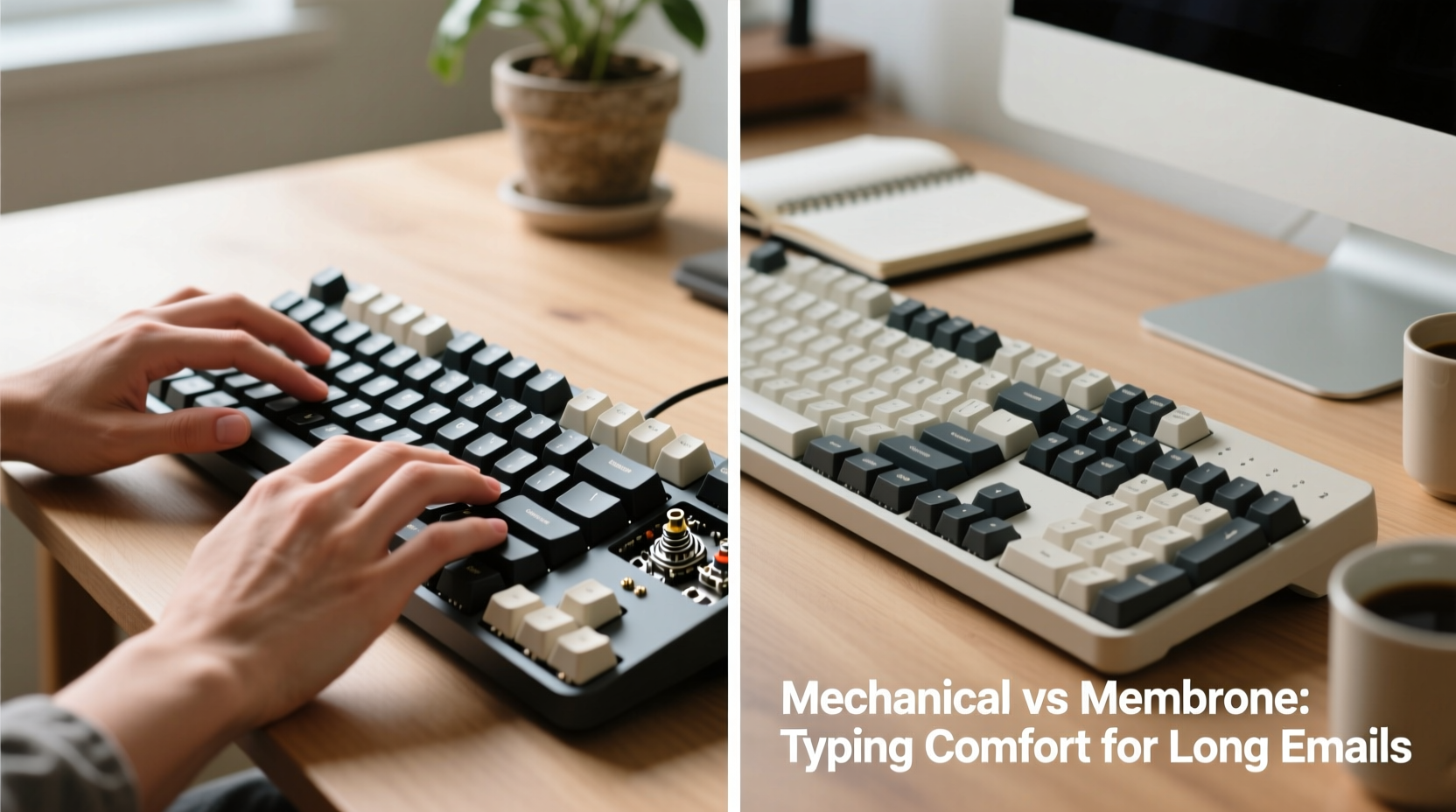
The core distinction between mechanical and membrane keyboards lies in their internal switch design and actuation method.
Mechanical keyboards use individual physical switches under each keycap. Each switch contains a spring and metal contacts that register a keystroke when pressed down to a specific point (the actuation point). These switches come in various types—linear, tactile, and clicky—each offering a unique feel and sound profile.
Membrane keyboards, on the other hand, rely on a layered rubber or silicone sheet beneath the keys. When a key is pressed, it pushes down on this membrane, which makes contact with a circuit board to register the input. This design results in a softer, mushier keystroke with less feedback compared to mechanical models.
This fundamental difference affects everything from finger fatigue to typing rhythm over time.
Typing Comfort: A Side-by-Side Comparison
When evaluating comfort for long email sessions, several factors matter: tactile feedback, actuation force, noise level, key travel distance, and overall consistency across the keyboard.
| Feature | Mechanical Keyboard | Membrane Keyboard |
|---|---|---|
| Tactile Feedback | High – distinct bump or click at actuation point | Low – soft, uniform press without clear feedback |
| Actuation Force | Consistent across all keys (45–60g typical) | Inconsistent; often requires full bottom-out |
| Key Travel Distance | 3.5–4.0mm with early actuation (~2mm) | 3.5–4.0mm but registers only at bottom |
| Noise Level | Varies (clicky loud, linear quiet) | Generally quieter |
| Fatigue Over Time | Lower due to precise actuation and reduced finger effort | Higher due to lack of feedback and repeated over-pressing |
| Durability | 50–100 million keystrokes per switch | 5–10 million keystrokes; degrades faster |
The data shows that mechanical keyboards offer superior precision and responsiveness, allowing typists to develop a rhythm where fingers barely need to press fully before the keystroke registers. This efficiency reduces muscle strain during long sessions. In contrast, membrane keyboards often require users to “bottom out” (press all the way down) consistently, leading to increased finger fatigue over time.
Real-World Typing Experience: A Mini Case Study
Sarah Thompson, a technical writer based in Portland, Oregon, spends an average of four hours per day composing client documentation and follow-up emails. For years, she used her laptop’s built-in membrane-style keyboard. After six months of persistent wrist discomfort and frequent typos, she consulted an ergonomic specialist who recommended trying a mechanical keyboard.
Sarah switched to a tenkeyless mechanical model with tactile Brown switches. Within two weeks, she noticed a marked improvement. “I wasn’t pressing as hard,” she said. “My fingers just glided over the keys, and I could feel when a letter registered. It cut down on mistakes and made long writing sessions feel lighter.”
Over three months, Sarah reported a 30% reduction in self-perceived typing fatigue and improved accuracy. Her experience reflects broader user trends observed in productivity studies focused on input devices.
“Switching to a mechanical keyboard isn't just about preference—it's a measurable upgrade in ergonomics for high-volume typists.” — Dr. Alan Reyes, Human Factors Engineer at MIT AgeLab
Choosing the Right Switch Type Matters
Not all mechanical keyboards are created equal. The type of switch plays a critical role in long-term comfort. Here’s a breakdown of common mechanical switch categories relevant to email-heavy workflows:
- Linear (e.g., Cherry MX Red, Gateron Yellow): Smooth press with no bump. Ideal for fast typists who prefer minimal resistance. May lead to accidental keystrokes if not touch-typing precisely.
- Tactile (e.g., Cherry MX Brown, Zealios V2): Subtle bump at the actuation point provides feedback without noise. Often considered the best balance for office environments and prolonged typing.
- Clicky (e.g., Cherry MX Blue, Kailh Box White): Audible click and strong tactile bump. Offers excellent feedback but may be disruptive in shared spaces.
For long emails, tactile switches are frequently recommended because they provide enough sensory confirmation to maintain rhythm without requiring excessive force or producing distracting noise.
Ergonomic Advantages of Mechanical Keyboards
Beyond switch feel, mechanical keyboards often support better ergonomics through additional features:
- N-key rollover: Ensures every keypress registers even during rapid typing, reducing frustration from missed inputs.
- Programmable keys: Allow customization for shortcuts (e.g., inserting email templates), minimizing repetitive navigation.
- Better build quality: Sturdy frames and higher-grade materials reduce wobble, promoting stable hand positioning.
- Customizable keycaps: Enable use of sculpted or low-profile caps that align better with natural finger movement.
These features contribute to a smoother, more controlled typing environment—critical when maintaining focus during complex or emotionally nuanced email exchanges.
Membrane keyboards, especially budget models, typically lack these enhancements. Their flexible construction can shift slightly under pressure, disrupting hand alignment. Additionally, limited anti-ghosting capabilities mean certain simultaneous keystrokes may not register, forcing users to slow down or retype.
When Membrane Keyboards Still Make Sense
Despite their drawbacks for heavy typing, membrane keyboards aren't obsolete. They remain practical in specific scenarios:
- Shared or quiet offices: Their near-silent operation avoids disturbing colleagues.
- Limited budgets: Most membrane keyboards cost $20–$50, making them accessible entry-level options.
- Portability needs: Thinner designs integrate well with laptops and travel setups.
- Casual use: For those sending short emails infrequently, the benefits of mechanical switches may not justify the investment.
Hybrid options, such as scissor-switch keyboards found in premium ultrabooks, attempt to bridge the gap by offering slightly crisper feedback than traditional membranes while remaining thin and quiet.
Step-by-Step Guide to Upgrading Your Email Typing Setup
If you're considering a change for improved comfort during long emails, follow this process:
- Assess your current pain points: Do your fingers ache? Are you making frequent typos? Is the keyboard noisy or unresponsive?
- Determine your environment: Will noise be an issue? Do you need portability or desk space efficiency?
- Test switch types: Use online simulators or purchase a switch tester kit to evaluate linear, tactile, and clicky options.
- Choose form factor: Full-size, TKL (tenkeyless), 60%, or split designs—pick one that fits your workspace and habits.
- Invest in ergonomics: Pair your new keyboard with a wrist rest and ensure your chair and monitor height support neutral posture.
- Adapt gradually: Allow 1–2 weeks to adjust to the new feel, especially if transitioning from membrane to mechanical.
- Monitor improvements: Track changes in typing speed, error rate, and physical comfort after one month.
This structured approach minimizes guesswork and ensures your upgrade delivers tangible benefits.
Checklist: Choosing the Best Keyboard for Long Emails
- ✅ Prioritize tactile feedback for accurate, low-effort typing
- ✅ Look for switches rated between 45g and 55g actuation force
- ✅ Choose a layout that reduces reaching (e.g., compact or ergonomic split)
- ✅ Ensure N-key rollover and anti-ghosting support
- ✅ Consider noise level relative to your work environment
- ✅ Test the keyboard personally if possible
- ✅ Pair with proper desk and seating ergonomics
Frequently Asked Questions
Are mechanical keyboards worth it for typing emails?
Yes, especially if you write lengthy or numerous emails daily. The precise actuation, reduced finger fatigue, and durability make mechanical keyboards a worthwhile investment for sustained typing comfort and performance.
Can a membrane keyboard cause typing strain?
Potentially, yes. Because most membrane keyboards require full key depression and offer little feedback, users often press harder than necessary. Over time, this excess force contributes to finger, wrist, and forearm strain, particularly during marathon typing sessions.
Do quiet mechanical keyboards exist for office use?
Absolutely. Linear switches like Cherry MX Reds or silent variants such as Gateron Silent Yellows offer mechanical reliability with minimal noise. Additionally, dampeners, o-rings, and padded desk mats can further reduce sound output.
Final Thoughts: Comfort Fuels Clarity
Writing long emails isn’t just about conveying information—it’s about doing so clearly, efficiently, and without physical cost. The keyboard beneath your fingers plays a surprisingly large role in that equation. While membrane keyboards have their place, mechanical models consistently outperform them in comfort, responsiveness, and long-term usability for high-volume typists.
The right mechanical keyboard doesn’t just make typing easier; it enhances focus, reduces errors, and supports healthier working habits. Whether you’re crafting client proposals, managing team communications, or responding to customer inquiries, investing in a comfortable, responsive input device pays dividends in both productivity and well-being.




 浙公网安备
33010002000092号
浙公网安备
33010002000092号 浙B2-20120091-4
Comments
No comments yet. Why don't you start the discussion?